Connect Canva folder
Keep designing in Canva and let Wallboard handle the rest. When you connect a Canva folder, Wallboard exports its designs as standard media files (PNG, PDF or MP4) into a synced folder in Files. From there, you use them like any other file — in Contents, Playlists, Schedules and Channels — and Devices receive ordinary Wallboard files.
Set it up once, then keep publishing from Canva: a synced folder can sit behind a Playlist, a Channel's folder-based selection or a folder-bound media Widget, so when your designers update the Canva folder, the screens follow.
You need a Canva credential before you can connect a folder. Learn more: Canva credentials
Connect a Canva folder
-
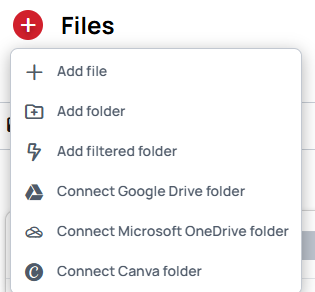
In Files, click the add button and select Connect Canva folder.
-
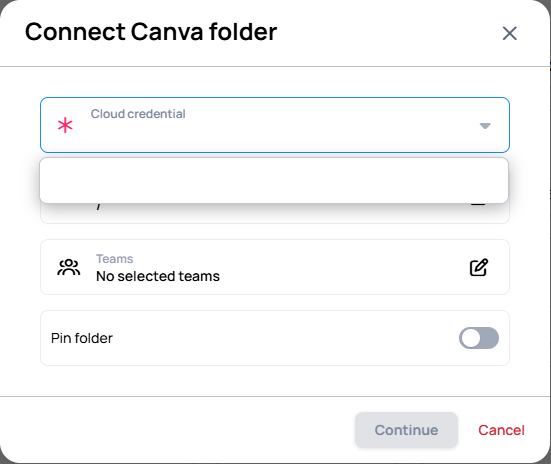
In the Connect Canva folder modal:
- Select the Cloud credential to use. If none exists yet, you can add the first one from here.
- Choose the Target folder in Wallboard where the synced folder will be created.
- Optionally, select the Teams that can access the folder, and turn on Pin folder to pin it.
-
Click Continue to open the Connection settings.
-
Set the options described below, select the Canva folder to sync from the folder tree, and click Connect.
Connection settings
File change tracking mode
- Passive sync — Monitors only file additions and deletions within the folder and ignores modifications to existing files. Ideal for direct content binding, as it keeps files unchanged.
- Active sync — Tracks all file operations: additions, deletions and modifications. Recommended for folder binding and use with system Datasources.
- Smart file update (Active sync only) — When a design changes, the new version replaces the old file everywhere it is used, so connected Widgets and bindings keep working.
In Active sync without Smart file update, a changed design can replace the file, which may affect content that references the file directly.
Learn more: About synced folders
Sync file removal / Sync folder removal
When turned on, files or folders removed in Canva are removed from the synced folder in Wallboard as well.
Preferred visual format and Preferred table format
Wallboard sorts each design by the export formats Canva offers for it:
| Design type | How Wallboard recognizes it | Exported as |
|---|---|---|
| Visual | Canva offers MP4, GIF or PPTX export for it | Preferred visual format: PNG, MP4 or PDF. If the design can't be exported that way, it falls back to PNG. |
| Table | Image or PDF export only | Preferred table format: PNG or PDF |
| Document | No image export, but HTML export | Always PDF, regardless of the settings |
Export strategy
Controls how multi-page designs are exported:
- Whole design — the design is exported as a single file.
- Per page — each page is exported as a separate file.
A design exported as PNG always gives one image per page, whichever strategy is selected.
With Per page, each page counts as one Canva export, so multi-page designs use more of your daily export quota. When a design changes, all of its pages are exported again, not only the page you edited. The Canva Export Usage indicator shows how much of the quota is used; it resets daily at 00:10 UTC.
The format applies to the whole design, not page by page. If a design is exported as MP4, its static pages become short videos too. To get still images, keep those pages in a separate design and set it to PNG with Edit Canva design.
The Maximum file size shown in the modal is the largest file the synced folder accepts.
How often Canva folders sync
Wallboard checks a connected Canva folder for changes about once an hour, so an update made in Canva can take up to an hour to appear in Wallboard. To pick up a change sooner, use Force synchronisation.
A newly synced file may appear without a preview. Canva can take several minutes to prepare the preview of a new design, and if the design does not change afterward, a later sync may not add it.
Managing a synced Canva folder
In Files, a synced Canva folder shows the Canva icon and a sync badge in its top-left corner.

Right-click the synced Canva folder (or open its menu) for these actions:
- Edit synchronisation settings — change the connection settings above.
- Edit structure — change which parts of the Canva folder are synced. Not available while the cloud credential is broken.
- Toggle synchronisation — turn automatic syncing on or off.
- Force synchronisation — make Wallboard check Canva for changes right away.
- Detach credential — the folder becomes an ordinary file folder and no longer tracks changes from Canva.
Each Canva design appears as its own folder inside the synced folder. Its menu offers Edit Canva design, where you can set a different Preferred visual format and Export strategy for that one design.
Saving Edit Canva design also updates every place the file is used — Datasources, Contents, Widgets, Playlists, Channels and Sub-channels. Direct connections need to be re-established afterward.