Enable 2FA
Set up two-factor authentication (2FA) in your profile to use a one-time code when you sign in.
Open your profile.
Connect an authenticator app
-
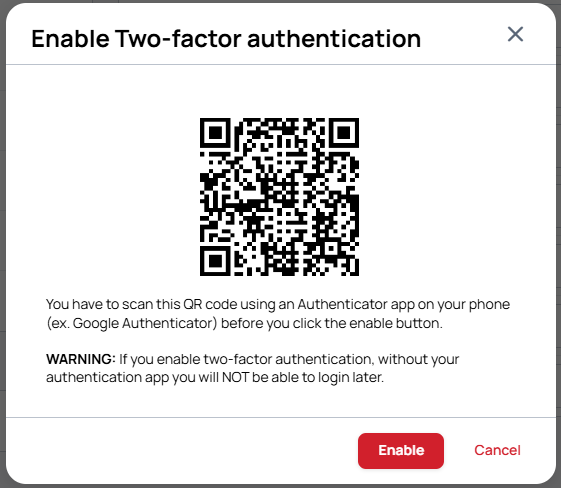
Turn on the Two-factor authentication switch in your profile. A confirmation dialog displays a QR code.

-
Before selecting Enable, scan the QR code with an authenticator app on your phone. If you need an app, you can download one from Google Play or the Apple App Store.
-
Save the account in the app and check that it shows your email address with a login code. Then select Enable in the confirmation dialog.
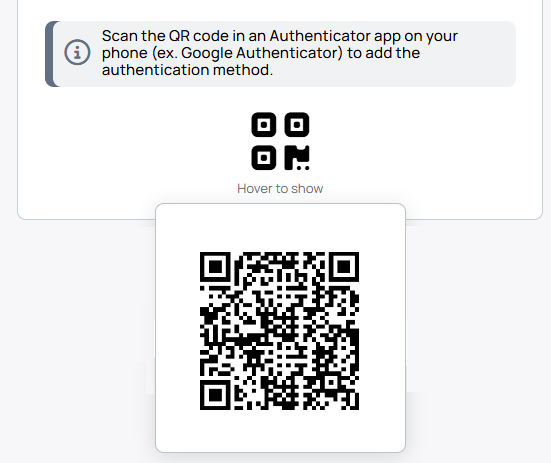
You can also display the QR code later by hovering over its icon in your profile.
Sign in with a code
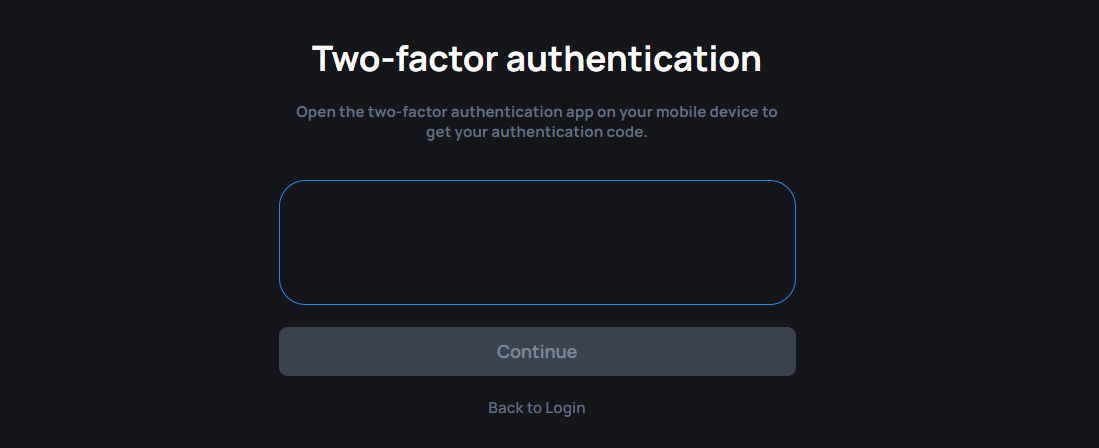
Your authenticator app shows a new one-time code every 30 seconds. Enter it on the two-factor authentication screen when you sign in.
If you lose access to your phone and cannot sign in, your Network Owner or a System Administrator can help resolve the problem.