Canva credentials
In the Cloud Credentials menu, you can create and manage Canva credentials. A Canva credential authorizes Wallboard to connect to your Canva account so you can sync Canva designs and folders into your files.
Learn more: Connect Canva folder
Create credential
-
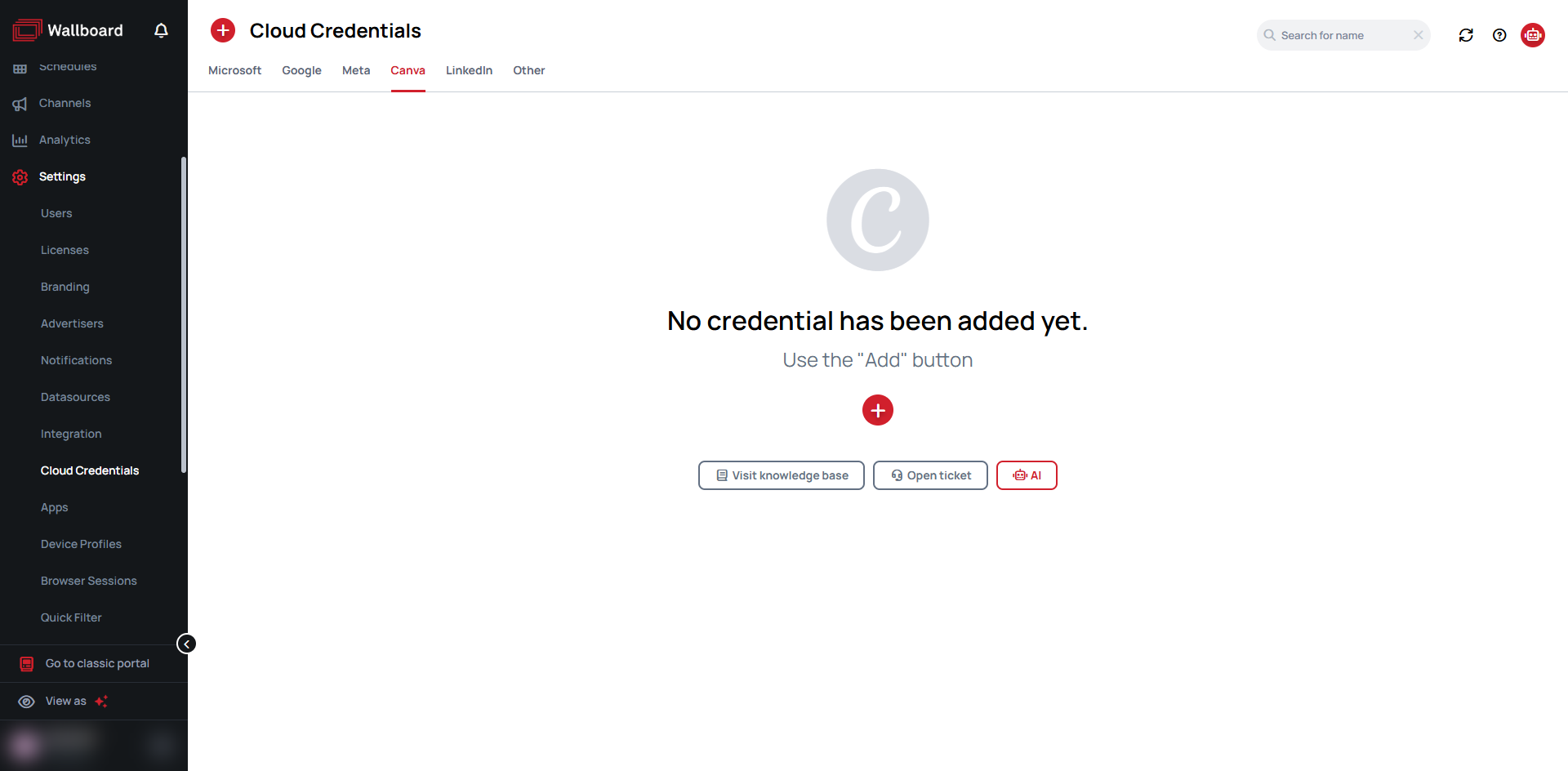
Navigate to Settings > Cloud Credentials, then select the Canva tab.
-
Click the button (Add Canva credential).
-
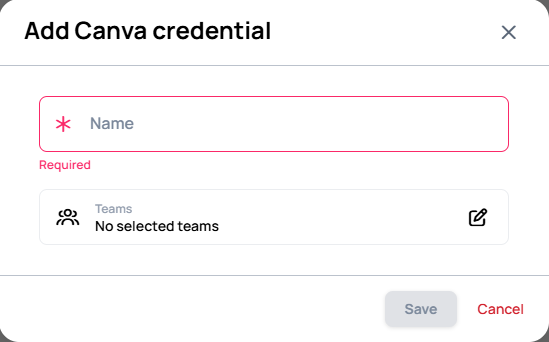
In the appearing modal, set the Name of the new credential. If your organization uses Teams, you can also select which Teams can access the credential.
-
Click Save.
After you save, a Canva sign-in window opens automatically. Sign in to Canva and grant access; when you close the window, the credential list refreshes and shows the new credential.
If your browser blocks pop-ups, allow them for Wallboard, then use the Authenticate action on the credential in the list to open the sign-in window again.
Unlike Google credentials, a Canva credential has no scope selection — signing in grants the access Wallboard needs to read your designs and folders.
Actions on Canva credentials
These actions are available in the credential list, on each credential's row.
Authenticate
If a credential was saved but never signed in, or its connection to Canva is no longer valid, it shows the Authenticate action. Click it, confirm with Authenticate credential, and sign in to Canva in the window that opens.
Re-authenticate
To connect an authenticated credential to a different Canva account, use Re-authenticate, confirm, and sign in with the other account.
Edit
The Edit Canva credential modal lets you:
- Rename the credential.
- Select a Manager user to manage the access list (available to Administrators and Owners).
- Select the Teams that can access the credential.
Remove
Use Remove on the credential's row and confirm with Remove credential.