Notifications
Every user has a personal notification inbox. It collects the messages meant for you, so you don't have to go looking for them: announcements from your administrators, and alerts about your Devices and Datasources.
Your inbox is yours alone. What arrives in it depends on who sent what to whom, so two colleagues in the same customer can see different notifications.
Where notifications come from
There are two kinds of notifications.
| Kind | Who sends it | Shown as |
|---|---|---|
| Written by a person | An administrator writes an Announcement — for example, a planned maintenance window or an upcoming training. It is delivered as soon as it is sent. | Announcement |
| Sent by the system | A notification rule notices a problem — a Device going offline, or a Datasource that stops working — and reports it. It also reports when the problem is resolved. | Device alerts or Datasource alerts |
Announcements can come from your customer's Administrator, or from the server operator for everyone on the server. Learn more: Announcements
System alerts only reach your inbox if a notification rule sends them to you. The rule needs an In-app notification channel with you selected as a recipient. If nobody has set that up, no alerts arrive in anyone's inbox, even when a Device is offline.
Learn more:
The bell
The bell icon next to the Wallboard logo, at the top of the side menu, shows how many unread notifications you have. Click it to open the notification panel with your latest notifications.
From the panel you can:
- read a notification, and use Mark as read on it;
- clear a notification from your inbox with Clear;
- use Mark all as read for everything at once;
- open the full Notifications page with My notifications.
New notifications appear without reloading the page, and a short pop-up in the top right corner shows each one as it arrives.
The Notifications page
The Notifications page lists all of your notifications on the left, grouped by when they arrived: Today, Yesterday, This week and Older. Click a notification to read it in full on the right.
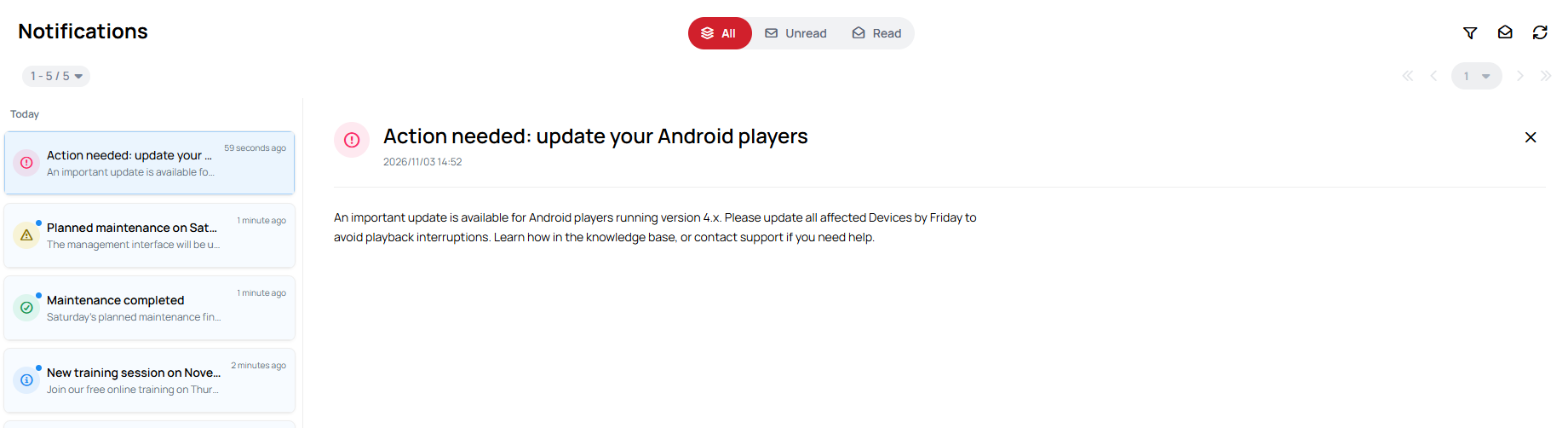
To narrow the list:
- switch between All, Unread and Read at the top of the page;
- use Filter to show only one Type — for example Announcement, Device alerts or Datasource alerts — or one Severity: Critical, Warning, Success or Info.
The Type filter lists more types than you will currently receive. Today, notifications arrive as Announcement, Device alerts and Datasource alerts.
In the bell's panel, long notifications can be expanded with See details.
Mark all as read marks every unread notification in your inbox as read, not just the ones the current filter shows.
Severity
Each notification has a severity, shown by its icon and color:
| Severity | Typical use |
|---|---|
| Info | General information, such as most announcements. |
| Success | Something is working again — for example, a Device that came back online. |
| Warning | Something needs your attention — for example, a Device that went offline. |
| Critical | Something you must not miss. |
Critical notifications
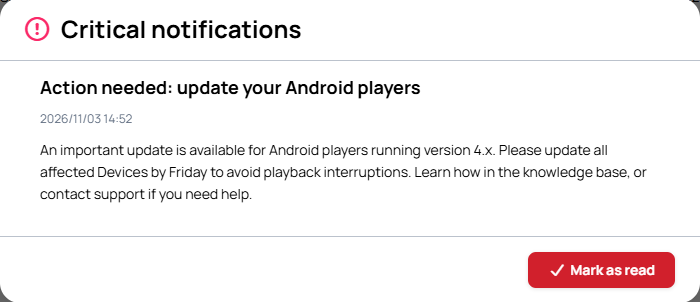
Unread Critical notifications don't wait in the list. They open in a Critical notifications window that lists all of them. If the list is long, scroll to the end; Mark as read becomes available once you have reached it, and marks every notification in the window as read.
Reading, clearing and expiry
- Marking as read and Clear only change your own inbox. The sender and the other recipients are not affected.
- Notifications expire. Each notification has a lifetime set by its sender or by the server. When it runs out, the notification disappears from your list and from the unread count.
- Read only users can open and filter their notifications, but they cannot mark them as read or clear them. They can close the Critical notifications window without marking anything as read.
Learn more: Settings - Users