Content details
Every Content, Slide and Playlist has a details page. To open it from the Contents page, click the Overview icon on an item, or the Settings icon to land straight on its settings.
The tabs across the top show everything about the item in one place. Which tabs you see depends on the item type and your role. Click Open editor in the top right corner to edit the item itself.
Learn more: Contents menu
Overview
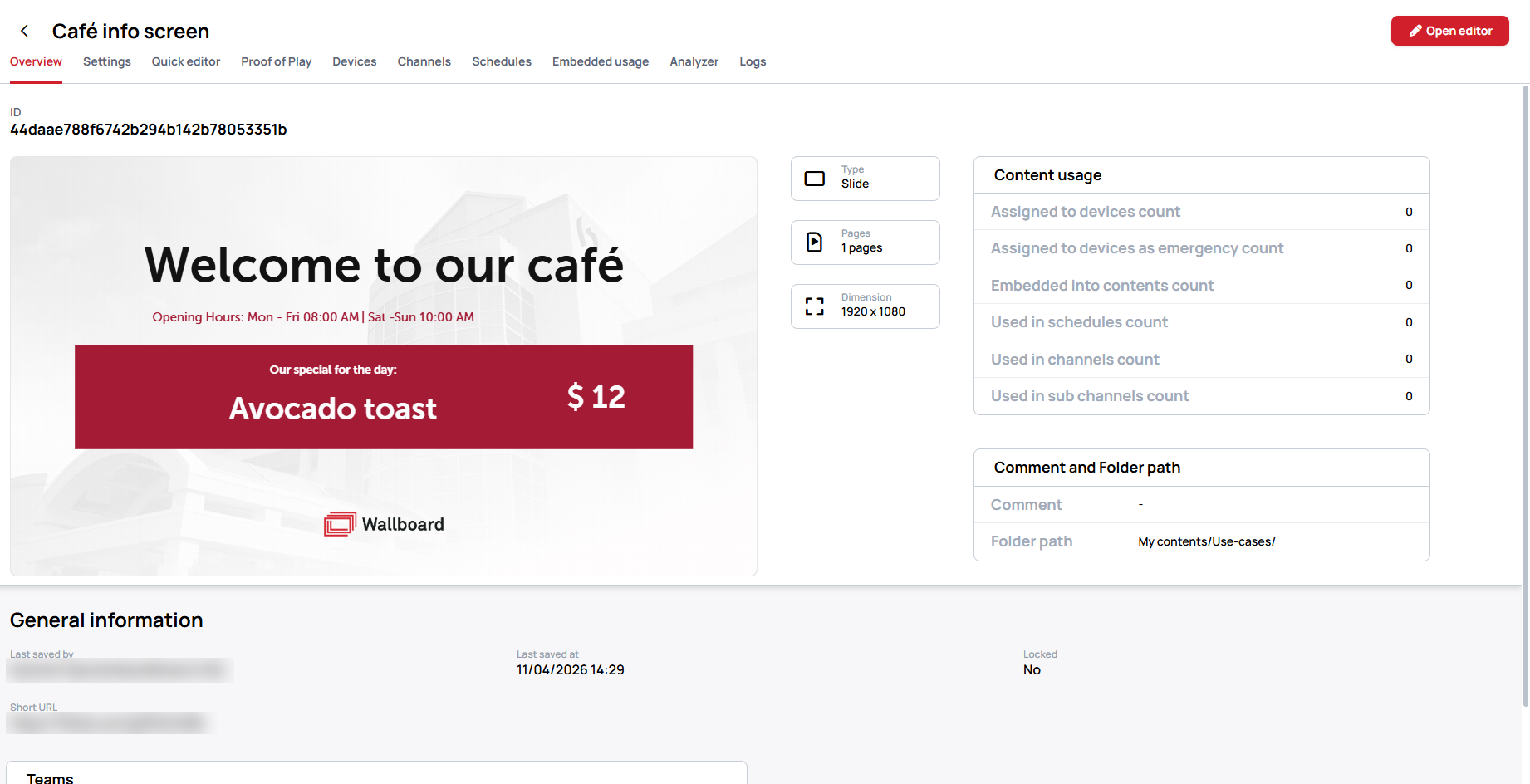
The Overview tab shows the item's ID, a preview, and its Type, Pages and Dimension.
- Content usage — how many times the item is used: Assigned to devices count, Assigned to devices as emergency count, Embedded into contents count, Used in schedules count, Used in channels count and Used in sub channels count.
- Comment and Folder path — the item's comment and the folder it is stored in.
- General information — Last saved by, Last saved at, whether the item is Locked, and its Short URL.
- Teams — the Teams the item belongs to.
Settings
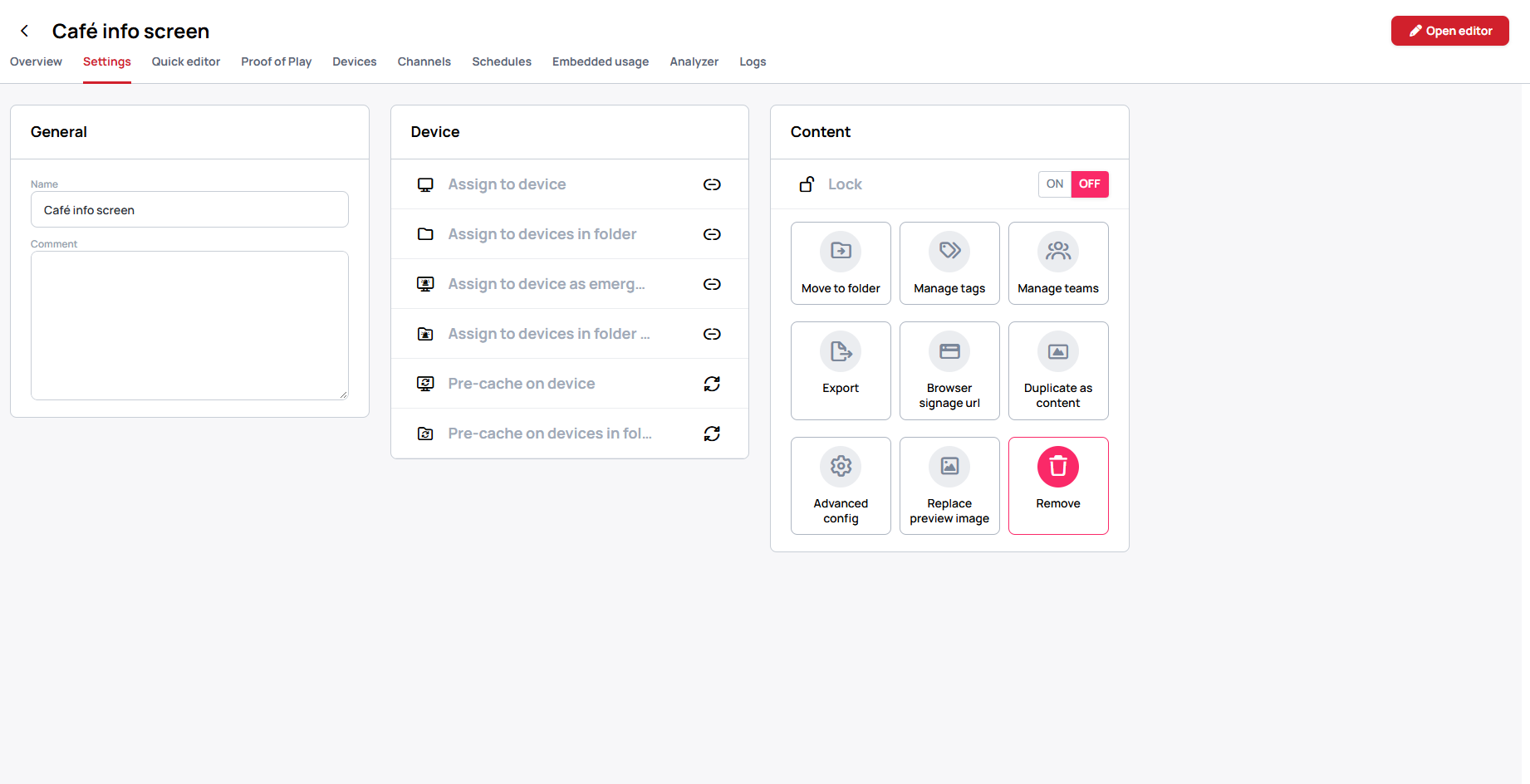
The Settings tab gathers the actions you can take on the item, in three cards:
- General — edit the Name and the Comment.
- Device — Assign to device, Assign to devices in folder, Assign to device as emergency, Assign to devices in folder as emergency, Pre-cache on device and Pre-cache on devices in folder.
- Content — the Lock switch, and Move to folder, Manage tags, Manage teams, Export, Browser signage url, Duplicate as content, Advanced config, Replace preview image and Remove.
The actions shown depend on the item type and your role.
Learn more:
- Assign Content to Devices
- Assign Emergency Content
- Browser-Based Content Display
- Replace Preview Image
Quick editor
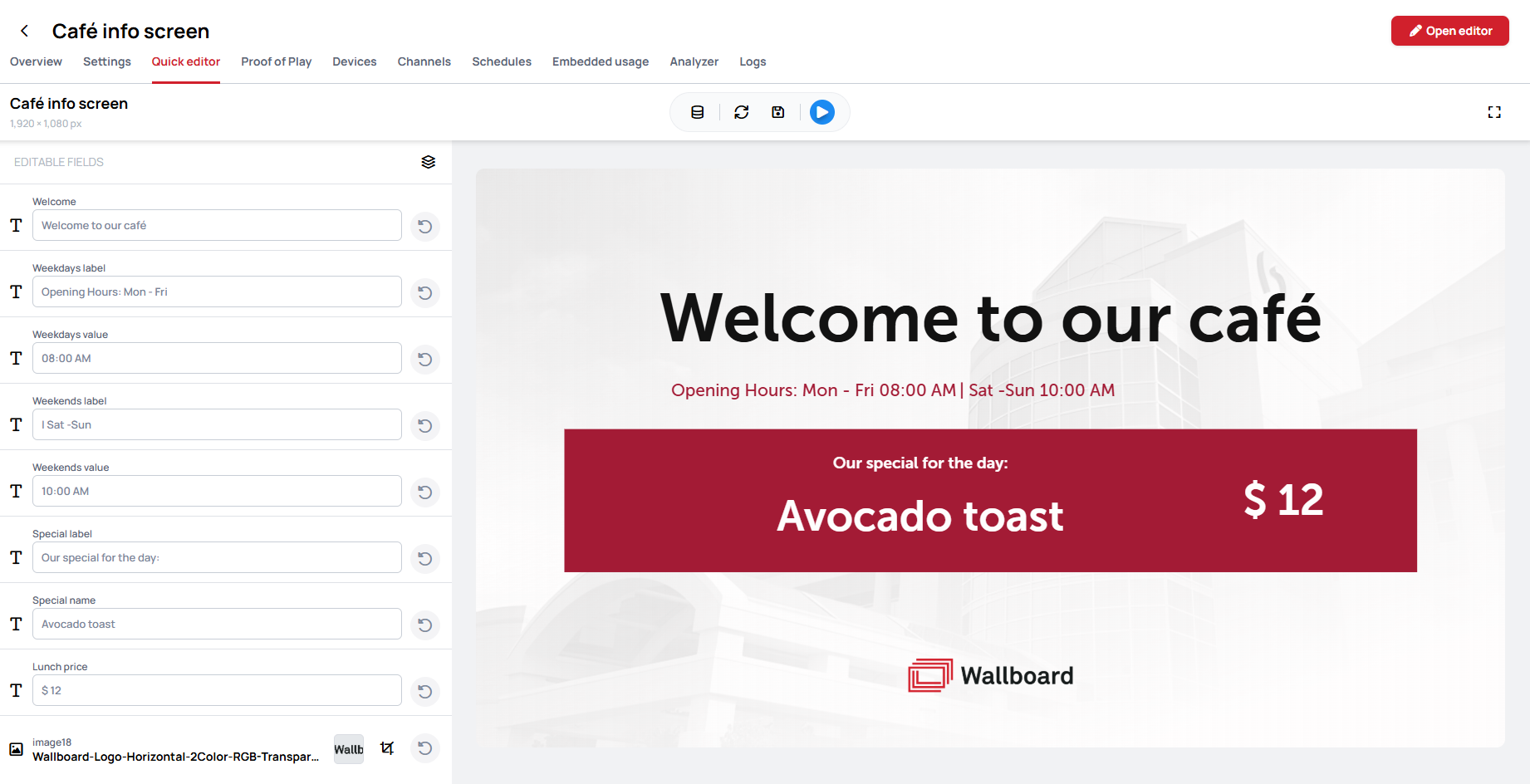
The Quick editor tab appears on Contents and Slides that have quick-editable fields. It lists the editable fields on the left and a live preview on the right, so you can change texts and images without opening the editor.
Learn more: Quick Editing
Proof of Play
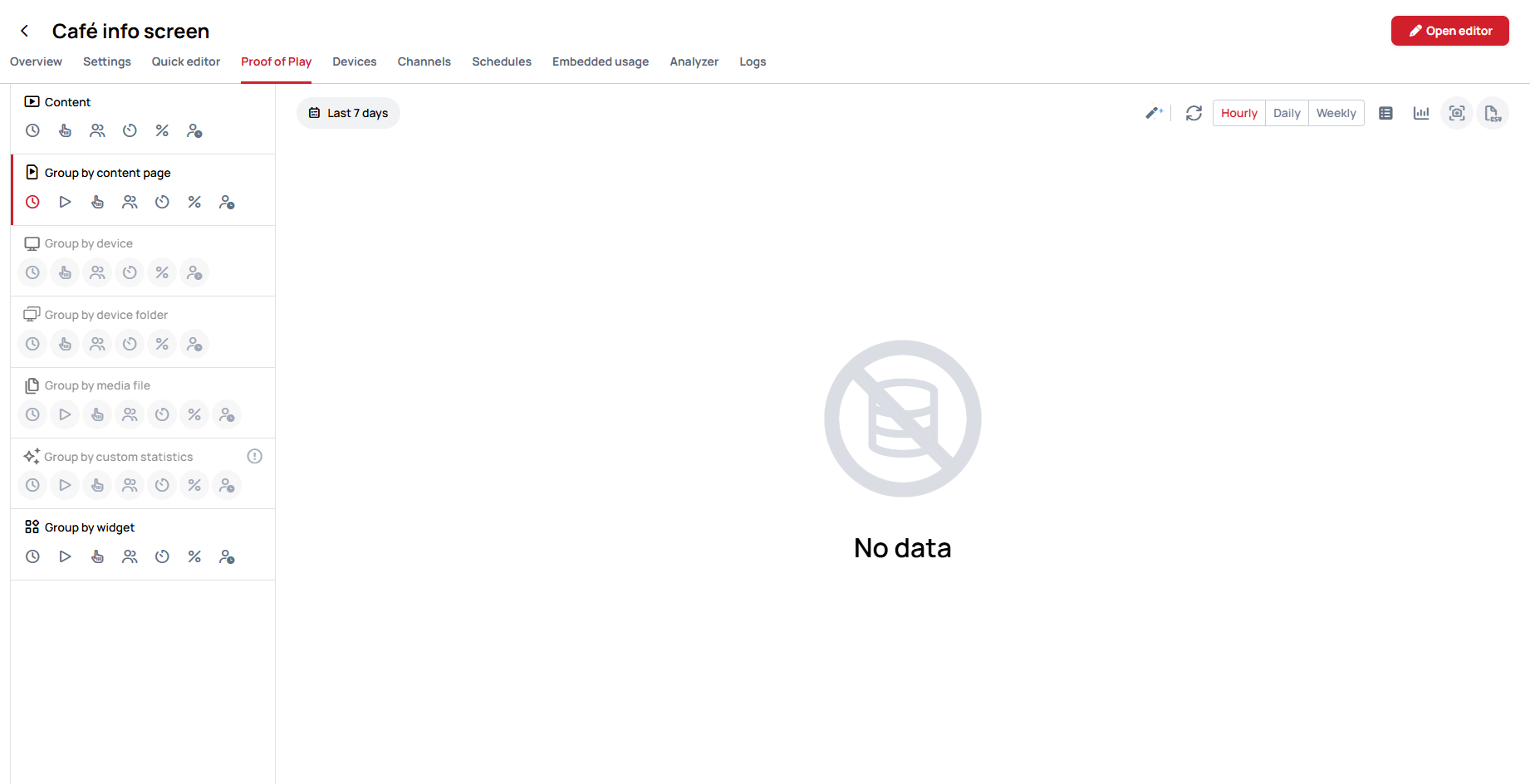
The Proof of Play tab shows the playback report of this one item, grouped by content page, device, device folder, media file, custom statistics or widget.
Learn more: Proof of Play
Devices, Channels and Schedules
These three tabs list where the item plays:
- Devices — the Devices the item is assigned to. If there are none, the tab shows Content is not assigned to devices with a button to assign it.
- Channels — the Channels that play the item.
- Schedules — the Schedules that use the item.
Embedded usage
The Embedded usage tab lists the other Contents that embed this item. If none do, it shows This content is not used in other content.
Analyzer
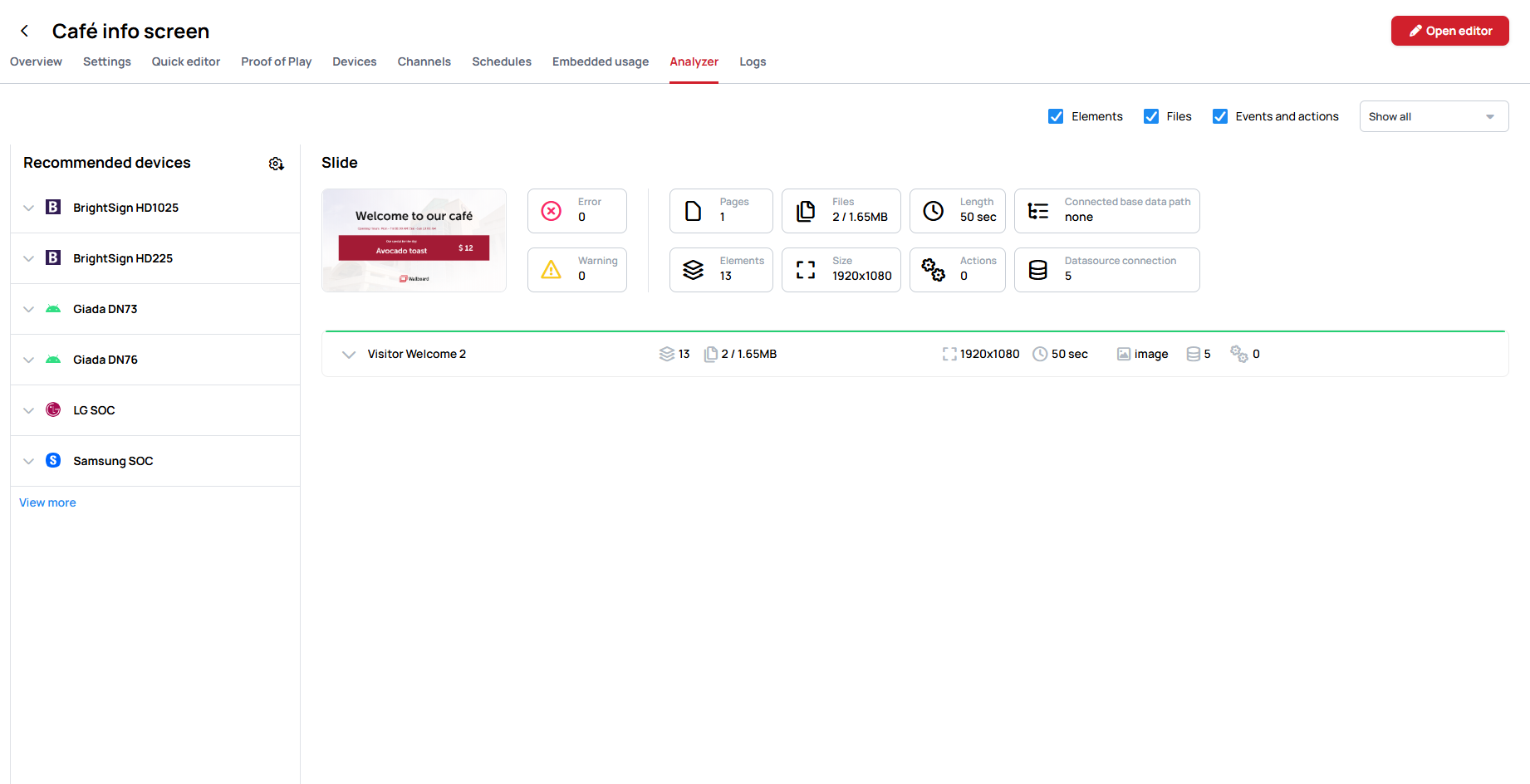
The Analyzer tab checks the item for errors and warnings, and recommends devices that can play it.
Learn more: Content Analyzer
Logs
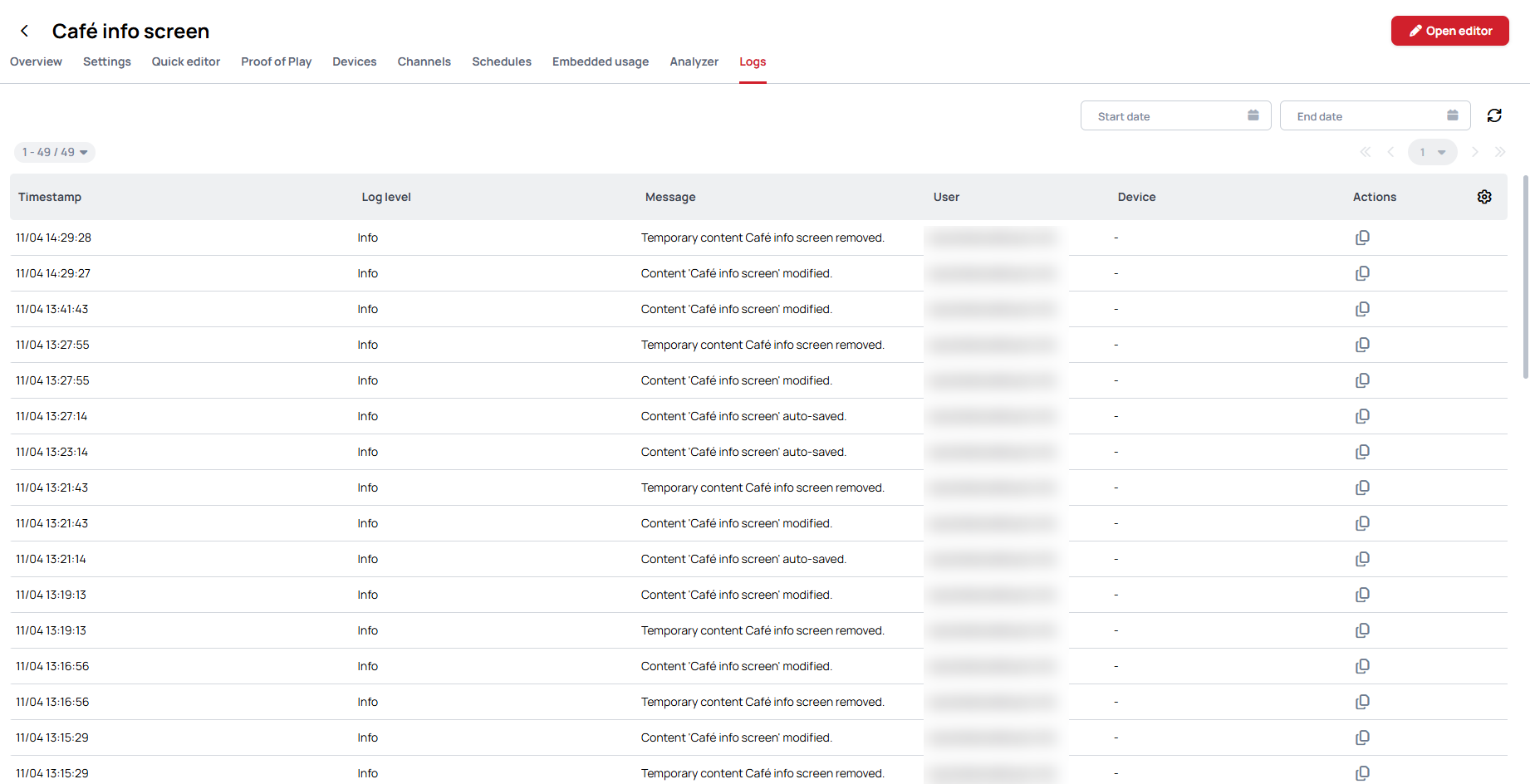
The Logs tab lists every change made to the item, with a Timestamp, Log level, Message, User and Device. Use Start date and End date to narrow the list.