Authentication
What is the Form Authentication?
The authentication form type renders a fixed PIN-style keypad that the user types a code into, then validates that code against a configured PIN, against the Wallboard user database, or against a datasource of users. The masked entry, the validation result, and the authenticated identity are exported so the rest of the page can react to a successful or failed login.
Options
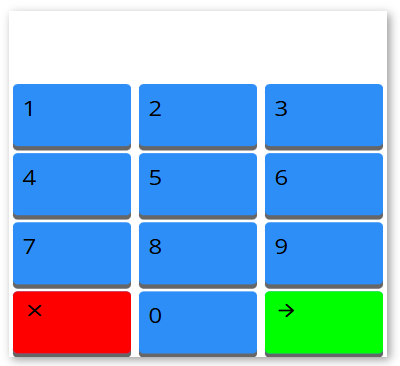
The keypad layout is fixed at 4 rows by 3 columns and cannot be changed. The buttons are the digits 1-9, then a clear button, 0, and an accept button on the bottom row. Pressing a digit appends it to the entry, the clear button empties the entry, and the accept button submits it for authentication. Each entered character is shown masked on the entry screen.
Work Mode
Selects how the entered code is validated. The default is Simple.
- Simple: The code is compared against the Pin code set in the editor. The expected length equals the length of the Pin code, and at least one character must be entered.
- Wallboard user authentication: The code is checked against the Wallboard user accounts. The entry may be up to 10 characters and must be at least 4 characters. On success the authenticated user's email is exported.
- Data source: The code is matched against user/PIN pairs read from a datasource (see Value from Datasource). The maximum entry length is the length of the longest PIN found in the datasource.
Pin code
- The code that the Simple work mode validates against.
- Plain text setting. The default is
0000. - Only visible when Work mode is set to Simple.
Auto authentication on max
- Checkbox. The default is off.
- When enabled, authentication is triggered automatically as soon as the entry reaches its maximum length, so the user does not have to press the accept button.
Keypad styling
- Clear icon
- Clear button color
- Accept icon
- Accept button color
- Button color
- Button Shadow color
- Button rounding
- Distance between buttons
- Vertical alignment
The Material Font icon name used on the clear button. The default is
clear.
The background color of the clear button. The default is
#ff0000.
The Material Font icon name used on the accept (submit) button. The default is
arrow_forward.
The background color of the accept button. The default is
#00ff00.
The background color of the digit buttons. The default is
#2e8ef7.
The button shadow color. The default is
#666666.
The button corner radius. The possible value is in the range: 0 - 50. The default is 5.
The spacing between buttons. The possible value is in the range: 2 - 20. The default is 4.
The vertical alignment of the button content. The default is Top. Possible values: Top, Center, Bottom.
Behavior on Authentication
When the code is submitted (by pressing the accept button, or automatically when Auto authentication on max is enabled):
- If the entry is shorter than the minimum length for the current work mode, it is treated as a failure.
- Simple: succeeds when the entry equals the configured Pin code.
- Wallboard user authentication: succeeds when the code matches a Wallboard user; the user's email becomes the authenticated value.
- Data source: succeeds when the code matches a PIN in the datasource; the paired user becomes the authenticated value.
On every submit the result is reported through the -authenticated sensor event and written to the Mock field and own value.
Setting Mock Field and Own Value
The own value and the Mock field both receive a status string:
not-authenticated- the initial value on load, and the value written on any failed attempt (including a too-short entry).authenticated- a successful Simple authentication.authenticated <email>- a successful Wallboard user authentication, with the user's email appended.authenticated <user>- a successful Data source authentication, with the matched user appended.
The Mock field and own value are written initially on load (as not-authenticated) and again after every authentication attempt.
Validation
Authentication does not use the form's standard validation. It does not emit a -valid event and does not draw a validation border. The outcome is communicated through the -authenticated sensor event and the status string written to the Mock field.
Sensor Events
All events are prefixed with the form's name (FORM-NAME).
FORM-NAME
- Triggered when authentication writes to the Mock DataSource (initially and after every attempt).
- Value is the status string (
not-authenticated,authenticated,authenticated <email>, orauthenticated <user>).
FORM-NAME-authenticated
- Triggered on every authentication attempt.
- Value depends on the work mode:
- Simple:
trueon success,falseon failure.- Wallboard user authentication: the user's email on success,
falseon failure.- Data source: the matched user on success,
falseon failure.falsewhenever the entry is shorter than the minimum length.
External Messages
- Set Form: Takes the value from the message, removes any line breaks, and - if its length is within the minimum and maximum allowed for the current work mode - loads it into the entry. It does not automatically submit the code. Out-of-range values are ignored.
- Clear Form: No effect.
- Reset Form: No effect.
Value from Datasource
Used by the Data source work mode. The datasource bound to the field is read and converted into user/PIN pairs:
- Array: Each element must be an object with string
userandpasswordproperties. It is mapped to a user/PIN pair (user, PIN taken frompassword). - Object: Each entry with a string value becomes a user/PIN pair, using the property key as the user and the property value as the PIN.
When the user submits a code, it is compared against these PINs; on a match the corresponding user is returned as the authenticated value. The longest PIN in the datasource also determines the maximum entry length.