About Playlist editor
Playlist editor is an easy-to-use editor where you can create basic and simple contents, called Playlists.
- You can easily drag and drop the selected source into the playlist.
- The device tags and the scheduling functionality will ensure your page plays in the right place at the right time.
Where can I see my Playlists?
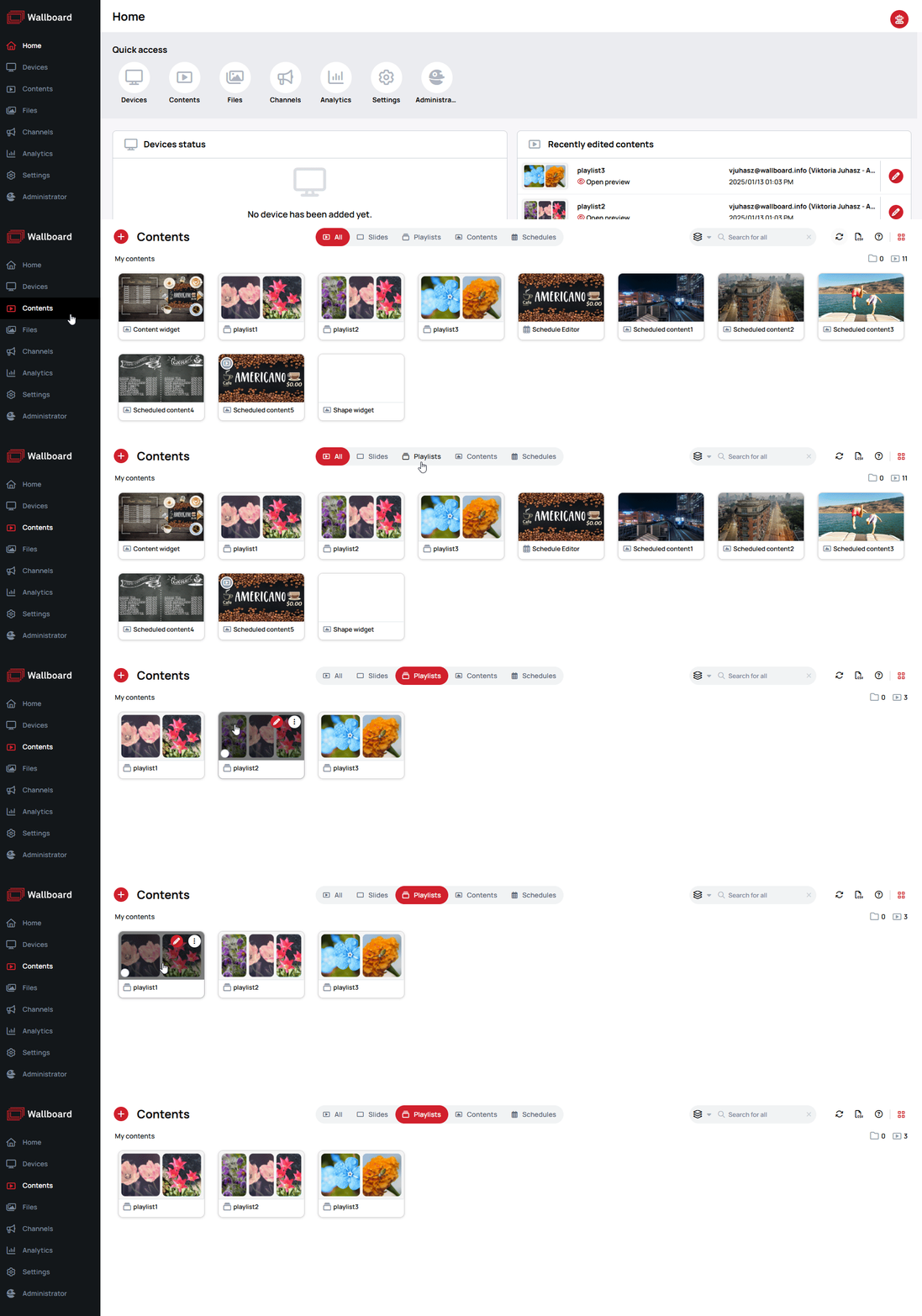
- Navigate yourself to Contents menu
- Select the
Playliststab
Basic areas of the editor
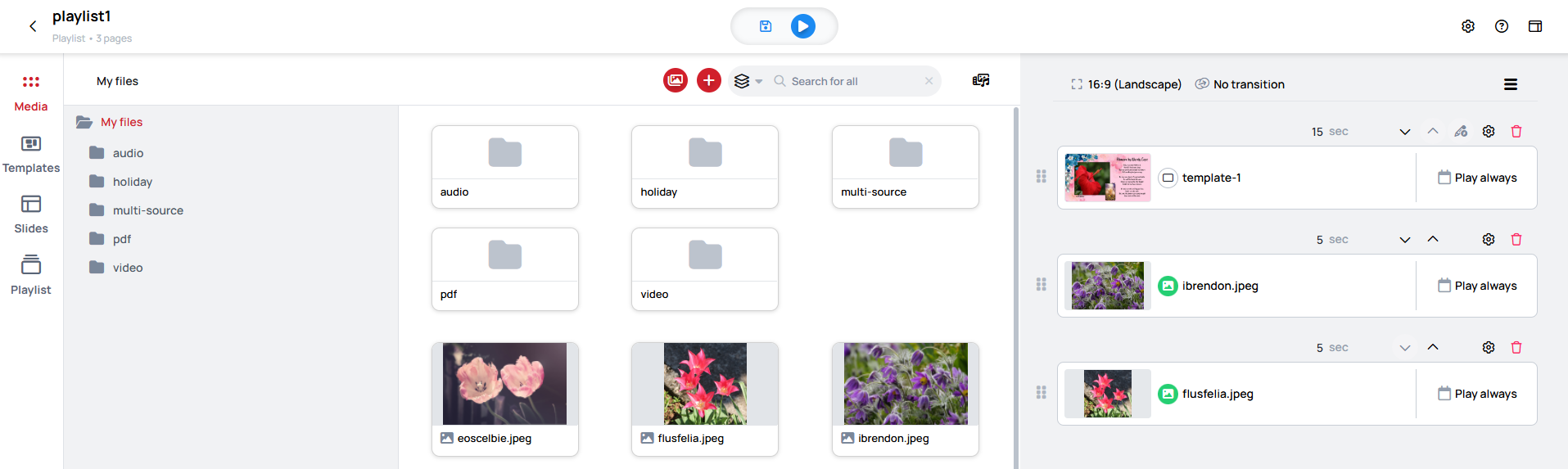
When you open the editor you will see the 2 main areas where you can work.
Learn more: Sources and Page types
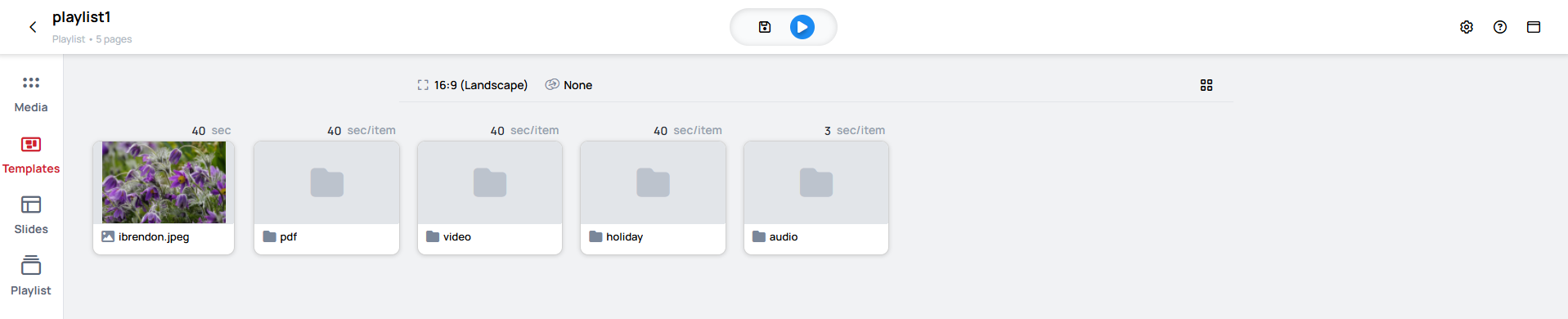
Source selector side
This can be found on the left side of the editor.
-
Here you can find the source types which can be selected as source to play inside the Playlist.
Sources that can be selected:- Media
- Template
- Slide
- Playlist
-
These sources can be used as individual pages or even the whole folder can be added.
Show in folder
When searching for a file in the source selector's file manager, each search result offers a Show in folder option that navigates the file manager view to the folder containing that file. Use it to jump from a search hit to the file's actual folder location.
Designer side
Playlist Designer can be found on the right side of the editor.
- In this area you can manage and remove the selected pages in the Playlist.
- On these pages, you can also set a schedule to ensure they play only during the specified times.
Designer view
Different Designer views offer a unique layout for page cards, making it easier to organize, manage scheduling, and adjust settings.
-
This structured view ensures your playlist designer remain well-organized and accessible.
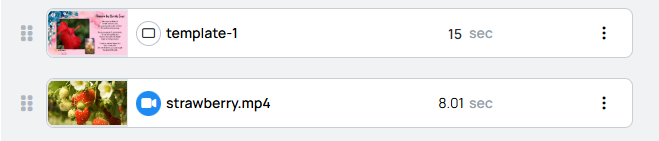

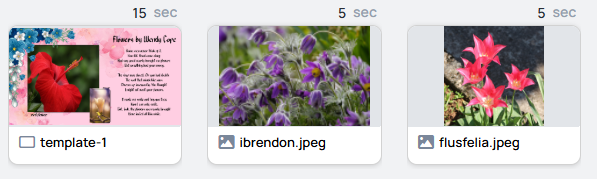
Slim view
Visible in Editor and Timeline viewLarge view
Visible in Editor, Timeline and Scheduler viewCard view
Only visible in Timeline view
Page card actions
Each playlist page card exposes per-page actions for the current playlist.
Duplicate page
Creates a copy of the page within the same playlist, with the same source, duration, scheduling, and other settings.
Lock / Unlock page
Locks the page so it cannot be edited or removed from the current playlist. While locked, the page's settings cannot be modified and the page cannot be deleted. Unlocking the page restores normal editing.
Open preview from this page
Opens the playlist preview in a new browser tab, starting playback from this page rather than from the first one. Useful for checking a page late in a long playlist without waiting through the pages before it.
This is the playlist equivalent of Preview from current in the Content Designer.
Learn more: Content preview
The action is unavailable on an expired page: "Preview from this page cannot be opened because the page is expired."
Rename page
A playlist page can be given its own name. This is useful when the same slide is added to the playlist more than once, because the cards would otherwise only be told apart by their thumbnail.
A renamed page is marked on its card. The marker's tooltip shows the Resource name — the name of the slide or file the page actually points to — so the underlying item is still identifiable. The original name can be restored at any time.
Header area of the editor
This area also contains 3 important fields
View selector
When you open the view selector you will see the 3 views what you can choose. Each view has its own beneficial purpose.
Editor view
- In the Editor view you can select items from the source selector to create pages.
Timeline view
- In the Timeline View, you can see your created playlist in a broader layout, making it easier to organize and
fine-tune the perfect sequence of pages for playback.
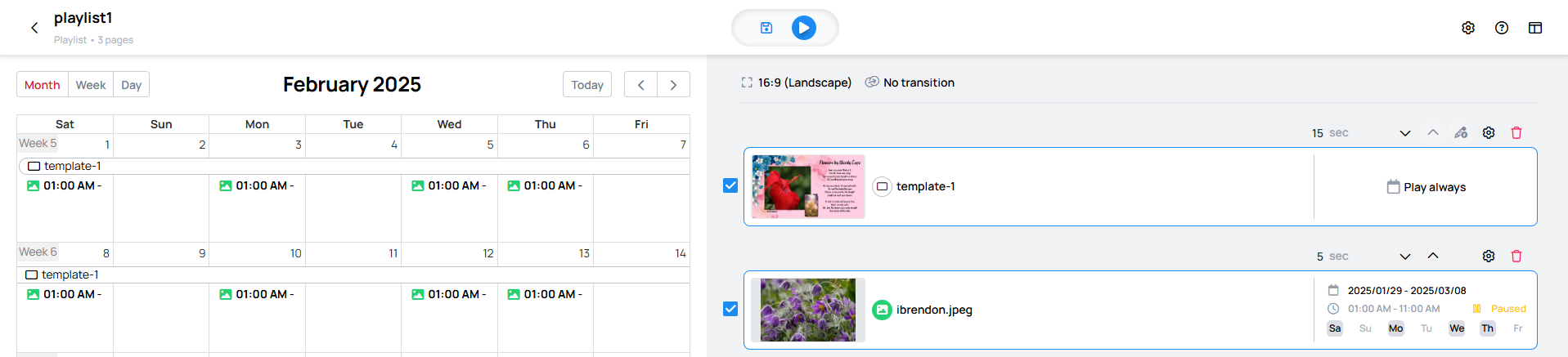
Scheduler view
- In scheduler view you can easily create and manage scheduling on your pages.
Preview
The playlist has two preview controls. The play button in the top bar, beside Save, opens the preview in a new browser tab starting from the first page. The play button on an individual item opens the preview starting from that item instead.
The preview is unavailable for a legacy loop that has not been converted yet — save the loop as a playlist first.
Custom scripts stay inactive in a Playlist preview, and a preview is often silent because of the browser's autoplay policy. Learn more: Preview
Cleaning up invalid pages
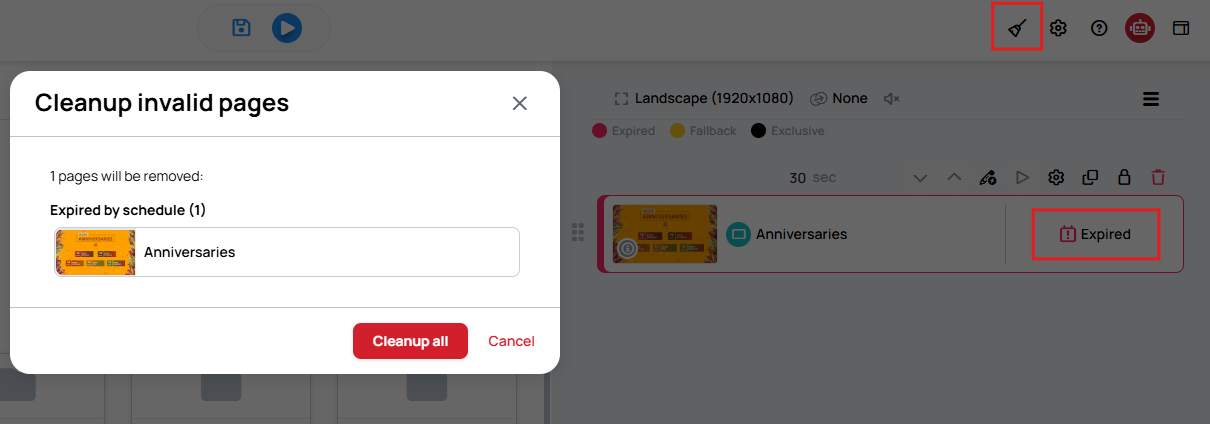
An invalid page is marked Expired on its card. Cleanup invalid pages removes those pages from the playlist. A page is invalid when its schedule has run out, shown as Expired by schedule, or when the file it points to is past its validity, shown as Expired file validity.
Cleanup all removes all of them at once. Before anything is deleted, a confirmation states how many pages will be removed.
If there is nothing to remove, the editor says No invalid pages to remove instead.
How changes reach playing screens
When you save a playlist, the screens already playing it pick up the change without restarting playback:
- Adding, removing and reordering pages is applied in place. The playlist keeps playing and continues with the new page list.
- Adding or changing a file's validity period is applied the same way, including when the daily cleanup removes a file whose validity has expired.
- Removing a file or a folder in the File manager takes it out of every playlist that uses it, and that change is applied in place as well.
Some changes still reload the playlist on the screen:
- Renaming the playlist. The name is used by the alphabetical and numerical ordering modes, so a rename can change playback order.
- Playlist settings — resolution, default fit, background audio, mute, transition and layout. The screen applies these when it loads the playlist.
This applies to playlists. A Content still reloads on the screen when it is edited.
Learn more: Content on device is not updated