The Video Wall editor
This article explains every part of the Video Wall editor. To build a wall step by step, see Set up a Video Wall.
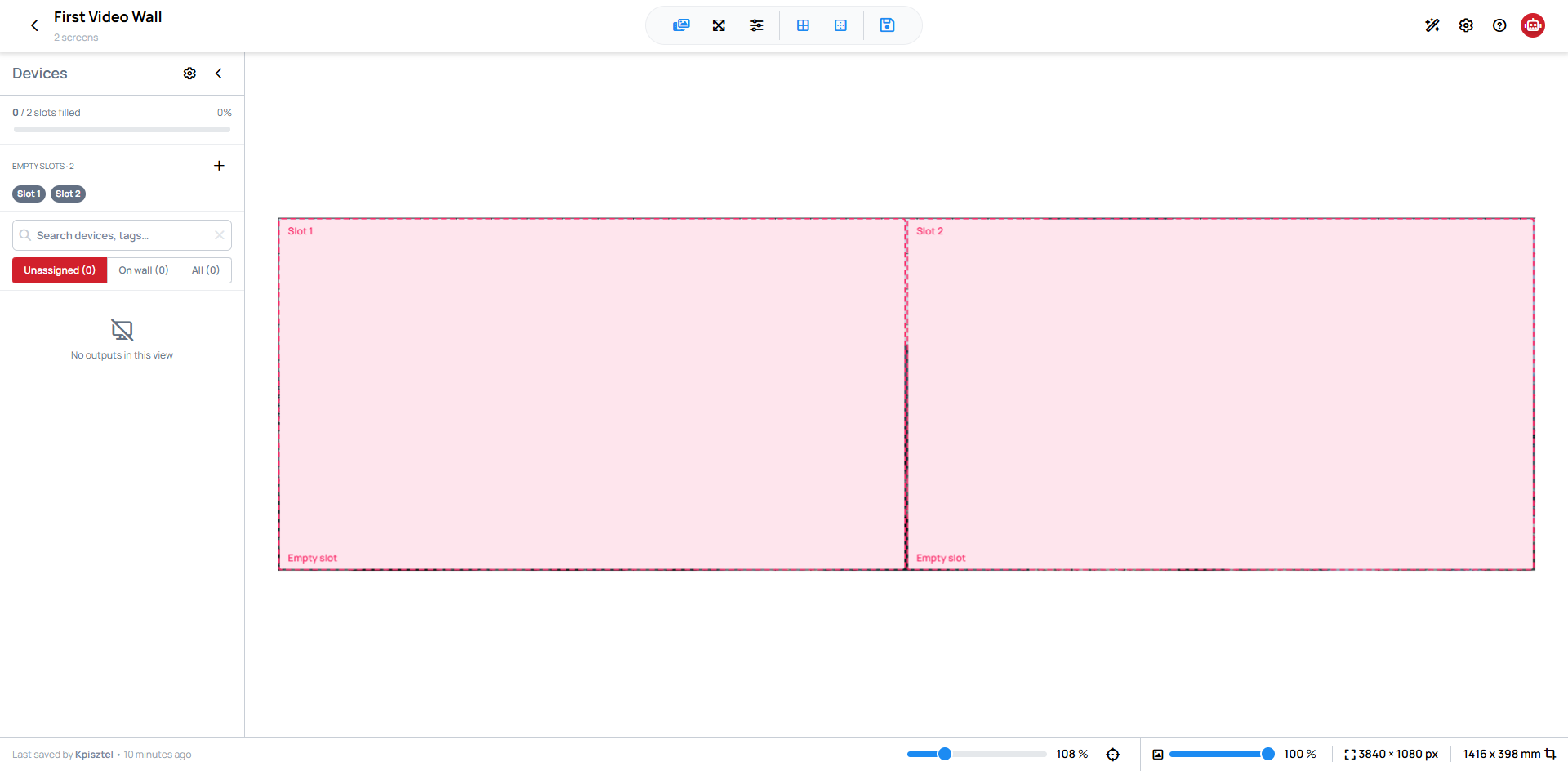
Open the editor with Edit video wall on the wall's page. This example is a wall of two identical panels side by side, with nothing placed on it yet.
Top left: back and name

The arrow takes you back to the wall's page. Click the wall's name to rename it. Below the name, you see how many screens the wall has.
Top middle: the toolbar

From left to right:
-
Choose content — opens the content browser, where you pick the Content, Slide or Playlist the whole wall plays. See Assign the Content.
-
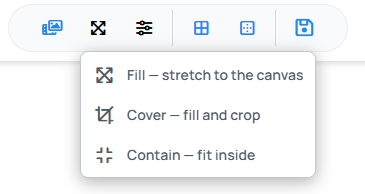
Content fit — how the Content is fitted into the preview: Fill — stretch to the canvas, Cover — fill and crop or Contain — fit inside. It only changes the preview, not what the screens play.
-
Content settings — how each screen renders its own part. See Content settings.
-
Snap to grid — a screen you drag snaps to the grid lines. Set the grid size in Video Wall Editor Settings.
-
Snap to edges — a screen you drag snaps to the edges of the other screens when it gets close, and guide lines show where it lines up. When both snaps are on, edges win over the grid.
-
Save — saves the layout and assigns the Content to every Device in the wall. See Save.
Top right

From left to right:
- Wall setup — reopens the setup wizard. See Set up the wall.
- Video Wall Editor Settings — what the canvas shows, such as names, resolutions and overlaps, plus the grid and the arrow-key step.
- The question mark opens the help menu, including the keyboard shortcuts.
- AI assistant — opens the AI assistant.
Left: the Devices panel
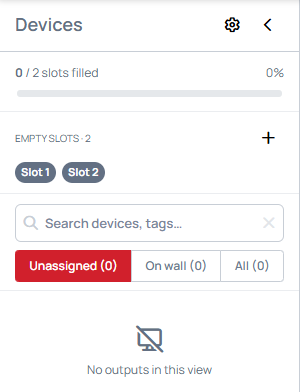
- The gear next to Devices opens Wall shape and size; the arrow hides the panel.
- slots filled shows how many slots of the wall already have a Device.
- The slot pills (Slot 1, Slot 2 and so on) open that slot's settings, the same as clicking the slot on the canvas.
- Empty slots lists the slots without a Device. Use + (Add an empty slot) to add one.
- Below them, search for Devices by name or tag, and filter the list with Unassigned, On wall and All. The list shows the Devices in the Video Wall folder. No outputs in this view means the current filter has nothing to show.
Middle: the canvas
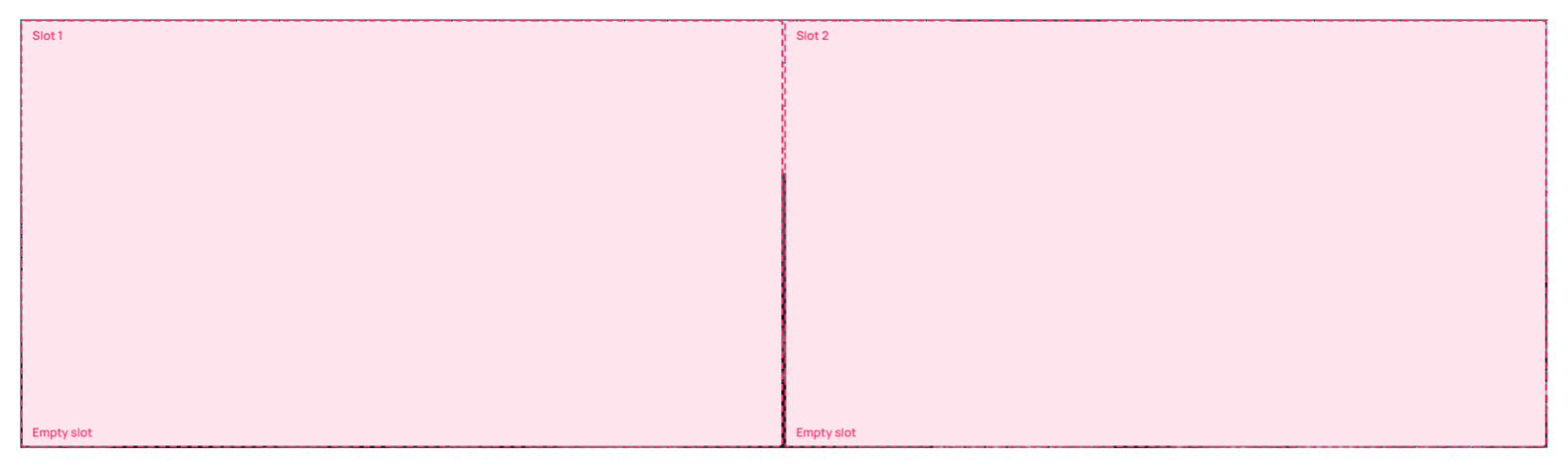
The canvas shows the wall as it hangs, in real-world proportions. A slot without a Device shows as a dashed box labeled Empty slot. Select a screen to edit it in the panel that opens on the right. Once you choose Content, a muted preview of it appears behind the screens.
Bottom bar

From left to right:
- The first slider zooms the canvas. The crosshair (Bring the wall back into view) fits the whole wall on the screen again.
- Content preview strength — how visible the Content preview is behind the screens.
- The resolution your Content needs, for example 3840 × 1080 px. Click it to override the resolution. See Build the Content at the wall's resolution.
- Physical wall size — the overall size of the wall in millimeters. Click it to change it.
On the left, Last saved by shows who saved the wall last, and when.
Adjust a screen
Click a slot on the canvas, or its pill in the Devices panel, to open its settings on the right. The top shows the slot's resolution and size.
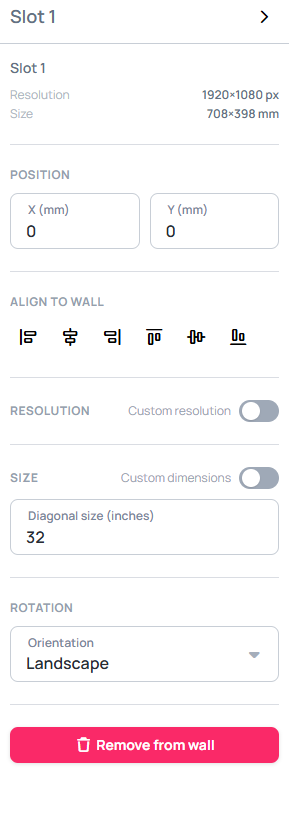
- Position — the slot's X (mm) and Y (mm) on the wall.
- Align to wall — line the slot up with the left, center or right, or the top, middle or bottom of the wall.
- Resolution — turn on Custom resolution if this screen does not use the panel resolution.
- Size — the Diagonal size (inches), or turn on Custom dimensions to enter the size in millimeters for a screen with an unusual shape.
- Rotation — the Orientation: Landscape, Portrait, Reversed landscape or Reversed portrait, to match how the screen is mounted.
To take the screen off the wall completely, use Remove from wall.