Widgets Sidebar
The widgets sidebar, on the left of the canvas, holds every Widget you can add to a page. Drag a Widget onto the canvas to add it. It's the same sidebar in the Content Designer and the Slide Designer.
The sidebar shows four Widgets per row, grouped by category, and three controls at the top help you find the one you need: search, favorites and sorting. You can mix them freely — for example, search within your favorites, or sort your favorites A to Z.
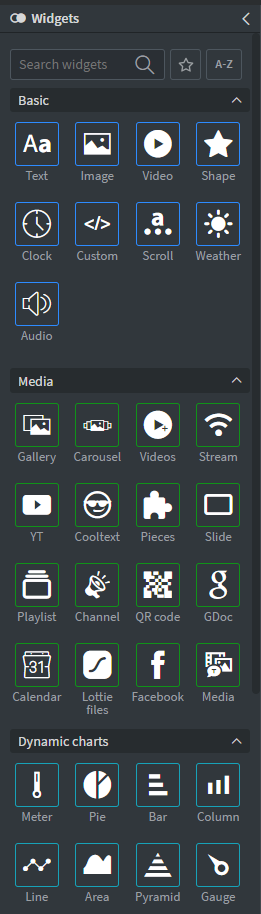
Search widgets
Type part of a Widget's name into Search widgets, and the list filters as you type. Accents don't matter, so a search finds a Widget whether or not you type the accented letters. Clear the search with the × in the box.
Favorites
Click the star on a Widget's tile to add it to your favorites; click it again to remove it. Starred Widgets show a star in the corner of their tile.
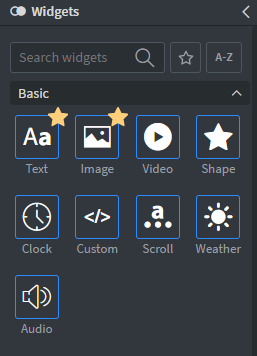
The star button next to the search box switches the list between only your favorite Widgets and every Widget. While the filter is on, the button is highlighted.

If you turn the filter on before starring anything, the sidebar reminds you to use the star on a Widget first.
Sorting
The A-Z button cycles the list through three orders, one click at a time:
| Click | Order | The button shows |
|---|---|---|
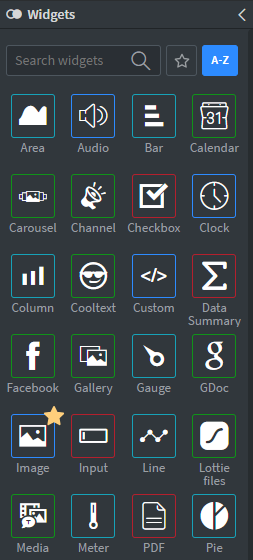
| 1st | Every Widget in one list, A to Z | A-Z, highlighted |
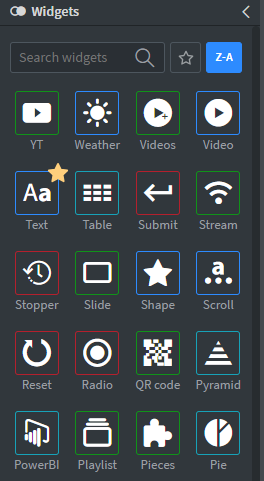
| 2nd | Every Widget in one list, Z to A | Z-A, highlighted |
| 3rd | Back to the default: grouped by category | A-Z |
Each tile keeps the color of its category in the alphabetical lists, so you can still tell the categories apart.
| A to Z | Z to A |
|---|---|
 |  |
What the sidebar remembers
Your favorites, the favorites filter and the sort order are saved to your user account, not to the Content you are editing:
- They stay the same in every Content and Slide you open, and in any browser you sign in from.
- Every user has their own — starring a Widget doesn't change anyone else's sidebar.
- They also apply when you collapse the sidebar with the arrow at its top.
Custom apps
Custom apps available to your customer appear in the group chosen as the app's Widget category (a Custom apps group by default, or one of the built-in groups such as Basic or Media), and you can search, star and sort them like any other Widget. If a custom app is removed, its star is kept and comes back with the app. To add your own apps, see Settings - Apps.
Learn more: Widgets