Playlist settings
In the Playlist Settings menu, users can define global default settings to apply settings universally across all playlist elements, reducing the need for manual adjustments.
Basic
Transition
There is no transition animation applied on the playlist by default, but if the animation is needed it can be applied in this section.

Transitions are chosen in the Select transition picker, which groups them into Basic, Camera and depth, Motion, Reveals and filters, and Tiles and strips.
The picker has a search box, and a live Preview that plays the selected effect between a Current and a Next slide, so you can see it before confirming. None is the first option and leaves the playlist without a transition.

Transition duration (seconds) sets how long the effect runs.
All available transitions
Fade · Out upward · Out leftward · Out rightward · Out downward · Slide bottom to top · Slide left to right · Slide right to left · Slide top to bottom · Camera zoom in · Camera zoom out · Ken Burns · 3D page turn · Rotate and scale · Horizontal 3D flip · Vertical 3D flip · Skew slide · Drop and bounce · Push slide · Swirl wipe · Blur fade · Circle reveal · Diamond reveal · Vertical doors · Glitch shake · Smart flash · Strobe · Bounce slide · Fade slide · Flip slide · Bounce flip · Zoom + bounce · Zoom + slide · Shrink and slide · Rolling slide · Page drop · Mosaic flip · Mosaic scale · Spiral outward · Spiral inward · Clockwise wheel · Pixel rain · 3D horizontal blinds · 3D vertical blinds · Glass shatter · Random tile fade · Random tile pop-in · Random 3D tiles · Random vertical strips · Random horizontal strips · Chaotic tiles · Diagonal tile fade · Vertical strips · Horizontal strips · Curtain · Checkerboard
Everything beyond the basic fade and slide effects plays only when performance mode is on, and only when neither the outgoing nor the incoming slide contains an embedded website or an external video player. Where that is not the case, the change falls back to an instant swap.
Learn more: Performance mode
Default Duration
The Default Media Duration is a globally set value that determines the default playback duration for pages in the playlist editor. While this value can be manually adjusted for individual pages, the following conditions apply:
- The minimum duration that can be set is 3 seconds.
- Elements with native duration will not be overridden by this value, they will use their own native value. This native value can be manually overwritten in the page's individual setting.
- If the page length is longer than the element's native duration, a Loop indicator will appear on the page card. This means, the source will loop to fill the manually defined page length.
Default fit
Default image fit and Default video fit set how every image or video element of this playlist is sized to the space it is given, unless an element overrides it. Both offer Fill, Contain and Cover. What each one does: Fit settings.
Each element's display behavior can be customized using the Image fit or Video fit option in element settings, which use Inherit by default.
Learn more: Playlist Page Settings
Blur for Contain image fit
When the image fit is set to Contain, images that don't match the playlist's aspect ratio will have empty space around them. Enabling this option fills that empty space with a blurred version of the image, creating a more visually appealing result instead of a plain background.
- This setting applies to all images in the playlist that use the Contain fit (either directly or inherited from the default).
- Disabled by default.
Synchronize playlist
In multi-display environments, maintaining synchronized playlist playback is vital for a unified viewing experience.
- Variations in screen activation times, network speeds, and hardware performance can affect when pages begin to play, potentially leading to inconsistencies.
- To deliver a seamless experience across all screens, it's essential to synchronize the playlist, ensuring that every viewer sees the same content at the same time, without delay.
To enable this feature, simply activate Synchronize Playlist in the Playlist menu under Properties.
If the sync is enabled in the playlist settings, you will see an indicator above the
Resolution
Aspect ratio
In the basic settings you can find 2 aspect ratios as presets:
- 16:9 (Landscape)
- 9:16 (Portrait)
You can check the playlist's aspect ratio above the playlist pages on the right section of the editor
Custom resolution
Adjust the resolution to fit your display needs, ensuring the best playback quality and compatibility.
- Default resolution:
- Width: 3840
- Height: 2160
Audio
The Audio tab groups the playlist-wide audio controls.
Mute
With this option the pages can be muted.
- If the pages are muted this icon will appear above the page list.

Background Audio
Play a continuous audio layer across the whole playlist, independent of the audio on individual pages. You can use a single file, a looping track, a separate audio playlist, or a live stream as the source, and pair it with Audio Ducking to lower the background audio whenever a page plays its own sound.
Learn more: Background Audio and Audio Ducking
Layout
The Layout option provides visual customization for Playlists, similar to the Media widget but with simplified functionality.
Learn more: Performance mode
Advanced
Screen fit
Screen fit decides how the playlist as a whole is sized to the screen it plays on. Change it only when the screen is a different shape than your slides, such as a portrait or ultrawide display.
- Fill — the default. The playlist is stretched to the screen, which can distort logos and text.
- Responsive — each item is reflowed to the available screen size with no transform applied to the playlist. This is the one to pick for custom apps that lay themselves out.
- Contain — the whole playlist is scaled up or down without distortion, which can leave empty bars.
This is a different setting from Default image fit and Default video fit, which size a single media file inside the playlist rather than the playlist itself. Learn more: Fit settings.
Hardware accelerated player
If you experience video playback problem on your device we suggest you switch to Hardware accelerated Player Playback.
- This should resolve your playback issues as it uses the device's video player which is much more efficient and supports most video formats.
Learn more: Hardware accelerated player
Proof of play for media assets
Proof of Play is a statistics option to gain information about the media assets played as playlist pages.
Learn more: Proof of play
Performance options
Performance options are designed to ensure smooth and seamless playback for consecutive images and videos. These options are always enabled in playlists.
- By pre-loading slides, it reduces lag and improves transitions, making it ideal for loop-like or streamlined content displays.
- On weaker devices, pre-loading can be disabled to mitigate hardware limitations of video sources—whether hard limits, like BrightSign, or soft limits caused by performance issues.
Learn more: Performance mode
UI
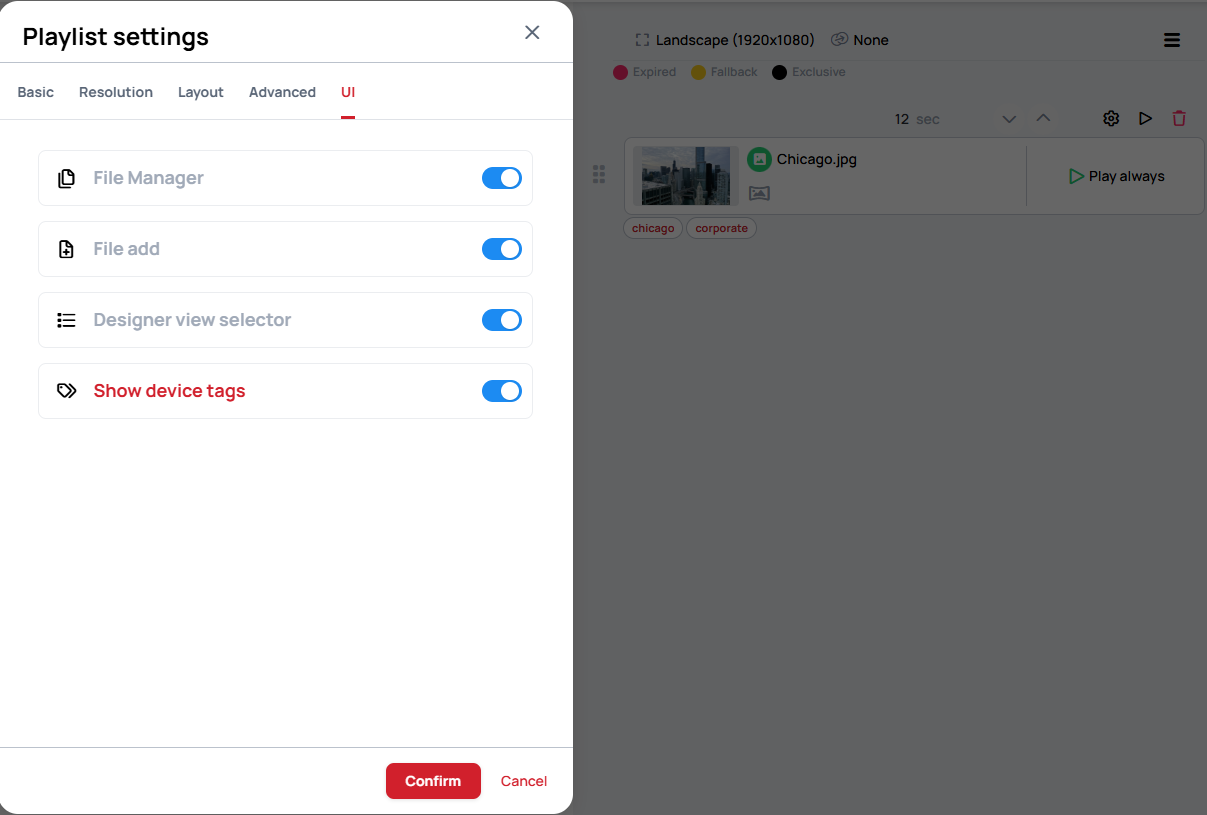
Here you can add and remove additional elements and functionalities from the playlist editor
File manager
If File Manager access is enabled, you can use it directly from the playlist editor, just as you would outside of the editor.
- You can upload and manage files, make folder operations, etc...
- Disabled by default
File add
If the file add option is enabled, you can upload files directly without needing to use the File Manager.
- Enabled by default
Designer view selector
If this option is disabled, you will no longer be able to use the designer view selector.
- Enabled by default
Show device tags
If the show device tag option is enabled, you can see the device tags connected to each playlist element.
- Enabled by default
Learn more: Tags Menu