Manage a Video Wall
Open the Video Wall folder in Devices to see the wall as a whole.
The wall page
-
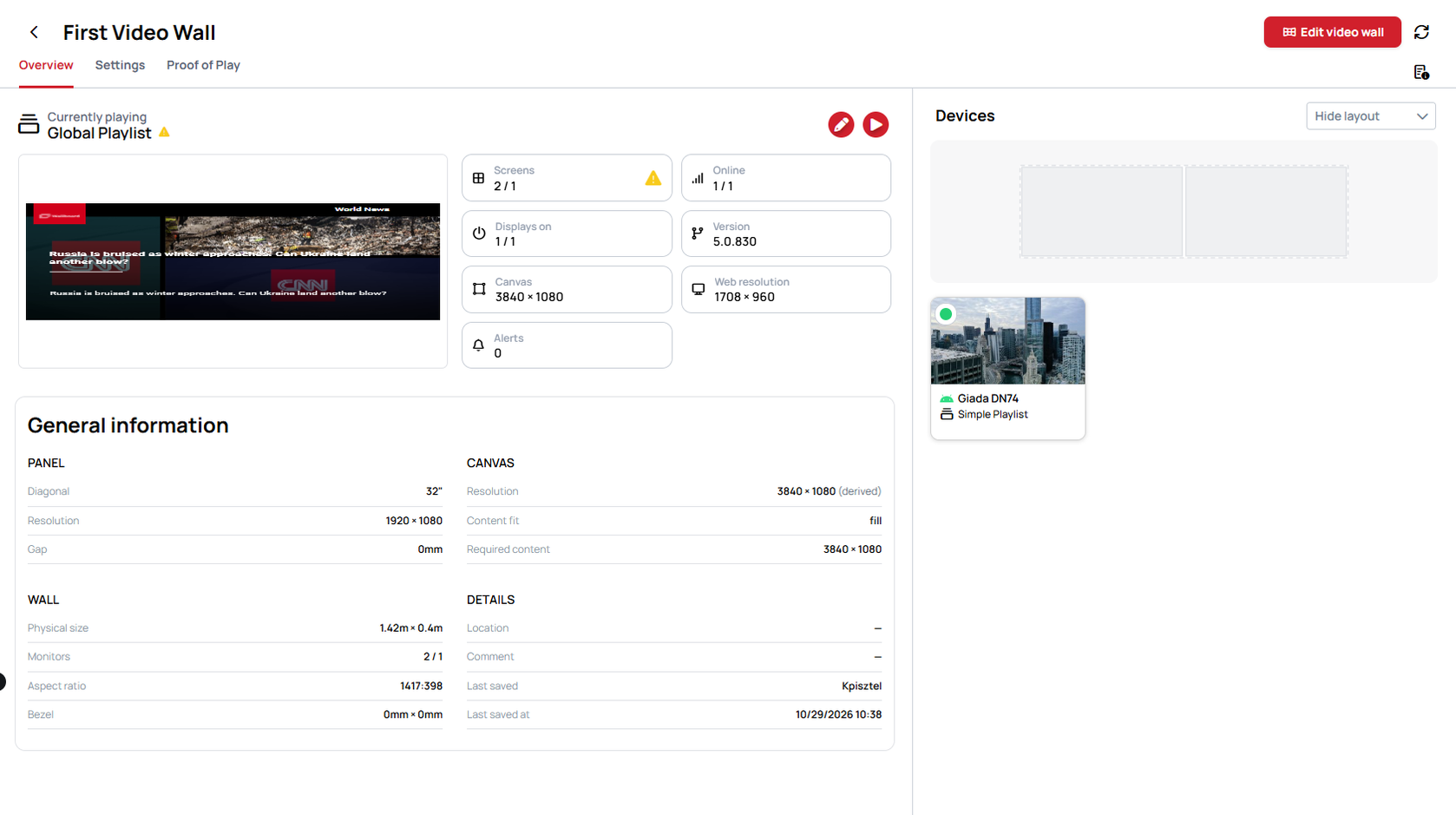
Overview shows what the wall is playing, status tiles such as Screens, Online and Alerts, the General information about the panels, canvas and wall, and the layout with a card for every screen.
-
Settings changes device settings, such as working hours or volume, for the screens selected on the right. Use Select all to change the whole wall at once. When the screens disagree on a setting, the difference is shown. This tab appears only if you can edit the wall.
-
Proof of Play shows playback reports for the wall, if your role includes reporting.
The wall also flags screens that need attention — for example, offline screens, screens playing something else, screens on a different resolution than the layout assumes, or a canvas smaller than the panels need.
Remove a screen from the wall
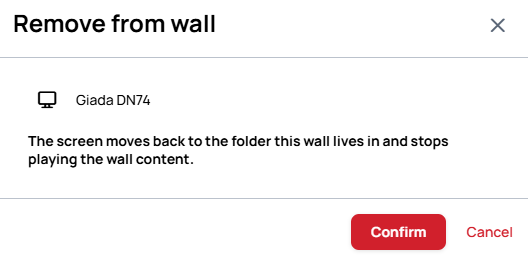
On the wall's page, use Remove from wall on the screen's card. You can also do it in the editor, from the screen's settings. The Device moves back to the folder the wall lives in and stops playing the wall's Content.
Good to know
- Each Device shows one part of the wall. To drive several screens from one Device, use a multi-output setup.
- A Device can belong to one Video Wall at a time, and a Video Wall cannot contain sub-folders.
- If a screen goes offline, the other screens keep playing their own parts and the wall flags the missing one. The layout does not rearrange itself.
- Use the Video Wall editor to change what the wall plays. Schedules are not built around Video Walls yet. A screen that is placed on a wall always shows only its own part of the wall, whatever it plays, so a scheduled Content is cut up the same way as the wall's own Content. If you do schedule something onto a wall, target every screen of the wall and use a Content made at the wall's resolution, or the screens will not line up.
- To change what the wall shows over time, schedule inside the Content. For a sequence of graphics, or something that must appear at a set time, such as a lunch menu at noon, assign a Playlist and use When to play on its pages, or use Set Scheduling on the pages of a Content. The wall keeps playing its one assigned Content, and with Synchronize content turned on, every screen changes page together. Learn more: Scheduling - When to Play and Scheduling - Content / Slide Pages
- Emergency content on a wall. If the wall's Devices have an Emergency content, build it at the wall's resolution. It plays like any other Content, so each screen shows only its own part of it. Without an assigned Emergency content, the Devices show the built-in emergency page instead. That page is not a Content and does not go through the wall's cutting, so every screen shows the whole page on its own. Learn more: Assign Emergency Content
- A sensor reaches only the device it is connected to. For what a sensor can change on a wall, and how to switch the whole wall from one sensor, see How to Use Sensors with a Video Wall.