Set up a Video Wall
This article walks you through building a Video Wall, step by step. For a tour of every part of the editor, see The Video Wall editor. For running a finished wall, see Manage a Video Wall. If you are not sure a Video Wall is the right setup for your screens, start with About Video Walls.
Before you start
- Register the Devices that will drive the screens. Each screen needs its own Device.
- Measure the installation. You need the size of the screens, or their diagonal, and the bezels and the space between them in millimeters. The more exact the measurements, the better the picture lines up across the frames.
- Check your role. Creating and editing a Video Wall needs permission to manage Devices and folders.
Create a Video Wall
A Video Wall is a device folder. You can create it empty or start from Devices you have already selected.
- Empty: in Devices, open the add menu and choose Create video wall.
- From selected Devices: in Devices, select the Devices, then choose Create video wall from the batch actions.
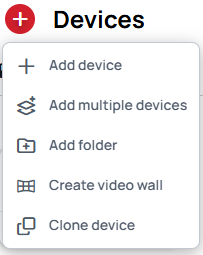
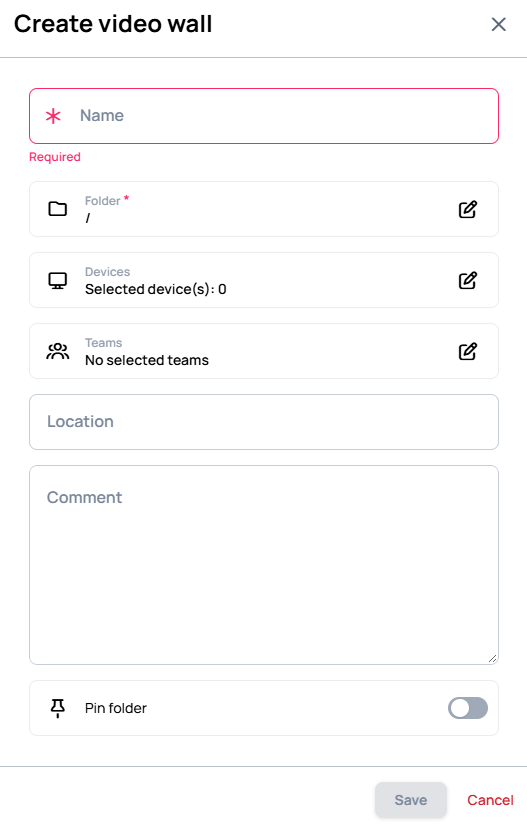
In the Create video wall dialog, give the wall a Name and choose the Folder it lives in. You can also pick the Devices and Teams here, and add a Location and a Comment. Then Save. The Devices you choose are moved into the Video Wall folder.
The wall then appears in Devices as a folder with its own Video Wall icon.

To add Devices later, see Add Devices to the wall.
Set up the wall
Open the wall and choose Edit video wall.
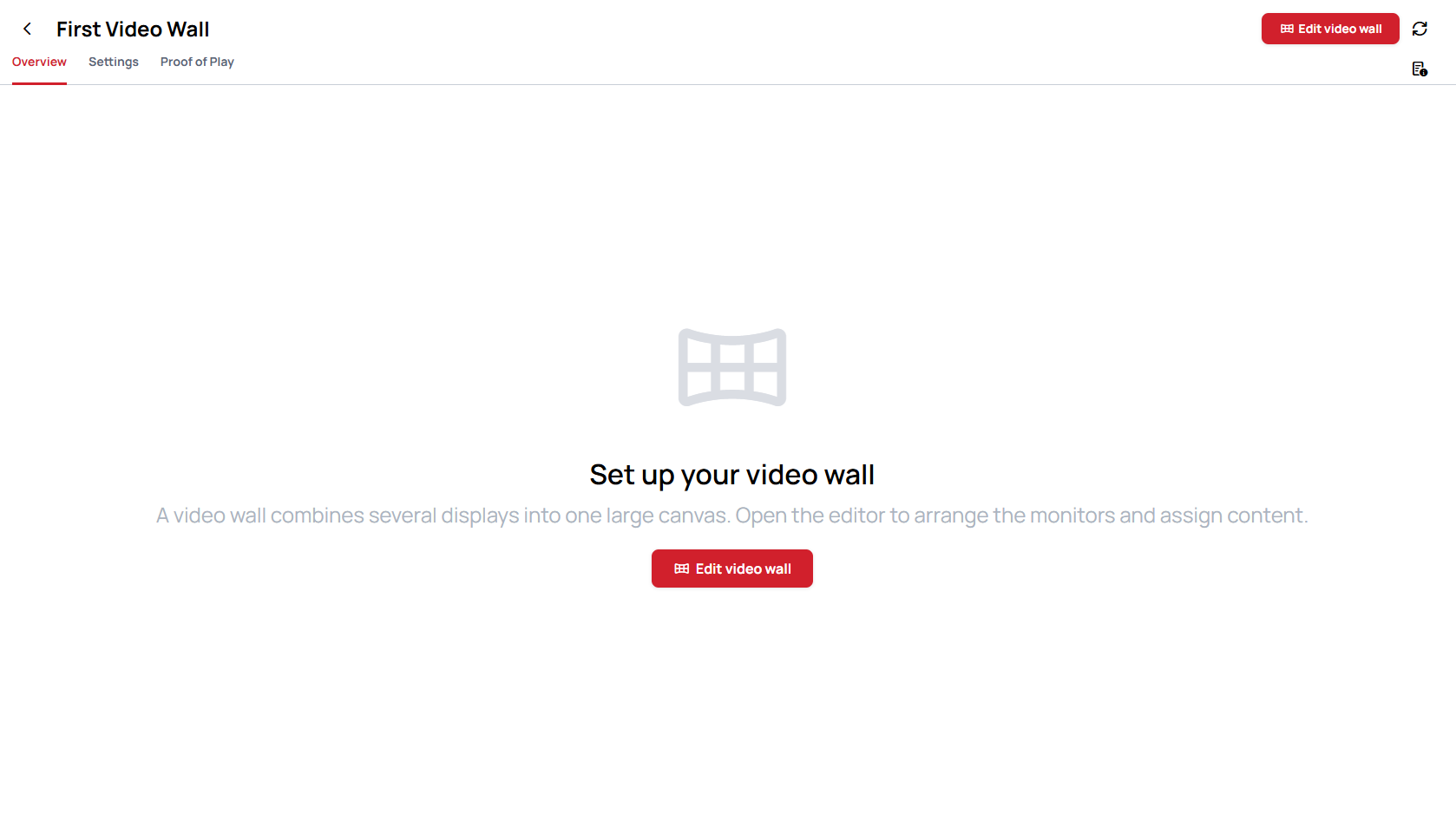
If you created the wall without Devices, the editor opens with the Wall setup wizard. If you selected Devices when you created it, the wizard does not open by itself. You can start it any time with the Wall setup button in the editor's top bar, or close it and build the wall by hand.
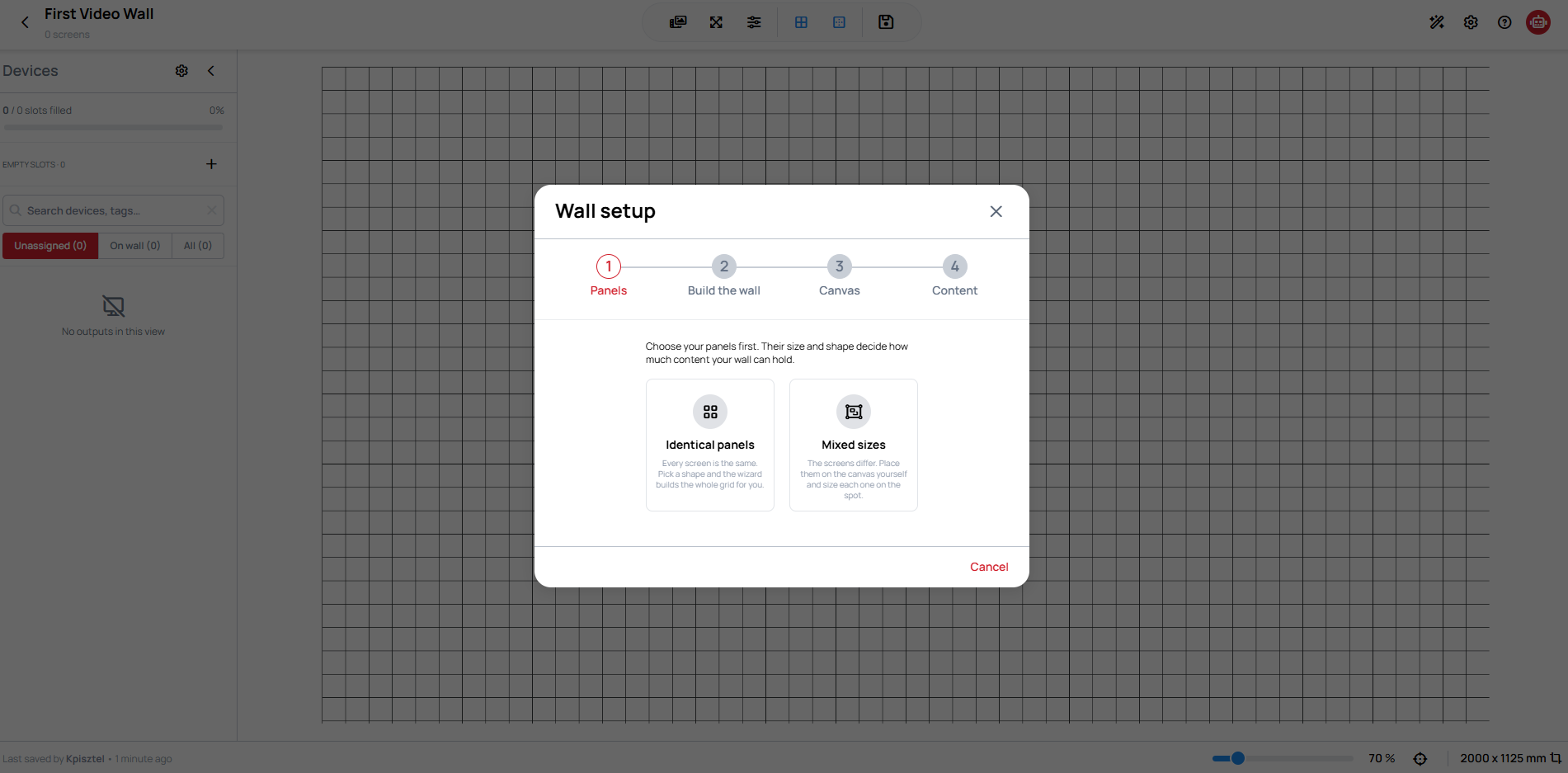
The wizard has four steps.
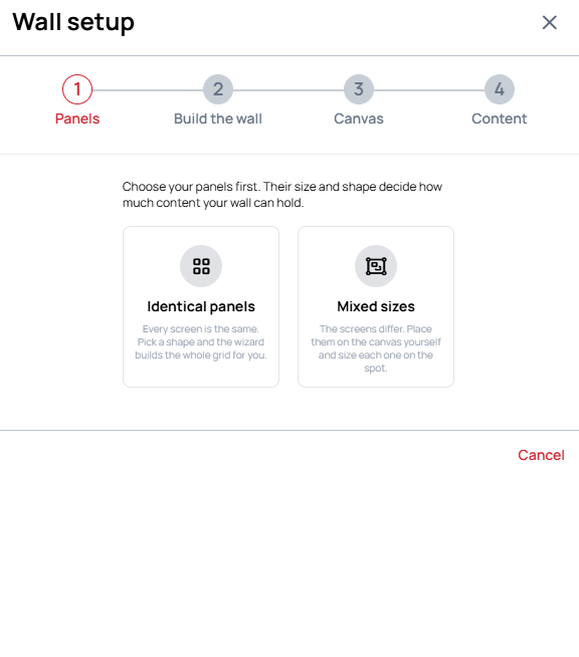
1. Panels
Choose how your screens relate to each other:
- Identical panels — every screen is the same. Pick a layout, and the wizard builds the whole grid for you.
- Mixed sizes — the screens differ. You place them on the canvas yourself and size each one, so the wizard skips step 2.
2. Build the wall
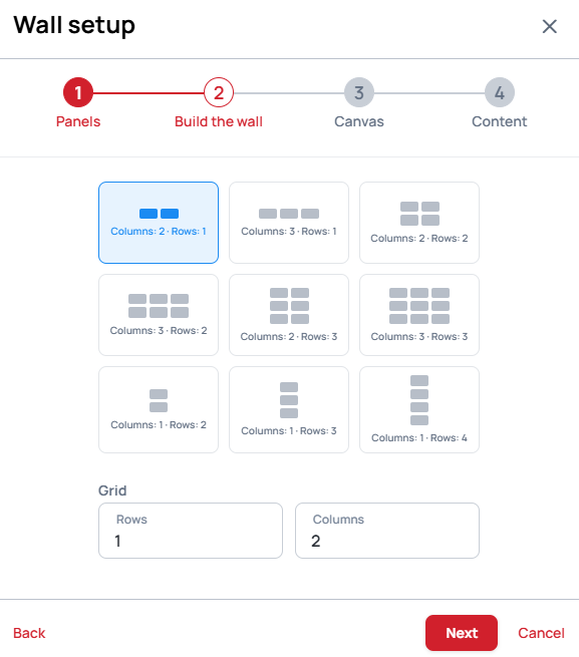
For identical panels only. Pick one of the ready-made layouts, for example Columns: 2 · Rows: 1, or type the numbers under Grid in Rows and Columns. Screens already on the wall are kept and counted towards the grid.
3. Canvas
For identical panels:
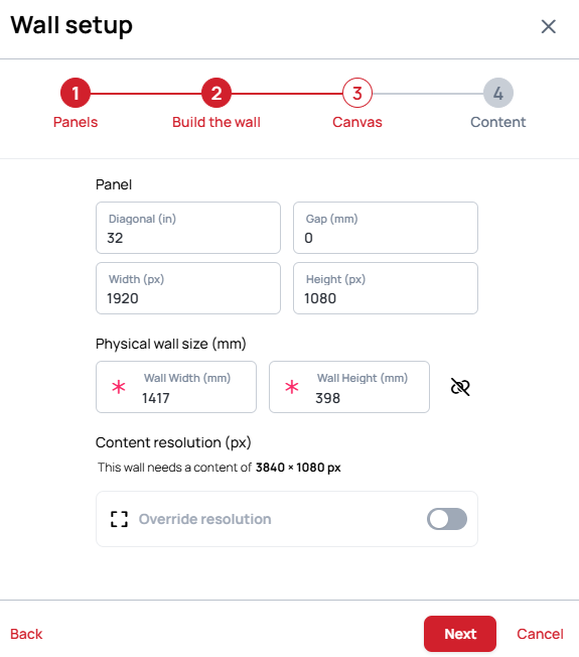
- Panel — the Diagonal (in) of one screen, the Gap (mm) between screens, and the screen's resolution in Width (px) and Height (px).
- Physical wall size (mm) — the overall Wall Width (mm) and Wall Height (mm). The link icon next to them keeps the aspect ratio when you change one.
- Content resolution (px) — the resolution your Content needs, for example This wall needs a content of 3840 × 1080 px. It is calculated from the panels; turn on Override resolution only if you have a reason to. See Build the Content at the wall's resolution.
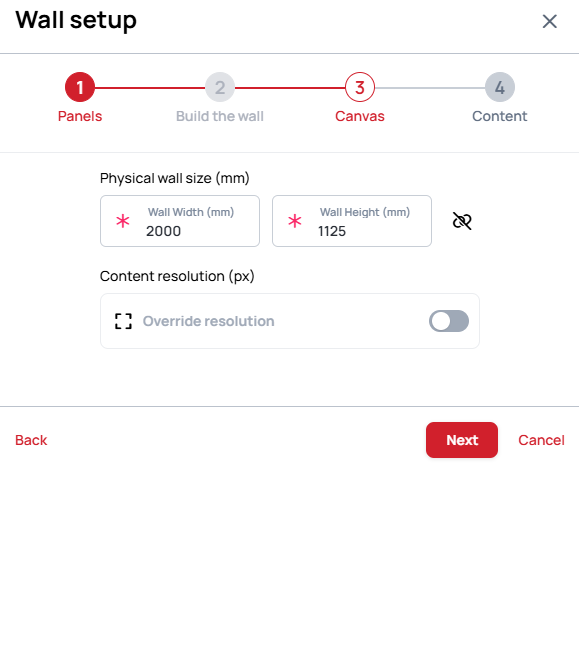
For mixed sizes, this step only asks for the Physical wall size (mm) and offers Override resolution, because you size each screen on the canvas.
Gap (mm) is the distance from the edge of one screen's picture to the edge of the next. There is no separate bezel setting, so measure everything in between:
Gap = bezel + space between the screens + bezel

The editor works in real-world millimeters and leaves out the part of the Content that falls behind the gap. A line that crosses from one screen to the next then continues at the right height, as if you were looking through a window. With Gap (mm) left at 0, the picture on the next screen starts too early, and the line looks broken at the seam, like a spoon in a glass of water. The dashed line shows where a straight line should run.

4. Content
Choose the Content, Slide or Playlist the wall should play, and Confirm. This step is optional: choose Skip to build the layout first and assign Content later.
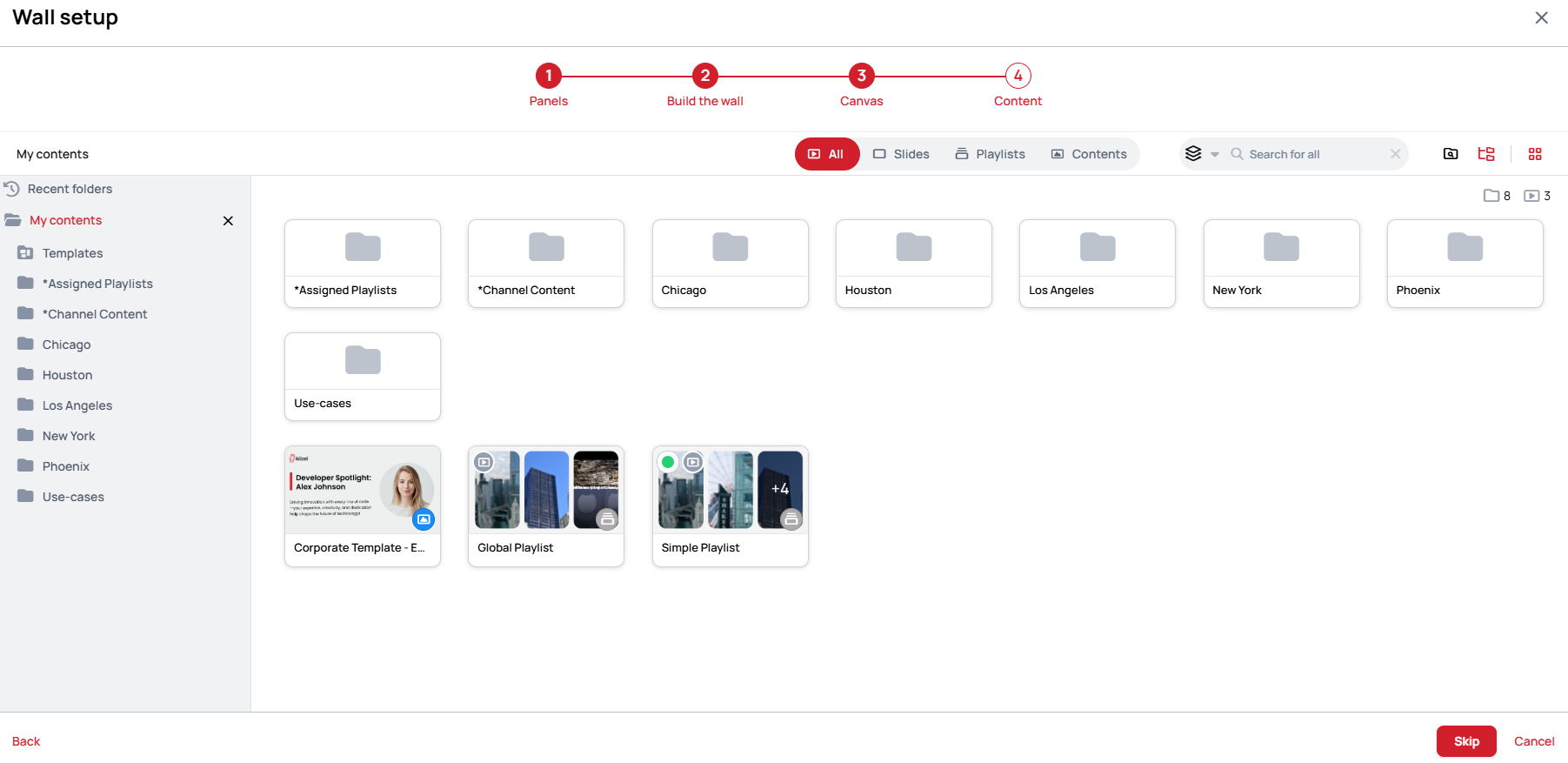
Add Devices to the wall
The editor's Devices panel only lists Devices that are already in the Video Wall folder. If you created the wall without Devices, add them before you place them.
After you finish the wizard and Save, the wall's Overview shows the layout with empty slots.
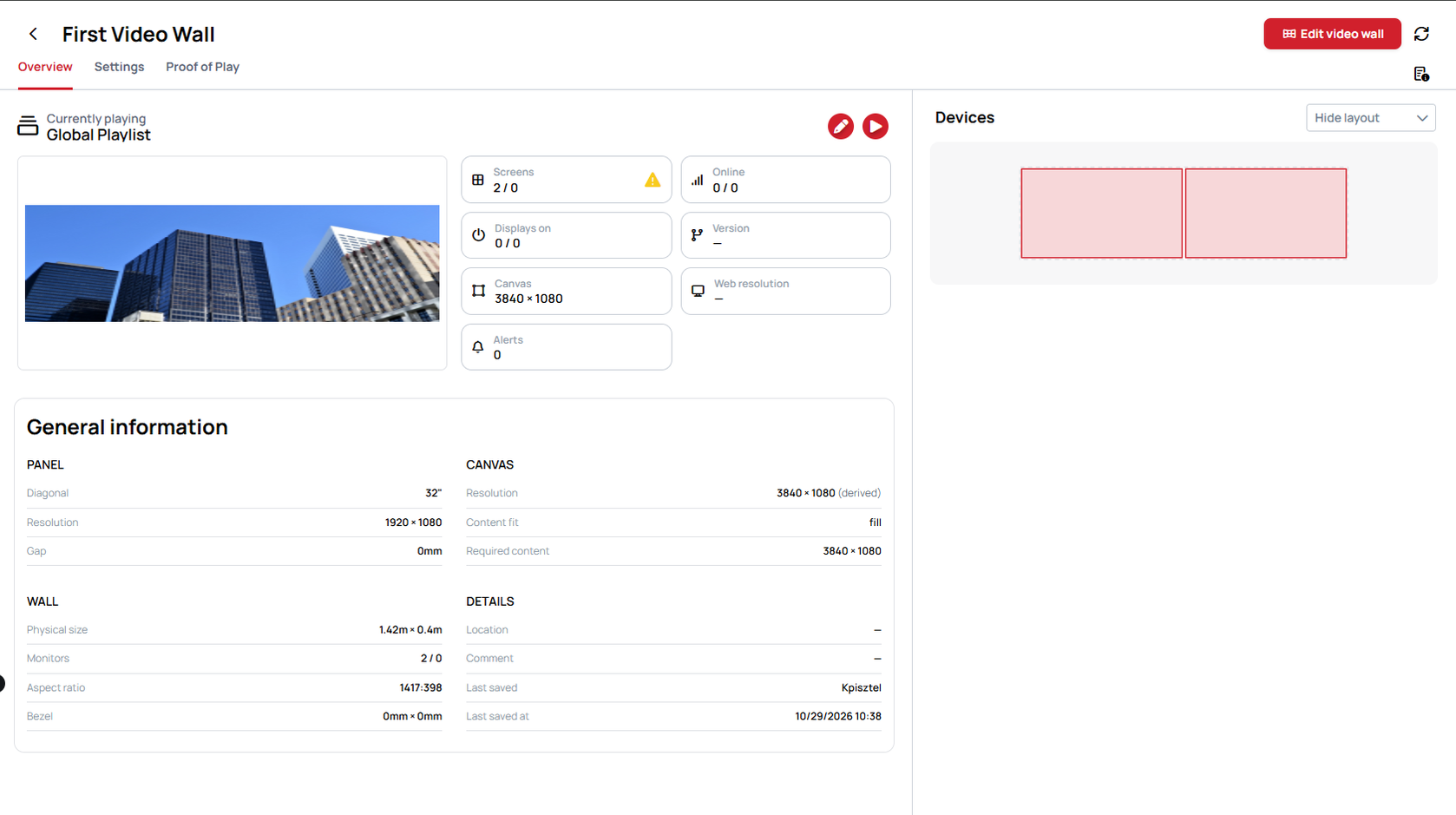
-
Open the Settings tab and click + next to the wall's name. Choose Add existing devices to pick Devices you have already registered, or register new ones with Add device or Add multiple devices.
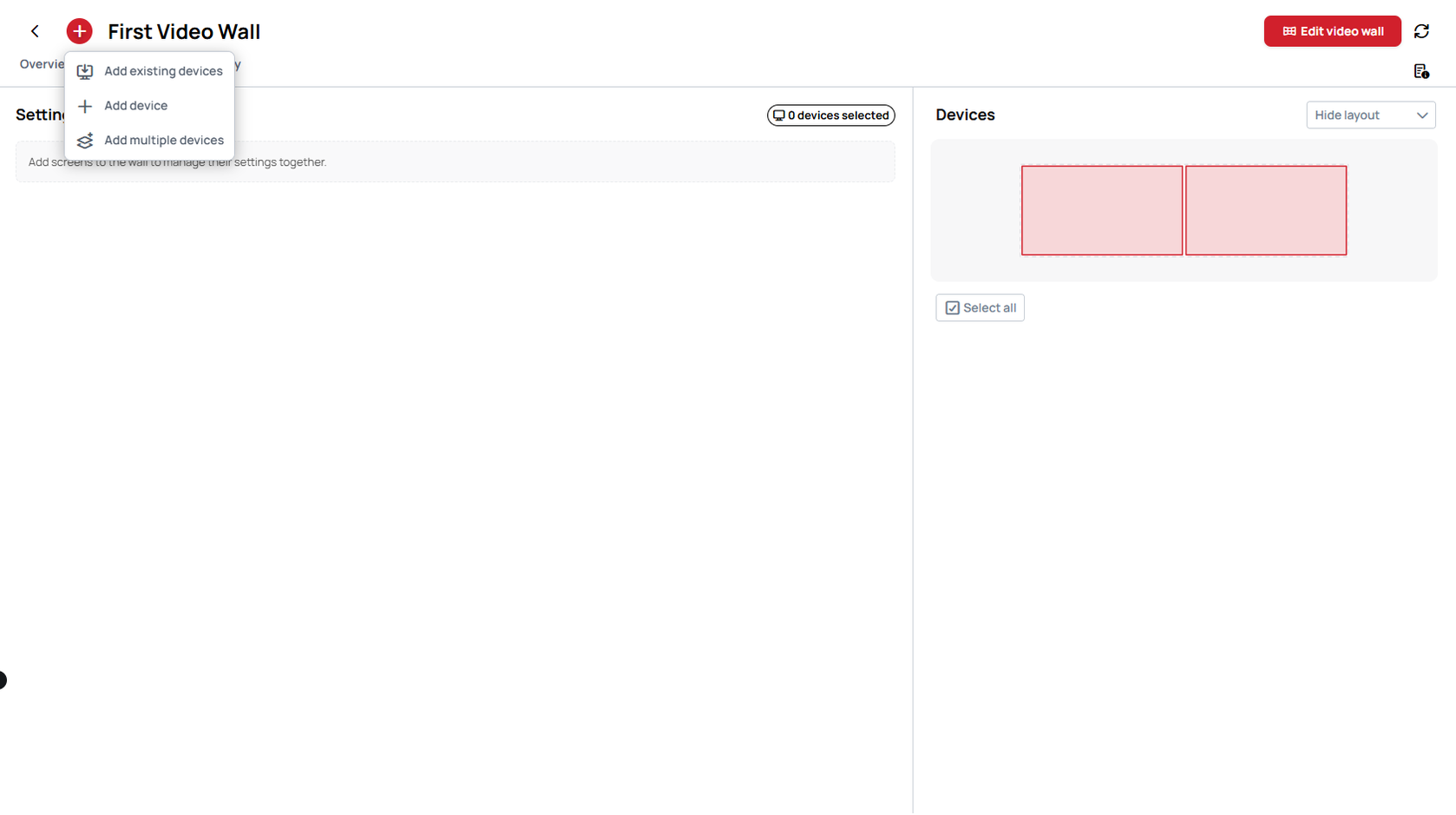
-
In Add existing devices, select the Devices and Confirm.
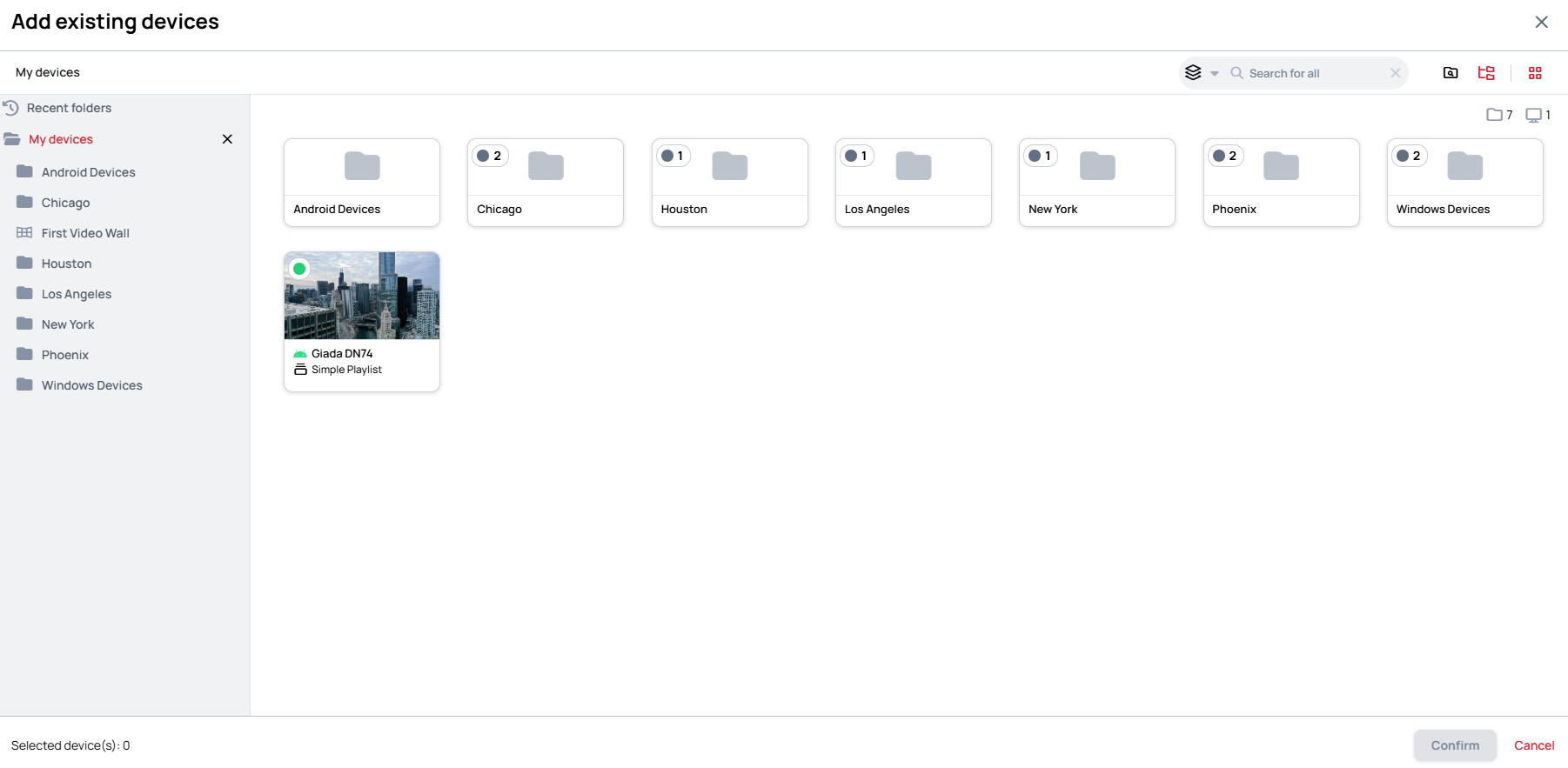
-
The Devices now appear on the right of the Settings and Overview tabs.
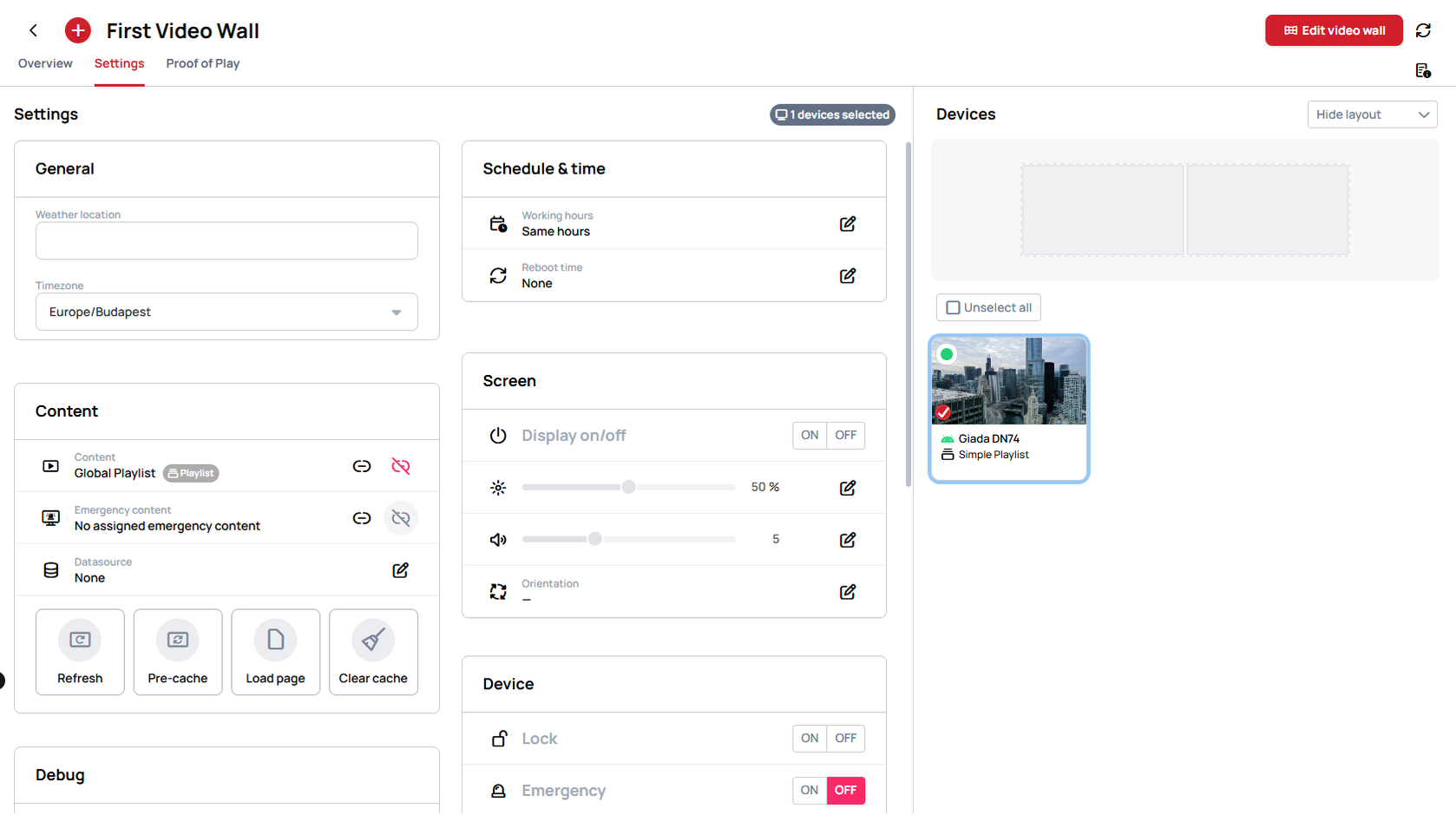
You can also add a Device from its own card in Devices, with Attach to video wall.
Then open Edit video wall again: the Devices are waiting in the editor's Devices panel, ready to place.
Place the Devices on the wall
In the editor, the Devices panel on the left lists the Devices in the Video Wall folder.
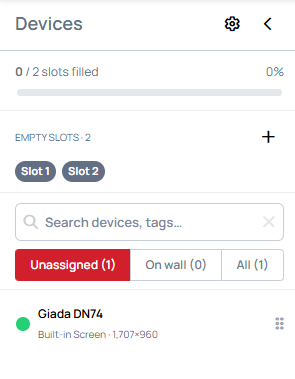
Drag a Device onto a slot, or double-click it to fill the selected or the next empty slot. Once placed, the Device's part of the Content shows in its slot, and the slot's settings on the right show the Device.
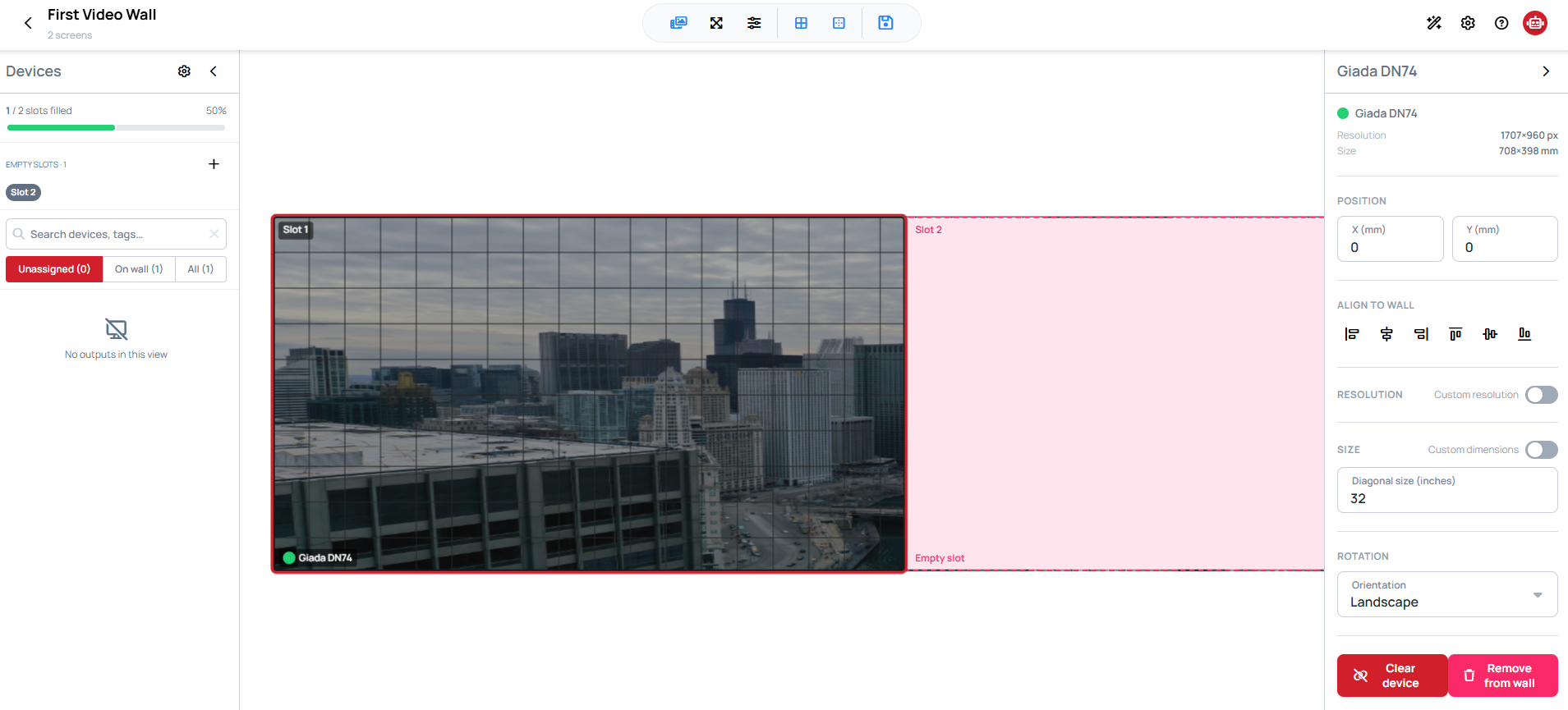
To take a Device off its slot, for example to drag another one in, use Clear device in the slot's settings. The slot stays on the wall. For everything else in the slot's settings, such as position and rotation, see Adjust a screen.
A Device only plays its own part of the canvas once it has a saved place on the wall. A Device that is in the folder but not placed on the wall still receives the wall's Content, but plays it uncropped.
Assign the Content
Use Choose content in the editor's top bar, or the last step of the wizard, to pick a Content, Slide or Playlist for the whole wall. A wall plays one at a time: choosing another replaces it. The editor shows a muted preview of it behind the screens, so you can see which part each screen will show.
Build the Content at the wall's resolution
The wall tells you the resolution it needs: in step 3 of the wizard, and in the editor's bottom bar. Build your Content at exactly that resolution. Each screen cuts its own part out of the Content at a position measured on the wall's canvas, so a Content of a different size does not fit the wall.

Smaller than the wall: the first screen shows the whole Content, shrunk, and the other screens find nothing and stay black.

Bigger than the wall: every screen shows the wrong part. The wall looks zoomed in, and the rest of the Content is cut off.

Changing the layout, for example adding an empty slot, can change the resolution the wall needs, so check it again after every layout change.
The wall crops the picture, not the files. A video or image that crosses several screens is loaded in full by every Device that shows a part of it. Make sure every player on the wall can handle the file's full resolution: a 4K video across four Full HD screens needs four players that can play 4K, and the same goes for a very large image.
If a large video does not play or stutters, converting it to WebM with the VP9 codec usually solves it. Learn more: Convert a video to WebM (VP9)
Content settings
Content settings in the top bar controls how each screen renders its own part:
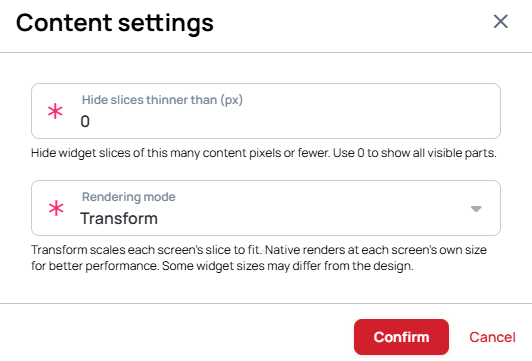
- Hide slices thinner than (px) — a widget that only reaches a few pixels into a screen can leave a thin sliver along the frame. Widgets that cover this many pixels of a screen, or fewer, are hidden on that screen. Use 0 to show every visible part.
- Rendering mode — Transform scales each screen's part to fit the screen. Native renders at each screen's own size for better performance, but some widget sizes may differ from the design.
If the Content uses Performance mode, turn Animated off or choose Fade as the Animation. With these, each screen still skips the widgets outside its own part. Sliding, flipping and other moving animations carry widgets across the screen edges, so every screen has to render the whole page, which is heavier for the players.
The editor does not add its own playback synchronization. To keep page changes and videos aligned across the screens, turn on Synchronize content in the Content you assign. Learn more: Content Synchronization
Save
Choose Save in the editor's top bar, or press Ctrl+S / Cmd+S. Saving stores the layout and assigns the Content to every Device in the wall. If you try to leave the editor with unsaved changes, it asks you first.