Quick Editable Base Datasource
If you wish to Quick edit the Base datasource, you have to enable quick editing on the datasource and select the same datasource type that you currently use and will use as a replacement.
- Navigate to Properties (on the right), then select Content
- Scroll down to the Data binding section
- Bind a datasource to the content
- Scroll down to the Quick edit section
- Enable Quick Editing then select the datasource type.

Switching the base datasource in the Quick Editor
Once the base datasource is quick editable, the Datasource field at the top of the Editable fields list lets a contributor pick another datasource for the Content. The list only offers datasources of the matching type, for example internal Table datasources. It does not check the column names, and the names are what the Widgets read.
A Widget bound to the base datasource remembers where its value sits, by name: the worksheet, the row and the column. A food menu Widget, for example, reads Food Menu > row 1 > Meal name. A replacement datasource works only if it has the same names.
A switch that works
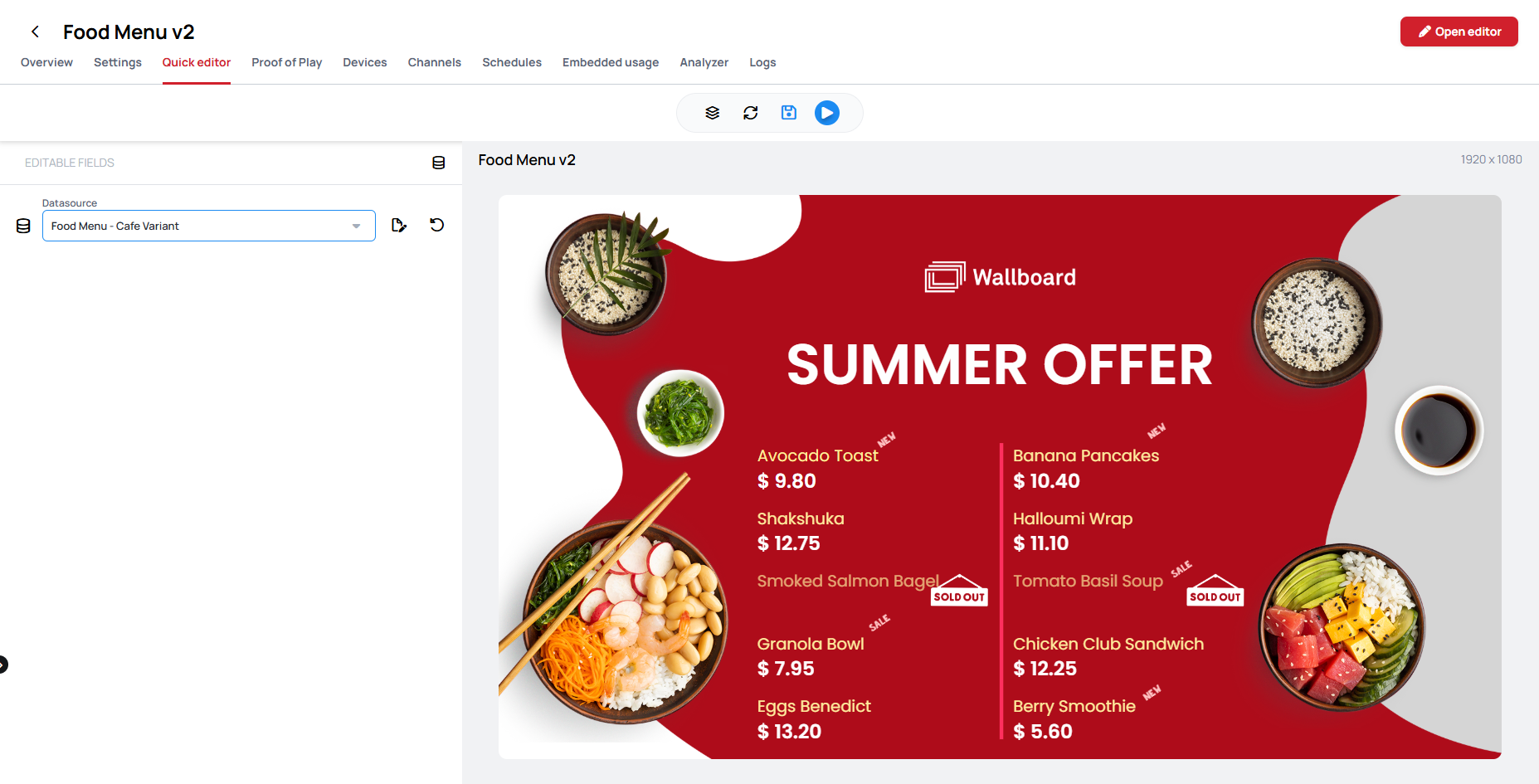
The Food Menu - Cafe Variant datasource has the same worksheet name and the same columns as Food Menu: Meal name, Price, Quantity and Status. Only the dishes are different. Every Widget finds its value, and the menu fills with the café dishes:
A switch that breaks the Content
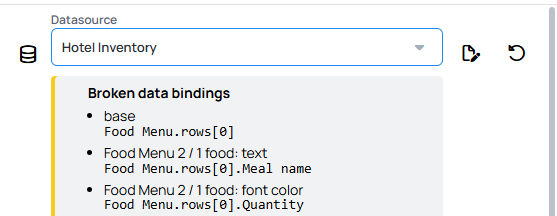
Hotel Inventory is also an internal Table datasource, so the list offers it too. But its worksheet is called Hotel Inventory, and its columns are Room type, Price, Availability and Badge. None of the addresses the menu reads exist in it, so the menu goes empty.
The Quick Editor shows a Broken data bindings warning under the field. Each line names the page and the Widget, what it reads, and the address that is missing, followed by Missing in and the name of the datasource you picked:
The preview shows the result: the menu is empty.

To undo it, pick the original datasource again, or click the Reset icon next to the field.
To prepare a datasource that can replace another one, copy its structure exactly, including the worksheet name and the capital letters and spaces in the column names, and change only the values. Learn more: Import from JSON