Preview
A preview plays a Content, Slide or Playlist in your browser so you can watch it without sending it to a screen. It is the same player a Device runs, which is why most things look identical — and why the differences that remain are worth knowing before you judge what you see.
Starting from server version 1.9, Wallboard no longer allows content previews to be displayed in a browser for more than 15 minutes, or in offline mode unless the preview is running in signage mode.
Opening a preview
| From | How |
|---|---|
| A Content or Slide in the list | The context menu of the item, Preview in browser |
| The Content Designer or Slide Editor | The preview control in the editor |
| A Playlist | Two separate controls. The play button in the editor's top bar, beside Save, previews from the first page. The play button on an individual item previews from that item instead. |
| A Device | The Device Overview tab |
The preview is unavailable for a legacy loop that has not been converted yet — save the loop as a Playlist first.
Preview modes
In the Content Designer and the Slide Editor, the play button in the top bar opens a small menu:
- Preview — plays the item straight away
- Advanced preview — opens a dialog where you set how the preview should behave, then click Open preview
A Content preview also offers a starting point: from the first page, from the page you have open in the editor, or from the first page with synchronization.
Advanced preview — Contents and Slides
Advanced preview is the dialog for the URL parameters — every field below writes one into the preview's address. Use the dialog when you want the preview to behave more like the Device does; edit the address directly only if you are scripting or sharing a link.
| Field | What it does | URL parameter |
|---|---|---|
| Sync enabled | Waits for content synchronization before playing. Off by default | noSync — the inverse of the toggle |
| Auto save enabled | Plays the autosaved version rather than the last saved one. On by default | autoSaved |
| Stretch content | Sizes the content to the browser window. On by default | stretchContent |
| Ignore only play | Ignores the pages' own scheduling, so a page plays even when its Set Scheduling dates say it should not be on now | ignoreOnlyPlay |
| Data row label | Plays the Content as it would look for one particular data row, standing in for the row a Device is pinned to | datarowlabel |
| Datasource | Plays against a specific Datasource | datasourceId |
| Time zone | Plays as if the Device were in that time zone | timeZone |
| Screen | Plays as it would on that Device | deviceId, plus deviceTags |
See Device Tags in a preview for what that does and does not cover.
Two of these need the Content to be set up for them. Ignore only play only changes anything on pages that carry their own scheduling, set through Set Scheduling on the page. Data row label only applies when the Content's data binding is set to change with the data row label; otherwise the preview falls back to the row the Device or the browser already has.
A preview also opens muted, through a mute parameter in its address. If the preview is silent, see why a preview has no sound — the browser blocks sound separately, for its own reasons.
Previewing a Playlist
A Playlist preview is a different thing, and the dialog above does not apply to it. There is no Advanced preview, no Screen to imitate and no time zone to choose — the editor's play buttons carry everything it takes.
| What you control | How |
|---|---|
| Where it starts | The play button in the top bar starts from the first page. The play button on an item starts from that item |
| Which version plays | The autosaved version, always |
So a Playlist preview cannot be pointed at a Device, and nothing in it is filtered by a screen's Tags. To check a Playlist as a particular screen would play it, assign it and look at the screen.
Device Tags in a preview
A preview is not a Device, so it has no Tags of its own. What that costs you depends on which part of the product is reading them, and the answer is different in each case.
| In a preview | |
|---|---|
| Channel pages targeted by Tag | Filtered correctly if you choose a Device under Screen in Advanced preview |
A deviceId typed into the address | No Tags. Nothing looks the Device up, so targeted pages are not filtered |
| A preview with no Screen chosen | No Tags, no filtering |
| A Playlist preview | No Tags. There is no Screen to choose |
| A custom script asking for the Device's Tags | Nothing, always. There is no player to ask |
Channel pages
When the Content you preview plays a Channel, the pages that Channel serves can be targeted by Tag. Choosing a Device under Screen passes that Device's Tags to the preview, and the pages are then filtered by the same rules a real screen uses: an untagged page always plays, a page targeted at any of its Tags needs at least one match, a page targeted at all of them needs every one, and a screen carrying no Tags gets only untagged pages.
Scripts that ask for Tags
On a real screen a script can ask the player for the Device's Tags and act on them. In a browser there is no player to ask, so it gets nothing back — whatever you chose under Screen. That is why a Dynamic CAP filter mapper shows every alert in a preview, and only narrows to that screen's alerts once the Content is playing on the Device. The feature works; the preview cannot imitate it.
This is about the Tags that decide which pages a screen plays. Tags used to select content inside a Channel or a widget are a separate thing and are not affected.
Custom scripts in a preview
A preview runs inside your logged-in browser session, so a custom script in the content would run with your session present. Wallboard therefore restricts scripts in a preview — this is a security rule, not a fault in the content, and it is why something that works on a Device can look broken in a preview.
Opening the preview in an incognito window, where you are not logged in, always runs the content in full. That is the one route that works everywhere and needs no permission.
Contents and Slides — the approval prompt
When a Content or Slide you preview contains custom scripts, a Custom Scripts Detected prompt appears before it plays, offering ALLOW and DENY.
- Choosing ALLOW runs the content normally, and is remembered for that Content — you are not asked again
- The prompt returns when a script in that Content changes, so an edited script is always re-approved
- Choosing DENY plays the content with its scripts inactive
The check covers the whole Content, including scripts inside embedded Contents, the actions behind events, and Datasource mapper calculator scripts.
The prompt's own warning is the right advice: allow scripts only if you trust whoever built the content, because a script can use browser features and make network requests.
Playlists — no prompt
A Playlist preview does not offer the prompt. Scripts stay inactive in a logged-in session, so incognito is the only way to see a Playlist's scripts run in a browser.
On older servers
Servers older than the approval prompt need the script to be unblocked by hand, once per Content:
-
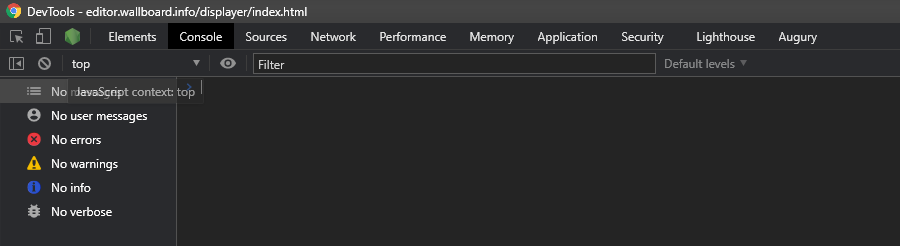
Open the preview and press
F12to open the browser'sdevTools, then go to theConsoletab -
Interact with the content until the error appears — it is only logged when the custom action runs

-
Right-click the
getContentId()part at the end of the error and choosestore as global variable
-
Type
temp1();and press enter to run it
-
Refresh the page with
F5. The custom functionality now works, and you only do this once per Content
Embedded iframes
You can preview content that includes embedded iframes.
-
There are certain limitations when it comes to embedding iframe content. For more details, refer to this guide: How to Embed Iframes
-
Interactions with iframe content are not supported in preview mode. This means that features relying on user interaction, such as Screensaver triggers, may not function as expected.
Why a preview has no sound
This is the browser, not Wallboard. Browsers block media from playing with sound until you have interacted with the page, so a preview that is silent — or that does not start on its own — is usually the autoplay policy rather than a problem with the content. On a Device the same content plays with sound normally.
The Autoplay Policy launched in Chrome 66 for audio and video elements and is effectively blocking roughly half of unwanted media autoplays in Chrome
Chrome's autoplay policy
- Muted autoplay is always allowed.
- Autoplay with sound is allowed if:
- The user has interacted with the domain (click, tap, etc.).
- On desktop, the user's Media Engagement Index threshold has been crossed, meaning the user has previously played video with sound.
- The user has added the site to their home screen on mobile or installed the PWA on desktop.
- Top frames can delegate autoplay permission to their iframes to allow autoplay with sound.
To make sure previews play in your browser, check your browser settings.
In Chrome versions 61-72
- Write
chrome://flags/#autoplay-policyin your search bar - Find the
Autoplay policysection - Select
No user gesture is required
Autoplay flag has been discontinued by Chrome since the 76 version
In Safari
- Click on the
Safaributton, and select thePreferencesmenu - Choose the
Websitespanel, and find theAuto-Playsection - In the right bottom corner, you will see the
When visiting other websites:option, choose theAllow All Auto-Play
Other things called "preview"
Two other features share the word and are not this:
- The preview image on a file is its thumbnail in the Files list. Learn more: Replace Preview Image
- Currently playing on a Device's Overview tab shows a picture the Device itself uploaded of what is on its screen. Learn more: Device Details - Overview
Where you find it
| Surface | Article |
|---|---|
| Content Designer | Content Preview |
| Slide Editor | Slide Preview |
| Playlist Editor | About the Playlist Editor |