Classic soft matrix (old method)
Use the Video Wall editor for new installations. It replaces this method: you build one Content for the whole wall, and each device renders only its own part, without child Contents or query parameters. This article is kept for walls that were already built this way.
Learn more: About Video Walls
A classic soft matrix shows one picture across several screens, each with its own device, by giving every screen its own piece of the picture. There are two ways to build one.
| Option 1: crop the media | Option 2: one master Content | |
|---|---|---|
| Best for | High-resolution video and images | Widgets and more complex Content |
| How | Cut the video or image into pieces outside Wallboard, one piece per screen | Build one large master Content, and show a different window of it on each screen |
| Performance | The best: each device plays only its own piece | Video performs poorly: every device renders the whole master Content |
| Changing the picture | Cut the pieces again | Edit the master Content |
Before you start
- Your server needs an NTP server for the screens to stay in sync. If you are not sure whether yours has one, contact [email protected]. Do not install it yourself.
- Without a working NTP server, the devices fall back to UDP synchronization. In that case, the devices must be on the same network.
Option 1: crop the media
This example plays a 4K video on four Full HD screens, but you can use as many screens as you need.

- Cut the 4K video into four pieces with a video editing tool. Make each piece a little smaller than 1920 × 1080, and leave out the strips that fall behind the screen bezels (the gray cross above), so the picture lines up across the frames.
- Upload the pieces to Wallboard.
- Create four Playlists or Contents, one per screen. Name them after their position, for example Top-left and Bottom-right, so you always know which screen plays which.
- Add each piece to its own Playlist or Content. Make sure the top-left piece goes into the Top-left one, and so on.
- Duplicate the page and add the copy too, so there is a page switch. The page switch keeps the screens from drifting apart. If you have more than one page anyway, you can skip this.
- Turn on synchronization in every Playlist or Content.
- Give every page the same duration in all four. If one page is even one second longer, the screens fall out of sync.
- Assign each Playlist or Content to its own screen.
Option 2: one master Content
This option uses two kinds of Content:
- The master Content holds the whole design, at the size of all the screens together.
- A child Content per screen shows its own window of the master Content.
The master Content also includes a border for the screen bezels, so the picture lines up across the frames. This example uses a 100 px border between four Full HD screens: 3840 × 2160 for the screens plus 100 px, which makes 3940 × 2260. For more or fewer screens, add up the screen resolutions and the borders the same way.

-
Create the master Content at 3940 × 2260.
-
Design it and turn on Synchronize content.
-
Create the four child Contents at 1920 × 1080 each, named after their position, for example Top-left and Bottom-right.
-
Add a Content widget to each child Content, with the master Content as its source.
-
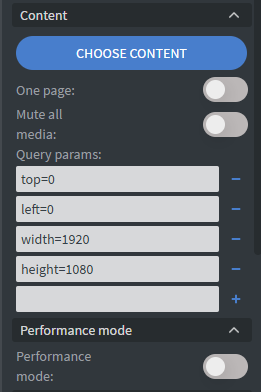
Set the Query params of each Content widget, so it shows its own window of the master Content:
Child Content left top width height Top-left 0 0 1920 1080 Top-right 2020 0 1920 1080 Bottom-left 0 1180 1920 1080 Bottom-right 2020 1180 1920 1080 The right-hand windows start at 2020 (1920 + the 100 px border), and the bottom ones at 1180 (1080 + 100).
-
Turn on Synchronize content in every child Content.
-
Assign each child Content to its own screen.
With Option 2, every device loads the whole master Content, videos included. A BrightSign XT plays at most 2 videos per Content page, so a master Content with four synced videos, one per screen, does not work there. Learn more: Supported BrightSign devices
Video tutorial
If you have further questions please do not hesitate to contact us at [email protected]. Happy editing!