Quick Editor in Playlists
In this article we will show you how Quick Editor works on Playlist editor
Enable Quick Edit in Content
To enable Quick editing functionality, you have to enable Quick editing on the widgets and the base datasource that you wish to Quick edit in the future.
Learn more: Quick Editable Widgets
Learn more: Quick Editable Base Datasource
Slide as Playlist Page
When you add a quick editable side to a playlist as a page, a popup will appear where you can open the Quick Editor.
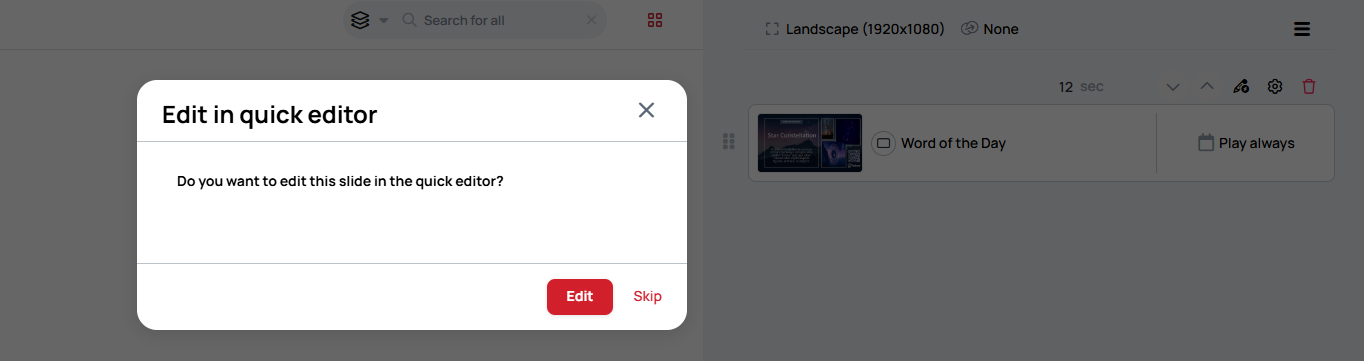
If you decide to edit it later, you can edit it with the button on the playlist card.
Displaying the same slide with different data
You can add the same slide to a playlist more than once and give each page its own values. Quick Edit values are stored on the playlist page, not on the slide, so editing one page does not change the others.
Everything you change in a Playlist's Quick Editor belongs to that one Playlist page, except an internal datasource opened from Data bindings with Open editor. That edits the datasource itself:
- It is saved immediately, when you click Save in the datasource editor, before you click Confirm in the Playlist.
- It reaches every Content and every Playlist page that uses the datasource, not only this one.
- Cancelling the Playlist Quick Editor afterwards does not undo it.
To give one Playlist page its own data, use a mock datasource instead: its edits are stored on the page. Learn more: Quick Editor Data Bindings
Because the copies would otherwise only be told apart by their thumbnail, each page can also be given its own name. Learn more: Rename page
If the different data comes from the rows of a datasource, add the slide as a Paginated slide instead. It automatically iterates through all datasource rows, displaying each entry as a separate playlist page.
Playlist Quick Editor
When you open the Quick Editor, you will see a list of widgets on the left side, and the content preview on the right side.
Select a widget on the left side then fill it with the desired value.
- A colored border will indicate which widget changed on the preview.
Original 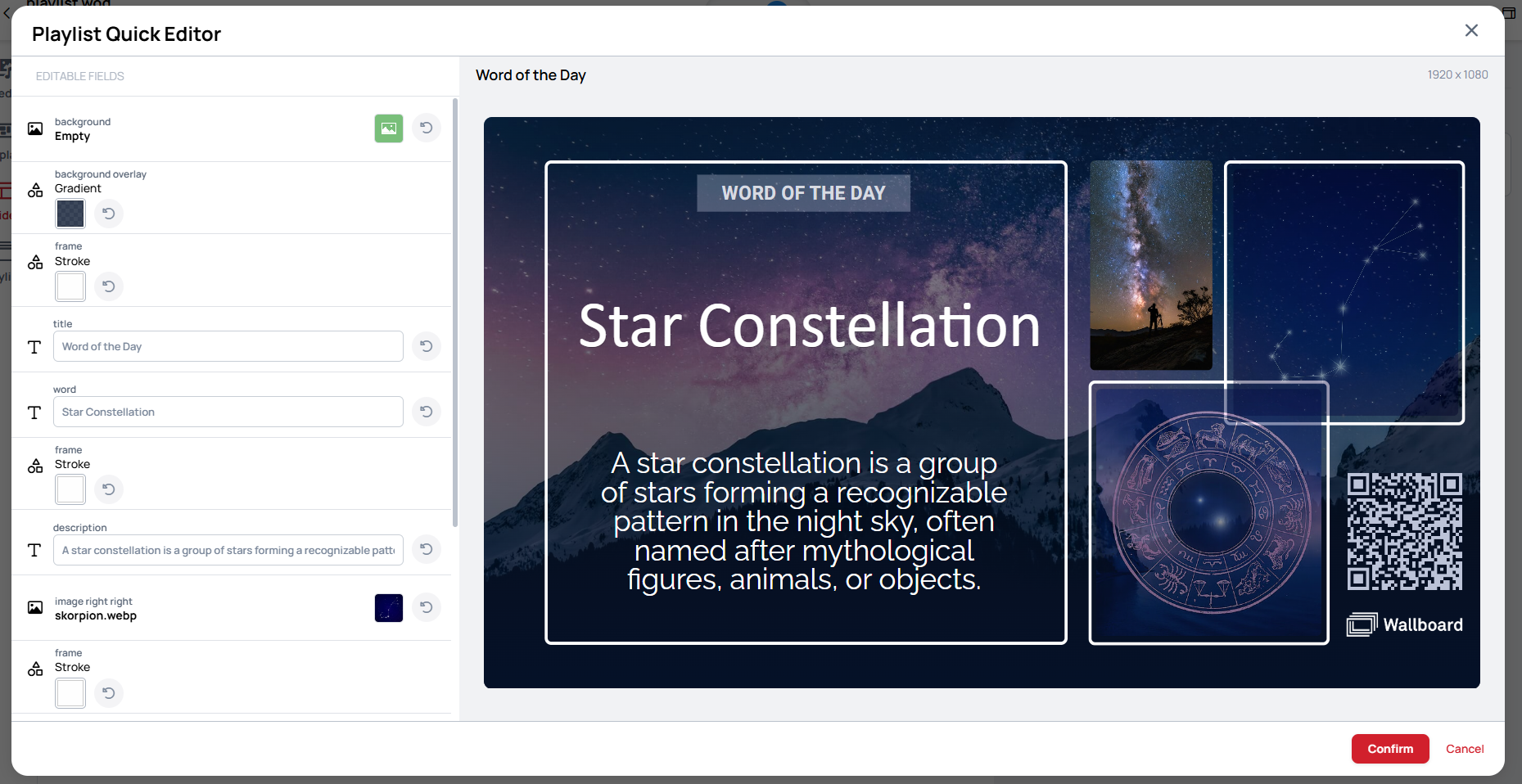 | Quick edited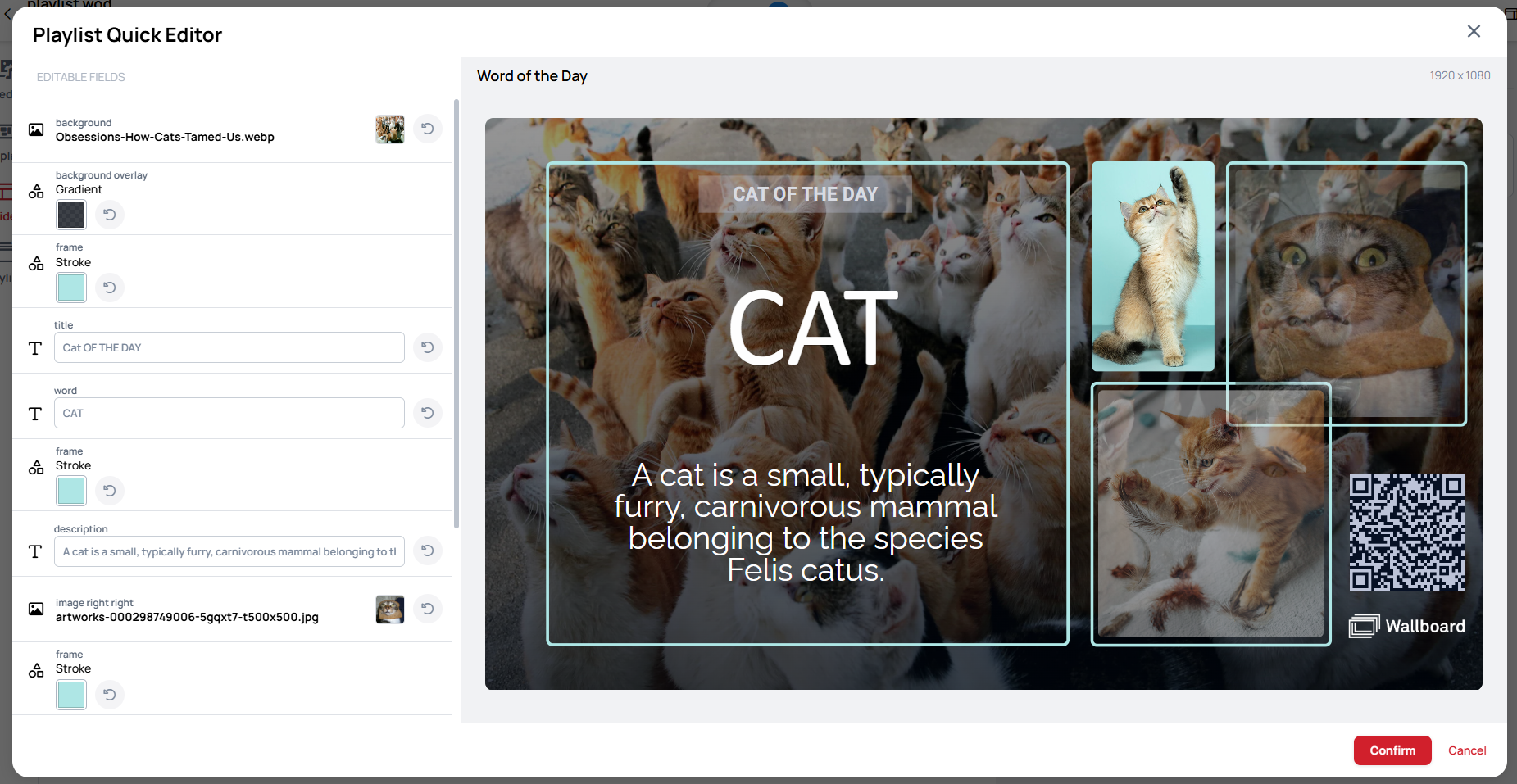 |
|---|
If the content has brand bindings, a Branding button also appears here: choose a brand kit to re-skin the logos, colors and fonts in one step. Learn more: Applying a brand kit in the Quick editor
If the Content or Slide has a field layout, its fields appear in named groups that can be expanded and collapsed. Learn more: Quick Editor Field Layout
Reset Quick Edited value on Playlist page
If you do not need the edited value anymore, you can just easily reset it with the button.

If Disable Transitive Quick Editing is enabled in Content
If you have the Disable Transitive Quick Editing button enabled on your slide, the Quick Editor popup will not appear,
and the Quick editor will not be available for edit through the button.

