Quick Editable Widgets
To enable Quick editing functionality on widgets, you have to enable Quick editing on the widgets that you wish to Quick edit in the future.
How to enable Quick Editing on widgets?
- Place the widget to the canvas
- Click on the widget
- Navigate to Properties (on the right), then select Widget/Main
- Scroll down to the Quick Edit section
- Enable Quick editing

- This way the Quick editing will be more seamless, and the target widgets will be more recognizable if too many widgets are presented on the page.
Widget behaviour
-
Widget is empty before Quick Editing
- If you edit a widget in Quick Editor that does not contain any value, the widget will display the value you set in the Quick Editor.
- If the widget is unable to handle the given value, it will show nothing due to non-existing fallback value.
-
Widget is not empty before Quick Editing
- If you edit a widget in Quick Editor that contains any value, the widget will display the value you set in the Quick Editor.
- If the widget is unable to handle the given value, it will show the original value.
-
Widget is bound to datasource while Quick Editing
- If you edit a widget in Quick Editor that is bound to a datasource, the widget will NOT display the value you set in the Quick Editor.
- This value cannot be overwritten manually.
-
Widget is bound to base datasource while Quick Editing
- If you edit a widget in Quick Editor that is bound to the base datasource, the widget will NOT display the value you set in the Quick Editor.
- If you wish to change this value in the widget, use the
Base datasource Quick Editfeature. - Learn more: Quick Editable Base Datasource
Quick Editable Widgets
Text widget
In the case of the text widget, you can overwrite the text inside the Widget properties >> Main >> Text.
You can also override the widget's Font color from the Quick Editor (added in version 2.1), without changing the colors saved in the slide.
Learn more: Text Widget
Original 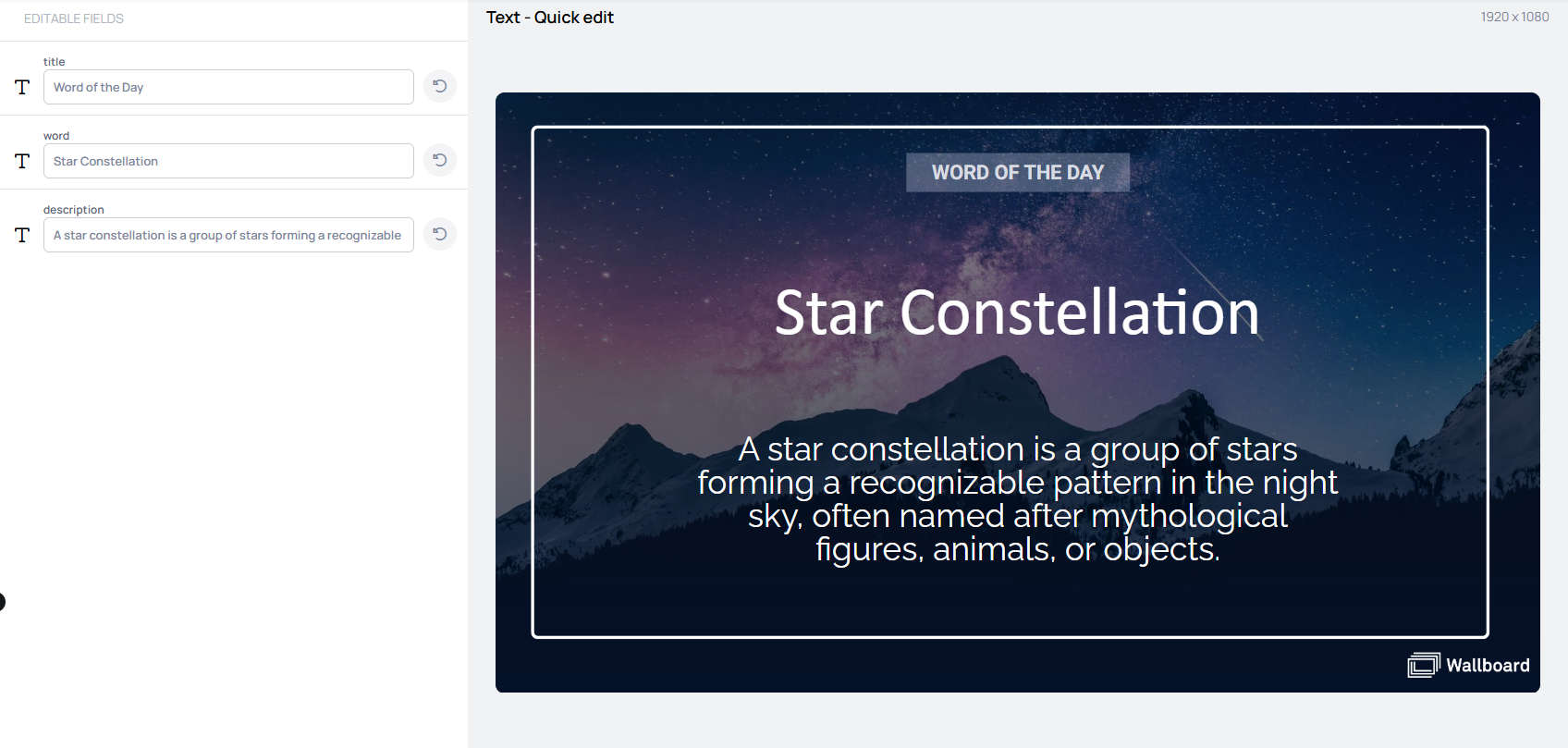 | Quick Edited 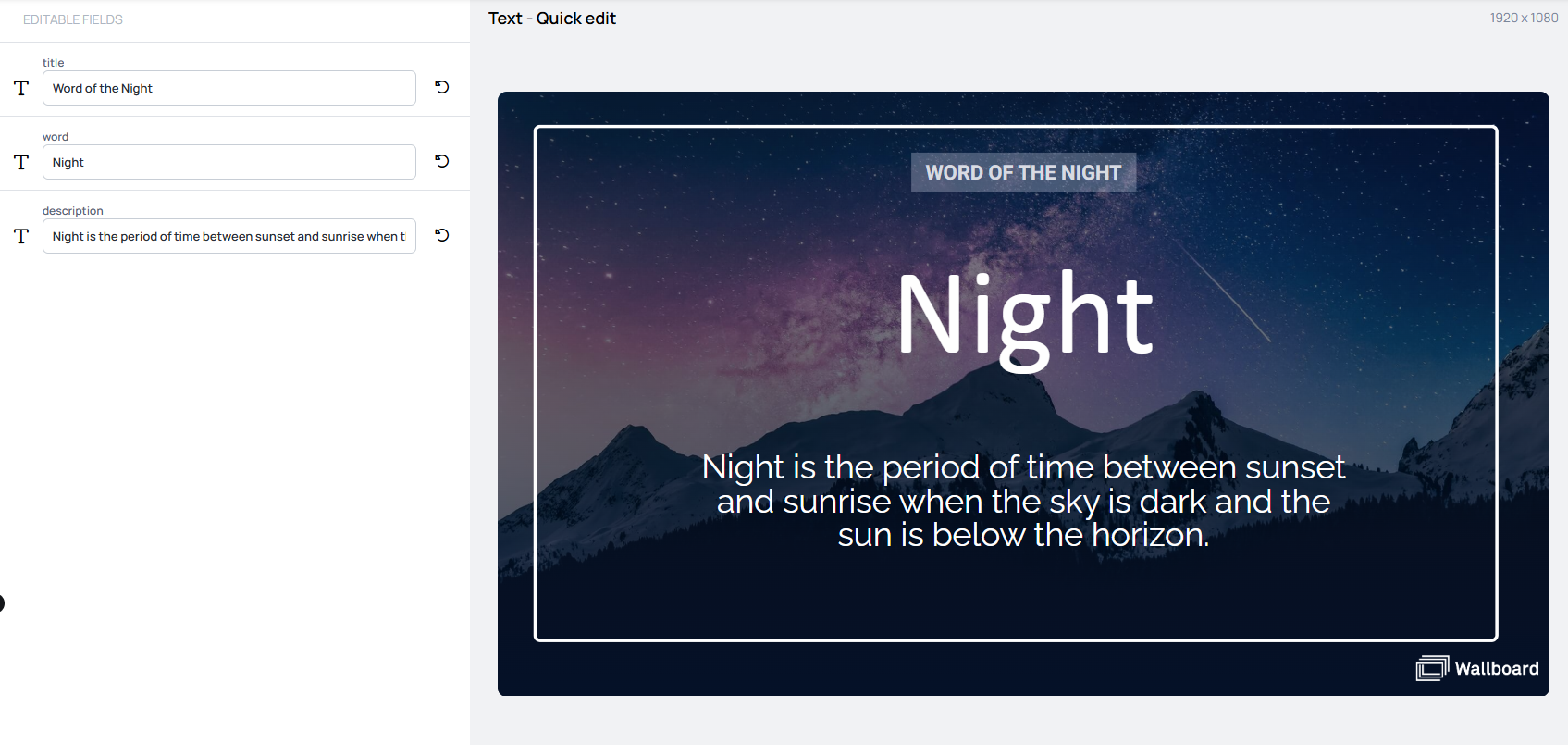 |
|---|
Image widget
In the case of the image widget, you can overwrite the image location inside the Widget properties >> Main >> Image Source.
Learn more: Image Widget
Enabling Quick editing on an image widget also allows its framing to be adjusted in the Quick Editor. The picture can be zoomed, panned, rotated and flipped inside the widget's own box, and the screen reproduces that framing. Nothing is uploaded and the file itself is not re-encoded, so the original image in the File manager is untouched. Clearing the value returns the widget to its own fit setting.
Original 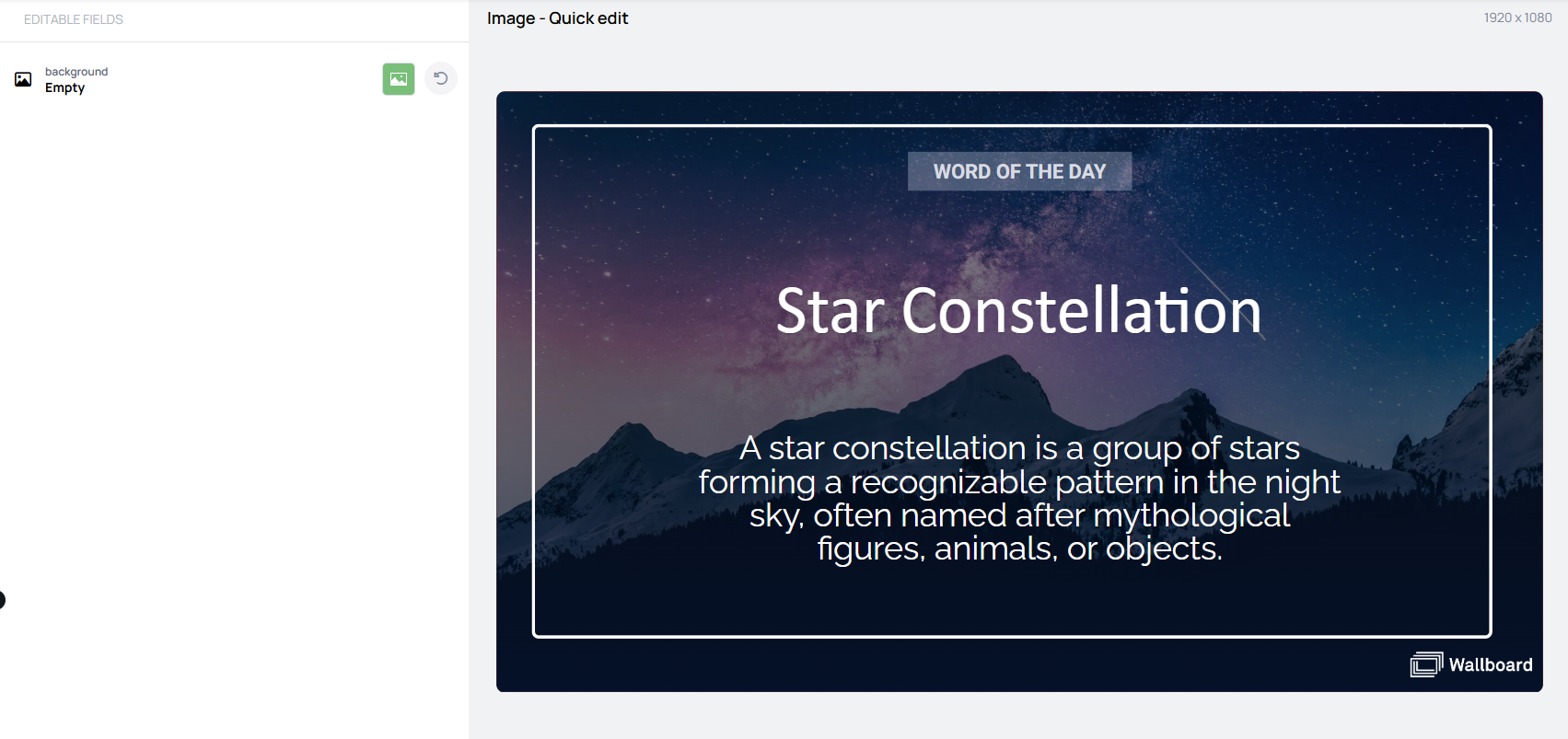 | Quick Edited 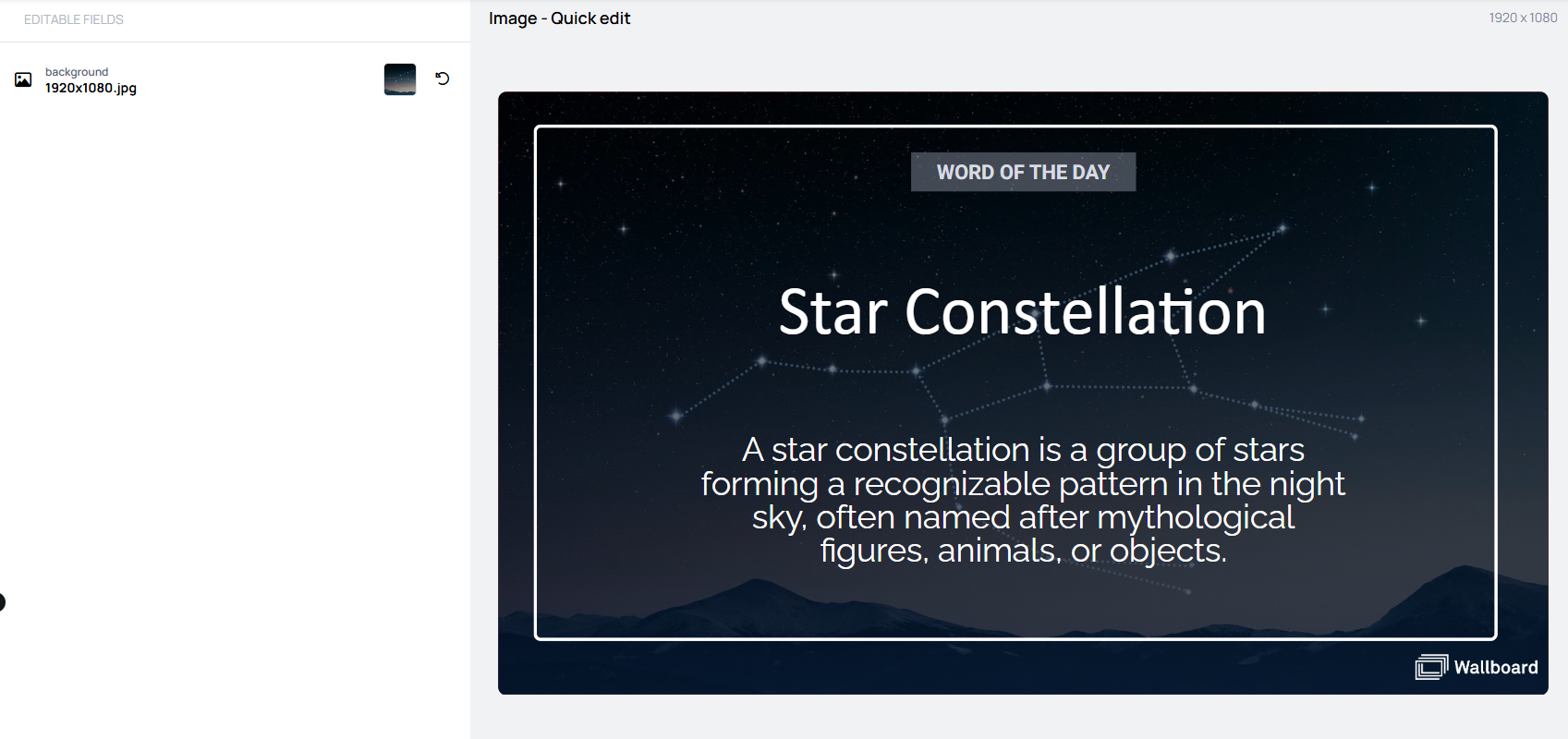 |
|---|
Video widget
In the case of the video widget, you can overwrite the video location inside the Widget properties >> Main >> Source.
Learn more: Video Widget
Original 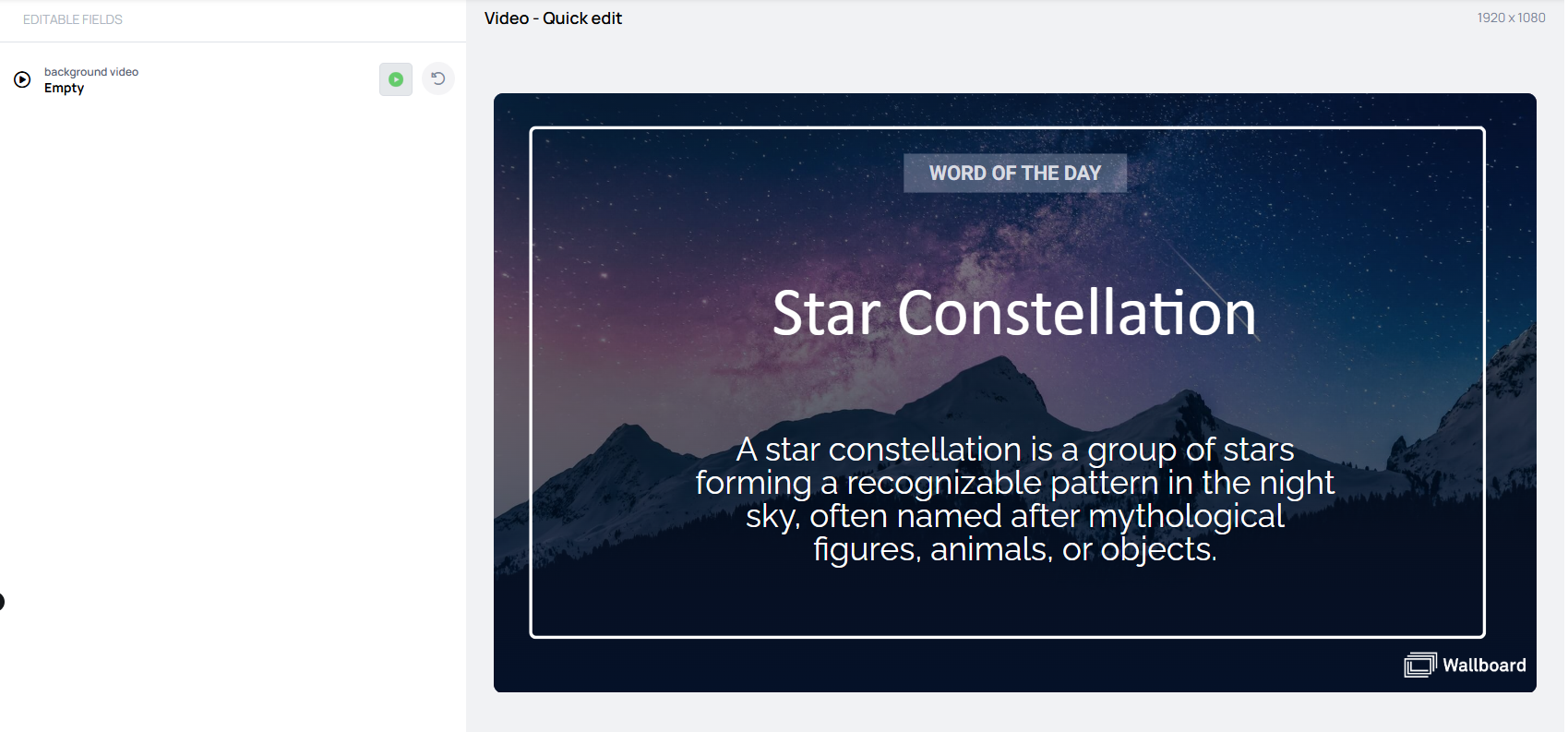 | Quick Edited  |
|---|
Shape widget
In the case of the video widget, you can overwrite the shape colors inside the Widget properties >> Main >> Shape
(Stroke color, Fill color, Gradient Fill color).
Learn more: Shape Widget
Original 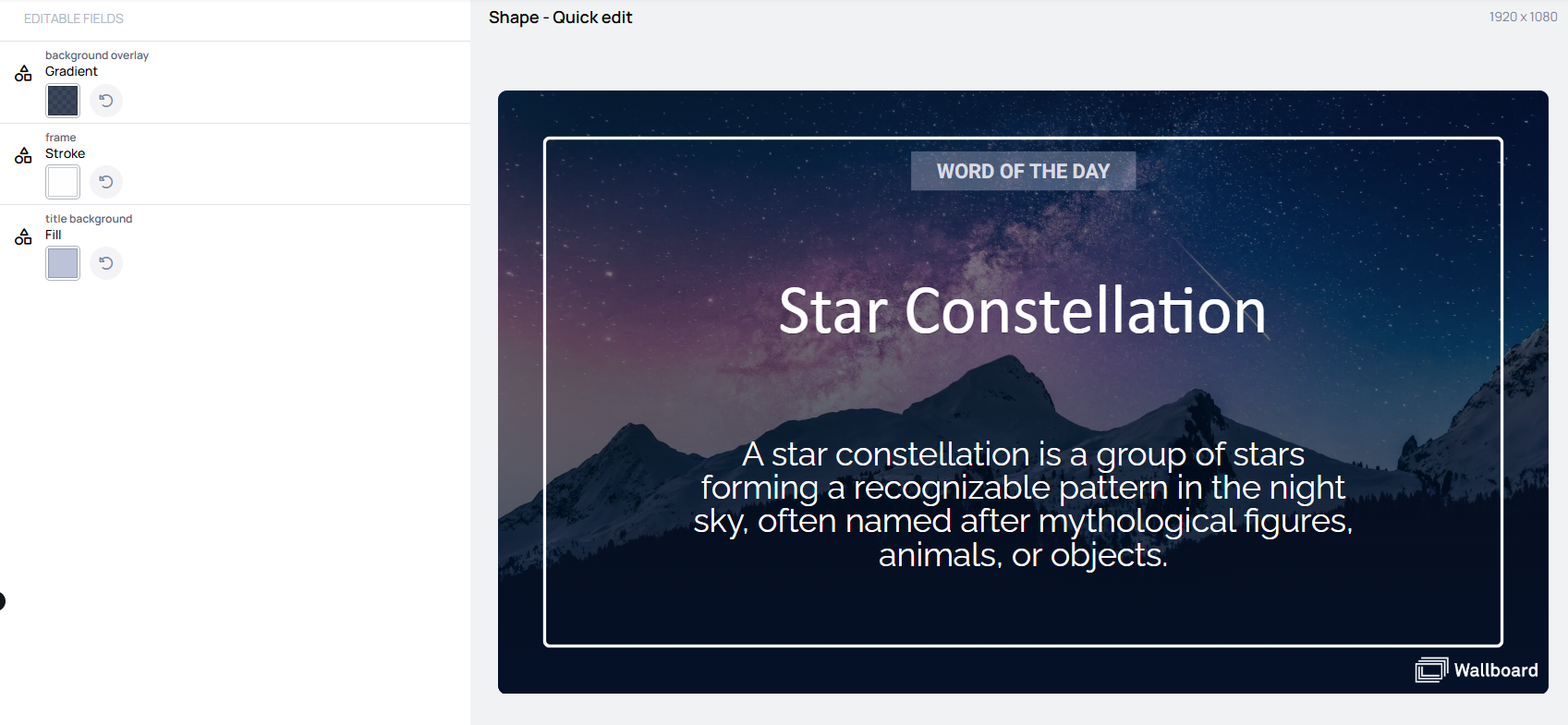 | Quick Edited 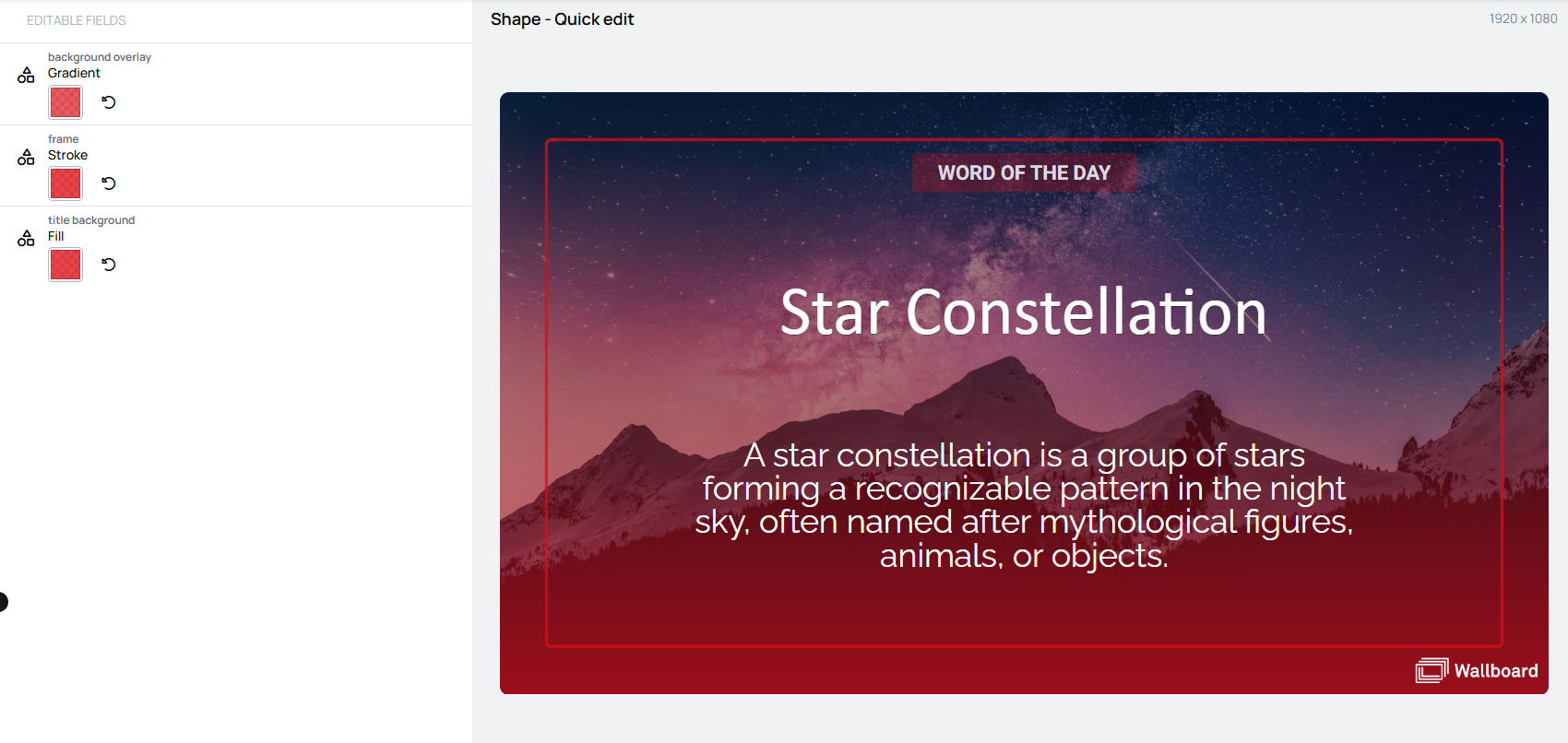 |
|---|
QR code widget
In the case of the QR code widget, you can overwrite the value inside the Widget properties >> Main >> Text. Learn more: QR code Widget
Original 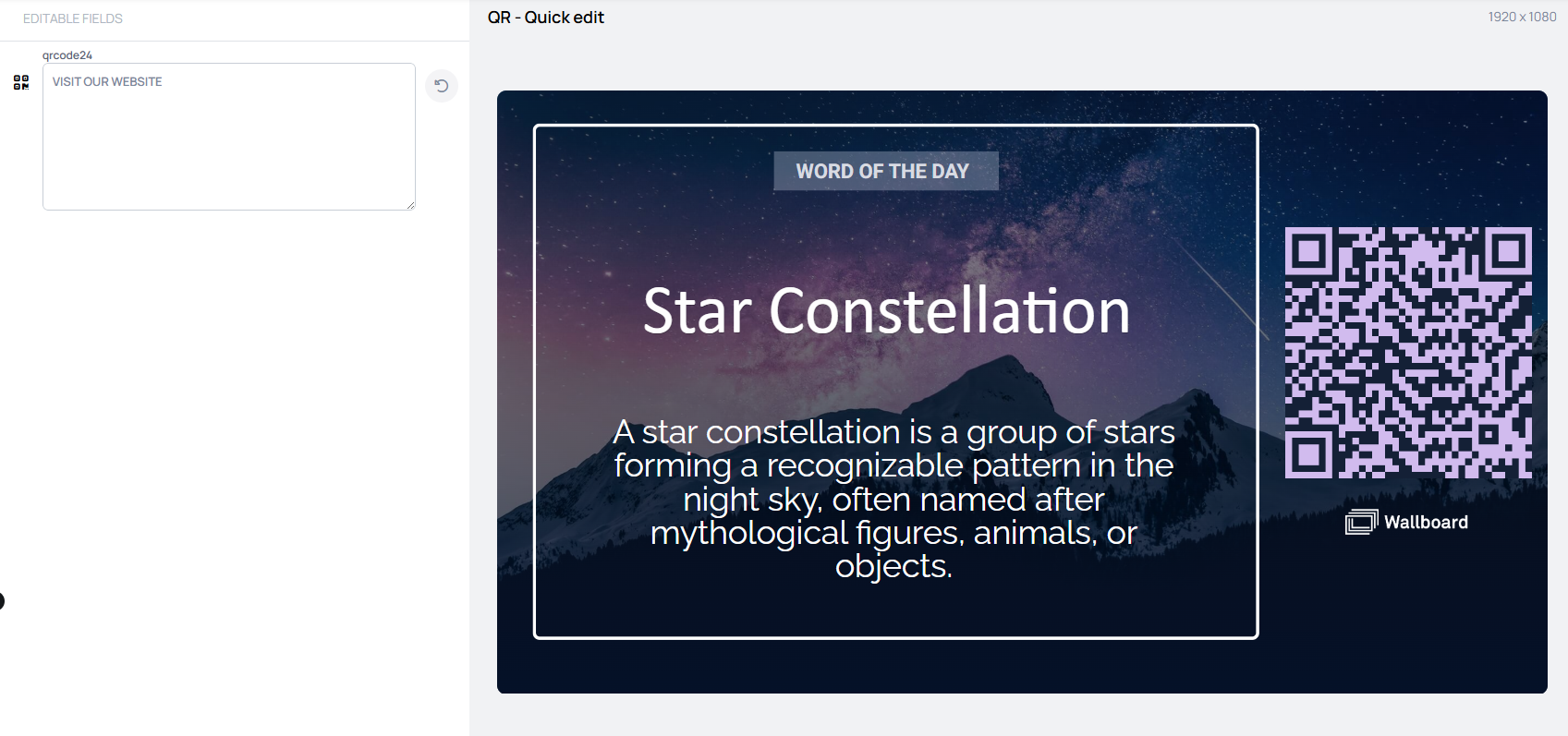 | Quick Edited 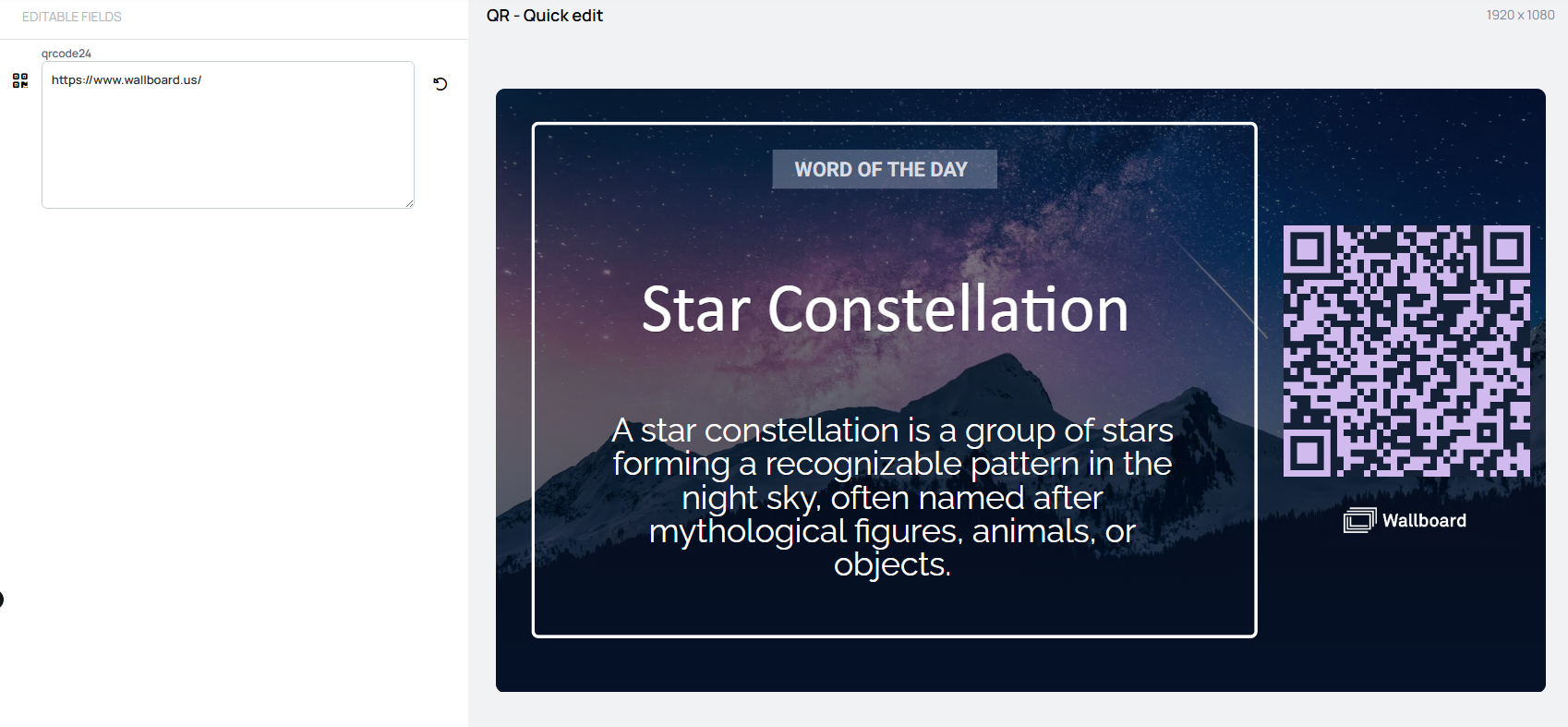 |
|---|
Channel widget
In the case of the Channel widget, you can change only the tags used for channel filtering from the quick edit panel — you cannot switch the referenced channel directly. Quick Edit adjusts which channels play by updating the tag-based filtering, while the widget's channel reference stays unchanged.
Learn more: Channel Widget
Custom widget (URL type only)
In the case of the custom widget, you can overwrite the URL inside the Widget properties >> Main >> URL.
Only custom widgets set to URL type support Quick Edit functionality. Custom widgets set to HTML Code type do not support Quick Edit.
Learn more: Custom Widget
YouTube widget
You can replace the video the widget plays by pasting a YouTube link or a video ID, without opening the content editor. The widget's other settings — loop, captions, volume — stay as they were set in the designer.
Learn more: YouTube Widget
Quick Editable Widgets (Performance mode required)
Quick Edit on the Slide, Playlist, Content, and Contents widgets only works when Performance mode is enabled on the widget — or when the widget is inside a Slide that is embedded into a Playlist (Playlists always run in Performance mode, so anything nested inside them qualifies automatically).
Learn more: Performance mode
Slide widget (Slide only)
In the case of the Slide widget, you can change which slide the widget embeds directly from the quick edit panel. Instead of overwriting a value, Quick Edit presents the slide selector so you can pick a different slide.
Playlist widget (Slide only)
In the case of the Playlist widget, you can change which playlist(s) the widget references directly from the quick edit panel. Quick Edit opens the playlist selector so you can swap the referenced playlists without opening the full Content editor.
Content widget (Content only)
In the case of the Content widget, you can change which Content item the widget references directly from the quick edit panel. Unlike the Slide and Playlist widgets, the Content widget has no restriction on what content type can be selected from Quick Edit — any Content item is allowed.
Learn more: Content Widget
Contents widget (Content only)
In the case of the Contents widget, you can change which Content items (multiple) the widget references directly from the quick edit panel. Like the Content widget, the Contents widget has no restriction on what content types can be selected from Quick Edit.
Learn more: Contents Widget