Slide History and Undo/Redo
Our Editor often saves your progress automatically. You will see a message in the bottom right corner of your screen when we are saving your progress.
History
Every time you save your slide, a version is added to the History dropdown inside the editor. You can open it by hovering your mouse cursor over the ⟲ button in the top toolbar.
The History dropdown replaced the previous autosave confirmation modal. Version history is now shown directly inside the editor instead of popping up as a separate modal on each autosave.
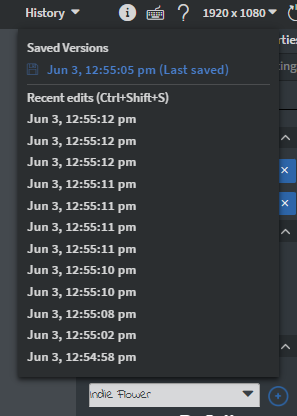
Inside the History dropdown you can see when each version was created.
- Clicking on one loads that state of your slide back into the editor.
- You can use this to roll back a large portion of modifications — for example if you want to try something new without keeping the changes.
- You can create a manual version by using
Ctrl + Shift + S.
If you close the Editor or refresh your browser the history will be lost!
Undo & Redo
When you are creating content sometimes you need to undo or redo what you did in order to get the best results.
There are multiple ways to do this in the editor.
Undo
By pressing down the ↶ button or the Ctrl + Z keyboard combination, you can undo what you were doing.
- This will jump back to the state when the autosave happened. Our Editor will let you know if there is nothing to undo.
Redo
You can also redo what you did if you made a modification you don't like by pressing down the ↷ button you can use instead the
Ctrl + Y or Ctrl + Shift + Z keyboard combination.
- This will jump back to the state when the autosave happened. Our Editor will let you know if there is nothing to redo.