Background Audio and Audio Ducking
Background Audio lets you play a continuous audio layer across an entire playlist, independent of the audio on individual pages. You can use a single file, a looping track, a separate audio playlist, or a live stream as the source, and combine it with Audio Ducking to automatically lower the background audio whenever a page plays its own sound.
This is the Playlist editor equivalent of the content feature documented in Background Audio and Audio Ducking for the Content Designer and Slide editor.
Where to Configure Background Audio
Background Audio is set at the playlist level and applies to the whole playlist. All of its controls live on the Audio tab of Playlist settings.
- Open the playlist in the Playlist editor
- Open Playlist settings and select the Audio tab
- Choose a Background Audio type and configure its settings
- Click Confirm
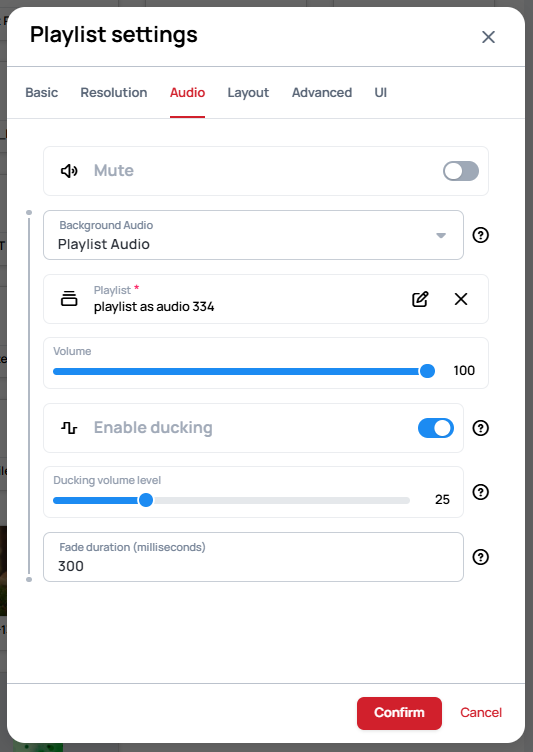
The Audio tab also contains the Mute toggle.
Unlike the Content Designer, the Playlist editor has a single, playlist-wide Background Audio setting — there is no separate per-page background audio.
Background Audio
Use the Background Audio dropdown to choose the audio source type.
No Audio
- Disables background audio completely
- Useful when only the playlist pages' own audio should play
Single Audio
- Plays the selected audio file once
- Audio stops when the file completes
- Ideal for announcements or one-time audio cues
Repeating Audio
- Continuously loops the selected audio file
- Seamless transitions between loop iterations
- Perfect for ambient music or atmospheric audio
Playlist Audio
- Plays audio files from a selected playlist used purely as the audio source
- When selected, a required Playlist field appears where you pick the playlist to use
- Follows that playlist's order and collection playback settings
Stream Audio
- Plays audio from a live streaming URL
- Supports standard streaming protocols
- Ideal for radio stations or live audio feeds
Pandora CloudCover Audio
- Integrates with Pandora's CloudCover streaming service
- Accepts a CloudCover URL for playback
- Availability: Only works on
https://*.wallboard.usservers due to CloudCover's content embedding policy - Licensing: Requires a valid CloudCover subscription and URL
Pandora CloudCover Audio is only available on Wallboard servers hosted at *.wallboard.us domains. This limitation is due to CloudCover's content embedding policy. Verify your server URL before selecting this option.
Volume
The Volume slider sets the playback level of the background audio, from 0 (silent) to 100 (full volume).
Audio Ducking
What is Audio Ducking?
Audio Ducking automatically reduces (or "ducks") the playlist-wide background audio volume when a playlist page plays its own audio. This prevents audio overlap and creates a professional, polished audio experience.
Ducking is triggered when a page produces sound — for example a video or audio page, or an embedded Slide, Content, or Playlist page that contains its own audio. When that page finishes, the background audio returns to its Volume level.
Enable ducking
Turn this toggle on to activate ducking. When enabled, the playlist-wide background audio automatically reduces its volume while a page on screen plays its own audio.
Ducking volume level
Range: 0–100
- 0: Complete mute (background audio is silenced while ducking)
- 100: Full volume (no reduction occurs)
This sets the target volume for the background audio when ducking is triggered. Adjust it to find the right balance between the background audio and the foreground page audio.
Fade duration (milliseconds)
Controls the transition time for volume changes when ducking occurs:
- 0 milliseconds: Instant volume change (immediate duck)
- 100–300 milliseconds: Smooth, professional transition
- 500+ milliseconds: Very gradual, subtle volume adjustment
During fade transitions and while ducking is active, the background audio continues playing.