Announcements
An Announcement is a message you write yourself and send straight to people's Notifications inbox — for example, a planned maintenance window, an upcoming training, or a change your users should know about. It is delivered as soon as you send it.
Announcements are managed in two places, depending on who should receive them:
| Where | Who can use it | Who can receive it |
|---|---|---|
| Settings > Notifications > Announcements | Administrators of the customer | Everyone in this customer, or Selected users of the customer |
| Administrator > Announcements | Super administrators | Everyone on this server, or Selected customers |
Users who are set to Read only can see the list of announcements, but cannot send, copy or delete them.
Send an announcement
-
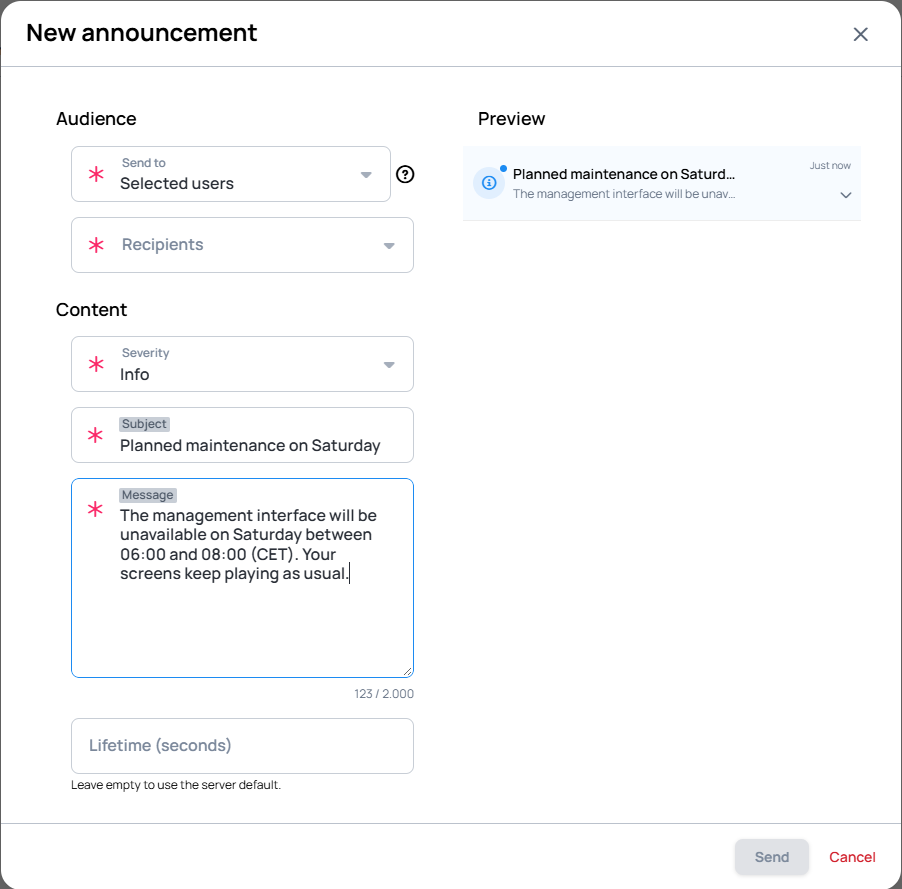
Open Announcements and click the button. The New announcement window opens.
-
Under Audience, choose who to Send to:
- Everyone in this customer or Selected users from Settings;
- Everyone on this server or Selected customers from Administrator.
For selected users or customers, pick between 1 and 500 of them.
-
Choose a Severity: Info, Success, Warning or Critical. Learn more about how each one appears: Severity
-
Write the Subject (up to 255 characters) and the Message (up to 2,000 characters). The Preview shows how the notification will look.
-
Optionally, set the Lifetime (seconds): how long the announcement stays in the inboxes. Leave it empty to use the server's default. The server also sets the longest lifetime allowed.
-
Click Send.
An unread Critical announcement opens in a window on top of the interface, and recipients have to scroll to the end and mark it as read to close it. Keep Critical for messages that really must not be missed.
Announcements are plain text. Formatting, links and scheduling for later are not available — the announcement goes out when you click Send.
Manage announcements
The Announcements list shows every announcement sent from that page, with its severity, audience, lifetime, expiry and creation time. The Read or dismissed column shows how many recipients have read or cleared it.
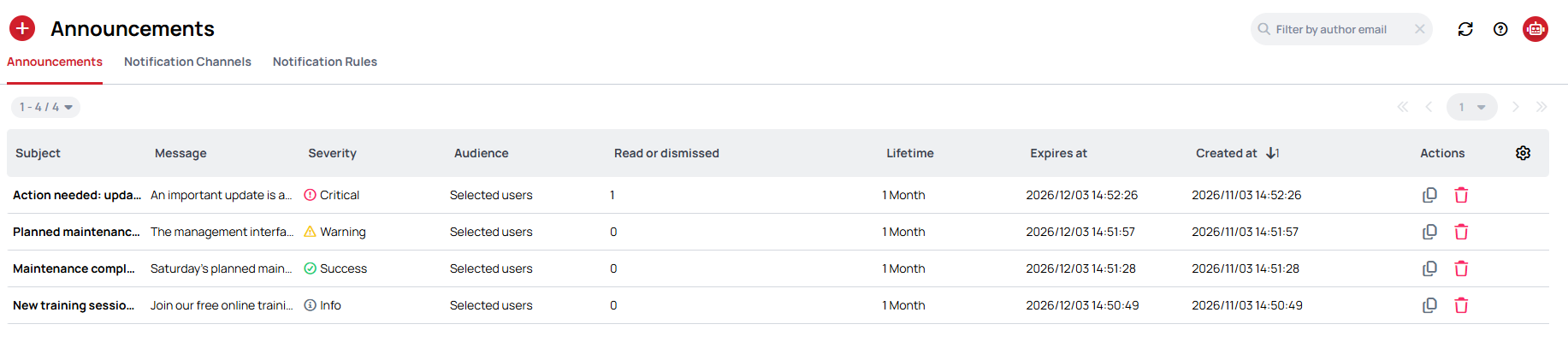
You can search with Filter by author email, choose which columns to show with the settings icon, and sort by creation date.
Each announcement has two actions:
- Duplicate (copy icon) opens the announcement in the Duplicate announcement window, prefilled. From there:
- Create new one sends it as a new announcement. You can change anything first, including the audience. The original stays as it is.
- Delete and Re-create deletes the original for everyone and sends it again, to the original audience. Everyone's read and cleared state is reset, so it shows up as unread again.
- Delete for everyone (trash icon) removes the announcement from every recipient's inbox, after you confirm.
When a recipient clears an announcement, it only disappears from their own inbox. To remove it for everyone, use Delete for everyone.
Learn more: Notifications