Access and visibility at a glance
What a user can reach, do and see in Wallboard is decided by five separate controls. Each one answers a different question, and each can only narrow what the one above it allows. This page shows how they fit together, so you can set up a new user correctly and work out quickly why somebody cannot see something.
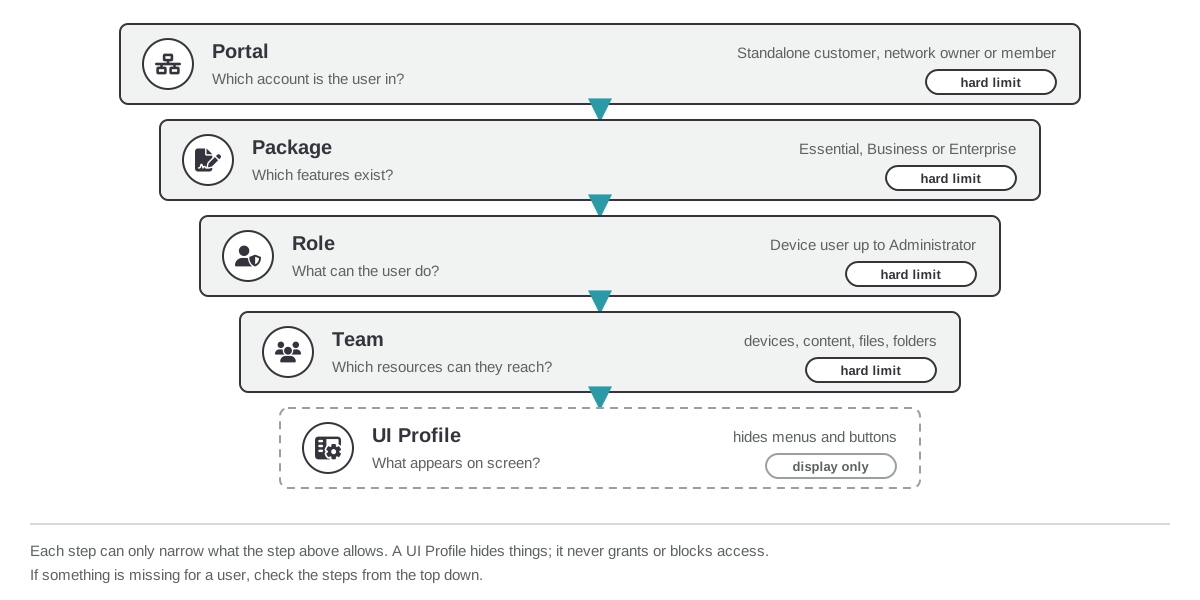
| Control | Question it answers | Set where |
|---|---|---|
| Portal | Which account is the user in? | Where the user is created |
| Package | Which features exist for this customer? | On the customer |
| Role | What can the user do? | On the user |
| Team | Which resources can they reach? | Settings > Users, Teams tab |
| UI Profile | What appears on their screen? | On the user, the customer or a preset |
The first four are hard limits. A UI Profile only hides parts of the interface; it never grants or blocks access.
1. Portal: where the user is created
A user belongs to exactly one portal: a standalone customer account, a network owner portal, or one network member. A standalone customer has no network, so its users only ever reach that one account. Where you create the user decides what they can ever reach, and no role or team setting changes that later.
Only an Administrator in the network owner portal with Can access network members turned on can switch into member portals. A user created inside a member, even an Administrator, only ever sees that member.

Learn more: Creating Users
Nested networks
A network owner reaches only its direct members. If one of your members is itself a network owner, you cannot open its members from your portal. To manage them, log in with a shared service account created in that member's workspace.

Learn more: Navigating Multi-layered Portals
2. Package: which features exist
The customer's package (Essential, Business or Enterprise) decides which features exist in that portal at all. If a feature is not in the package, no role, team or UI Profile can bring it back. For example, Essential has no Teams and no UI Profiles.
Learn more: Packages and License Tiers
3. Role: what the user can do
The role is the security boundary. Roles build on each other: each one has every permission of the roles below it.
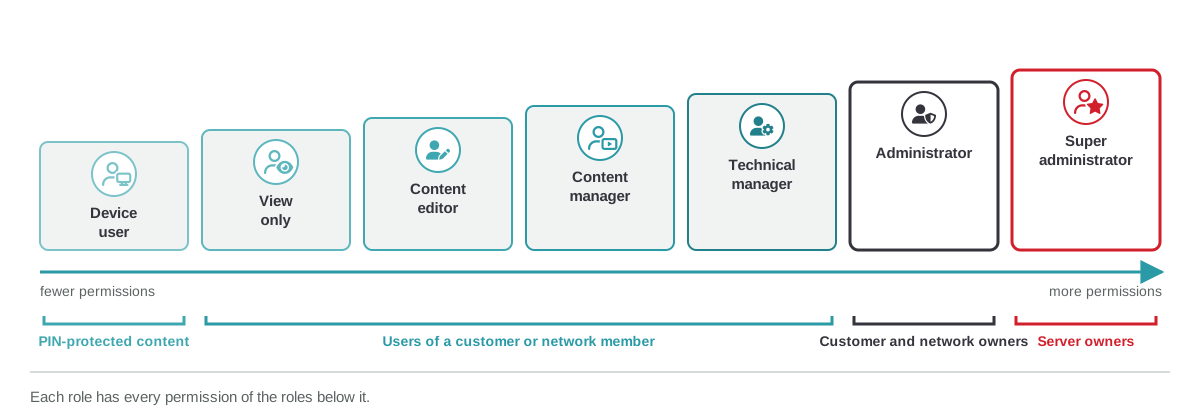
An Administrator sees every resource in the portal; Teams do not narrow an Administrator. Start new users low and move up only until the role covers what they need.
Learn more: User Roles
4. Team: which resources they reach
Teams divide one portal into scopes. Each resource (Device, Content, file, folder and so on) is assigned to a Team with No access, Read only or Read/Write, and a user reaches what their Teams allow. A resource can belong to several Teams, which is how Teams share material.

What happens to resources without a Team, and to users without one, is set in the customer's global Team settings.
Learn more: Teams
5. UI Profile: what appears on screen
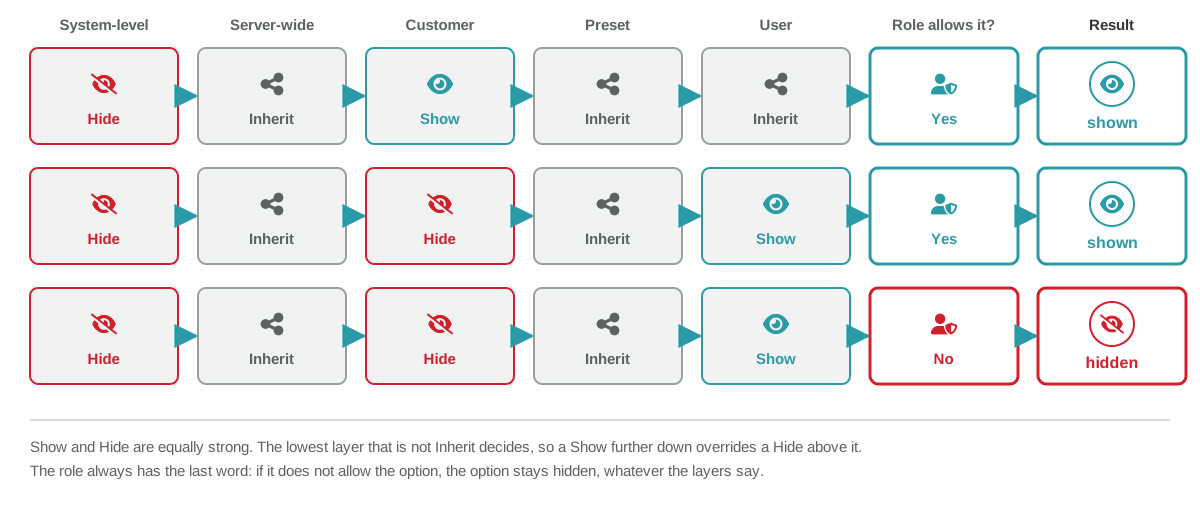
A UI Profile shows or hides menus, tabs and buttons, so each user sees only what their job needs. It resolves through five layers, and every setting is Inherit, Show or Hide. Show and Hide are equally strong: the lowest layer that is not Inherit decides.

So a Show on the customer overrides a Hide at System-level, and a Show on the user overrides a Hide on everything above it. The role still has the last word: if it does not allow the option, it stays hidden.
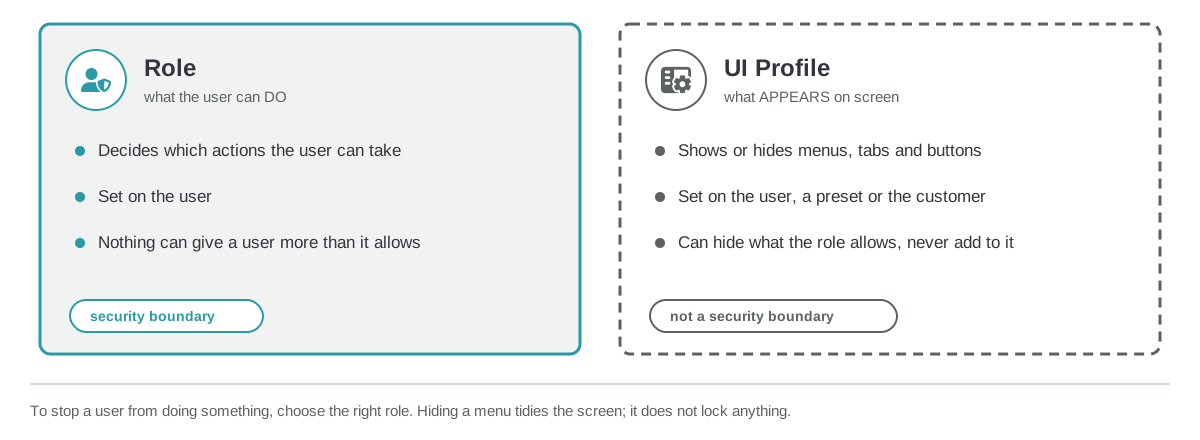
Role or UI Profile?
The two are easy to mix up, because both can make a menu disappear. Only the role is a security boundary.
Learn more: User Interface Profiles
Check it the way they see it
To see the interface the way a specific user or a Team sees it, use View as. It is available to Administrators on the Business and Enterprise packages.
Learn more: View as
Why can't they see it?
Work from the top down. The first control that blocks it is the answer.
| Symptom | Control to check | Fix |
|---|---|---|
| The user cannot open another member's portal | Portal | Create the user in the network owner portal, as an Administrator with Can access network members turned on |
| A network owner Administrator cannot reach a member of a member | Portal (nested network) | Use a shared service account created in that member's workspace |
| A whole feature is missing for everyone in the portal | Package | Check the customer's package |
| The user sees a menu but cannot change anything | Role | Give a role that allows the change |
| The user cannot see a Device, Content or file that others see | Team | Add the user to a Team that has the resource, or assign the resource to their Team |
| The user's role allows it, but the menu or button is not there | UI Profile | Check the user's UI Profile and preset for a Hide |