View as
View as lets you look at the management interface the way somebody else sees it, without logging out of your own account. It is available to Network Owners and Administrators, and it is opened from the mode selector in the bottom left corner of the interface.
It answers the question a permission table cannot: what does this actually look like for them? Each mode is marked with its own colour, so the view you are in is always visible.
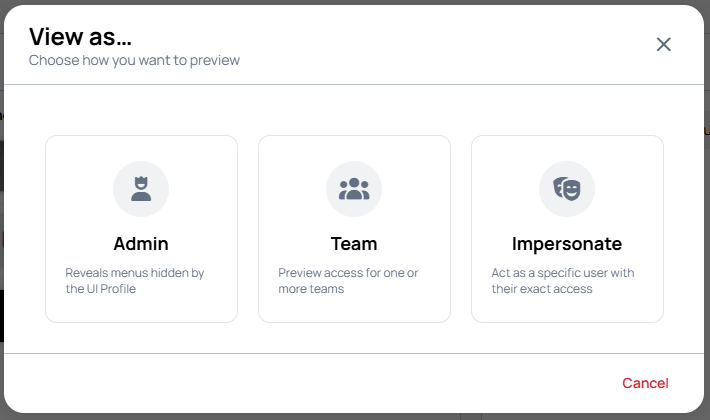
Modes
When you open the selector you are asked to choose how you want to preview.
| Mode | What it shows |
|---|---|
| Admin | Reveals menus hidden by the UI Profile — the interface without the restrictions the customer's user interface profile applies. |
| Team | Preview access for one or more teams. The interface is narrowed to what members of those teams can reach. |
| Impersonate | Act as a specific user with their exact access. |
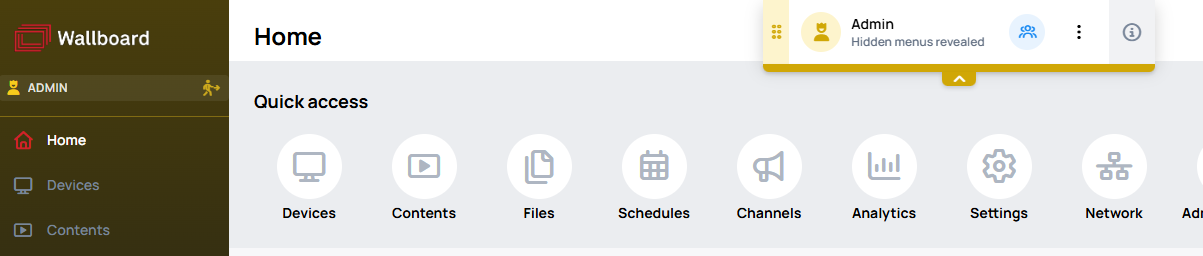
While a mode is active, a banner names it — for example Hidden menus revealed in Admin mode, or Team view when one or more teams are selected. If you narrow your own view rather than taking on somebody else's, the banner says so instead.
Impersonating a user, on its own or together with a team selection, is marked in a different colour again, and the banner names the user and their role:

Changing something while viewing as someone else
Some parts of the interface are personal to each user — the table layout, the Quick access layout, and pinned items. If you change one of these while impersonating, you are asked what to do with it before anything is written:
- Save to user — writes the change to their account, for them and everyone else who sees it.
- Keep local — leaves their account untouched. The change then lasts only until you leave the view.
The same prompt offers to remember your choice for that kind of setting from then on.
Save to user is a real change to another person's account, not a preview. Use Keep local when you are only looking.
Effect on pinned folders
A View as team selection also narrows which folders you can see, which affects the pinned folders list. A pin that points somewhere the selected team cannot reach is shown as inaccessible while that view is active. Switching back to all teams shows it again.
Learn more: About User Interface Profiles and UI profile rules