Portal Navigation
As a Network Owner Administrator you need Access Network Member privileges to navigate member portals
Partner portal vs Client portal
1. Partner/Network Owner Portal
- Your main management hub
- Access: Log in to your network owner account
- You see: All members, network-wide analytics, license management
- Network: Shows the list of available Client (Network Member) portals
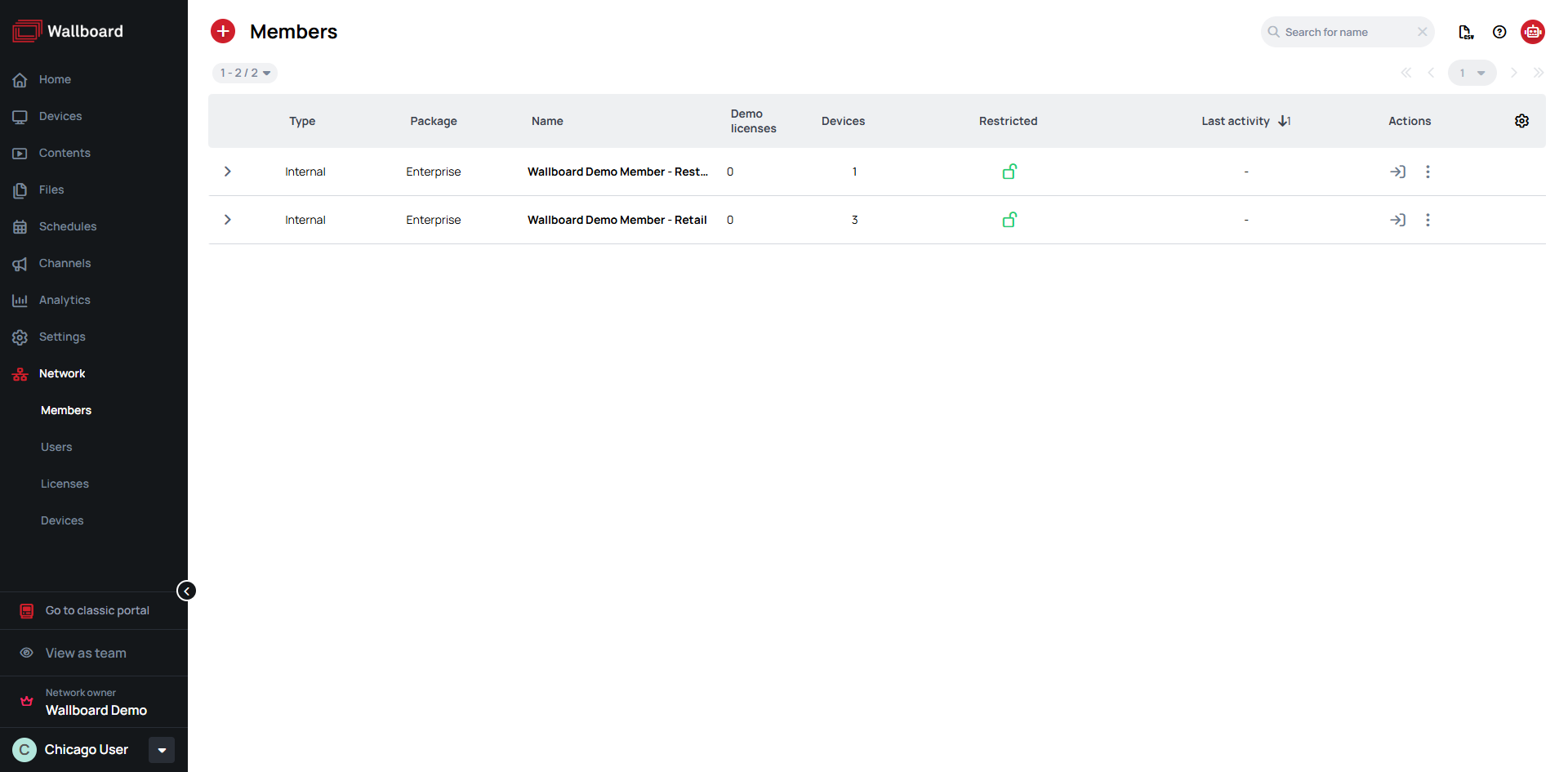
A icon appears next to the portal name in the lower left corner when logged into your Partner/Network Owner portal.

2. Client/Member Portal
- Individual location workspace
- Access: Must switch context to specific member
- You see: The member's content, devices, and users
- Network: Shows the list of available Client (Network Member) portals
Active member is highlighted with a | purple line indicator
Active member shows red icon to return to Partner/Network Owner portal
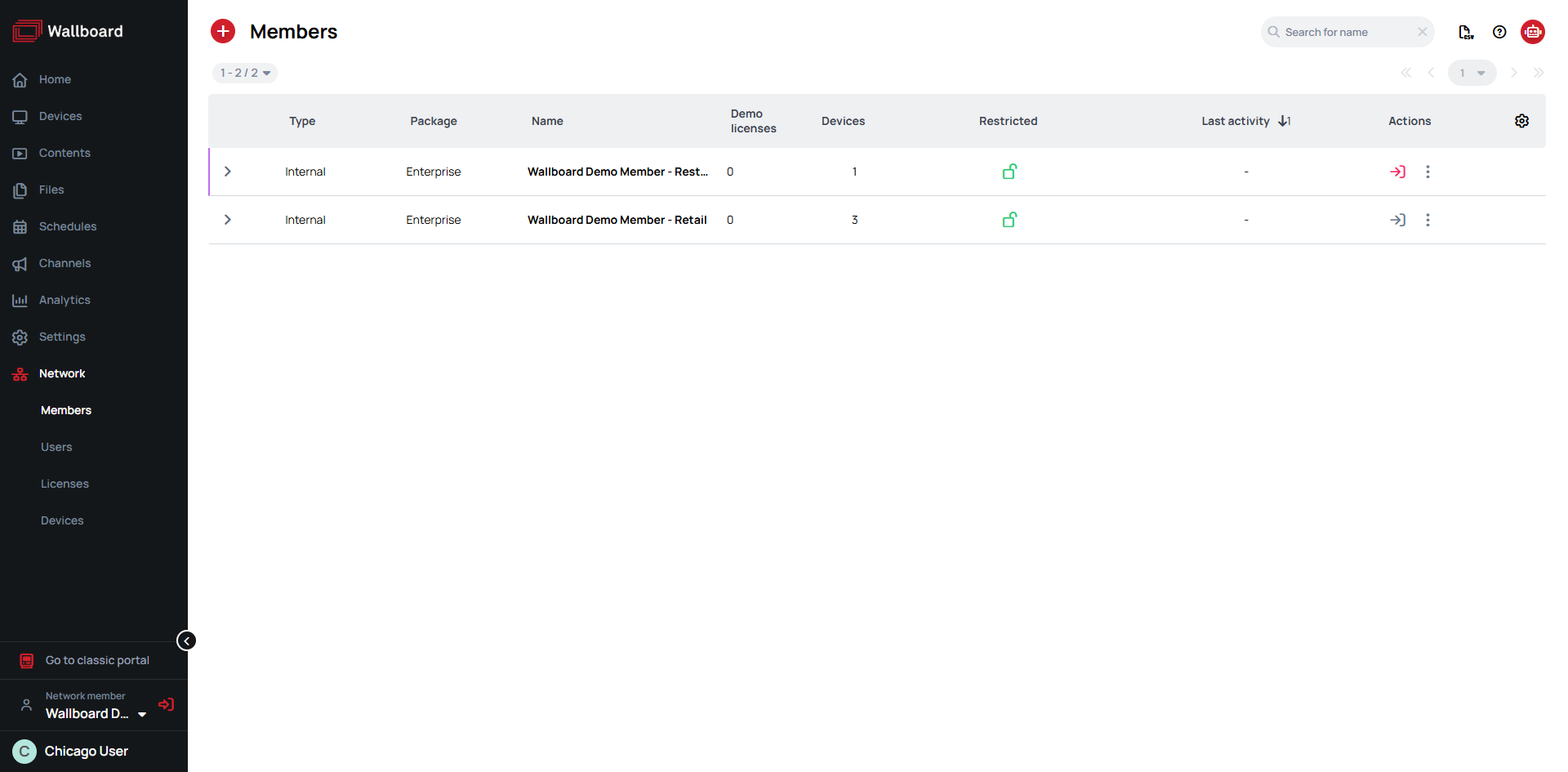
A icon appears next to the portal name (lower left corner) to return to Partner/Network Owner portal.

3. Individual Member Access
- Regular user login to assigned member account
- Access: Standard login with member-specific credentials
- You see: Only your assigned member workspace
- Network: Network option is unavailable

- Partner/Network Owner Portal: Your main management hub
- Client/Member Portal: Individual location workspace with role-based access levels
- Network Administrator: Accesses portal via Partner/Network Owner portal with Network option for workspace switching
- User Login: Standard login to portal with member-specific credentials. No Network option
Navigating Between Portals
From Client/ Network Member list
- As a Network Owner Administrator with Access Network Member privileges
- Log in to your network owner account
- Navigate to Network > Members
- Click (Switch to Member) icon
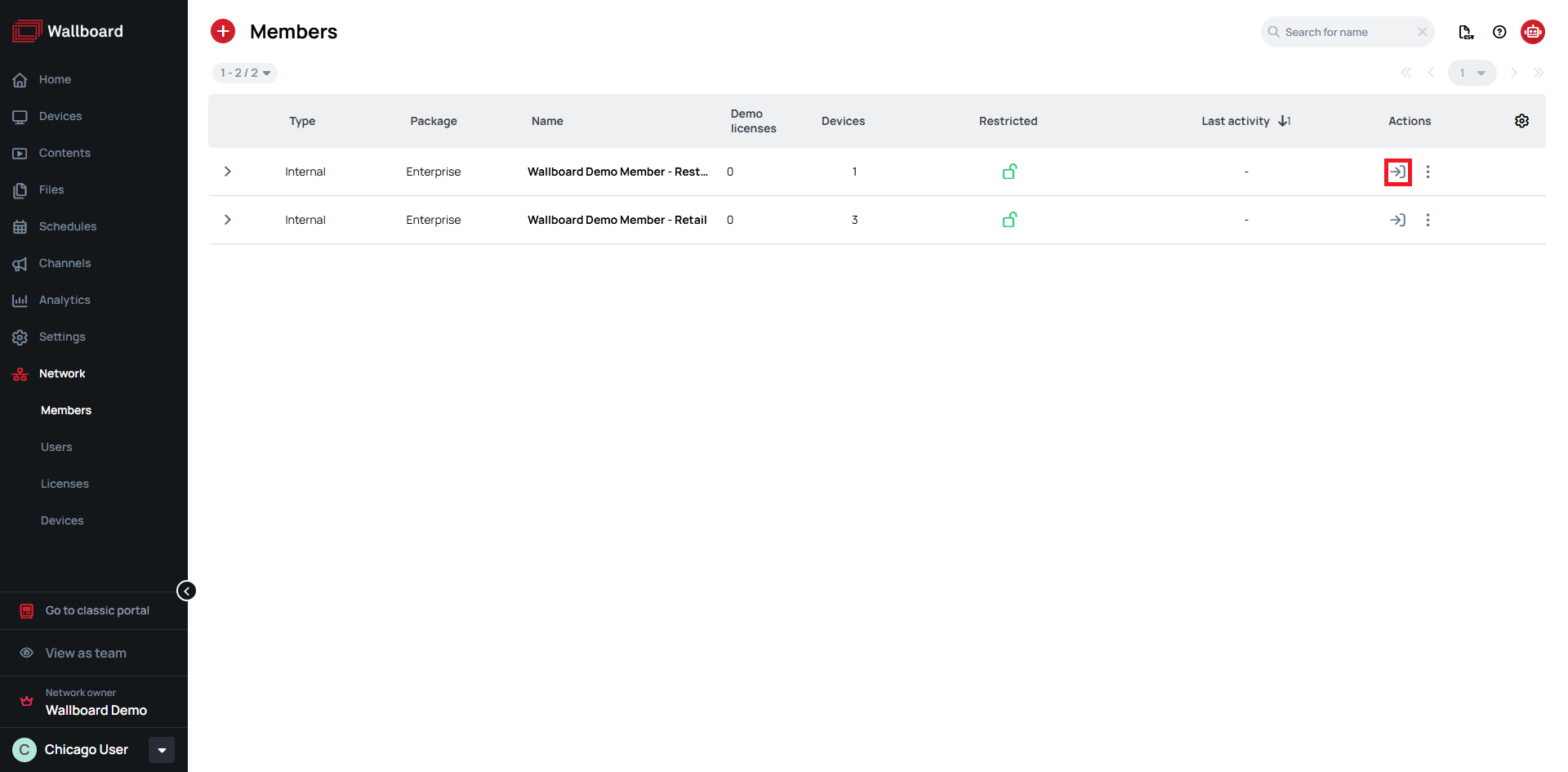
- You're now in that member's workspace
- To return to owner portal: Switch back using the in the Network Member listing or in the lower left corner
From Client/ Network Member pop-up
- As a Network Owner Administrator with Access Network Member privileges
- Log in to your network owner account
- Navigate to the lower left corner
- Click (Select Member) icon. A pop-up will appear
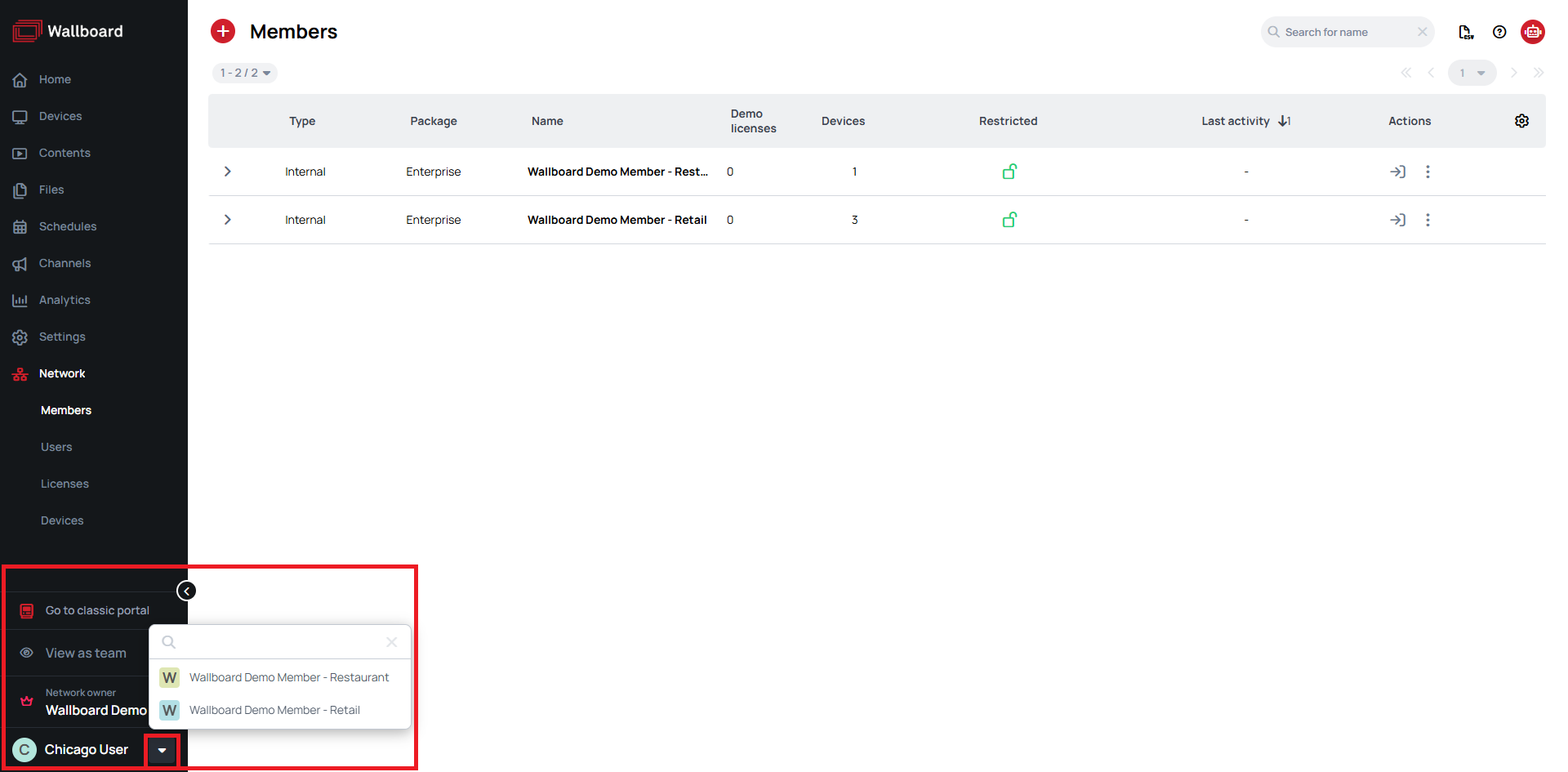
- Click on the desired portal from the list
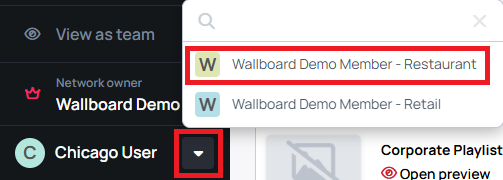
This pop-up is available across the portal, no need to switch to Network > Member setting.
Navigating Multi-layered Portals
Multiple network owner accounts can exist within each network, but hierarchical access beyond one level is not supported.
Multi-layered portals require server administrator setup. Network Owner Administrators cannot promote members to network owner status.
Super Admins, can freely navigate all members through Administrator > Customers menu or the customers popup.
However, Network Owner Administrators face navigation restrictions within their own networks.
Network Structure:
Network Owner (A)
├── Member of A (B)
└── Network Member who is also a Network Owner (C)
    └── Member of C (D)
Resulting Access:
- A has access to Member B's context because B is a direct child of A
- A has access to Member C's context because C is a direct child of A
- A does NOT have access to Member D because D is not a direct child of A
- B does NOT have access to Member C's context because they are at the same level
- B does NOT have access to Member D's context because D is not a direct child of B
- C does NOT have access to Member B's context because they are at the same level
- C has access to Member D's context because D is a direct child of C
- B and C do not have access to A's context because A is their parent
- D has no access to any other context
A
├── B ─x─ D
|   |
|   x
|   |
├── C ─── D
└─── x ── D
If your structure is already setup like this with existing content and devices that would be difficult to migrate and separate, you still have an option to navigate this setup.
It is advisable to create a shared "service account" user under the network owner member using your company's email address. This is not a special system user type, but rather a standard user account created with an email address that is secure and comfortable for multiple people in your organization to share.
When you need to manage deeper-level customers, you log in using this shared account.
If there are multiple such cases, create a similar user account under each child network owner customer.
To create this user:
- Create the user in the owner member workspace
- Enable Can access network members
- Set the role to Administrator
In this example, create the service user in Customer C's workspace to access Member D's information.