Settings - Licenses Menu
To access license management, navigate to Settings > Licenses in the Wallboard interface.
For US Partners:
This article is specifically designed for our US partners.
For EMEA Partners:
EMEA partners with their own server can also benefit from this article.
However if you are an EMEA partner using editor.wallboard.info, please contact our licensing team for your needs:
Packages and License Tiers
Wallboard licensing has two independent layers — keep them separate:
- Customer Package — set on the customer; defines what its whole workspace can do (which features are available and its usage limits), tailoring the experience to their signage needs so customers who only need the essentials aren't overloaded with features they won't use.
- Packages: Essential (formerly Starter), Business, Enterprise.
- Device License Tier — set per device; defines what an individual screen can do.
- Tiers: Lite, Professional, Interactive (formerly Premium).
A customer's package determines which device tiers they can use:
| Package | Available device tiers | Best for |
|---|---|---|
| Essential | Lite | Basic signage — Lite devices, simplified management |
| Business | Professional, Interactive | The standard full-feature package for most customers |
| Enterprise | Professional, Interactive | Business plus subscription add-ons (custom SLA, higher limits, dedicated support) — not a standalone package |
Learn more: Packages & pricing for the full per-package feature list.
- Essential is Lite-only. Every device on an Essential customer runs the Lite tier — you can't mix tiers within Essential. If a device needs more (widgets, live data, a second output…), upgrade the whole customer to Business.
- Limits can be raised per server. The default package limits (users, content, storage, and so on) are adjustable on a given server.
- Applies to Wallboard-hosted servers. Partners running their own server set their own packages and limits.
A customer's package controls availability — which features exist for that customer at all. It works alongside three other controls:
- Roles — access: what a user can do. Learn more: User Roles.
- UI Profiles — visibility: what a user sees. Learn more: UI Profiles.
- Teams — scope: which resources a user can reach. Learn more: Teams.
Licenses Overview
See how licenses are being used across your entire customer at a glance.
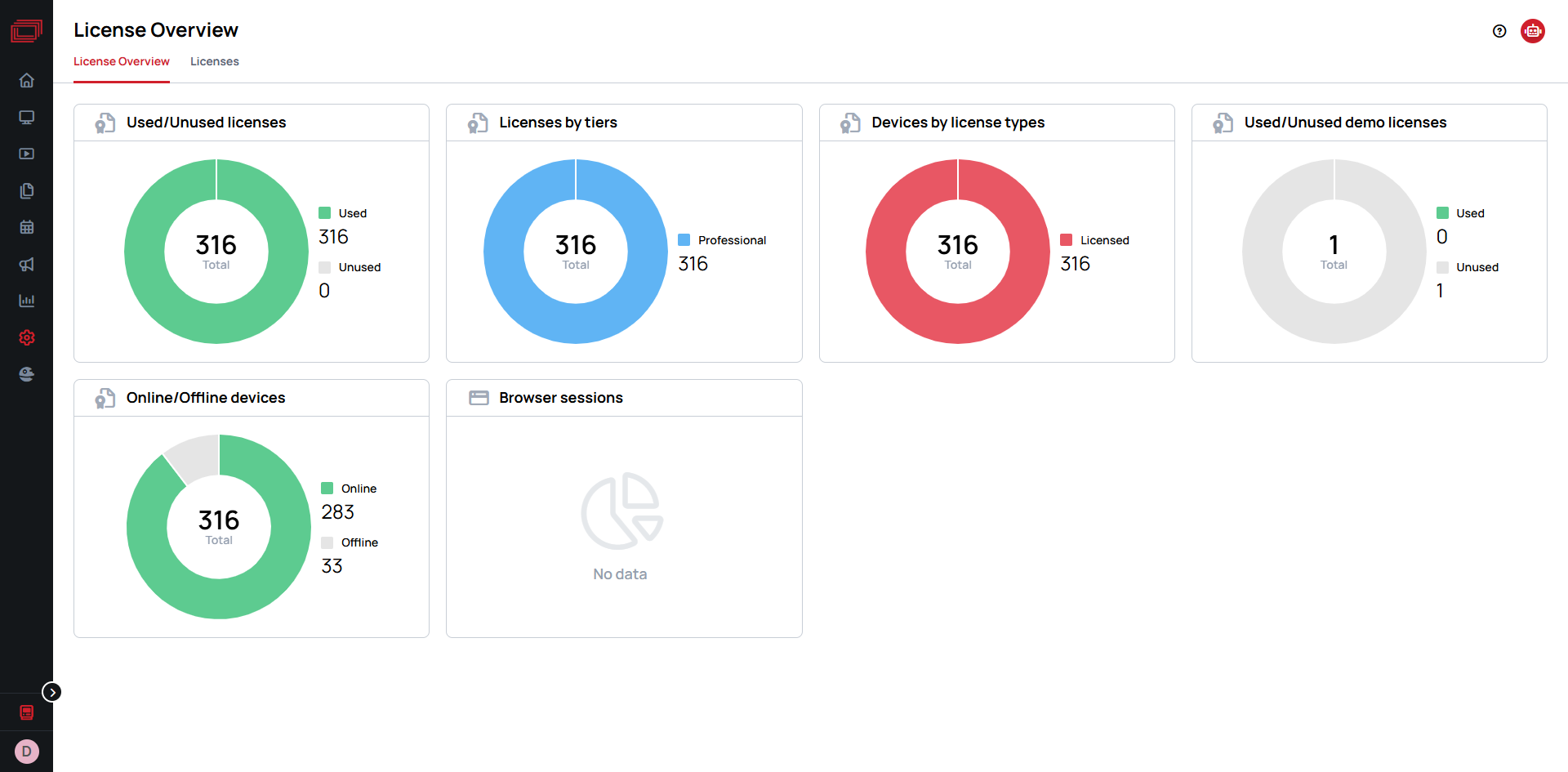
Licenses listing
What you can see:
- ID - Unique license identifier number
- Approved - License approval status
- PO# - Purchase Order number
- Tier - License tier level
- Billing cycle - How often the license is billed
- Assigned / Total - Number of licenses currently assigned vs. total available
- Order date - When the license was ordered
- Actions - Remove license
Order Licenses from UI
- Navigate to Settings > Licenses > Licenses tab
- Click the (Add) button
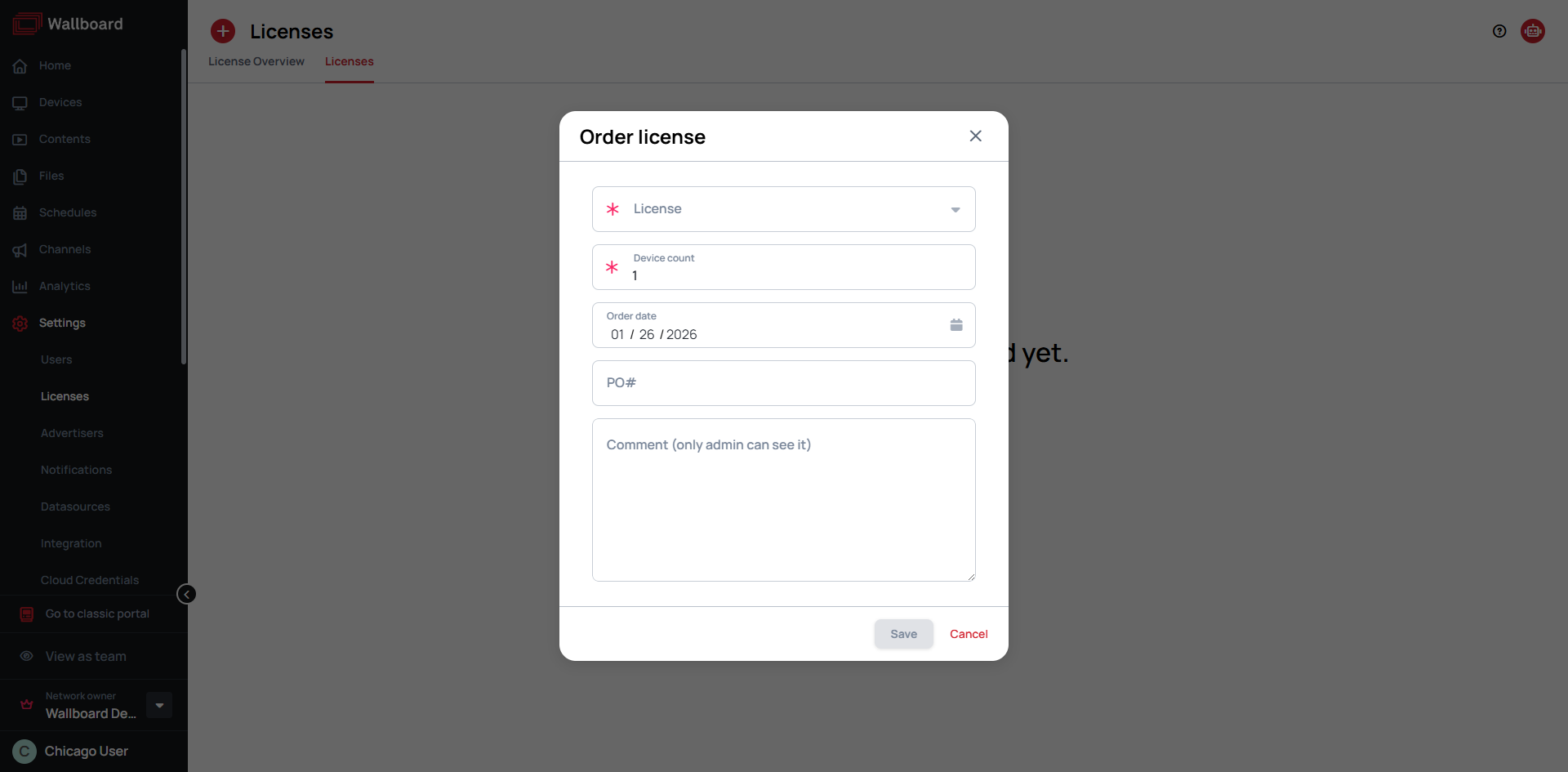
- Fill in the mandatory (marked by ) information:
- License Type - Select from available licenses
- Device Count - Enter the number of devices you want to license
- The rest of the form details are optional
- License approvement is done by server owners
- Approved licenses become available immediately after processing
- A license can be removed only while no devices are assigned to it — unassign its devices first, then remove it
Order Licenses in E-mail
If you need assistance with license management or have questions about optimizing your license allocation, please contact our sales team at:
To help us process your request efficiently, please provide the following information:
- Customer Name - The customer who will use the new licenses
- License Type - The desired license type
- Device Count - The number of devices you want to license
- Industry Vertical - The business sector or industry the customer operates in (e.g., Retail, Healthcare, Education, Corporate)
- Country - The country where the customer is located