Google Docs Widget
The Google Docs widget allows you to embed a Google Doc, Sheet, or Slide using its URL.
Properties
Content
In the Content Menu, you can insert the URL of your Google document.

Which link to paste
The widget needs Google's Publish to web link, not the ordinary Share link. It works with all three document types:
| Document | The link starts with |
|---|---|
| Google Docs | https://docs.google.com/document/d/ |
| Google Sheets | https://docs.google.com/spreadsheets/d/ |
| Google Slides | https://docs.google.com/presentation/d/ |
Publish the document first, then change pub to embed in the link. The steps differ slightly per document type.
Google Sheets
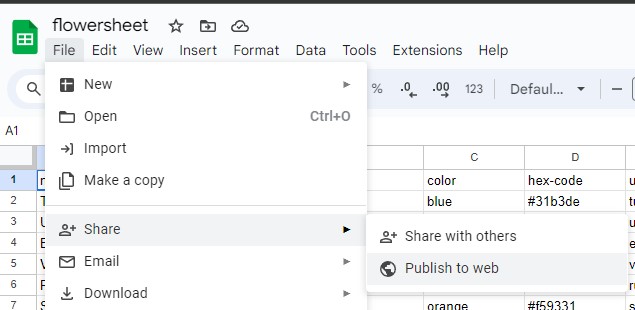
- In your Google Sheet, open File → Share → Publish to web.
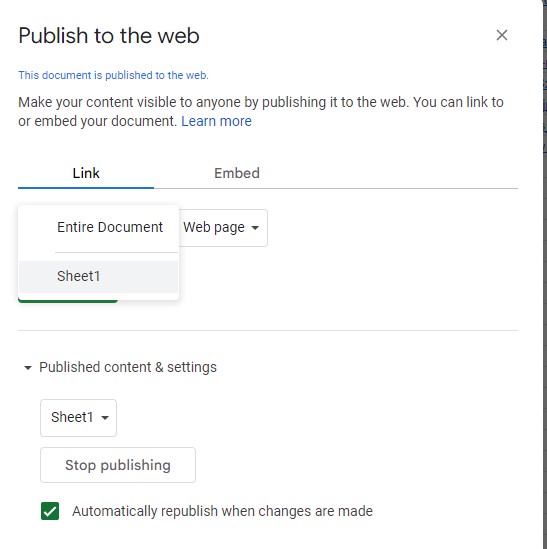
- In the Publish to the web window, choose whether to publish the Entire Document or a single sheet.
- Publish it and copy the link.
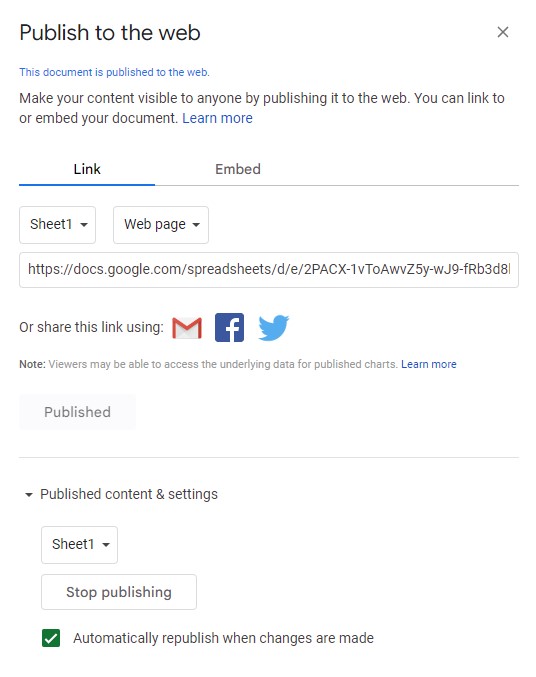
- In the link, change
pubtoembed, then paste it into the widget's Content field.
Google Docs
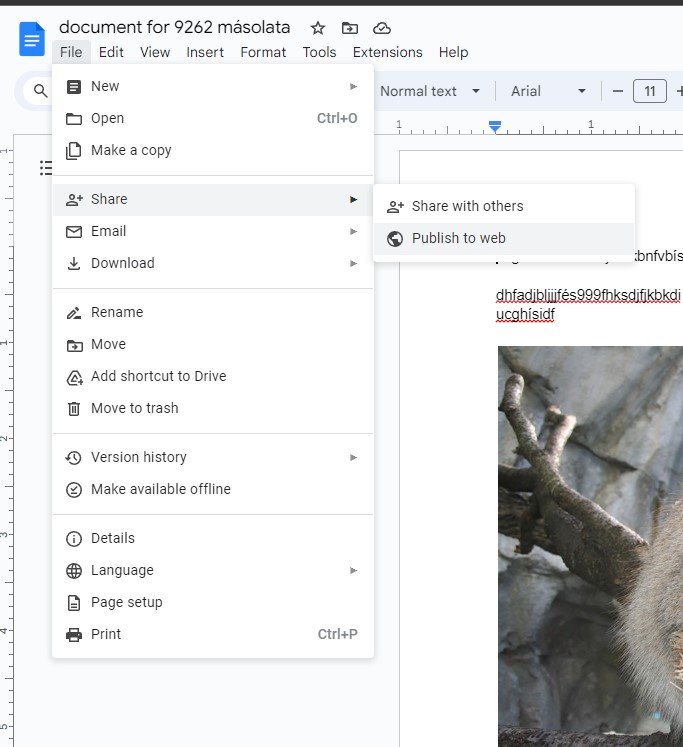
- In your Google Doc, open File → Share → Publish to web.
- In the Publish to the web window, click Publish.
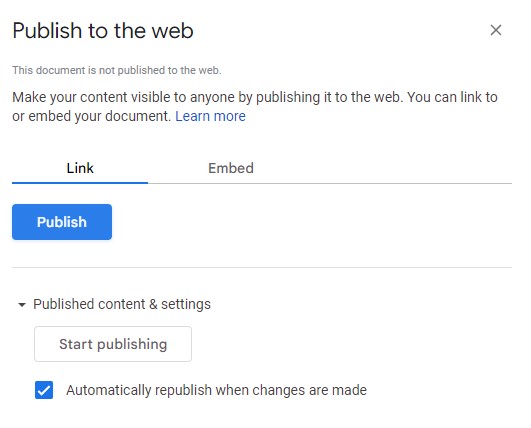
- Copy the generated link.
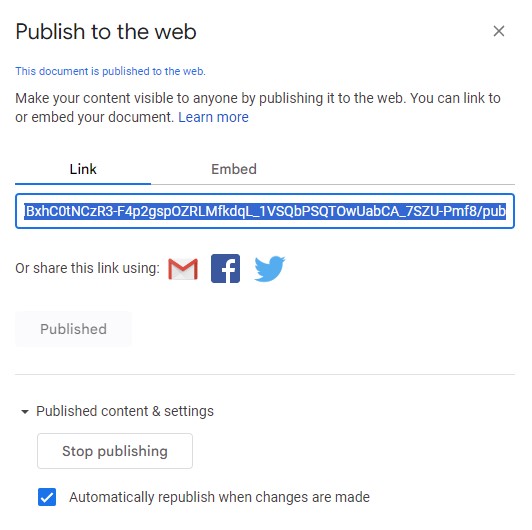
- In the link, change
pubtoembed, then paste it into the widget's Content field.
Google Slides
- In your Google Slides presentation, open File → Share → Publish to web.
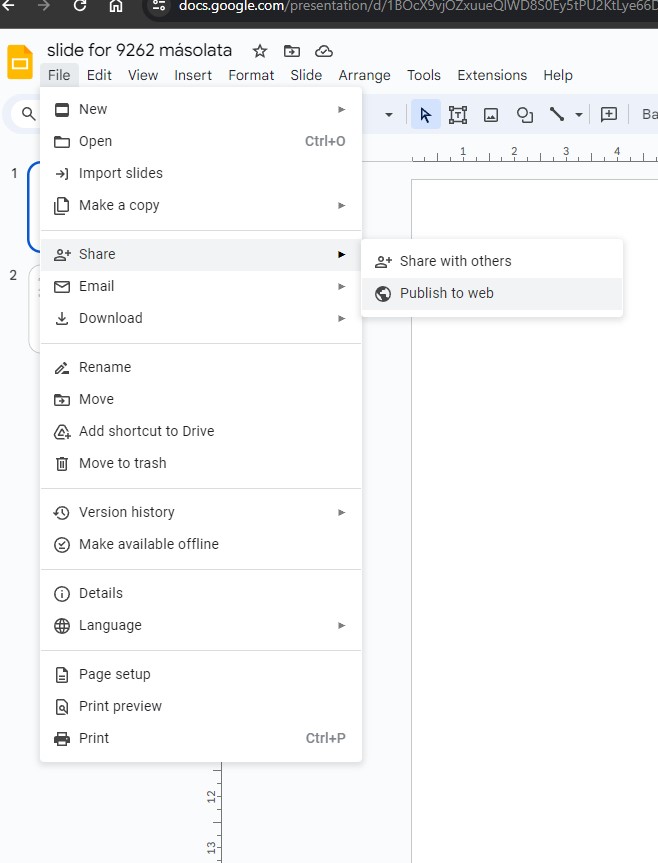
- The Publish to the web window opens.
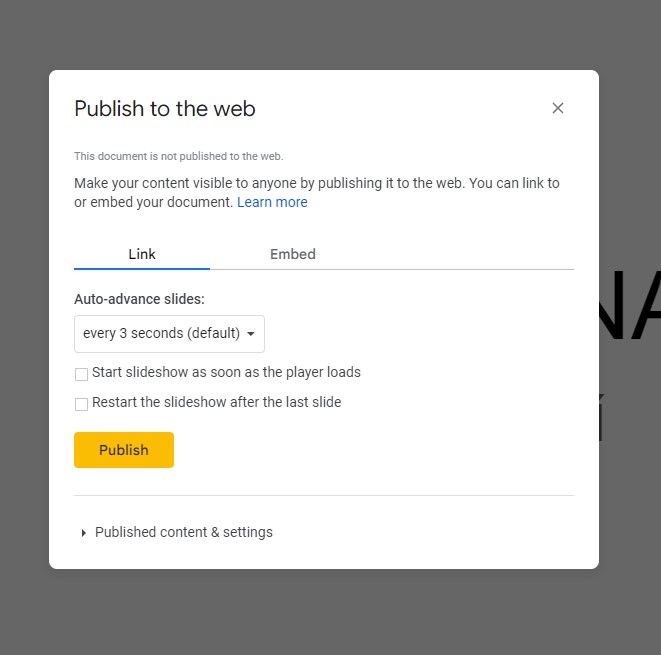
- Optionally, tick Start slideshow as soon as the player loads. The slides then start and advance on their own; without it, they only change when someone clicks.
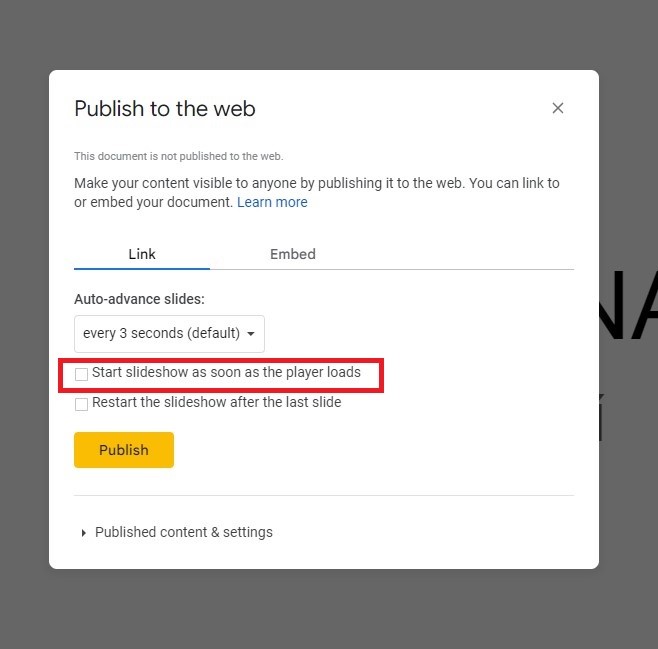
- Click Publish and copy the generated link.
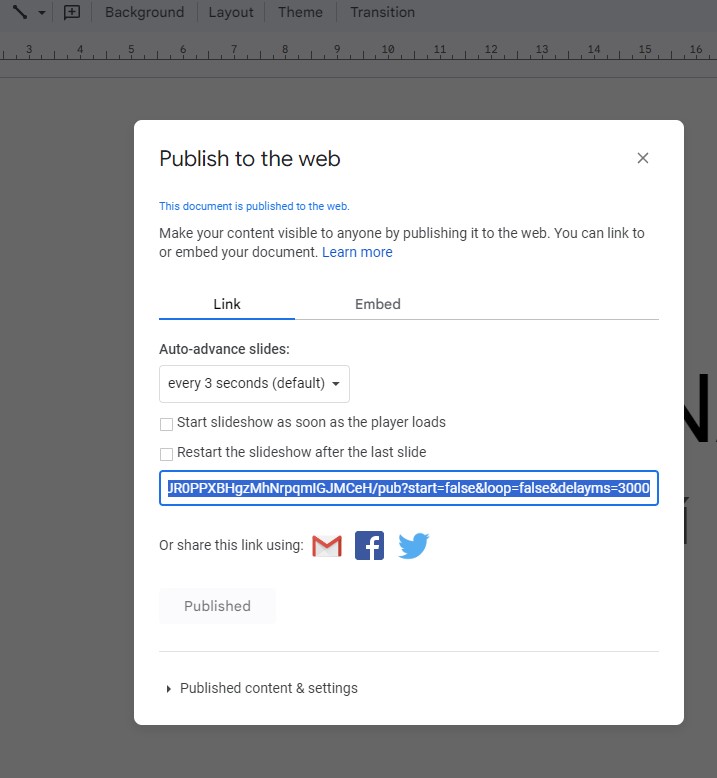
- In the link, change
pubtoembed, then paste it into the widget's Content field.
If the link is not accepted
If the link does not match one of the patterns above, the field is cleared and an Invalid Google document URL message appears.
A system administrator can set a Default Google Docs URL in System Settings → Site settings. Every new Google Docs widget is then pre-filled with that link.
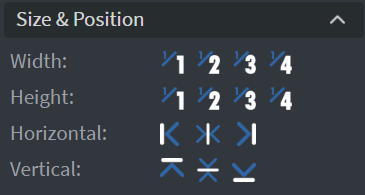
Size & Position
In the Size & Position Menu, you can select the width, height, and placement of your widget quickly.
Effects
In the Effects Menu, you can set the Rounding and Opacity of your widget.

Proof of Play
Learn more: Enable reporting (Content) and Enable reporting (Slide).
Additional Effects
In the additional Effects Menu, you can:
- Add a Shadow to your widget.
- Add a Border to your widget.

Animation
In the Animation Menu, you can choose the Enter and Exit animations of your widget.

Additional Properties
Under the Jump Menu, you can click on the three dots to access Additional Properties (aka MORE). However, this section is not detailed in the current documentation.