Clock Widget
With the Clock Widget you can add a digital or an analog clock to your content.
The best way to learn the Clock Widget is through a built example. These guides use it:
Properties settings
Clock
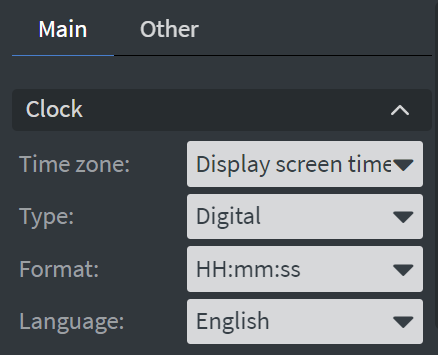
In the Main Properties Menu you can select the 'Time zone' and 'Type' of clock you want.
- On the digital clock you can also select from different time 'Formats' and 'Languages'.
- These options will not appear with the analog clock type.
Custom Format
You can add a 'Custom format' to your clock widgets.
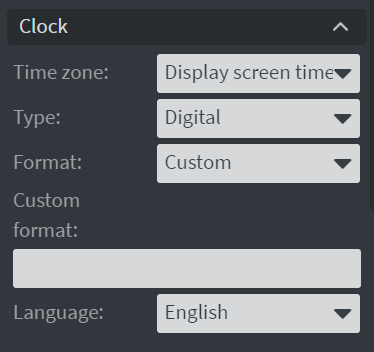
For available formatting options refer to the moment.js guide.
Learn more: Moment.js
Size & Position
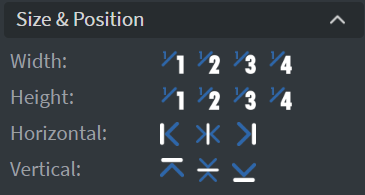
In the Size & Position Menu you can select the width, height, and placement of your widget quickly.
Proof of Play
Learn more: Enable reporting (Content) and Enable reporting (Slide).
Re-style
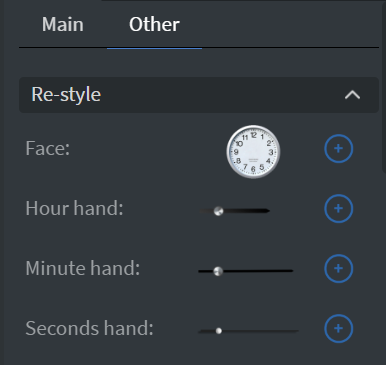
On the analog clock you can select from different clock 'Faces' or add your own custom face.
You can also change the clock 'Hands' here.
Font
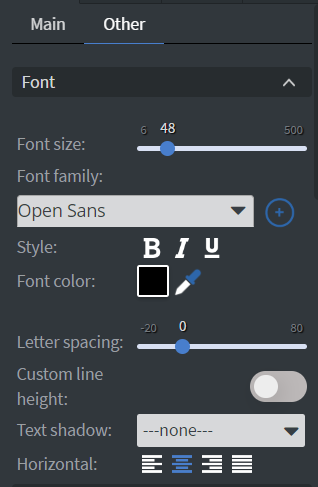
On the digital clock in the Font Menu you can set the following:
Font Properties
- 'Size'
- 'Font family'
- 'Style'
- 'Color'
- 'Letter spacing'
- 'Shadow'
Animation
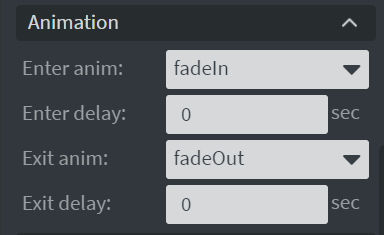
In the Animation Menu you can choose the 'Enter and Exit animation' of your widget.
Additional Properties
Under the Animation Menu you can click on the three dots which will show Additional Properties.
Additional Settings
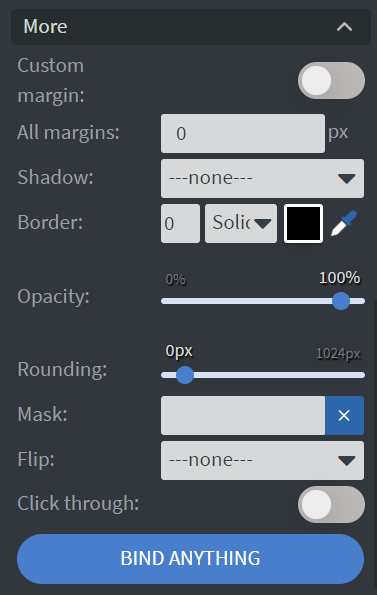
- The 'Custom Margin' switch allows you to set a custom sized margin to your widget.
- Here you can add a 'Shadow' and 'Border' to your widget.
- The 'Opacity' and 'Rounding' sliders, will change the transparency and round the edges of your widget.
- The 'Mask' option will let you select a PNG image to affect the shape of your widget. See more about: Masking.
- You can also flip your widget horizontally, vertically, or both with the 'Flip' function.
- The 'Click through' function allows you to click through the widget and interact with other widgets behind this one.
- With Hide based on data binder you can give a data from a datasource to the widget.