Device Details - Overview
The Overview tab provides essential information about your devices, helping you understand their capabilities, status, and specifications at a glance. Updated in version 2.1, the Overview tab has been reorganized for better clarity and usability.
Top section
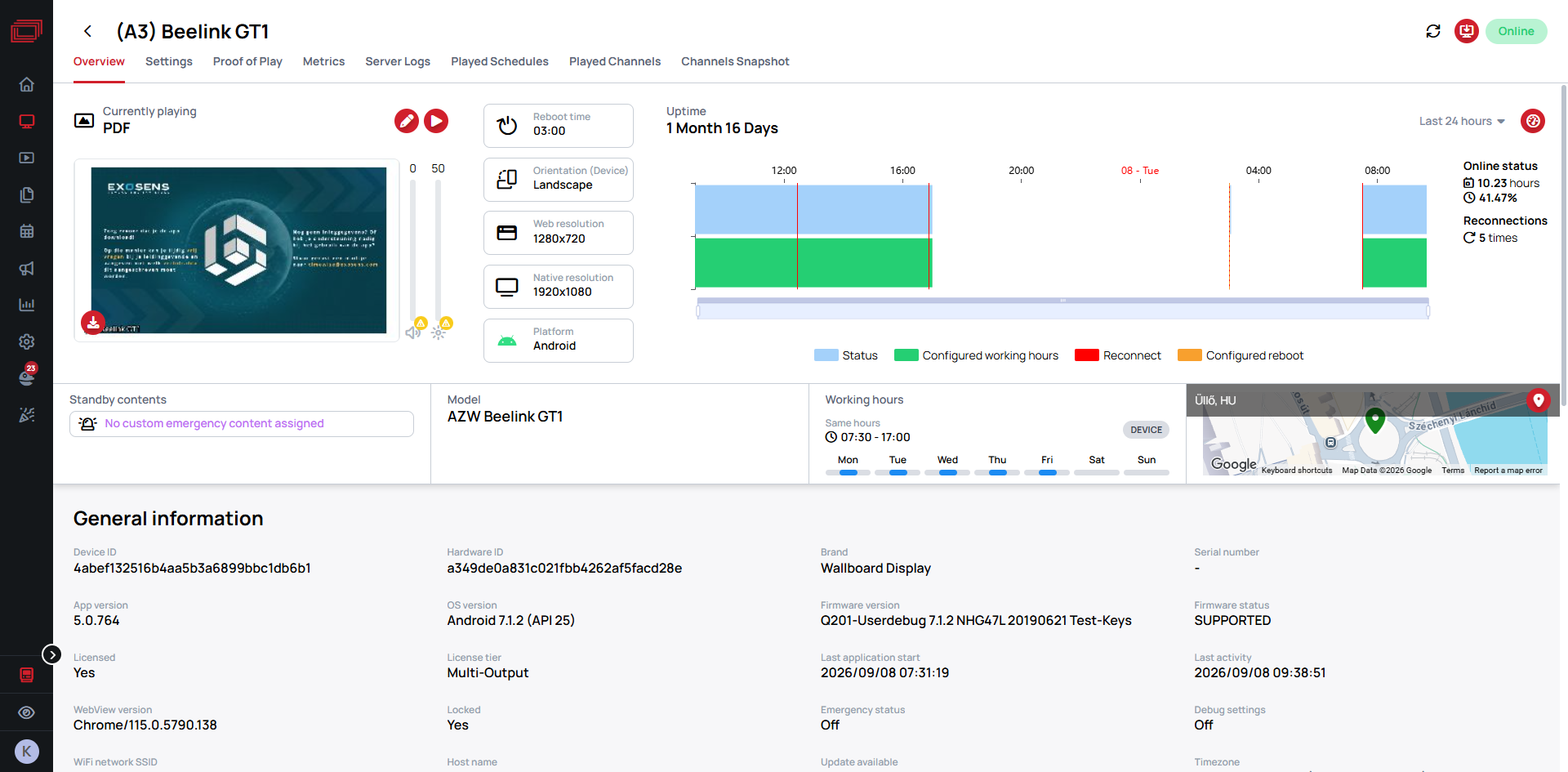
The top section of the Overview tab gives you an at-a-glance summary of the device's current state, organized into the following areas:
The status pill
The pill at the top of the Device reads its state against the Device's Working Hours, so the color tells you whether being offline is a problem or something the Device was told to do.
Learn more: The status label on a Device — the four states, with what each looks like
Currently playing
- Displays the name of what the device is showing right now and its type, with a matching icon — Interactive Content, Slide, Playlist, Channel or Schedule.
- A Schedule outranks the device’s base content, so while one is active it becomes the Currently playing item, shown with the Schedule icon. The content it replaced moves to Standby contents, and the device returns to it when the Schedule ends.
- Click to
editthe assigned content. - Click to
previewthe assigned content.
The preview image
The picture under Currently playing is a screenshot the Device itself took and uploaded — not a live view and not a browser preview. It shows what was actually on that screen, which is what makes it worth checking when a screen is not showing what you expect.
Because it is uploaded on a schedule, it can be a few minutes old. A Device uploads one roughly every 5 minutes, and every 10 minutes on Windows.
Three controls sit on and beside the image:
| Control | What it does |
|---|---|
| Download latest preview | Always visible on the image. Saves the latest screenshot |
| Latest preview image | Appears when you hover over the image. Opens the screenshot full size, in higher resolution than the thumbnail |
| Rapid preview | Switches the Device to capturing far more often for a while, then it returns to its normal schedule on its own. Use it when you are changing something and want to watch the screen keep up |
The screenshot is taken inside the player, so it tells you the Device is running and rendering — not that anything is visible on the panel.
On a setup where the player and the display are separate boxes, the monitor can be switched off, asleep, on the wrong input or faulty, and the preview will still look perfectly healthy. Nothing in Wallboard can see past the player to the glass, so a good preview never rules out a dark screen.
The same caveat applies to playback records: a panel darkened by its own power button keeps accruing Proof of Play, because the player never stopped playing. Learn more: Proof of Play
On an all-in-one Device, where the player and the screen are the same unit, the two usually fail together — but that is a property of the hardware, not something Wallboard verifies.
There is one screen-off signal, shown when the player reports its display as off while the Device is still connected — and it has the same blind spot as the image above. Learn more: Icons on a Device
Preview uploading can be switched off per Device in its advanced configuration. Learn more: Android · JSCore · Windows
Quick info cards
A set of info cards is displayed next to the content preview, providing key device settings at a glance:
- Reboot time — The configured automatic reboot schedule, or "Never" if not set.
- Orientation — The current screen rotation setting (e.g., Default, 90°, 180°, 270°).
- Web resolution — The resolution used by the Wallboard application.
- Native resolution — The physical display resolution of the device.
- Platform — The platform the device is running on (e.g., Windows, Android, BrightSign).
Uptime chart
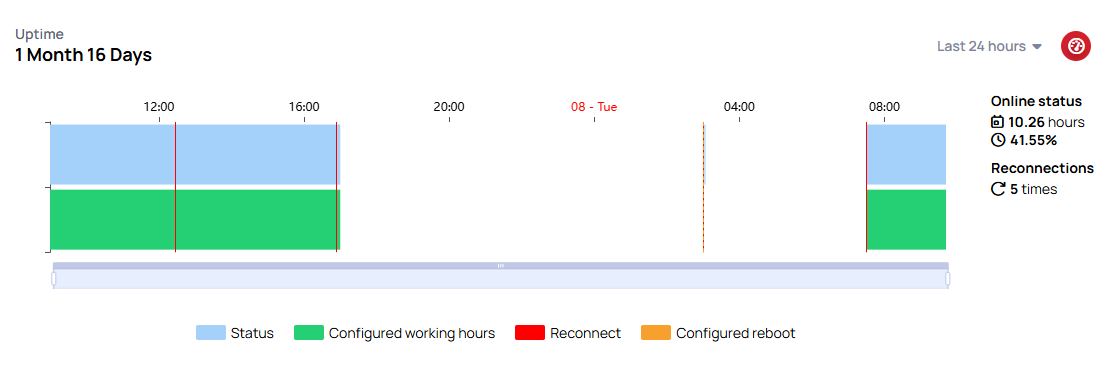
The Uptime section shows the device's online history over a time range you choose, such as Last 24 hours: a blue band for when it was online, a green band for the hours it was scheduled to run, and lines marking reconnections and the configured reboot time.
Learn more: Read the Uptime chart — what each band means, what it does and does not prove, and how a changed schedule is drawn
The two uptime numbers are not the same
| Where | What it counts |
|---|---|
| The large Uptime figure above the chart | The total time this device has been online since it was registered. It accumulates and never resets |
| Online status, beside the chart | Only the period you picked in the dropdown, as a share of that whole period |
So a screen can read a perfect 100% for today and still carry a lifetime figure well short of its age — the difference is every hour it has ever spent offline, asleep outside its working hours, or restarting. Reconnections counts reconnects in the selected period.
Working hours summary
The Overview also shows the schedule the green band is drawn from, in a form you can read at a glance:
- A clock line giving the shape of the schedule — Always on, a single time range when every day is the same, All day, or Custom when the days differ
- A small gray chip showing the mode, DEVICE or SCREEN. Device powers the screen down and back up; Screen only switches the display off and leaves the player running
- Seven bars, one per day, showing when the screen is meant to be on. Hover for the exact times; a day with no hours set shows a dash
The chart tells you what the screen actually did; this tells you what it was supposed to do. A gray screen sitting inside its own working hours is the mismatch worth chasing — a gray screen outside them is usually a screen doing as it was told.
Learn more: Working hours
Bottom cards
Below the content and uptime area, additional summary cards are displayed:
- Model — The hardware model of the device.
- Working hours — A visual weekly schedule showing when the device is configured to be active, along with the working hours mode (Device or Screen).
- Standby contents — What is waiting behind the current item. While a Schedule is playing, the content it replaced is listed here, so the card answers what returns when the Schedule ends. It also holds the custom emergency content; when none is assigned it reads No custom emergency content assigned, and the default emergency screen is used if an emergency is triggered.
- Channels — The channels reaching this device.
General information
The General Information section provides detailed Wallboard-related information about the device, organized into the following groups:
Device
- Device ID
- Service ID (max 15 characters): A unique identifier for the device that can be used for external services (e.g., TeamViewer ID). Only administrators can modify this field, while users with lower roles can view it.
- Hardware ID
- Brand
- Serial number (if available)
- App version
- OS version
- Firmware version and Firmware status
- WebView version
- Rooted (on Android devices)
- Root granted (on Android devices)
License
Licensed(yes/no): indicates whether the device has a license applied or the device is unlicensed.License tier: indicates which type of license is applied on the device (e.g., Lite, Professional, Interactive).
Other
- Last activity
- Last application start
- Locked status
- Emergency status
- Debug settings
- WiFi network SSID
- Host name
- Time zone
- Commissioning date
- Replacement date
Debug settings
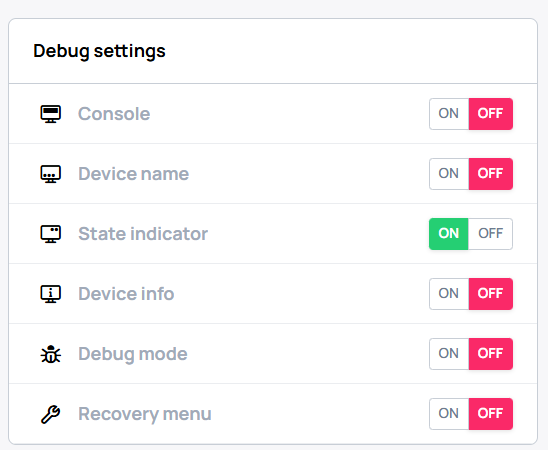
Here, you can see which debug settings are enabled on your device.
- Show console
- Show device name
- Show state indicator
- Show device info
Hardware information
In Hardware information you can find information about the selected device's CPU, Memory and Storage.
Network
In the Network section, you can find information about the selected device's network connectivity, including IP address, MAC address, BSSID, and connection type.
Displays
In the Displays section, you can see the connected displays attached to the device, including their resolution and additional information.
Sensor config
In the Sensor Config section, you can view and manage the sensor configuration of the device.
- You can view the
current sensor configby clicking on the icon.
Other
In Other, you can see additional device-related information such as architecture, computer name, and runtime versions.