Table Widget
The best way to learn the Table Widget is through a built example. These guides use it:
- How to Create a Dynamic Building Directory Using Excel
- How to Create a Dynamic Menu using Excel
- How to create content with an XML datasource
- How to make a Bird database
- Simple birthday datasource
- Using Table widget with Mini widget
Properties
Data
You can use the Bind to data tool to select your Datasource. A table binds a whole array of rows rather than a single value, so it needs both the pivot point and the column template set at the repeating row — learn more: Table Widget binding. For a full worked example — cloud credential, datasource, binding and the pivot point — see Create a Dynamic Menu using Excel.

File picker columns — image and video support
When a bound datasource column uses the File picker column type, the Table widget renders the referenced file inline in the cell. Supported file types:
- Images — rendered as an image inside the cell.
- Videos — played as a video inside the cell.
You can optionally set a custom size for the image or video inside the cell instead of using the cell's default sizing.
If you bind the Table widget to an internal datasource that uses a Folder picker column type, and the referenced folder contains a mix of images and videos at the same time, the cell rendering may behave unpredictably (some rows may render the wrong file type, fail to load, or display incorrectly).
Showing only currently-scheduled rows
The Table widget can display only the rows whose schedule is currently active and keep that list current over time — as rows become active or their schedule expires, the table updates automatically without a manual reload.
This works with a bound datasource that has a Scheduling column. A scheduling column stores interval-based day/hour rules per row that determine when the row is active. Learn more: Internal datasource column types.
You filter the table by a scheduling column through the table's Hide Rows settings, which can now target a Scheduling column in addition to text and date columns:
- Select the Table widget and click Bind to data.
- Open the Table Level Settings tab.
- Enable Hide Rows and add a rule that targets your Scheduling column. Rows whose schedule is not currently active are hidden, and the widget re-evaluates over time so the displayed rows always match the current schedule.
- Click Save.
Size & Position
In the Size & Position Menu, you can select the width, height, and placement of your widget quickly. Learn more: Size & Position.

Proof of Play
Learn more: Enable reporting (Content) and Enable reporting (Slide).
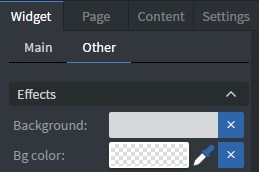
Effects
In the Effects Menu, you can add a background image or color to your widget.
Size & Position (Advanced)
In the advanced Size & Position Menu, you can change the size, position, and rotation of your widget.

Cell Style
In the Cell Style Menu, you can customize the appearance of your table cells:
- Font size.
- Font family.
- Style.
- Font color.
- Letter spacing.
- Text shadow.
- Letter case.
- Row height.
- Padding.
- Border.
- Background color.
- Vertical and Horizontal text layout.
- You can also enable Different header and Different even/odd styles.
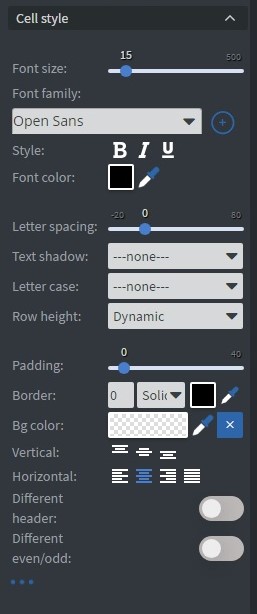
Table style
In Table style you can further customize the appearance of your table widget.
- Enable table height override: Allows customizing the table height to affect vertical alignment and layout.
The Table widget contains cells with defined heights. Text within each cell exists in a bounding box with independent height properties.
These are two separate height properties:
- Cell height: The total vertical space of the table cell
- Text bounding box height: The vertical space occupied by the text content
The Enable table height override option controls how much of the cell height the text bounding box fills, expressed as a percentage:
- 0%: Text uses only its natural height (no expansion)
- 50%: Text bounding box fills half the available cell height
- 100%: Text bounding box expands to match full cell height
The examples below demonstrate how vertical alignment settings affect text positioning with different table height override values:
Top alignment
'Enable table height override' at 0%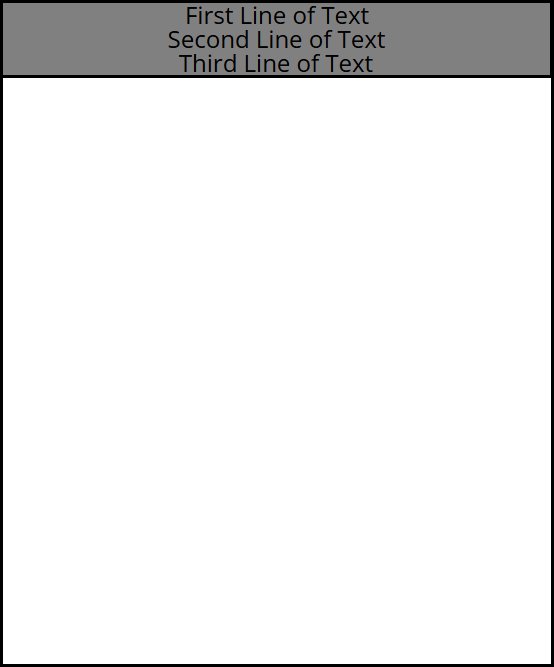 | 'Enable table height override' at 50%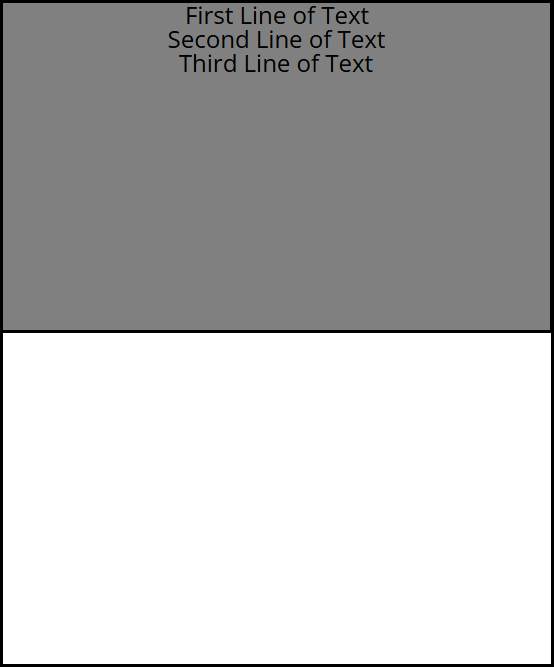 | 'Enable table height override' at 100%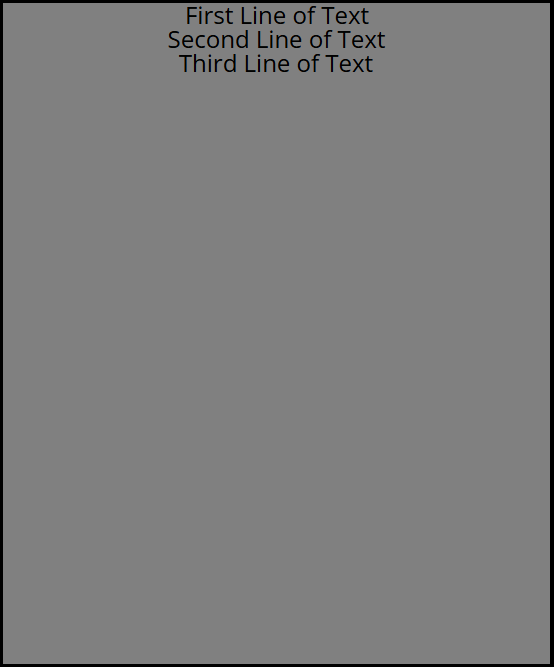 |
|---|
Middle alignment
| 'Enable table height override' at 0% | 'Enable table height override' at 50%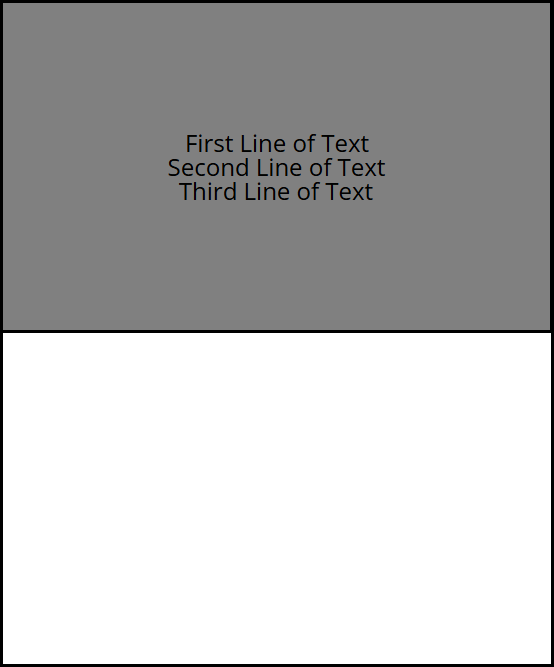 | 'Enable table height override' at 100%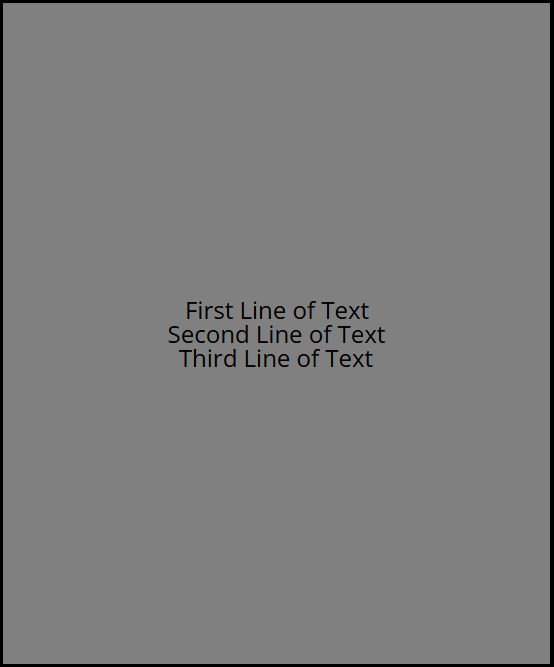 |
|---|
When 'Enable table height override' is set to 100%, longer text content may overlap with pagination information at the bottom of the table, depending on the selected alignment settings.
Additional Properties
Under the Jump Menu, you can click on the three dots to access Additional Properties (aka MORE). However, this section is not detailed in the current documentation.