Power BI Widget
This page describes how to display Power BI reports on Wallboard devices using the Power BI widget — a live embed of the report itself, rendered in the device's browser and interactive on the device where the license and Webview version allow it.
Power BI is Microsoft's suite of cloud-based analytics apps and services. It collates data from a variety of sources and turns it into charts, dashboards and reports. The Wallboard widget puts those reports on screen directly, so viewers see the live report rather than a picture of it.
Using this widget requires advanced knowledge and deep understanding of Microsoft Power BI integration and setup. This article only details the functionality of the Wallboard widget itself.
We recommend contacting our support team before proceeding with a Power BI integration.
How It Works
- Wallboard authenticates with Microsoft using a dedicated account with Power BI scope
- A Power BI widget is added to Content and pointed at a report, dashboard or tile
- When the Content plays, Wallboard requests an embed token from Microsoft for that item
- The device's browser loads the Power BI embed and renders the report live
- On an Interactive license with a supported Webview, the report responds to touch on the device
Requirements
| Component | Option | Notes |
|---|---|---|
| Wallboard license | Professional screen license (minimum) | Per your contract |
| Microsoft capacity | Fabric F2 (minimum) | See Fabric pricing |
| Microsoft user | Power BI Pro (1 dedicated account) | See per-user pricing |
This is the minimum to display a report. Interacting with it on the device — touch input, tab and page navigation, filters — requires an Interactive (formerly Premium) license in place of Professional.
Wallboard License
| To do this | Wallboard device license required |
|---|---|
| Display the report on screen | Professional or higher |
| Interact with the report on the device — touch input, tab and page navigation, filters | Interactive (formerly Premium) |
If you do not need interactivity, the Power BI Datasource route delivers the same report as a static image. It runs on any device with no Webview 94+ requirement, which makes it the simpler option for a Professional fleet. Learn more: Power BI Datasource
Device Requirements
- Supported Webview versions:
- The widget functions only on Webview versions 94 and higher. Any browser, on a device or otherwise, with a version lower than 94 will display a warning message.
- Microsoft's documentation recommends Webview 120 and up, so proceed with integration accordingly. Refer to the official documentation.
- Most of our supported platforms do not have Webview version 94 or higher.
- Updating Webview version is not available for every platform we support:
- Android: Manually updating the Webview version is available. Webview updates can fail, and it is advisable to have physical access to the device to repair it.
- Windows: Webview is built into the client application and is regularly updated by the Wallboard team.
- BrightSign: Webview version is tied to firmware version. You can update BrightSign firmware version but it is advisable to consult the supported firmware section and have physical access to the device to troubleshoot.
- For Series 5 devices from firmware version 9.0.168 and application version 4.1.1073 you can enable Chromium WebView 120 with advanced configuration.
- LG and Samsung: Webview version is unchanged within the same model series. New model series generally come out with newer Webview versions.
If using custom fonts in Power BI reports, install those fonts on the signage device to avoid display issues.
Microsoft Licensing
Embedding Power BI reports requires two independent Microsoft licenses — a capacity license for the workspace, and a per-user license for a dedicated account that generates embed tokens. Both are required for production use.
Capacity License (Workspace)
The Power BI workspace must be assigned to a dedicated capacity. Without it, only ~100 embed tokens/hour can be generated — suitable for development and testing, not production.
| Capacity Type | SKUs | Production Ready | Notes |
|---|---|---|---|
| Microsoft Fabric ⭐ | F2–F2048 | ✅ | Recommended. Current standard, replaces P SKUs |
| Power BI Embedded | A1–A6 | ✅ | Azure-based, hourly billing, can be paused |
| Premium Per User (PPU) | — | ❌ | A per-user license, not a capacity — Microsoft treats Pro/PPU embed tokens as dev/test only |
| Shared/Pro capacity | — | ❌ | Rate-limited, dev/test only |
P SKU Retirement
Power BI Premium P SKUs have been retired as of 2024–2025. New customers cannot purchase P SKUs — see Microsoft's official retirement announcement. Existing customers on Enterprise Agreements may continue until contract end.
F SKUs are the recommended replacement.
A SKU Status
Microsoft originally planned to retire A SKUs alongside P SKUs, but reversed this decision. A SKUs remain available for purchase.
That said, F SKUs are the modern recommended path for new deployments.
Per-User License (Dedicated Account)
A paid per-user license must be assigned to the Microsoft account used to authenticate with Wallboard. This dedicated account is used solely for Wallboard's Power BI integration and generates embed tokens on behalf of all screens.
| License | Suitable for Wallboard? | Notes |
|---|---|---|
| Fabric (Free) | ❌ | Cannot generate embed tokens |
| Power BI Pro | ✅ Recommended | Sufficient for embed token generation — see pricing |
| Premium Per User (PPU) | ✅ | Same embed capabilities as Pro, extra features not relevant for signage use — see pricing |
PPU works exactly like Pro, provided the workspace is on dedicated capacity.
Without dedicated capacity the widget still renders, but Pro and PPU accounts alike are rate-limited to ~100 embed tokens/hour — a Microsoft shared-infrastructure limit, not a per-user license issue. That is enough for development and testing, not for production.
Pro is recommended simply because it costs less.
Workspace Requirements
- Shared workspace required — personal workspaces ("My Workspace") are not supported for embed token generation. The workspace must be a shared collaborative workspace accessible to the dedicated account.
- The workspace must be assigned to a paid capacity (Fabric F2 or equivalent) by a Power BI admin.
Before setting up the widget, confirm your workspace has a capacity assigned:
- Open Power BI Service (app.powerbi.com)
- Go to your workspace
- Click Settings (gear icon) → Premium
- Check if a capacity is assigned — if it shows "Shared" or nothing, the widget will hit token limits in production
Power BI Admin Settings
- Enable
Embed content in appsin the Power BI Admin portal under Tenant settings.
If "Embed content in apps" is not enabled in the Power BI Admin portal, the widget will fail. This is the most commonly missed setup step.
The dedicated account must also have at least Viewer access to the report workspace.
Setup Steps
-
Connect your Power BI account
- Go to
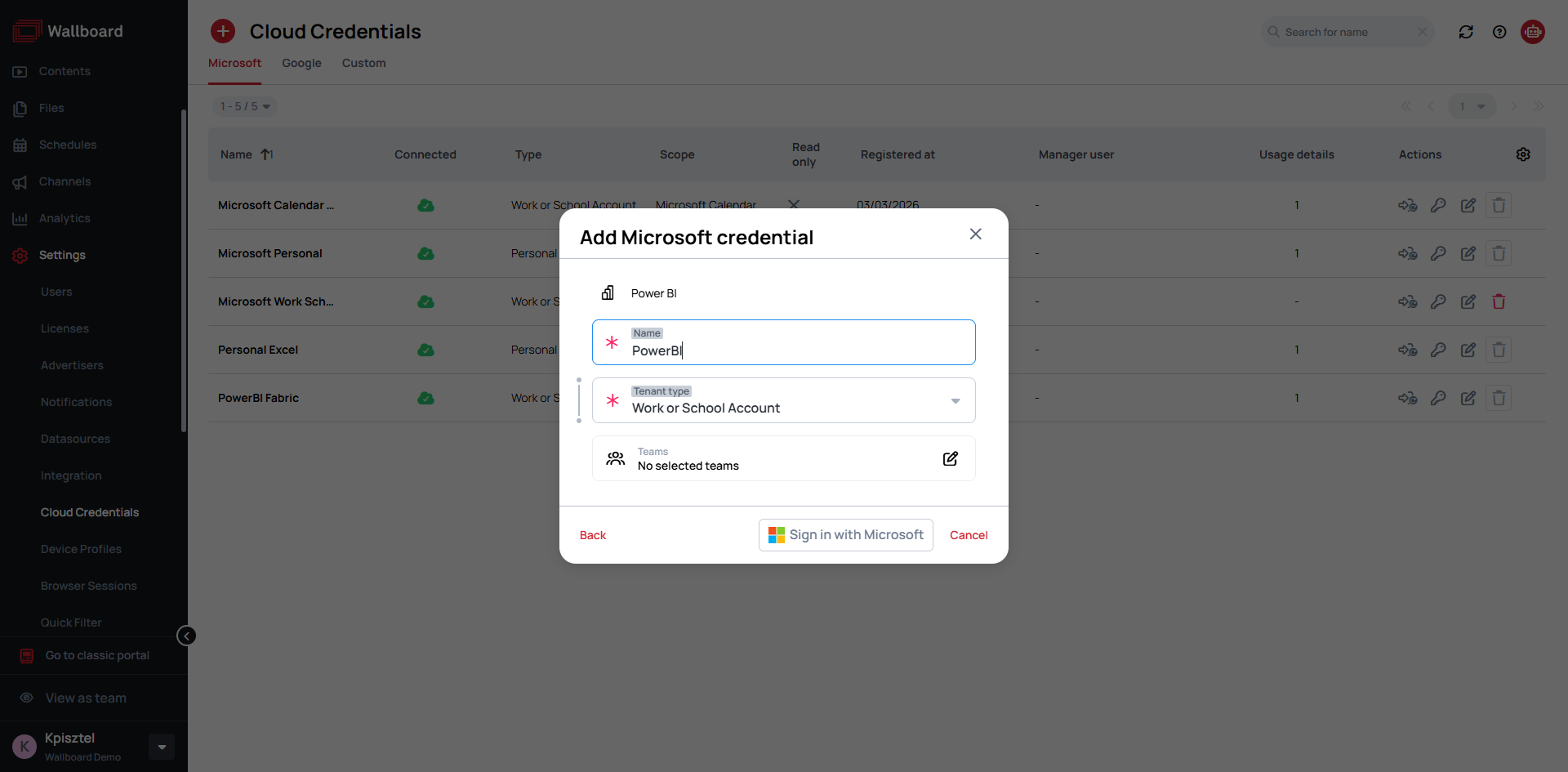
Settings > Cloud Integration > Microsoft credentials > Add new - Select
Scope: Power BIandType: Work or School Account - Authenticate using the dedicated Microsoft account (must have a Pro or PPU license)
- Advanced users can opt for
Service Principal. Contact support for details
- Go to
-
Add the widget to your Content
- The Power BI widget is located in the
Dynamic Chartssection of the editor.

- The Power BI widget is located in the
-
Set the source
- Credential — use the connected
Cloud credential. - Embed Type:
- Dashboard — displays a dashboard view.
- Report — displays a report view, and adds a
Bookmarkinput. - Tile — displays individual tiles.
- Settings:
- Interactive mode.
- Navigation options (for example Tabs, bookmarks).
- Filters display.
- Bookmark selection.
- Bookmarks require Chrome version 69 or higher.
- Bookmarks organized inside bookmark groups are supported — a grouped bookmark can be selected by its name.
- Credential — use the connected
-
Set Auto Rotate (optional)
- Rotates pages automatically based on a set delay.
BookmarksandAuto rotateare incompatible. Only the selected Bookmark will show in Content instead of rotating through all of them.
-
Enable Proof of Play (optional)
- The widget supports statistics reporting, including display duration, number of displays, and interaction events.
- Enable this feature in the widget statistics section.

Troubleshooting
Power BI errors can be challenging to resolve.
In this section, we outline a general troubleshooting approach using a specific scenario and compile a list of the most common error codes you might encounter.
The scenario is an example where Power BI does not show up on the device.

- On the device itself, ensure it meets the required Webview version.
- On the administrator UI and PC browser, perform the following steps:
- Open the content preview (
Right-click > Preview in browser).- Check if the widget shows up in the preview at all.
- Use browser developer tools (
F12) to access the Console and Network tabs. - Reload the preview page (
F5) to gather fresh logs. - Identify and capture red error messages from the Console tab.
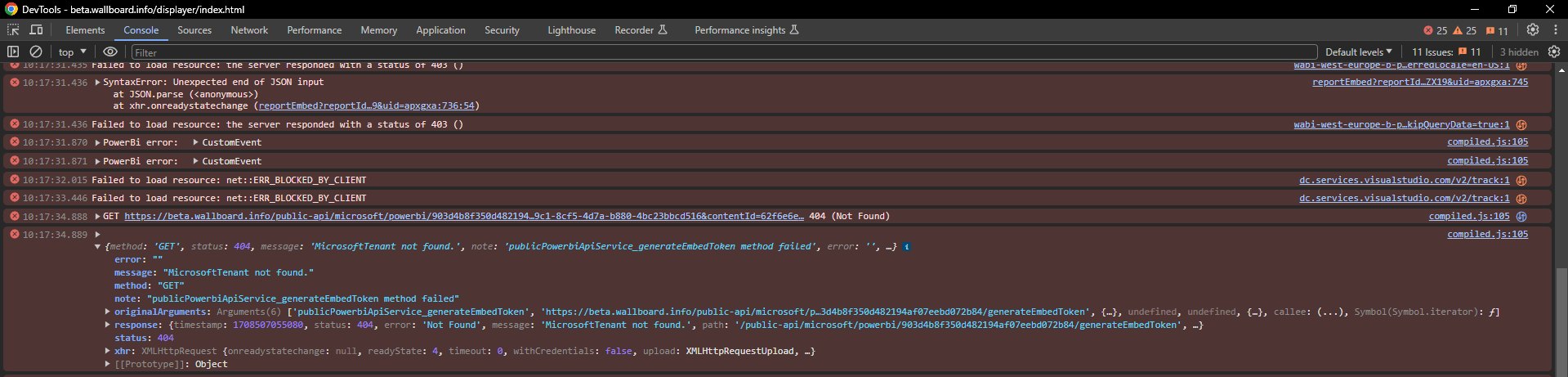
- In our example you can see on the screenshot that it is a 404 error, below is a short summary of these error codes and what they mean regarding Power BI.
- Open the content preview (
Error Code Guide
| Code | Message | Cause | Fix |
|---|---|---|---|
| 400 | Microsoft tenant is undefined in .../undefined/generateEmbedToken | A cloud key was deleted and replaced, but the Content was not updated to use the new key | Update every connected Power BI Content to use the new key |
| 404 | File or directory not found | A cloud key was deleted and not replaced, leaving the Content without a key — or the Microsoft tenant was deleted, cutting off access to the reports | Update all connected Power BI Content with new keys, and confirm the tenant still exists |
| 412 | Only folder user with reshare permissions can generate embed token | The account lacks reshare permissions for the embed token | Grant reshare permission — see the solution |
| 500 | You have exceeded the amount of embed token that can be generated on a shared or ProPlus capacity | The Power BI workspace is not assigned to a dedicated capacity | Assign the workspace to a Fabric F2 (or equivalent) capacity in the Power BI admin portal — more details |
Debugging Tips
- Use the Network tab to inspect requests, focusing on
PayloadandResponsetabs.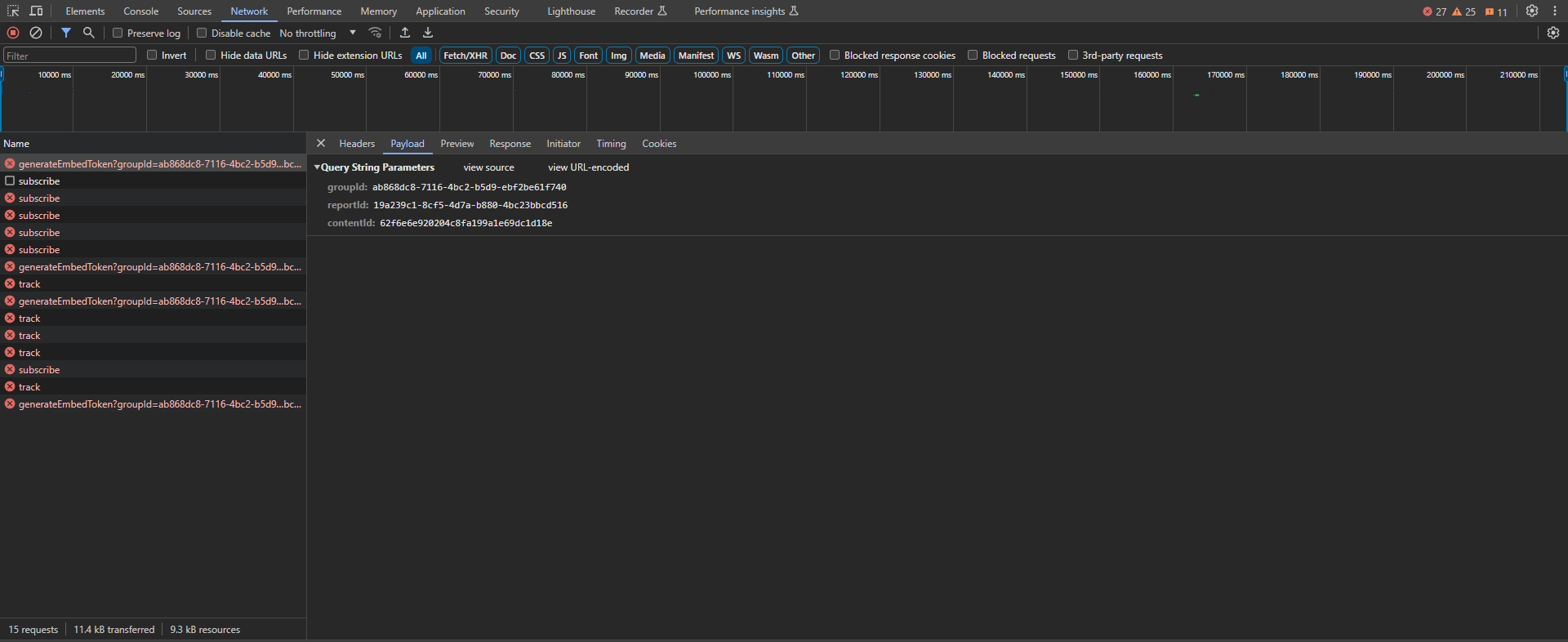
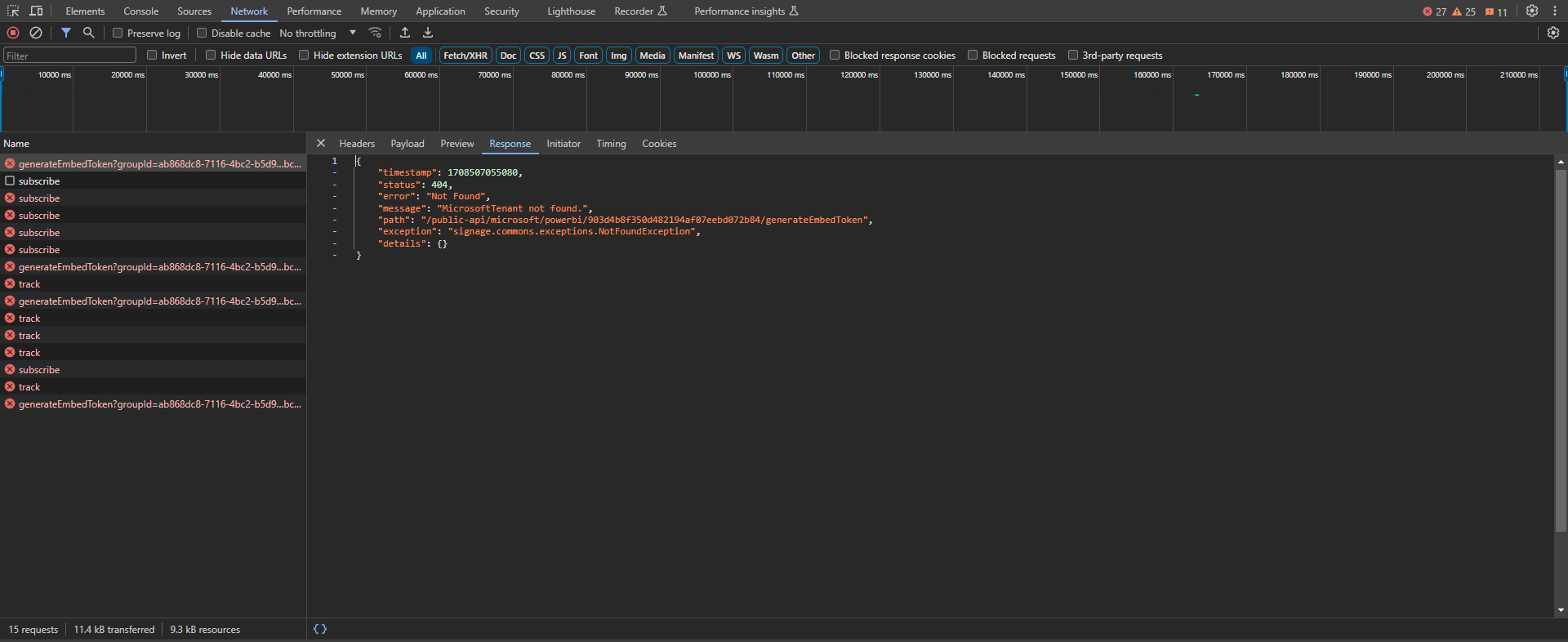
- In the screenshot, you can see the 404 error from our example and gather more details about it.
- You can use this information to investigate further on your own.
- Or share it with our support for further assistance.
Useful Resources
- Embed Token Limits: Learn more
- Power BI Premium vs. Embedded: Microsoft recommendation
- P SKU Retirement announcement: Microsoft blog
- A SKU retirement reversal: Directions on Microsoft
- Microsoft Fabric pricing: Azure pricing page
- Power BI Embedded (A SKU) pricing: Azure pricing page
- Power BI per-user pricing: Microsoft pricing page