Meta (Facebook & Instagram) datasource
The Meta datasource displays Facebook Page posts and Instagram feeds on your screens. There is a single Meta datasource type — the connected credential (and, for Meta Business Suite, the selected Type) determines whether it pulls Facebook page posts or an Instagram feed.
It is an external datasource that authenticates through a Meta cloud credential and refreshes on a schedule (once per day by default).
Prerequisites
Before creating a Meta datasource, ensure you have:
- A Facebook Page and/or an Instagram Professional (Business or Creator) account
- To display an Instagram feed through a Facebook Page, the Instagram account must be linked to that Page
- The ability to log in to Meta during credential setup
- A Wallboard account with permission to create cloud credentials and datasources
Create the Meta credential
Meta credentials are created under the dedicated Meta tab in Cloud Credentials.

- Navigate to Settings > Cloud Credentials and open the Meta tab
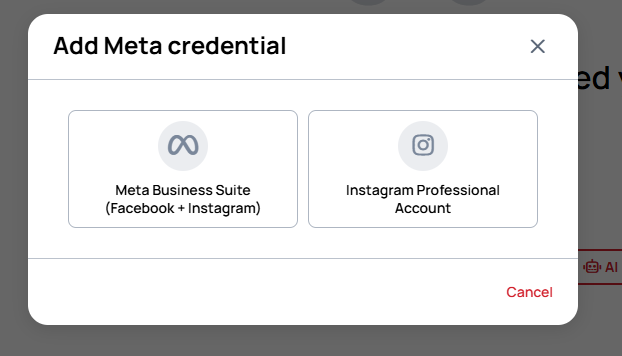
- Click Add credential — the Add Meta credential dialog opens
- Choose the credential type:
- Meta Business Suite (Facebook + Instagram) — connect a Facebook account and its Pages (and any linked Instagram accounts). Use this for Facebook page feeds and Instagram page feeds.
- Instagram Professional Account — connect an Instagram Professional account directly. Use this for the Instagram feed.
- Enter a Name, optionally assign Teams, and complete the Meta login when prompted
- Click Save
Create the Meta datasource
- Go to Settings > Datasources > External datasources and click Add new
- On the Choose a datasource type screen, select Meta
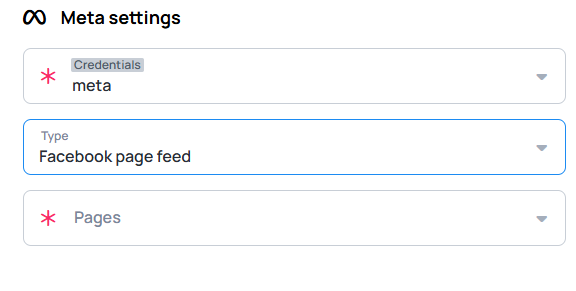
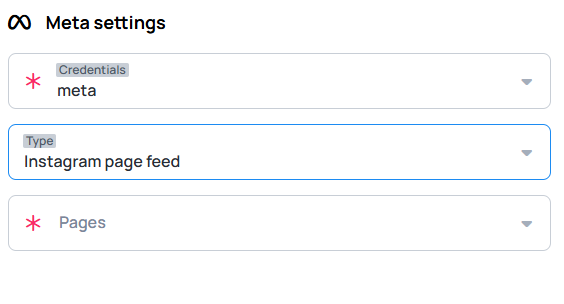
- In the datasource editor, fill in the Meta settings panel (left side):
- Credentials — select a saved Meta credential
- If you selected a Meta Business Suite credential:
- Type — choose Facebook page feed (the Page's posts) or Instagram page feed (the Instagram feed of the account linked to the Page)
- Pages — select the Page
- If you selected an Instagram Professional Account credential, no further fields are needed — the datasource pulls that account's Instagram feed
- Maximum number of posts — how many posts are retrieved from the feed. Accepts
1–100, and defaults to30
 |  |
- In the Advanced settings panel (middle), the Refresh interval (seconds) under Refresh settings defaults to
86400(once per day) — change it if you want a different refresh cadence. See External Datasources for the full list of advanced and cache settings. - Save the datasource using the save icon in the top toolbar
The combination of credential and Type determines what the datasource returns:
| Credential | Type | Returns |
|---|---|---|
| Meta Business Suite | Facebook page feed | Posts from the selected Facebook Page |
| Meta Business Suite | Instagram page feed | The Instagram feed of the account linked to the selected Page |
| Instagram Professional Account | (not applicable) | The connected Instagram account's feed |
Verify your setup
After saving:
- The Preview panel (right side of the editor) populates with the returned posts — confirm the post text, media, and dates match the source account
- In the datasource list, the datasource status should show as Active
Feed data structure
The datasource normalizes Facebook and Instagram feeds into an RSS-style structure: a channel object with an items array.
The base structure is the same for both platforms; Instagram feeds add engagement fields (followersCount, likeCount,
commentsCount) that Facebook page feeds do not include.
Facebook page feed:
{
  "channel": {
    "title": "string",
    "description": "string",
    "publishDate": 0,
    "link": "string",
    "items": [
      {
        "guid": "string",
        "title": "string",
        "description": "string",
        "publishDate": 0,
        "link": "string",
        "categories": [],
        "media": { "url": "string" },
        "attachments": [
          { "url": "string", "type": "image | video" }
        ],
        "qrCode": null,
        "publishDateISO": "string"
      }
    ]
  }
}
Instagram feed (adds followersCount, likeCount, commentsCount):
{
  "channel": {
    "title": "string",
    "description": "string",
    "publishDate": 0,
    "link": "string",
    "followersCount": 0,
    "items": [
      {
        "guid": "string",
        "title": "string",
        "description": "string",
        "publishDate": 0,
        "link": "string",
        "categories": [],
        "media": { "url": "string" },
        "attachments": [
          { "url": "string", "type": "video" }
        ],
        "qrCode": null,
        "likeCount": 0,
        "commentsCount": 0,
        "publishDateISO": "string"
      }
    ]
  }
}
| Field | Description |
|---|---|
channel.title / channel.description | Page or account name and description |
channel.link | Link to the Page or profile |
channel.followersCount | Follower count (Instagram only) |
items[].title / items[].description | Post caption / text |
items[].publishDate / items[].publishDateISO | Post date as a timestamp and as an ISO string |
items[].link | Permalink to the post |
items[].media.url | Primary image or thumbnail URL |
items[].attachments[] | Attached media — url plus type (image or video) |
items[].likeCount / items[].commentsCount | Engagement counts (Instagram only) |
Display the feed
Because the data uses the RSS-style channel → items structure, you can display it with the Media widget the same way as
an RSS feed — bind the widget to the datasource and it will cycle through the posts (image/description). You can also use
data binding to place individual fields (caption, media, date, link) into any widget.
Like other external datasources, a Meta datasource is automatically deactivated after a period of no device usage to preserve performance. Its data and configuration are retained. See Auto-deactivation for details, or enable Prevent auto-deactivation to keep it always active.