External Datasources
External data sources are helpful when you want to pull in data from outside platforms—such as Google Sheets or Microsoft Excel. This can be useful for displaying dynamic content like a restaurant menu or a contact list of your colleagues.
Create External Datasource
- Navigate to Settings > Datasources menu
- Select External Datasources
- Click on the button next to the External Datasources header
- Select the Datasource type you wish to use from the list
- Fill the necessary settings fields in the datasource editor
- Each type of data source comes with its own specific set of configuration options
- After you finished the datasource configuration, click on the Save to create the datasource
After saving, your new datasource will appear in the list.
Datasource type selection
Upon creation, the type selector interface displays available data source types for selection.
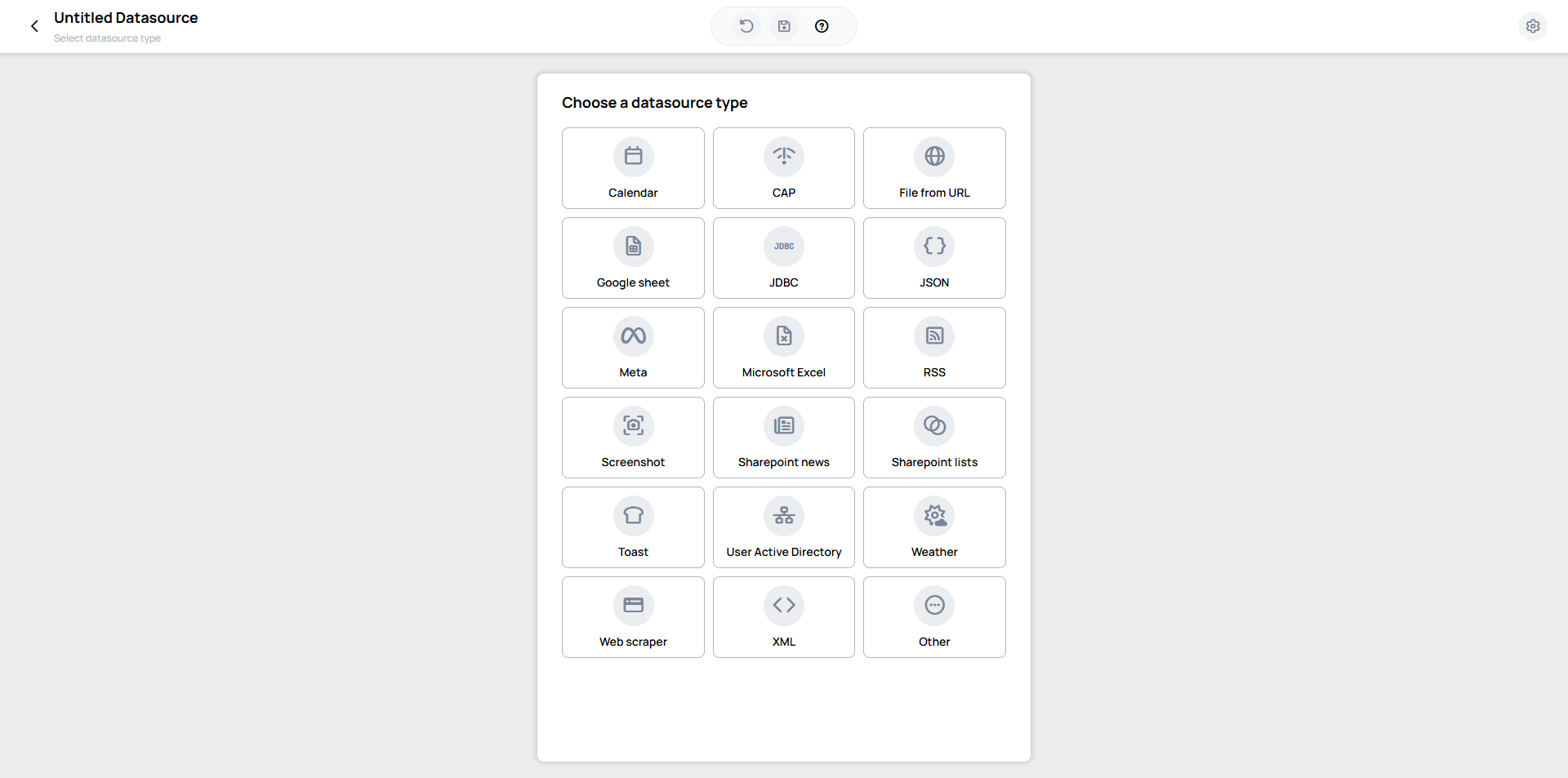
External datasource types
External datasource types are grouped by what you are connecting to.
Files & sheets
Databases & APIs
Feeds & web
Calendars
Integrations
- User Active Directory
- Amadeus Event
- CAP
- Meta (Facebook & Instagram)
- PowerBI
- Sharepoint lists
- Toast
- Weather
- Other (Custom integrations)
Datasource editor
After selecting the data source type, the full-screen datasource editor opens. It is laid out in three panels: the type-specific settings (left), Advanced settings (middle), and a live Preview (right) that populates once you save.
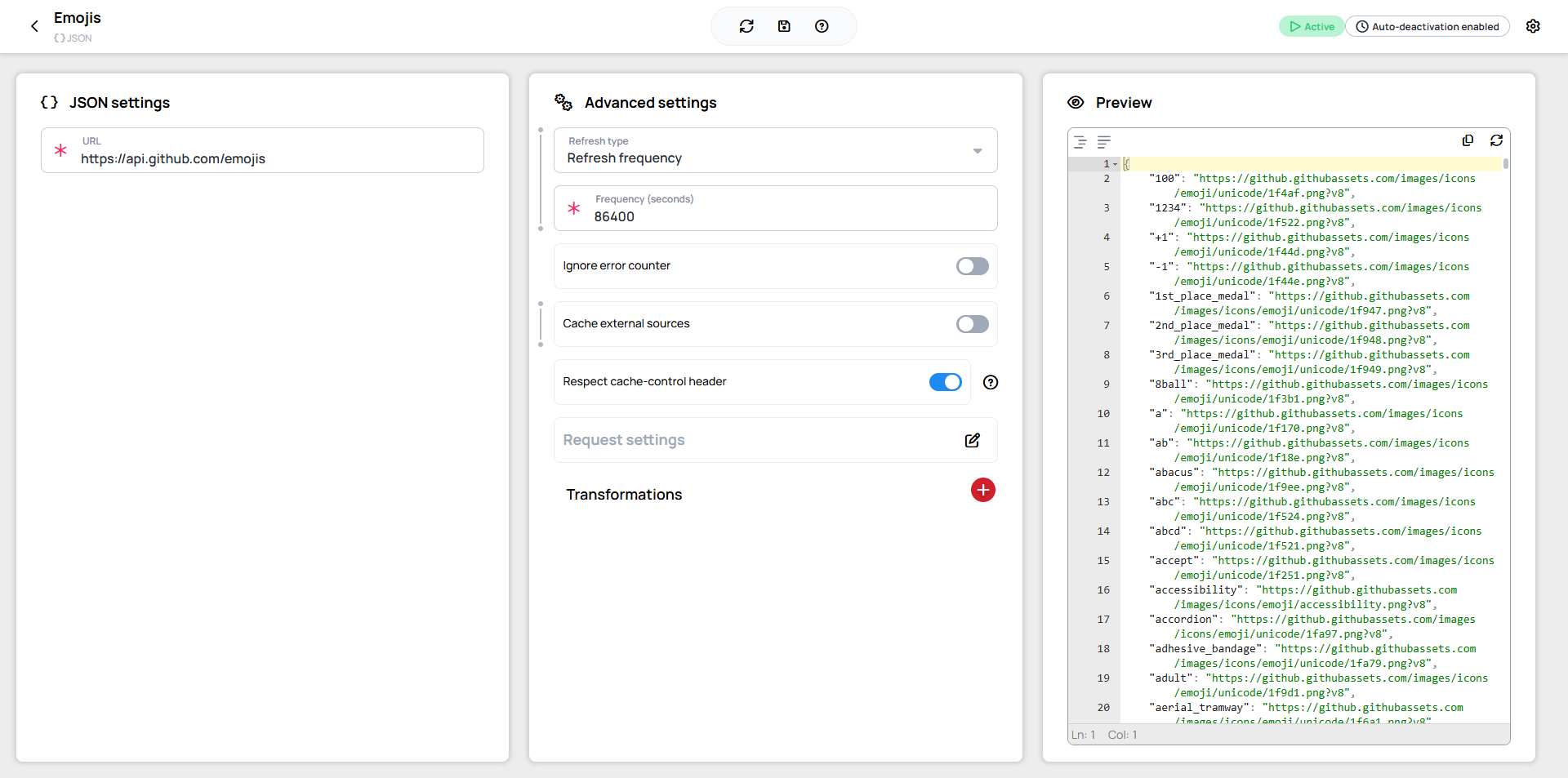
Datasource specific settings
Settings are specific to each data source type and typically include URLs, credentials, and source-specific configuration options.
Advanced settings
These settings are available for most data source types with minor variations and control data source behavior and management rather than source configuration.
Learn more: Advanced Datasource Settings
Preview
Preview data source output as structured JSON with applied query filters.
Header
- Datasource name: Change the datasource's name
- Refresh datasource: Manually refresh the datasource
- Help: A list of hotkeys available
- Status indicators Two indicator types display here:
- Activation status
- Active
- Inactive
- Auto-deactivation
- Auto-deactivation enabled
- Auto-deactivation disabled
- Settings: There are general settings available clicking the icon
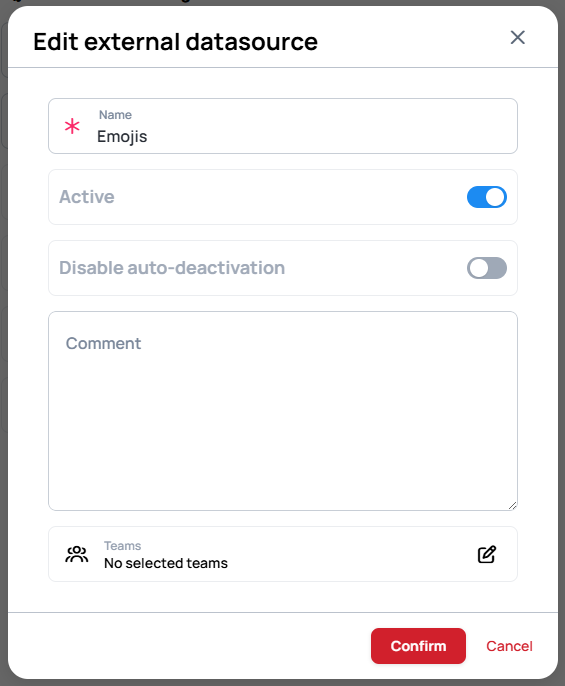
- Name: Change the datasource's name
- Active: Change the activation status
- Prevent auto-deactivation: When enabled, the datasource stays active regardless of inactivity and will not be automatically deactivated after the usage-based threshold. See Advanced Datasource Settings for details.
- Teams: In the Team management modal you can assign teams to manage and see the datasource.
Datasource state
Datasources can exist in several states that indicate whether they are currently in use or not:
- Active: The datasource is currently active and in use
- Inactive: The datasource has been manually deactivated
- Automatically Deactivated: The system has automatically disabled the datasource. This typically happens if the datasource is not used in any content, or if the content it’s linked to hasn’t been displayed on any screen for more than a week
- Navigating to a datasource
- Click on the more button
- Select the Edit option
- Find the icon in the upper right corner of the datasource editor
- Change the Active option
Data Source Auto-Deactivation
Wallboard automatically stops refreshing data sources that aren't in use, preserving performance. All configuration and data are retained — nothing is deleted. There are two independent triggers: usage-based (30 days of no device usage) and error-based (25 consecutive refresh failures).
For the full rules, quick reference, and how to prevent or reverse it, see Auto-deactivation.