Power BI Datasource
This page describes how to display Power BI reports on Wallboard devices using the Power BI Export API — a method that renders reports as static images delivered through Wallboard's datasource system.
Wallboard calls Microsoft's Export API on a configured schedule to generate a static snapshot image of your Power BI report. The API returns an image URL which is stored in the datasource — this URL can then be bound to an Image widget via data binding to display the report on screen.
| Screenshot Method | Power BI Widget | |
|---|---|---|
| Wallboard license required | Professional or higher | Professional to display, Interactive required for touch |
| Device compatibility | Any device | Webview 94+ required |
| Interactivity | ❌ Static image only | ✅ Fully interactive (requires Interactive device license) |
| Real-time data | ❌ Periodic refresh only | ✅ Live |
| Microsoft capacity required | ✅ Yes | ✅ Yes |
| Per-user license required | ✅ Pro or PPU | ✅ Pro or PPU |
| Proof of Play | ✅ Via Image widget | ✅ Via Power BI widget |
Use this method when: devices don't meet the Webview 94+ requirement, or interactivity is not needed. Note that a Professional-tier device can still run the Power BI widget; it simply won't respond to touch.
How It Works
- Wallboard authenticates with Microsoft using a dedicated account with Power BI scope
- Wallboard calls the Power BI Export API with the target report pages and page configuration
- Power BI renders the report server-side and returns a static image file
- Wallboard stores the image (if there are multiple pages selected from the report, then multiple images) and makes it available as a datasource URL
- An Image widget bound to the datasource displays the image on screen
- The datasource refreshes on a configured schedule to pull updated snapshots
Requirements
| Component | Option | Notes |
|---|---|---|
| Wallboard license | Professional screen license (minimum) | Per your contract |
| Microsoft capacity | Fabric F2 (minimum) | See Fabric pricing |
| Microsoft user | Power BI Pro (1 dedicated account) | See per-user pricing |
Microsoft Licensing
Two Microsoft components are required — a capacity license for the workspace, and a per-user license for the dedicated account that calls the Export API.
Capacity License (Workspace)
The Power BI workspace must be assigned to a dedicated capacity. The Export API is not available on shared/Pro capacity — it will return a permanent error message.
| Capacity Type | SKUs | Production Ready | Notes |
|---|---|---|---|
| Microsoft Fabric ⭐ | F2–F2048 | ✅ | Recommended. Current standard, replaces P SKUs |
| Power BI Embedded | A1–A6 | ✅ | Azure-based, hourly billing, can be paused |
| Shared/Pro capacity | — | ❌ | Export API not available |
P SKU Retirement
Power BI Premium P SKUs have been retired as of 2024–2025. New customers cannot purchase P SKUs — see Microsoft's official retirement announcement. Existing customers on Enterprise Agreements may continue until contract end.
F SKUs are the recommended replacement.
A SKU Status
Microsoft originally planned to retire A SKUs alongside P SKUs, but reversed this decision. A SKUs remain available for purchase.
That said, F SKUs are the modern recommended path for new deployments.
Per-User License (Dedicated Account)
A paid per-user license must be assigned to the Microsoft account used to authenticate with Wallboard. This dedicated account is used solely for Wallboard's Power BI integration and calls the Export API on behalf of all screens.
| License | Suitable for Wallboard? | Notes |
|---|---|---|
| Fabric (Free) | ❌ | Cannot access the Export API |
| Power BI Pro | ✅ Recommended | Sufficient for Export API access — see pricing |
| Premium Per User (PPU) | ✅ | Same Export API capabilities as Pro when workspace is on dedicated capacity — see pricing |
PPU works exactly like Pro, provided the workspace is on dedicated capacity.
Without dedicated capacity the Export API is not available at all — it returns a permanent error rather than simply running slowly. Note also that the PPU restriction commonly documented elsewhere applies to PPU workspaces (Microsoft's shared infrastructure), not to a PPU user accessing a Fabric or dedicated capacity workspace.
Pro is recommended simply because it costs less.
Workspace Requirements
- Shared workspace required — personal workspaces ("My Workspace") are not supported for the Export API. The workspace must be a shared collaborative workspace accessible to the dedicated account.
- The workspace must be assigned to a paid capacity (Fabric F2 or equivalent) by a Power BI admin.
Before setting up, confirm your workspace has a capacity assigned:
- Open Power BI Service (app.powerbi.com)
- Go to your workspace
- Click Settings (gear icon) → Premium
- Check if a capacity is assigned — if it shows "Shared" or nothing, the Export API will not work
Power BI Admin Settings
The following tenant settings must be configured in the Power BI Admin portal → Tenant settings:
- Export reports as PowerPoint presentations or PDF documents — enabled by default, no action needed
- Export reports as image files — disabled by default, must be manually enabled for PNG export to work
If "Export reports as image files" is not enabled in the Power BI Admin portal, the datasource will fail. This is the most commonly missed setup step.
The dedicated account must also have at least Viewer access to the report workspace.
Setup Steps
-
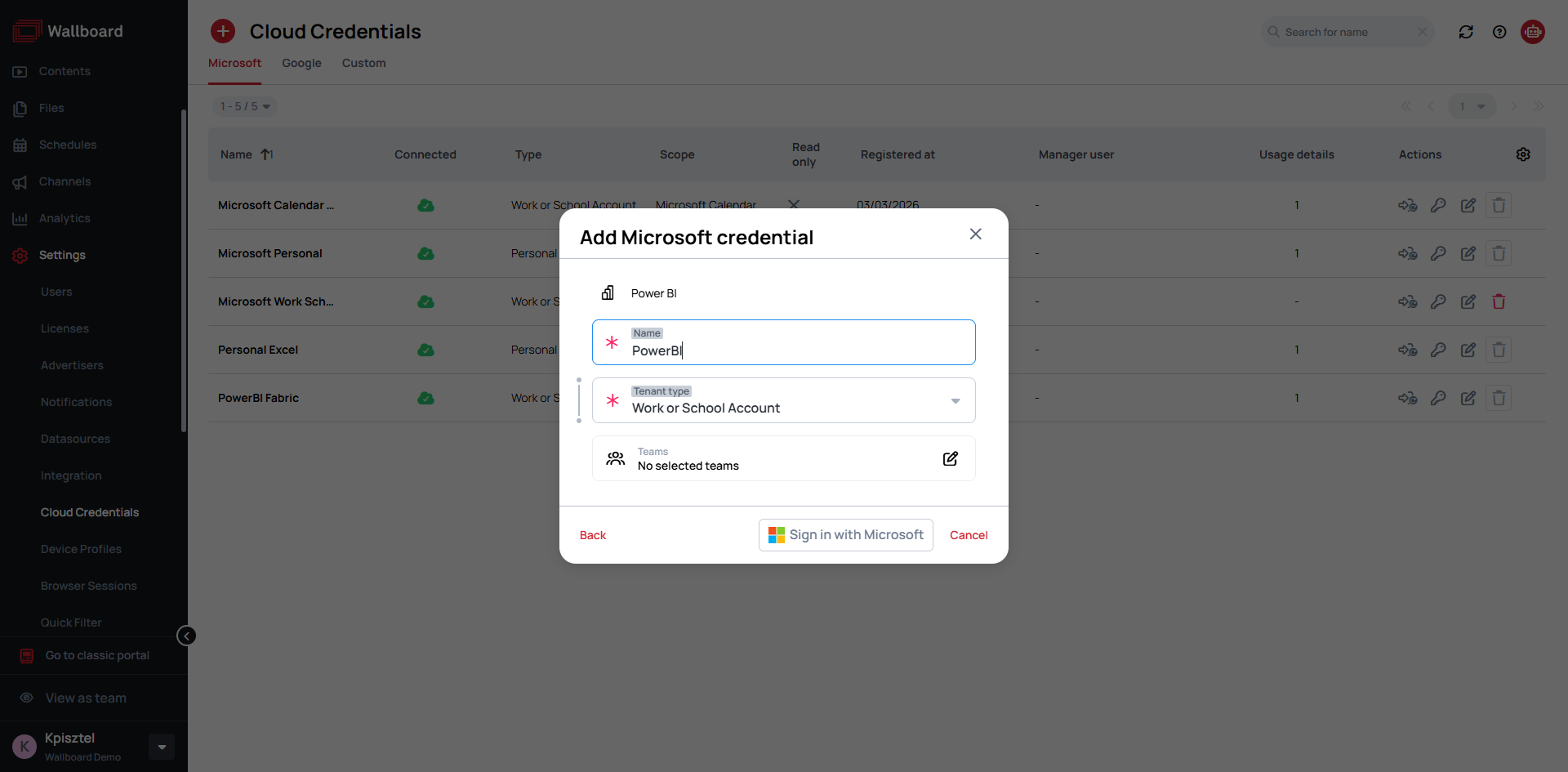
Connect your Power BI account
- Go to
Settings > Cloud Integration > Microsoft credentials > Add new - Select
Scope: Power BIandType: Work or School Account - Authenticate using the dedicated Microsoft account (must have a Pro or PPU license)
- Advanced users can opt for
Service Principal. Contact support for details
- Go to
-
Create a Power BI Datasource
- Go to
Datasources > External datasources > Add new > Power BI - Select the Microsoft credential created above
- Select the Workspace, Report, and optionally specific Pages
- Multiple pages can be selected to retrieve in one datasource
- Configure the refresh interval — the minimum allowed is 10 minutes; hourly or daily is still recommended (see Limitations below)
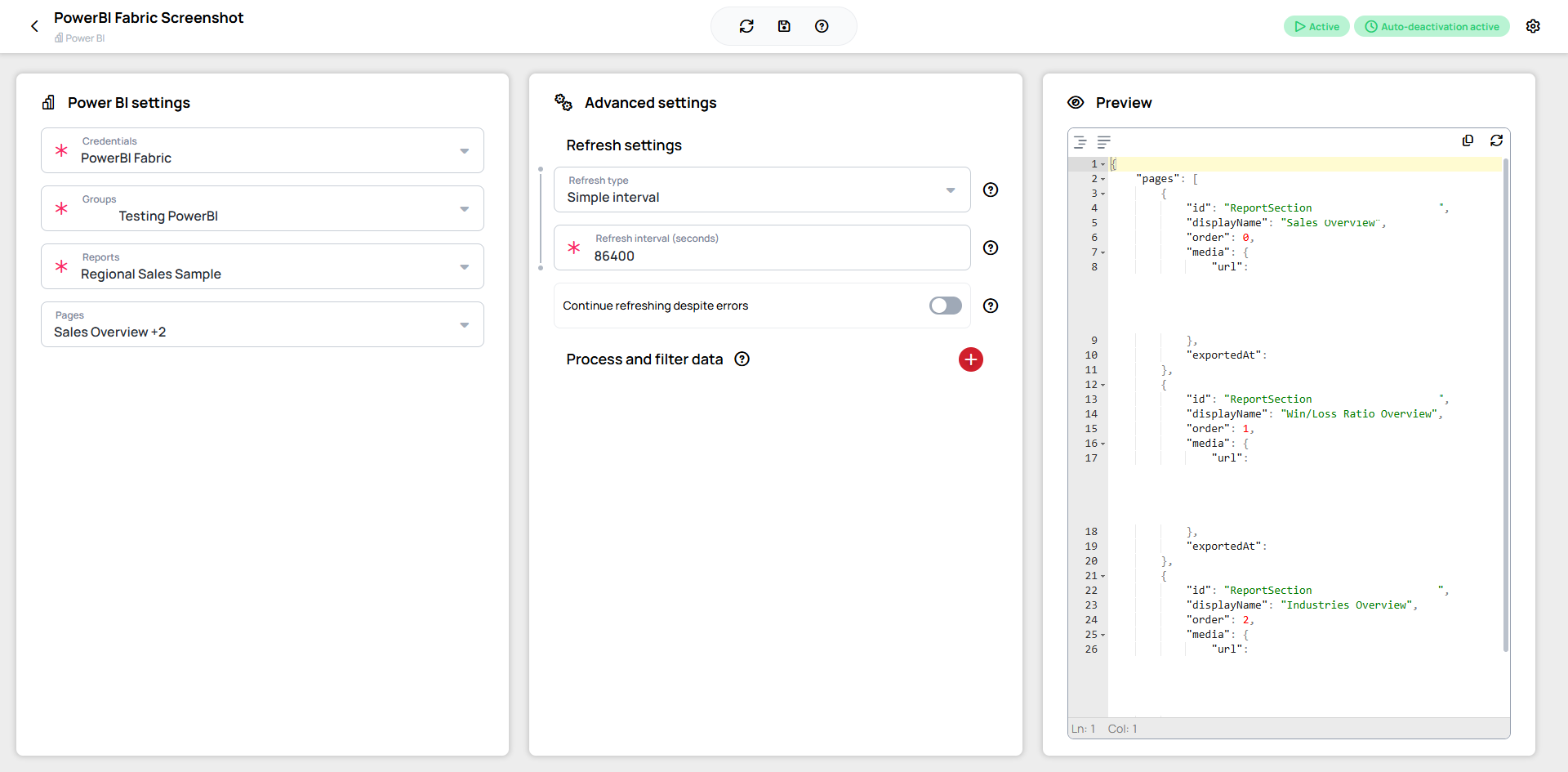
Example of the returned data:
{"pages": [{"id": "ReportSection","displayName": "Sales Overview","order": 0,"media": {"url": "URL"},"exportedAt": timestamp},{"id": "ReportSection","displayName": "Win/Loss Ratio Overview","order": 1,"media": {"url": "URL"},"exportedAt": timestamp},{"id": "ReportSection","displayName": "Industries Overview","order": 2,"media": {"url": "URL"},"exportedAt": timestamp}]} - Go to
-
Bind to an Image Widget
- In the content editor, add an Image widget
- Bind the widget to the Power BI datasource
- The widget displays the exported report image and refreshes automatically on the datasource schedule
Limitations
- Not real-time — the Export API renders server-side and Wallboard queues requests sequentially. Frequent refresh intervals increase queue depth and delay. The minimum refresh interval is 10 minutes, but hourly or daily is still recommended for most use cases.
- Static image only — no interactivity, no drill-through, no filters. The report is a snapshot.
- Custom fonts — fonts must be available in the Power BI cloud environment. Device-installed fonts have no effect on this method.
- Max 50 pages per export — the Export API processes a maximum of 50 pages per job, with 5 pages rendered concurrently.
Troubleshooting
Permanent Failures
Power BI Export API errors can be permanent failures — errors that will not resolve by retrying. When a permanent failure occurs:
- The export stops immediately (no retry)
- The datasource is deactivated automatically
- You must fix the underlying issue first, then manually re-activate the datasource
| Scenario | Error Code | Cause | Fix |
|---|---|---|---|
| No Premium capacity | FeatureNotAvailableError | Workspace is on Shared/Pro capacity with no dedicated capacity assigned | Assign workspace to Fabric F2 or equivalent in Power BI admin |
| Capacity not available | NotOnDedicatedCapacity | Workspace exists but no capacity is assigned to it | Assign workspace to a dedicated capacity in Power BI admin |
| All pages invalid | InvalidPageNames | Configured page names no longer exist in the report (e.g. renamed or deleted in Power BI) | Update the datasource page configuration to match current report pages |
| Some pages invalid | N/A — not a failure | Some (but not all) configured pages renamed or removed | Warning in audit log only — valid pages still export successfully |
Fixing the underlying issue alone is not enough — you must also manually re-activate the datasource in Wallboard by clicking the Refresh button on the datasource after resolving the problem.
Useful Resources
- Power BI Export API documentation: Microsoft Learn
- P SKU Retirement announcement: Microsoft blog
- A SKU retirement reversal: Directions on Microsoft
- Microsoft Fabric pricing: Azure pricing page
- Power BI Embedded (A SKU) pricing: Azure pricing page
- Power BI per-user pricing: Microsoft pricing page