Icons on a Device
Your screens tell you how they are doing in three places: a colored dot in your Device lists, a pin on the Map, and a status label when you open a Device. They do not all show the same thing, and knowing which is which saves you walking to a screen that was never broken.
A Device card also carries small warning icons for the things that need attention. Each has a tooltip; this article is the slower read, for when you want to know what to do about one.
If you are looking at dots shown on the display, those are the player reporting its own connection and content state, not the icons in your portal. Learn more: Status Indicator Dots on Screen
The status dot in your lists
In Card, List and Table view every Device carries a colored dot, and all three views show the same three states.
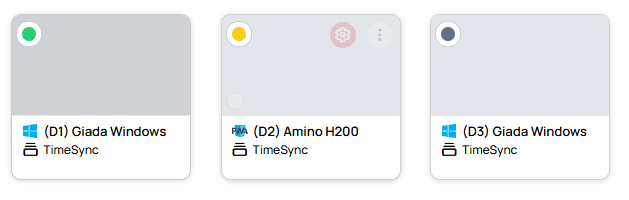
| Dot | Meaning |
|---|---|
| 🟢 Green | Online |
| 🟡 Yellow | Online, but the display it is plugged into is switched off. The tooltip reads Display is turned off but the device is online |
| ⚪ Gray | Offline |
Yellow or gray? Working Hours decides
Working Hours has two modes, and they leave a screen looking different:
- Screen mode keeps the Device running and only switches the display off — that is yellow
- Device mode powers the Device down completely — that is gray
Gray covers a lot of ground
Gray only tells you the screen is not talking to your portal right now. That could be because:
- Its Working Hours are set to Device, so it has powered down for the night
- It is in the middle of a reboot
- It has lost its internet connection
- Someone switched it off, or it lost power
Your lists do not separate these, so a screen that has genuinely gone down looks exactly like one that is sleeping on purpose. For that distinction you need the Map, or the Device itself.
Pins on the Map
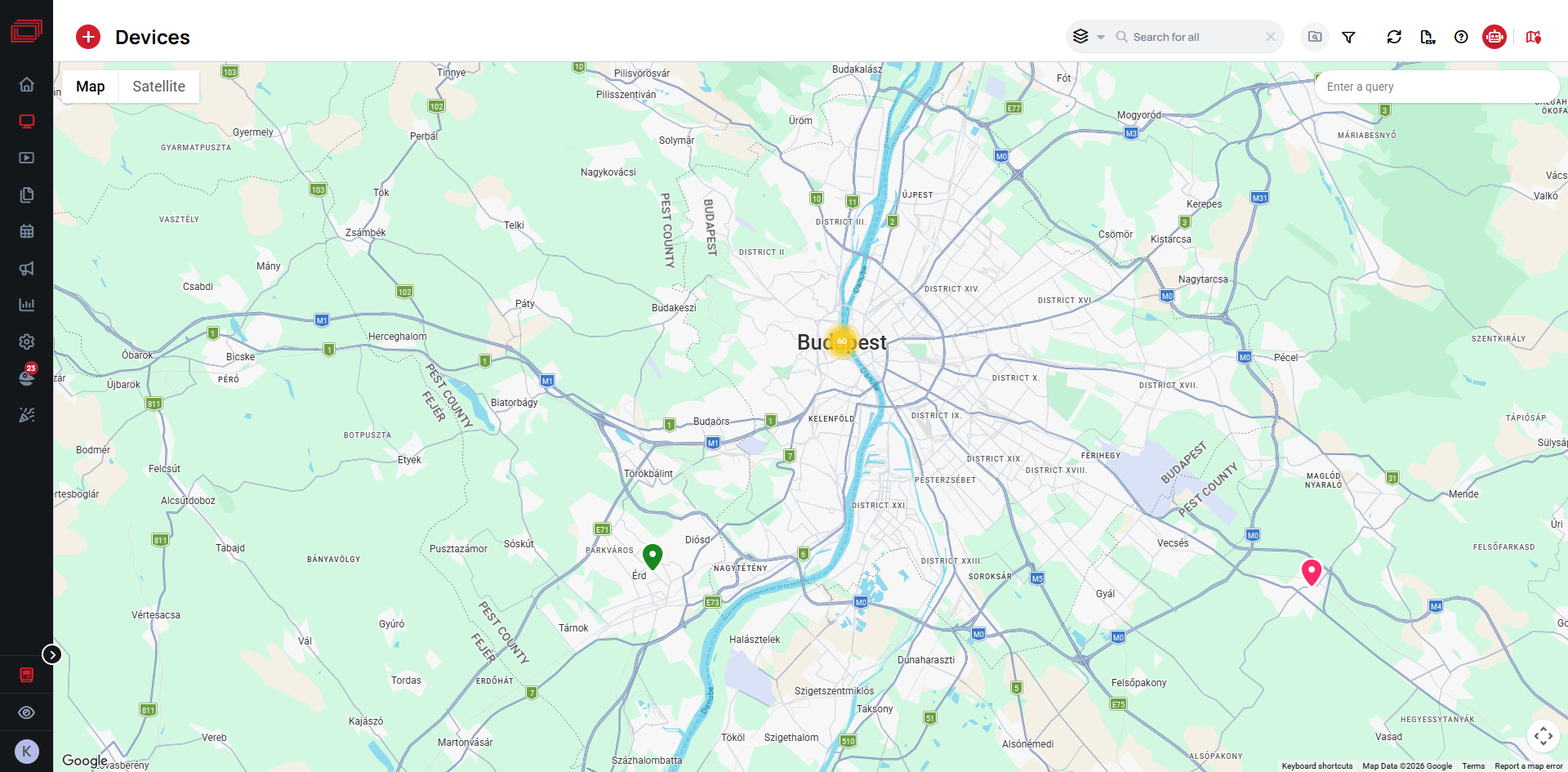
The Map tells you something your lists cannot:
| Pin | Meaning |
|---|---|
| 🟢 Green | Online |
| ⚪ Gray | Offline |
| 🔴 Red | Offline when it should have been playing. This is the state your lists cannot show you |
| 🟡 Yellow with an exclamation mark | The Device has an active alert |
Two things to know before relying on it: a Device appears on the Map only if it has a location set, and the red pin is something the Map gives you that your lists do not. Where several Devices sit close together the Map groups them into a numbered cluster instead of separate pins.
The status label on a Device
Opening a Device shows a status pill, which reads its connection against the Device's Working Hours. That is what separates a screen that has failed from one doing exactly what it was told.
| Pill | Meaning | Act on it? |
|---|---|---|
 Online, green | Connected | No |
 Offline, red | Offline while Working Hours say it should be playing | Yes |
 Sleeping, gray | Offline, and Working Hours say it is not due to play | No — this is the expected state out of hours |
 Offline, gray | Offline, with no Working Hours verdict to judge it against | Check whether Working Hours are set |
The round button just before the pill — a display with a downward arrow — is Download device logs. It asks the screen itself for its own log, which is the one support almost always needs.
The Logs tab on the same Device is a different thing: it holds the server log, what your portal recorded about the device. Confusing the two is the usual reason support gets sent the wrong file. Learn more: Logs
A fresh device log needs the screen to be online, because the request goes out to the device and the device sends the log back.
The colors are only meaningful because Working Hours tell Wallboard when the Device is supposed to be playing. With none configured, a Device that has genuinely failed cannot be told apart from one that is off on purpose.
Learn more: Working hours
Folder dots
A folder carries a dot too, and on a folder it summarizes what is inside:
- 🟢 Green — every Device in the folder is online
- 🟡 Yellow — a mix of online and offline
- ⚪ Gray — they are all offline
You will see this in Card and List view.
Warning icons on a Device card
The icons in this first group are asking you to do something.
| Icon | Tooltip | What it means |
|---|---|---|
| Upward arrow | Update available | A newer player version is available. Learn more: Client update management |
| Upward arrow | Update available (offline devices can't be updated) | The same, but the Device is offline, so it cannot be delivered until it reconnects |
| Warning triangle | WebView version unsupported! Requires version 53 or higher | The Device's browser engine is too old to render content reliably |
| Clock | Timezone is not set | No time zone is configured, so anything time-based on this Device — Schedules, Working Hours, clocks — cannot be trusted |
| Document with a seal | Unlicensed | The Device has no license assigned and will not play Content |
These report what is happening, and need nothing from you.
| Icon | Tooltip | What it means |
|---|---|---|
| Television | The player screen is turned off | The player reports its display as off while the Device is online. Shown in red |
| Emergency beacon | Emergency | Emergency Content is active on this Device, replacing what it would otherwise play. Shown in red |
| Old scroll | Schedule (legacy) | A legacy Schedule is driving this Device. Shown in amber |
| Warning triangle | Notifications: N | How many notifications this Device has raised, with its last activity and last status change |
| Pin | Pinned | You pinned this Device for quick access. It says nothing about the Device itself |
The player screen is turned off appears when the player reports its display as off — for example when Working Hours switch the screen off, or a display command does. It cannot see a monitor switched off at its own power button, set to the wrong input, or with a failed backlight.
So the icon appearing is reliable; the icon not appearing proves nothing about the panel. The same limit applies to the Device's preview image. Learn more: The preview image