Move Device to Different Server
Move to server feature allows you to move devices between servers.
Move to server feature is not available for Browser-based clients, also some devices may not support this feature.
For further information, refer to our Client Platform Comparison Chart.
Learn more: Client Platform Comparison Chart
Only online devices can proceed with the Move to server command!
Device registered under a Customer
Administrator and Technical manager users are allowed to move their devices from their Customer to another server.
Navigate to Device Settings
- To move the device to another server, you have to navigate to Device Overview / Settings
- Locate the
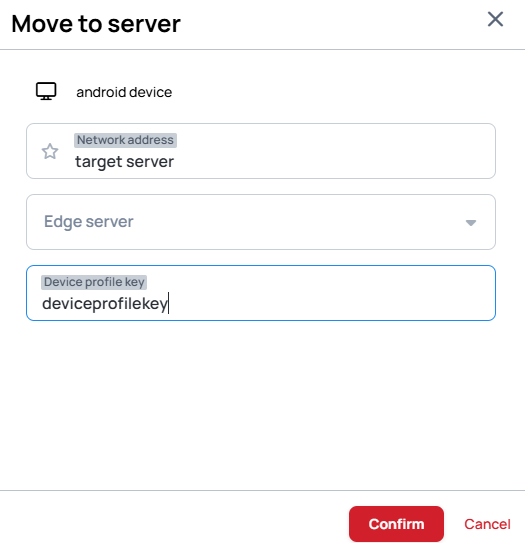
Move to servercard under the Advanced control section. - Click on the card, then fill the Network address (Both HTTP and HTTPS protocols are supported)
- you have 2-ways to move the device to the target server
Whitelist on target server
Devices can be moved to another server if they were previously whitelisted on the destination server.
- This is a security measure to ensure that only approved devices can be transferred.
- You DO NOT have to fill the Device Profile key to this method.
- This method will re-register the device and display the 4-digit code.
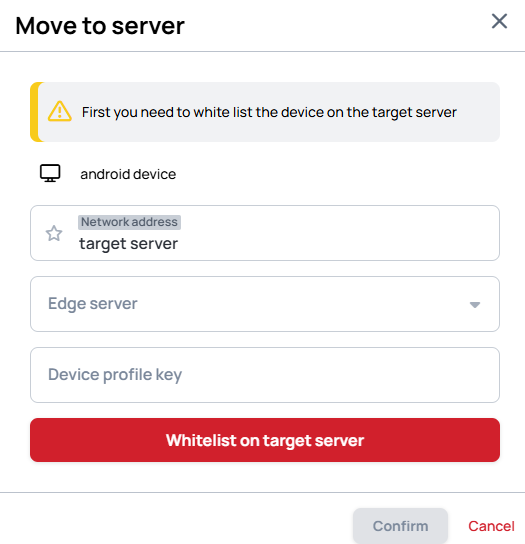
- Then you can continue with the device registration to the customer. Learn more: Register a Device
With Device Profile key
Devices can be directly moved to another server's customer if a device profile key has been created on the destination server under the affected customer.
- With this method the devices can be pre-configured with the setting that has been set in the device profile key settings. Learn more: Device Profiles
- You can use the same device profile key to move multiple devices until the selected license number limit is reached. (With
Unlicensedlicense, it is unlimited.) - When device profile key is used, the device is no longer needed to be whitelisted on the server.
Manual move
In some special cases the Move to server feature is not supported on some devices.
-
In this case you can manually remove and register the device, by removing it from the server.
-
After remove a register modal will appear on the device, where you can manually enter the desired server address.
-
This will re-register the device and display the 4-digit code.
-
Then you can continue with the device registration to the customer. Learn more: Register a Device