Reset Widget
With the Reset Widget, you can reset other interactive widgets' values to their basic settings in the widget's button group.
Properties
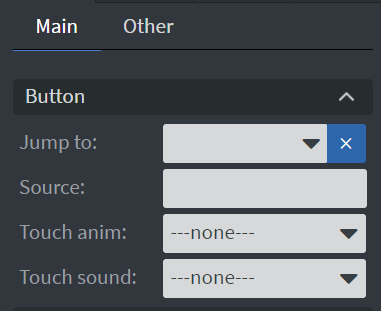
Button Menu
In the Button Menu, you can:
- Set a Jump to action.
- Define an image to be your reset button.
- Select a touch animation and sound for the widget.
Learn more: Interactive widgets and touch actions.
Size & Position
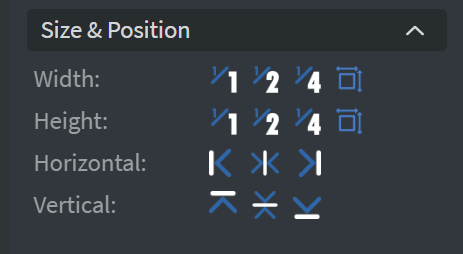
In the Size & Position Menu, you can select the width, height, and placement of your widget quickly. Learn more: Size & Position.
Proof of Play
Learn more: Enable reporting (Content) and Enable reporting (Slide).
Effects
In the Effects Menu, you can select a background image or color for your widget.

Animation
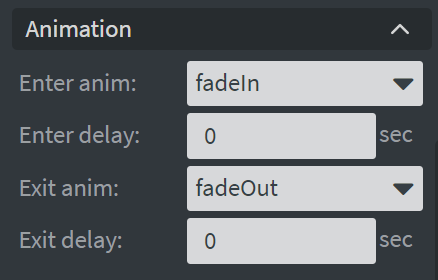
In the Animation Menu, you can choose the Enter and Exit animations of your widget. Learn more: Animation.
Additional Properties
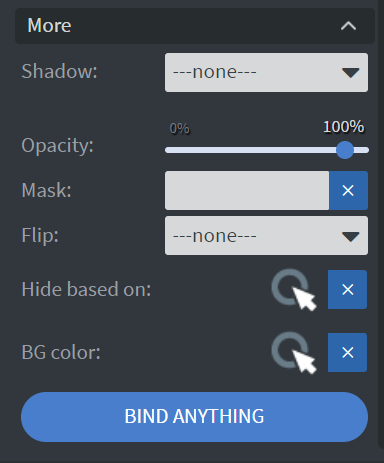
Under the Animation Menu, you can click on the three dots to access Additional Properties (aka MORE).
Shadow
Adds a shadow to your widget.
Opacity
Changes the transparency of your widget.
Mask
Lets you select a PNG image to affect the shape of your widget. Learn more: Masking.
Flip
Allows flipping your widget horizontally, vertically, or both.
Hide Based On
Hides the widget based on data from a Datasource. If the datarow of the device and the given data are not the same, the widget will not appear on the device.
Background Color (BG Color)
Sets a background color for the widget from a Datasource.