Create Content from Template
Creating content from a template allows you to quickly generate new content using pre-existing designs and layouts.
Navigate to Contents menu
- Navigate to the Contents menu.
- Click on the
+button and select Create content from template.
Create Content from Template
Select template
When creating content, you will see your templates organized into three categories:

Public
Templates that are accessible to all users on your server are listed under the Public tab.
Private
If you have created templates or template folders with contents inside, they will appear under the Private tab.
Dedicated
If your server owner assigns a specific template to your customer, it will appear under the Dedicated tab.
Preview
- If you click on the template, it will open in preview mode on the right to demonstrate, how it will look like.
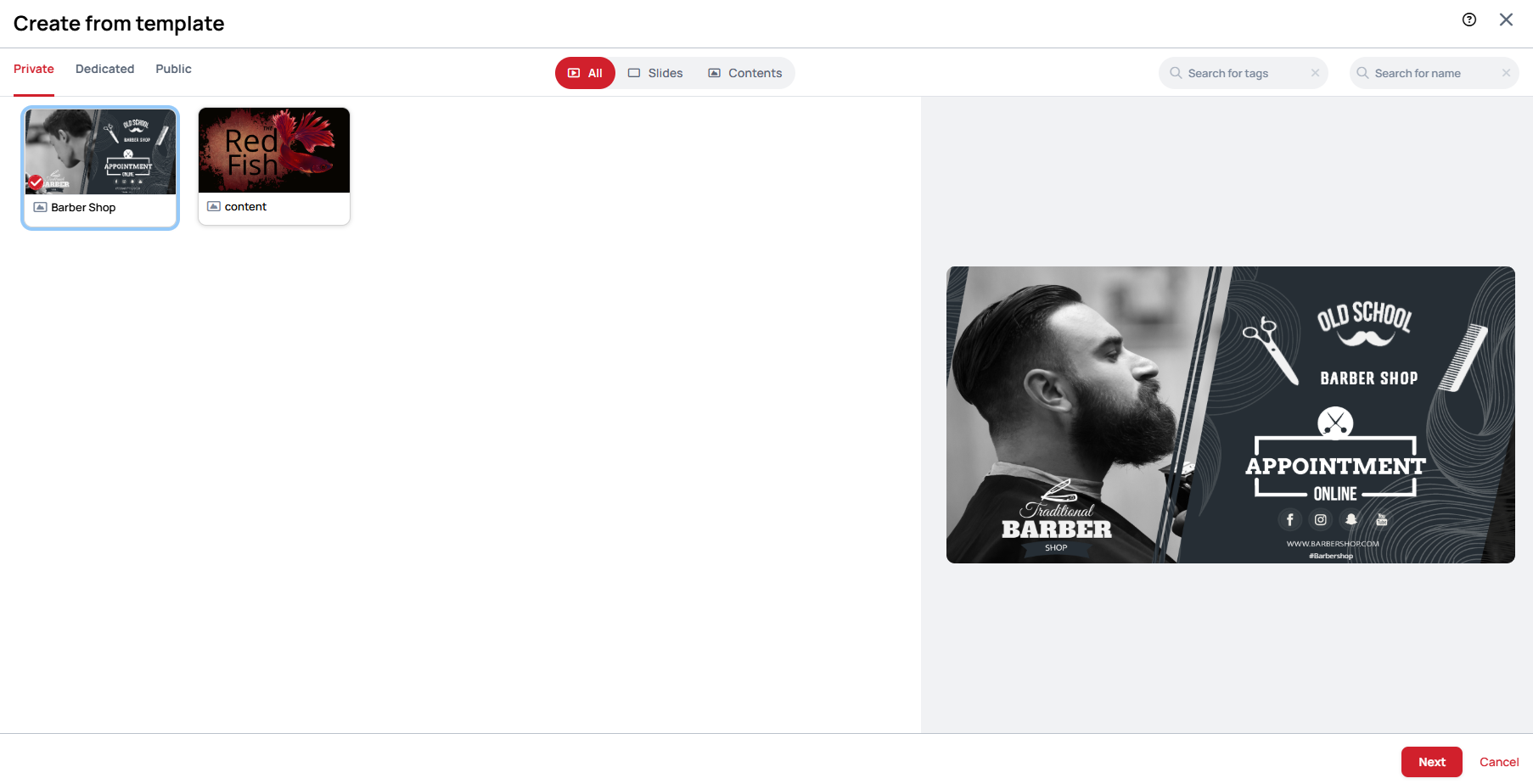
Additional Options
- Templates with content tags can be filtered or searched by name.
- Select the desired template and click on the Next button.
Fill the creation modal
Name
- Provide a name for your new content.
Teams
Here you can select teams that can manage and view the content.
- This option is only available if at least one team is available for the customer.
Comment
- Add any relevant notes or descriptions for your content.
- Content with a comment is visually flagged on the content card, so you can tell at a glance which items have notes attached.
Final Steps
- After completing the setup, click on the Save button.
- If you wish to discard everything, select Cancel.