Internal Variables Datasources
A Variables datasource holds named values, such as a price, an opening time, a status color or a logo. Each variable has a key, a type and a value, and variables can be nested in groups. Widgets bind to a key by its name, so when the value changes, the screen updates.
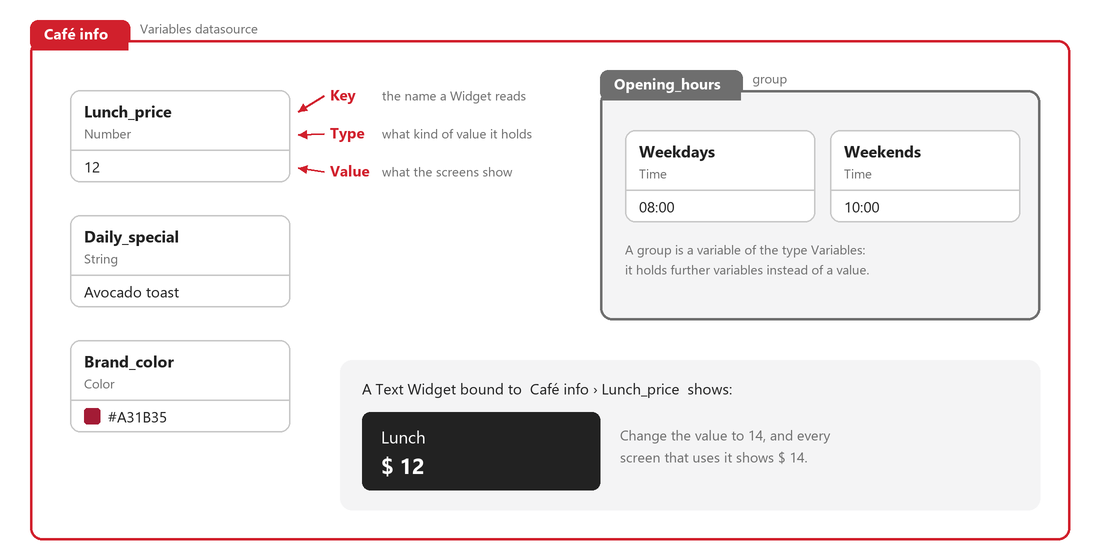
Why use a Variables datasource?
A Variables datasource keeps two things apart that usually get mixed up:
- The structure: which values exist, what they are called, and what type each one is. It is set up once, by whoever builds the Content.
- The values: what the screens show today. They change often, and changing them never touches the structure or the design.
It is also a set of individually addressable items, not a list. A table repeats the same columns row after row, and a Widget picks a row by its position. A Variables datasource has one of each value, and a Widget picks it by its name. That makes it the natural home for the parts of a screen that change but are not a list: the special of the day, the lunch price, the opening hours.
Compared with typing those values straight into the Widgets, this pays off when:
- The same value appears in many places. Opening hours shown on several Contents and Playlist pages are changed once, and every screen that uses them updates.
- The values should be updated without touching the design. The person who keeps the screens up to date only sees named values with a picker for each type, and cannot remove or rename them.
- The values are updated by another system. Internal datasources can be written by webhook actions, so an outside system can keep the data current. Values typed into Widgets cannot be updated this way.
- The fixed parts of a paginated slide. A paginated slide pages through the rows of a table, one row or group of rows per page. Only the Widgets set to Depend on base data path move to the next row. Bind the parts that stay the same on every page, such as a header or a happy-hour time, to a Variables datasource instead, with Depend on base data path turned off: the table drives the list, and the Variables datasource drives the frame around it.
Create a Variables datasource
Follow Create Internal Datasource and select the Variables structure type. Every Content that binds to it shows the same values, so one change reaches every screen at once. To keep the values inside a single Content instead, see As a mock datasource.
Two jobs, two places
The structure of a Variables datasource and its values are edited in different places:
| You want to… | Where |
|---|---|
| Add, rename, retype, reorder or remove variables | The datasource editor under Settings > Datasources — the structure editor described below |
| Change the values | Where the structure is locked: Open editor in the Quick Editor's Data bindings |
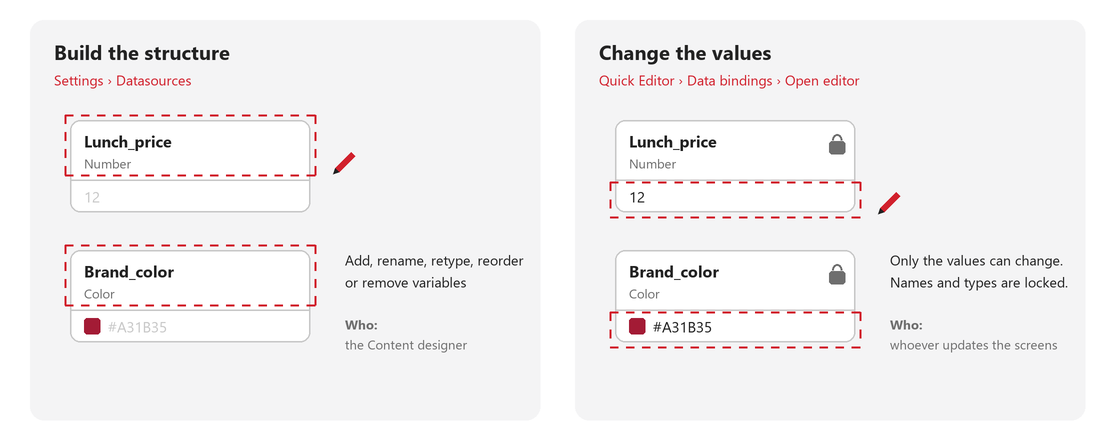
Opening a Variables datasource from a Playlist's Quick Editor edits the datasource itself, not that Playlist page. The saved values reach every Content and every Playlist page that uses it. For values that belong to one Playlist page only, use a mock datasource, which is stored on the page.
Learn more: Quick Editor Data Bindings
The structure editor
The editor has two panes:
- On the left, a tree of every variable. Type in the search box to find a key: matching keys stay visible together with the groups they sit in.
- On the right, the detail pane, with a breadcrumb showing where you are. It shows one of three things:
- Root — the top-level variables
- A single variable — its Key and Type
- A group — its own Key and Type, plus its Nested variables
Variable types
String, Number, Boolean, Text, Color, URL, Scheduling, Date time, Date, Time, Dropdown, Font, File picker and Folder picker.
Choose the type Variables to turn an entry into a group that holds further variables. A Dropdown variable also needs a dropdown assigned to it.
Adding and arranging variables
- Add variable adds a new entry. It is available in the tree heading, on Root, in a group's Nested variables, and on an empty list. Hovering a row also shows a small add button that inserts a new variable right after it.
- The Actions menu () of a row offers Insert above, Insert below, Move up, Move down, Duplicate and Remove.
- Drag a row by its handle to change the order. Rows can be reordered within the same group only, not moved into another group.
- Open on a row shows that variable, or that group's contents, in the detail pane.
Click Save when you are done.
What happens to the values
| Change | Effect on the stored value |
|---|---|
| Rename a key | Kept |
| Reorder | Kept |
| Change the type of a variable | Reset |
| Remove a variable | Removed, without asking |
| Change the type of a group, or remove a group that has variables in it | Asks for confirmation first, then removes the group and everything in it |
Widgets are bound to a key by its name. Content that is bound to a key you rename or remove loses its data, and the structure editor does not warn you about it. Check where a Variables datasource is used before changing its structure.
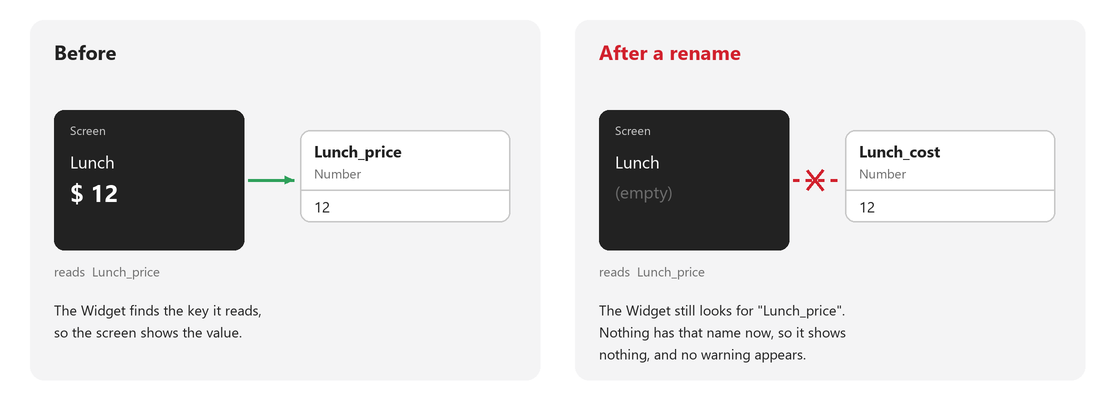
Settle the key names and types before any Content is built on them. If a key has to be renamed later, check which Contents use the datasource and bind them to the new key again.
Keys that cannot be saved
Save is blocked until every key is valid. A key cannot be:
- empty
- the same as another key in the same group (keys are case-sensitive)
- a whole number, such as
0or42
Spaces at the start and end of a key are removed, and spaces inside it become _. A Dropdown variable with no dropdown assigned also blocks saving.
Binding a Widget to a variable
Behind each key, a Variables datasource stores the variable's type and its value side by side. When you bind a Widget, the data picker therefore shows one more level under every key:
| Under the key | What it holds | Bind a Widget to it? |
|---|---|---|
| type | The kind of variable, such as Number or Color | No: the screen would show the name of the type |
| value | What is typed into the variable, such as 12 or #A31B35 | Yes |
So the path always ends in value:
- A variable at the top level: the datasource > the key > value. For example Café info > Lunch_price > value.
- A variable inside a group: the group's value holds the variables inside it, so the path goes the datasource > the group > value > the key > value. For example Café info > Opening_hours > value > Weekdays > value.
- Some types offer a last step after value. A Time variable, for example, lets you pick a format such as time12, which shows the time on the 12-hour clock.
Learn more, step by step: Databinding
As a mock datasource
A mock datasource is data saved inside a Content. Variables is one of its structure types, next to Custom and Table, and it is the one that fits a single record, such as one special, one price and one color. A Custom mock holds the same record as hand-typed JSON, without types or pickers. A Table mock holds it as a single row, which every binding then addresses by its position. A Variables mock gives each value its own name, type and picker.
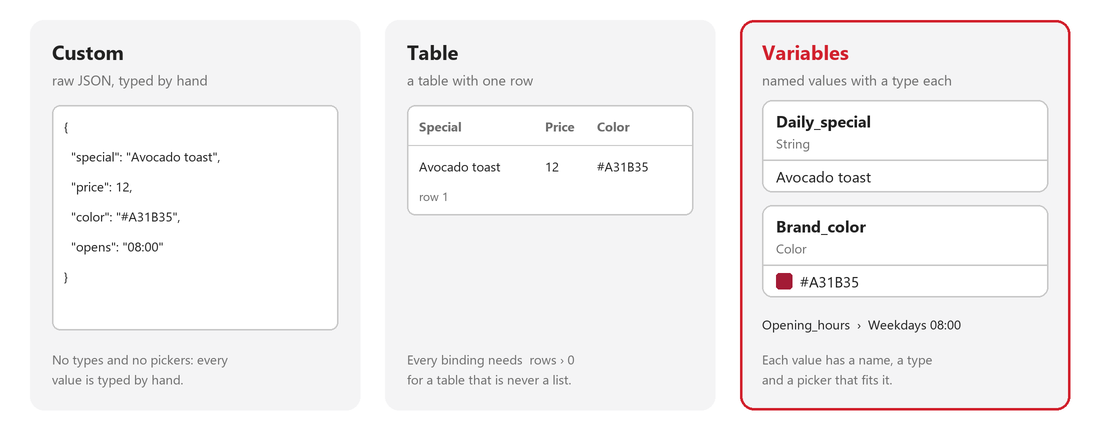
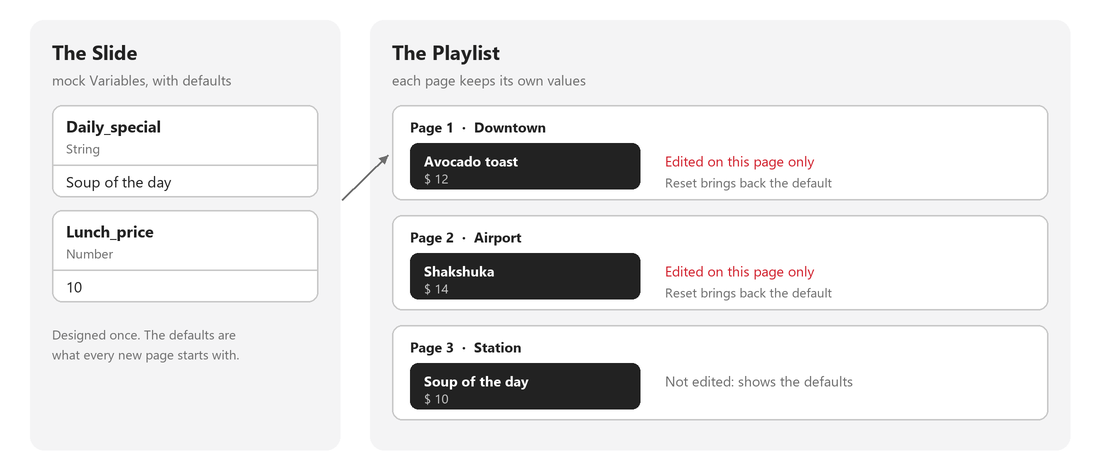
The real payoff is in a Playlist. Mock data is stored per Playlist page, so one Slide can be added several times, and each page gets its own values from the same form, while the Slide's own defaults stay untouched:
| Mock Variables datasource | Internal Variables datasource | |
|---|---|---|
| Lives | Inside the Content or Slide | Under Settings > Datasources, shared |
| Values | Per Content, and per Playlist page, with a reset to the defaults | One set of values for every screen that uses it |
| Copied or exported with the Content | Yes, it is part of the Content | No, a copy keeps pointing at the same shared datasource |
| Best for | One design reused with different values | One value shown on many screens |
To create one, add a mock datasource to the Content and select Variables as its Structure type. Its values are then changed from the Quick Editor, per Content or per Playlist page, and Reset brings back the defaults.
Learn more: Mock datasources
Variables or another datasource?
Other datasources can hold changing values too. The difference that shows on a screen is how a Widget finds its value: a table by position, a Variables datasource by name.
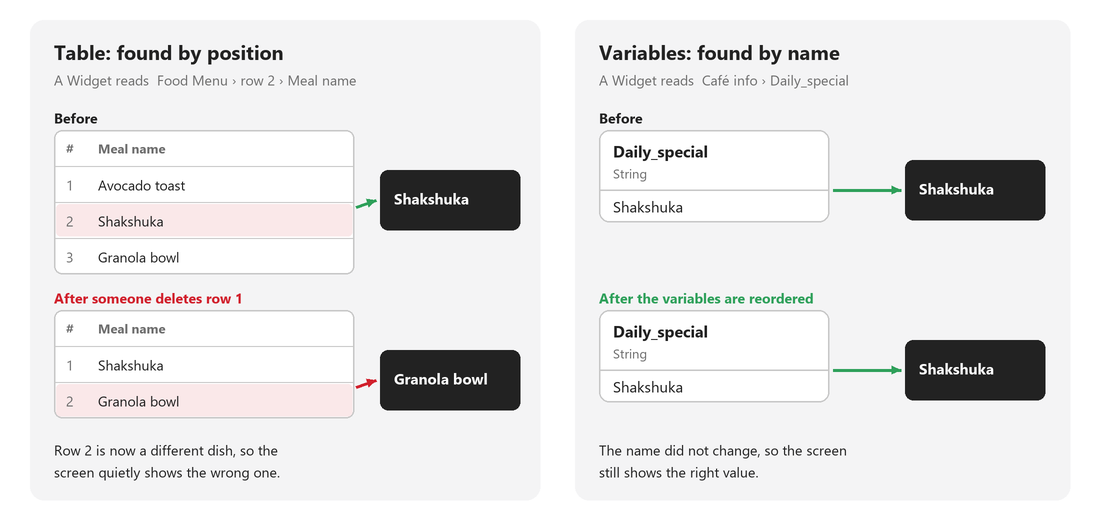
If you already know tables, think of a Variables datasource as one single row of a table, where every column has become a named variable. Compare the two binding paths:
Table:      Food Menu › rows › 0 › Meal name
Variables:  Café info › Daily_special › value
A table needs rows › 0 to say which row, and that position is what can shift. A Variables datasource has only one "row", so the Widget goes straight to the name.
| Variables | Internal Table | External spreadsheet (Google Sheets, Microsoft Excel) | Internal Custom | |
|---|---|---|---|---|
| Best for | A few named settings that belong together | A list of similar items | Data your team already keeps in a spreadsheet | A shape the others cannot express, or JSON written by another system |
| A Widget finds its value | By name | By position: worksheet, row, column | By position: sheet, row, column | By name, along the JSON keys |
| Entries added, removed or sorted | Every Widget keeps its value | A Widget can end up showing another row | A Widget can end up showing another row | Every Widget keeps its value, unless a key is renamed |
| Types and editors | A type per value, with a picker for colors, times, files | A type per column, with the same pickers | Whatever the cells hold | None: raw JSON, typed by hand |
| Groups | Nested groups | Worksheets | Sheets | Any nesting |
| Can the person updating values break it? | No: keys and types are locked wherever values are edited | They can remove rows, unless the rows are locked | Yes, unless the sheet is protected in the spreadsheet | Yes: keys can be renamed or deleted. The Quick Editor warns, but does not stop it |
| Values are changed in | The Quick Editor | Settings, the Quick Editor, the Shared Datasource Editor | Google Sheets or Microsoft Excel | Settings, the Quick Editor |
| Screens update | When the change is saved | When the change is saved | At the datasource's next refresh | When the change is saved |
"A list of…" calls for a table. "The … and the …", such as the lunch price and the opening time, calls for a Variables datasource.
Letting a screen or a visitor write data back, with Allow displays to update data or datasource actions, is a separate choice: it is about who writes, not the shape of the data.
A Variables datasource holds one value per variable, and every screen that uses it shows that same value. When each screen, store or room needs its own value, use a Table datasource with one row per screen instead, and set each Device's data row with Bind datasource and data row in its settings.
Learn more:
- Internal Table Datasources
- Internal Custom Datasources
- Mock datasources
- Shared Datasource Editor
- Googlesheet datasource
- Microsoft Excel datasource
Good to know
- One set of values for every screen. A Variables datasource holds one value per key, and every Content and Device that uses it shows that same value. It cannot hold a different value for each Device: for that, see Variables or another datasource?.
- The structure editor is for desktop. Variables datasources have no mobile card view.
- No shared editor link. The Shared Datasource Editor link is only available for Table datasources. Variables values are changed from the Quick Editor.
- Raw JSON is read-only. The Custom view shows the datasource as JSON, but you cannot edit a Variables datasource there.
- Some labels are in English only in this editor, whatever the interface language.