Shared Datasource Editor
Introduced in version 2.1, the Shared Datasource Editor allows you to generate shareable links that give non-Wallboard users access to edit internal table datasource data — without needing a Wallboard account or logging into the platform.
This is useful for delegating data management to domain experts such as restaurant managers, reception staff, or store managers who need to update prices, schedules, or inventory directly.
Prerequisites
Before generating a shared editor link, you need:
- An internal table datasource — Create one in Settings > Datasources. See Internal Table Datasources.
- An API key with
Internal Datasource Writescope — Create one in Settings > Integrations > API Keys. See API Keys.
Generating a Shared Editor Link
- Navigate to Settings > Datasources > Internal tab
- Find the datasource you want to share in the list
- Click the Share button on the datasource to open the link generator
- Select the API key (must have
Internal Datasource Writescope) - Copy the generated link and share it with the intended user

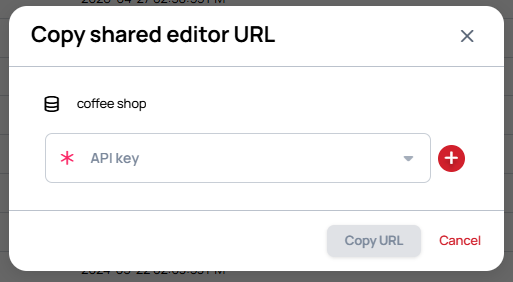
The recipient can open the link in any browser to access the shared table editor.
If you enable Read only access on datasources when creating the API key, the shared editor will be view-only — users can see the data but cannot make any changes. See API Keys for more details.
Shared Editor Capabilities
The shared editor provides a simplified version of the full table datasource editor with restricted permissions.
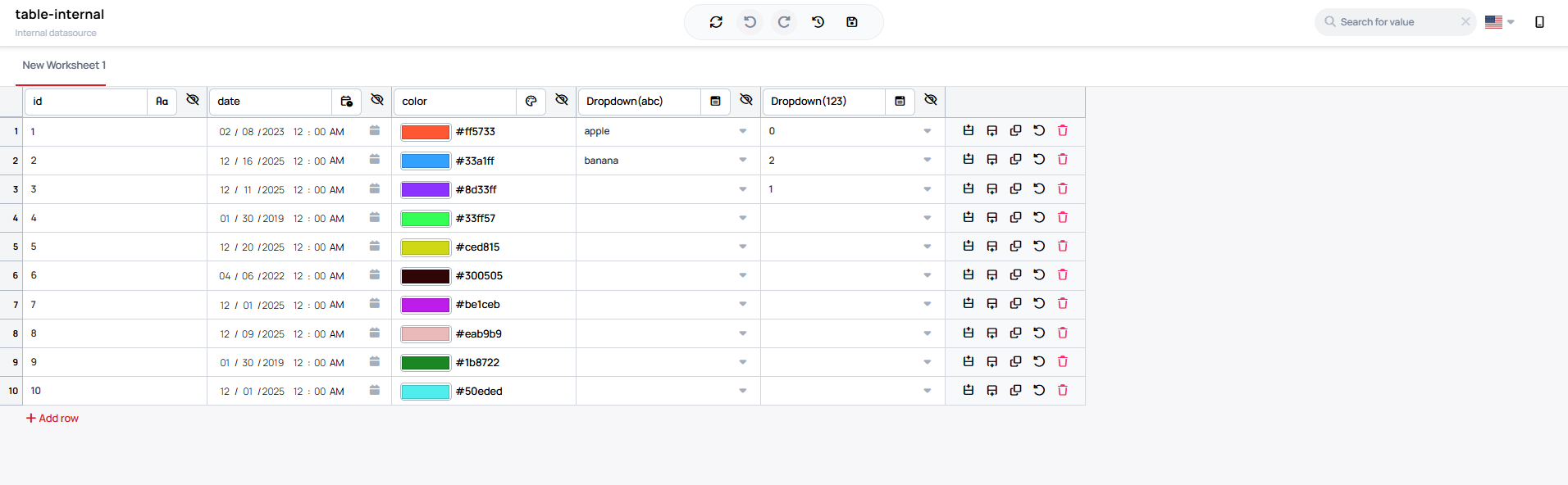
What shared editor users CAN do
- Edit values in unlocked rows
- Add and remove rows
- Hide columns
- Select values from dropdown columns
- View all worksheets and data
- Dictate a value instead of typing it, in the mobile view
What shared editor users CANNOT do
- Add, delete, or rename columns
- Unlock locked rows (locked rows remain protected)
- Modify dropdown configurations
- Change column types or settings
- Sort or lock columns
Dictating a value on a mobile device
On a phone or tablet the editor switches to a mobile view, where a row's value can be spoken instead of typed. The language selector in the header also sets the language the dictation is interpreted in.
Dictation uses the browser's own speech recognition, so the browser has to support it and the page needs permission to use the microphone.
Using Row Locking with the Shared Editor
Row Locking works together with the shared editor to protect important data:
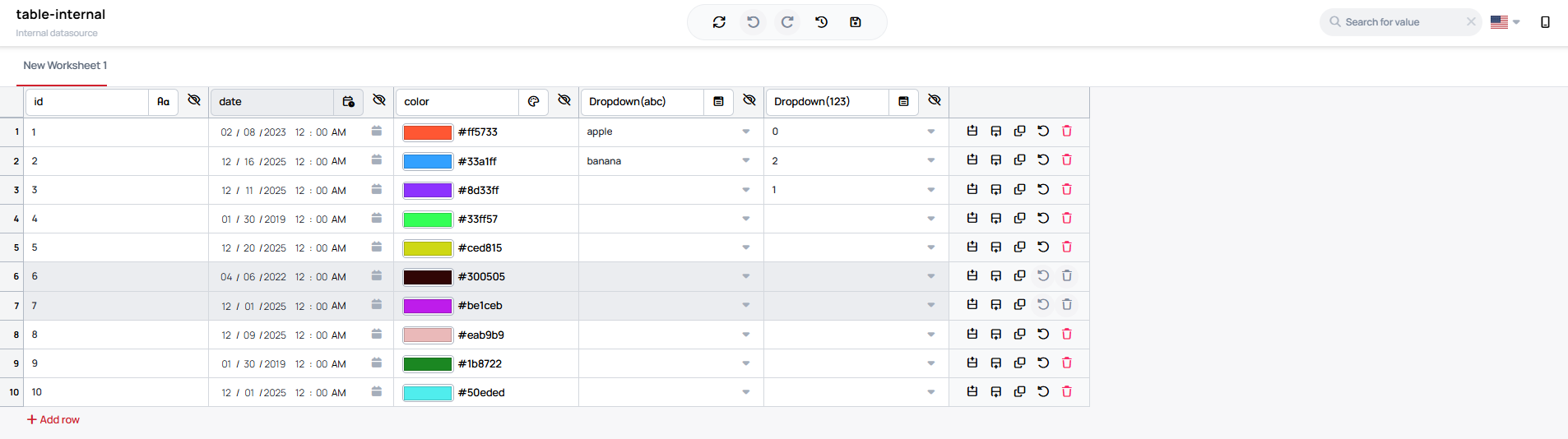
- Lock rows in the full editor before sharing the link to protect template rows, reference data, or recurring entries
- In the shared editor, locked rows are grey and cannot be modified or deleted
- Shared editor users cannot unlock rows — only Wallboard users with access to the full editor can lock/unlock rows
Security Considerations
- Anyone with the link can edit the datasource data (within the restricted capabilities above)
- To revoke access, disable or delete the API key in Settings > Integrations > API Keys
- Changes made through the shared editor propagate to all devices in real-time, just like changes made in the full editor