Microsoft credentials
In the Cloud Credentials menu, you can create and manage Microsoft credentials.
Additionally, you can:
- Add data sources
- Integrate calendars
- Access Excel sheets
- Sync folders from OneDrive into files
This function only works if the Microsoft API is set on your server.
For the Microsoft Entra (formerly Azure AD) side of the setup — registering an application, assigning permissions, creating a client secret and granting admin consent — see Microsoft cloud services.
Create credential
- Navigate to Settings > Cloud Credentials, then select Microsoft tab.
- Click on the button next to the Cloud Credentials header.
- Select
Add Microsoft credentialoption
As a scope, you can select:
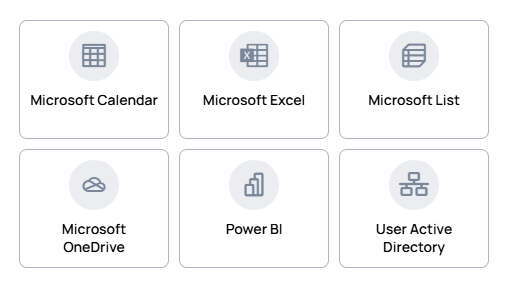
| Tenant type ⇨ Scope ⇩ | Personal Account | Work or School Account | Service Principal |
|---|---|---|---|
| Microsoft Calendar | ✔ | ✔ | ✔ |
| Microsoft Excel | ✔ | ✔ | ✔ |
| Microsoft List | ❌ | ✔ | ✔ |
| Microsoft SharePoint News | ❌ | ✔ | ✔ |
| Microsoft OneDrive | ✔ | ✔ | ✔ |
| PowerBI | ❌ | ✔ | ✔ |
| User Active Directory | ❌ | ✔ | ❌ |
- In the appearing modal, set the Name of the new credential, pick the scope (from the table above), and choose the Tenant type (see below).
- After that, click the Sign in with Microsoft button to authenticate your credential. A Service Principal doesn't sign in interactively — it uses a registered app's Client ID and Client Secret instead.
Which tenant type?
The tenant type is about whose data you're connecting to, not what kind of email the account has:
- Personal account — connects an individual's own account to reach their personal OneDrive (their own files). This is the individual's personal storage even when the account itself was issued by an organization.
- Work or School account — connects an organizational (Microsoft Entra) account to reach the organization's shared resources: SharePoint sites, shared drives, Lists, and so on — not one person's private files. A personal Microsoft account is rejected here; it must be an organizational account.
- Service Principal — non-interactive, app-level access using a registered application's Client ID and Client Secret, for unattended/service scenarios rather than a signed-in user.
Actions on Microsoft credentials
Authenticate credentials
If the authentication fails or becomes detached from the authenticator email, you have to authenticate the credential.

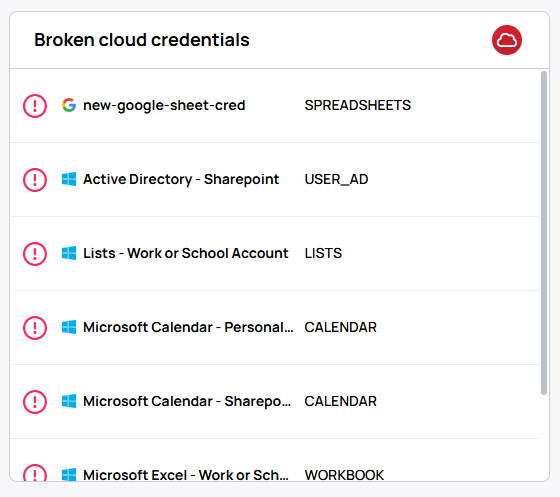
- The red cloud icon will indicate the broken credentials in the Credential list.
- Also you can see the broken cloud credential list on the Home screen and Settings overview
Reauthenticate Credential
If you want your credential to be re-authenticated with another user, you can do it with the re-authenticate button.

Please note, this action might break your already existing connections!
Edit Microsoft credential
- You can manage the team's access for devices:
- Rename the credential.
- Select a manager user to manage the access list.
- Select teams to access the credential.
Note: If you set a Manager User, the other users will only see the folders and items that the Manager User set as available in the access list.
- Manage access list: Here you can manage the access list as a Manager user.
- Remove credential: With this button, you can remove your credential.