Videos Widget
- Due to the Autoplay policy, there are restrictions on preview and play modes. You can find more information about this policy in our documentation at Autoplay policy.
- With the Hardware Accelerated Player enabled, you are unable to use Animation or Scripts to modify your video. Learn more about its behavior at Hardware Accelerated Player behavior.
With the Videos widget, you can add a gallery of videos to your content.
Properties
Selecting Files
In the Videos Menu, you can select the videos that you want to play in your content either individually.
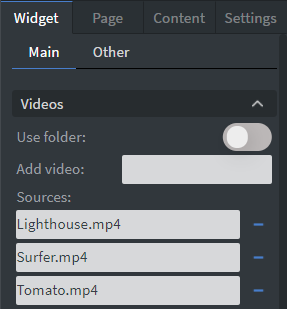
Using Folder
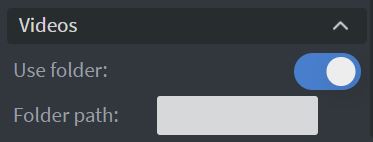
You can also select a whole folder to play from with the Use folder option.
Behaviour
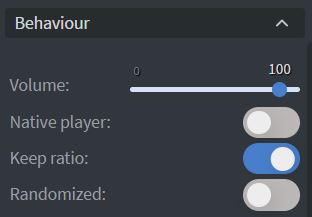
In the Behaviour Menu, you can customize the video playback settings:
- Volume: Set the volume of your video with the slide.
- Native Player/Hardware Accelerated Player: For improved performance, use the screen's native video player instead of the HTML player. Learn more: Native Player/Hardware Accelerated Player.
- Keep ratio: Maintain the aspect ratio of the video source through different sized screens.
- Randomized: Randomize the order of videos (random order is unique to every screen).
Size & Position
In the Size & Position Menu, you can select the width, height, and placement of your widget quickly. Learn more: Size & Position.

Proof of Play
Learn more: Enable reporting (Content) and Enable reporting (Slide).
Effects
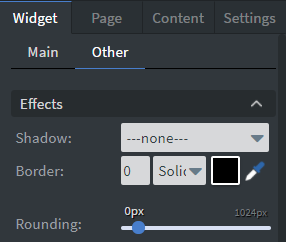
In the Effects Menu, you can:
- Add a Shadow and a Border to your widget.
- Set the size, type, and color of your border.
- Use the Rounding Slide to round over the corners of your widget.
Jump
In the Jump Menu, you can set up the Jump on end function. The content will switch to the selected page after the video has ended.

Animation
In the Animation Menu, you can choose the Enter and Exit animations of your widget. Learn more: Animation.

Additional Properties
Under the Jump Menu, you can click on the three dots to access Additional Properties (aka MORE). However, this section is not detailed in the current documentation.
Returned Values
The Videos widget can return values that allow you to perform various actions based on them:
- Current state values: Accessible directly as
current. - Detailed information: Includes
details.src,details.index, anddetails.videoDuration. - Next video information: Nested under
details.next, includingdetails.next.src,details.next.index, anddetails.next.videoDuration.
To use these values, you can create a content with a Videos widget, select sources, and navigate to Properties >> Widget >> Other to edit gallery actions.