AI datasource
The AI datasource is a system datasource you drive with a prompt instead of a source address. Describe the data you want, and on every refresh the AI gathers it — by searching the web, opening pages, analyzing images, or reading your other datasources — and returns it as JSON in the structure you choose, ready to bind to Widgets.
It's the most flexible way to get data into Wallboard, and the least predictable one: the result depends on what the AI finds at refresh time. Use it when nothing structured exists, or to reshape and combine data you already have.
They are two different datasource types. The Web scraper is an external datasource that extracts data from one public page you choose, and uses no other tools. The AI datasource has no page of its own: it works from your prompt, its tools and its source datasources. If the data already sits on one public page, the Web scraper is the cheaper and steadier choice.
When to use it
- No single page holds the data — today's top five local news headlines, concerts in Budapest this weekend, the next three public holidays in Hungary.
- Combining or reshaping datasources you already have — merge two feeds into one list, translate a feed into another language, or summarize a long internal datasource into a few lines for a screen.
- Generated content — a fact of the day, a short welcome text for each department, illustrative images.
Before you start
- Every refresh uses AI tokens. Usage is counted per customer against an hourly and a monthly token limit; once a limit is reached, refreshes are blocked until the next window opens. The limits — and the option to use the customer's own xAI or Google Gemini key instead of Wallboard's shared one — are set under AI API keys.
- Check before you show it in public. The AI is instructed to take real-world facts only from its tools and to leave a field empty rather than guess, but its output is still worth reviewing before it goes on a public screen.
- Not seeing the type? The AI datasource type can be hidden by a User Interface Profile (the See AI datasource system datasource type rule).
Create the datasource
- Go to Datasources and open the System Datasources tab.
- Click the button next to the System datasources header.
- Choose AI datasource as the type.
- Set how often it refreshes — at least every 15 minutes; the AI datasource can't refresh more often than that. Learn more: Refresh type
- Fill in the AI datasource settings described below, then save.
AI datasource settings
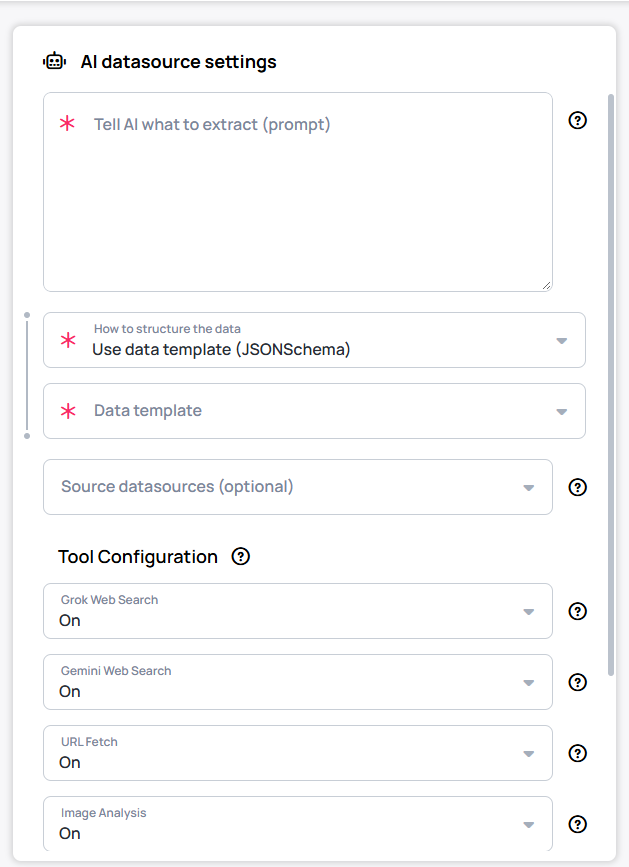
| Setting | What it does |
|---|---|
| Tell AI what to extract (prompt) | Plain-language instructions: what data you want, where it should come from, and how it should be organized. See Writing the prompt. |
| How to structure the data | The shape of the output — the same three options as the Web scraper. See How to structure the data. |
| Data template | Appears with Use data template (JSONSchema): pick a ready-made template or Custom (define your own). |
| Source datasources (optional) | Up to 20 of your existing datasources whose current data the AI receives as input — to combine, translate, summarize or reshape. See Source datasources. |
| Tool Configuration | Which AI tools the datasource may use, each set to On, Off or Force. See Tool Configuration. |
Writing the prompt
- Name every field you want and say what goes in it — for example, date as YYYY-MM-DD, venue name, ticket price as a number.
- Set the scope — how many items, which place, which period. The next 5 events in Budapest gives a steadier result than events.
- Say where to look when it matters — use the official city website, only posts from the last 24 hours.
- Set the language. Text values come back in the language you write the prompt in.
Relative dates work: the AI is given the current date and time, so today, this weekend or this month resolve correctly.
List the next 5 public events in Budapest from today onward: the event's name, its date as YYYY-MM-DD, the venue, and a one-sentence description. Use only events confirmed on an official or ticketing website.
How to structure the data
Widgets are bound to paths in the data, so a stable shape keeps the screen working from one refresh to the next.
- Let AI choose format (automatic) — the AI decides the structure. Handy for a first test, but the shape can differ between refreshes, which breaks bindings.
- Provide example structure (JSON) — paste a sample of the output you expect, filled with example values. It expects sample data, not a schema.
- Use data template (JSONSchema) — the default, and the most reliable: the output must match the schema. Choose a ready-made Data template — Calendar events, Multiple tables or News/Content feed — or Custom (define your own).
Examples of both formats: Web scraper datasource.
Source datasources
Source datasources (optional) hands the AI the current data of up to 20 datasources you already have. Use it to:
- Combine — merge two news feeds into one list, newest first.
- Translate — return an English feed in Hungarian.
- Summarize or filter — turn a long internal table into today's three most important items.
- Match a format — have the AI produce data shaped like an existing datasource, so the same Content can show both.
The AI reads the sources as they are at refresh time, so keep them refreshing too. The combined size of all sources is capped at 200,000 characters.
Tool Configuration
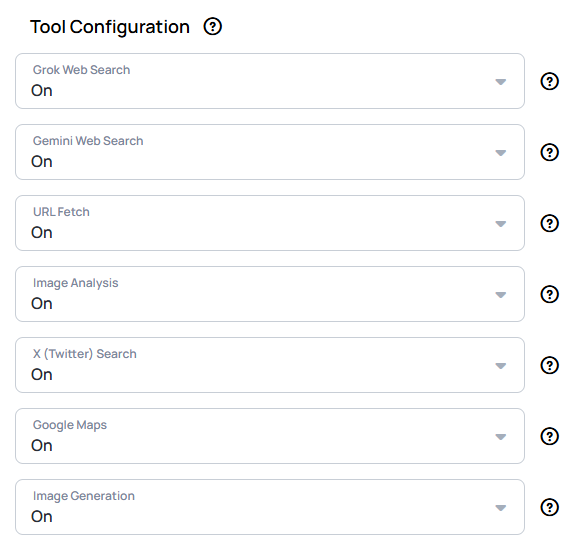
Each tool has three modes:
- On — available; the AI uses it when it needs it.
- Off — never used.
- Force — the AI is told it must use it.
| Tool | What it does |
|---|---|
| Grok Web Search | Internet search via xAI. |
| Gemini Web Search | Internet search via Google. |
| URL Fetch | Opens a web page and extracts its content. |
| Image Analysis | Analyzes images from their URLs. |
| X (Twitter) Search | Searches X/Twitter posts. Runs through Grok Web Search, so it only works while that is not Off. |
| Google Maps | Searches Google Maps locations. Runs through Gemini Web Search, so it only works while that is not Off. |
| Image Generation | Generates AI images for the output. |
Every tool call adds time and tokens, and a refresh has a limited time budget. A datasource that only reshapes its source datasources needs no web search at all — switch the search tools Off.
Refresh, caching and advanced settings
- Refresh — at least every 15 minutes, as above. Every refresh is a new AI call, so the interval directly sets the cost: pick the slowest one the content allows.
- Caching — Cache external resources is on by default, so images and files the data points to are stored locally for faster access. Learn more: Refresh and caching
- Transformations — filter or shuffle the data after it arrives, like on any datasource. Learn more: Advanced Datasource Settings
Check the result
- After the first refresh, open the datasource and check the data: every field filled, nothing invented, the right number of items.
- Each refresh writes an entry to the Logs Menu with the tokens used, the AI model, the duration and which tools were called, how many times — useful for checking that a forced tool really ran, or that an unneeded one is costing tokens.
Troubleshooting
| What you see | Likely cause | What to do |
|---|---|---|
| Fields come back empty | The AI couldn't find or verify the data | Narrow the prompt, name a source to use, or check that the search tools aren't Off. |
| The log reads refresh blocked: token budget exhausted | The customer reached its hourly or monthly token limit | Wait for the next window, refresh less often, or adjust the limits under AI API keys. |
| The log reads Input datasources are too large for AI transformation | The source datasources together exceed 200,000 characters | Use fewer or smaller sources — a filtered copy of a large datasource, for example. |
| X or Google Maps results never appear | Their parent search tool is Off | Set Grok Web Search (for X) or Gemini Web Search (for Google Maps) to On. |
| Bindings break after a refresh | The data's shape changed | Switch to Use data template (JSONSchema). |
If you have further questions, contact us at [email protected].