How to Control One Screen from a Tablet
This guide shows you how to use a touch tablet as a remote control for another screen. A staff member taps a button on the tablet, and the big screen switches to the matching page, for example in a waiting room, a lobby or a meeting room.
The two devices never talk to each other directly. They share an internal datasource:
- The tablet writes a value (for example, the name of a page) into the internal datasource.
- The big screen watches the same datasource and jumps to the matching page when the value changes.
Because the value is stored on the server, it also survives restarts: if the display reloads or restarts mid-session, it comes back on the page that was last selected, not on its start page.
What you need
- Two devices: the tablet (touch) and the display it controls.
- Two Contents: one for the tablet, one for the display.
- One internal datasource that both Contents use.
Step 1: Create the shared internal datasource
- Go to Datasources and create a new Internal datasource, Custom and name it
Lobby remote. - Turn on Allow displays to update data. Without it, the tablet cannot write to the datasource and the change is rejected.
- Give it a simple structure with one field that holds the page to show:
{
  "page": "Welcome"
}
- Save.
Learn more: Internal Table Datasources
Step 2: Build the display Content
- Create the Content for the big screen.
- Add one page per state you want to control, for example
Welcome,Video,Map. - Open the Content-level settings and find the External events section. Click Edit datasource events.
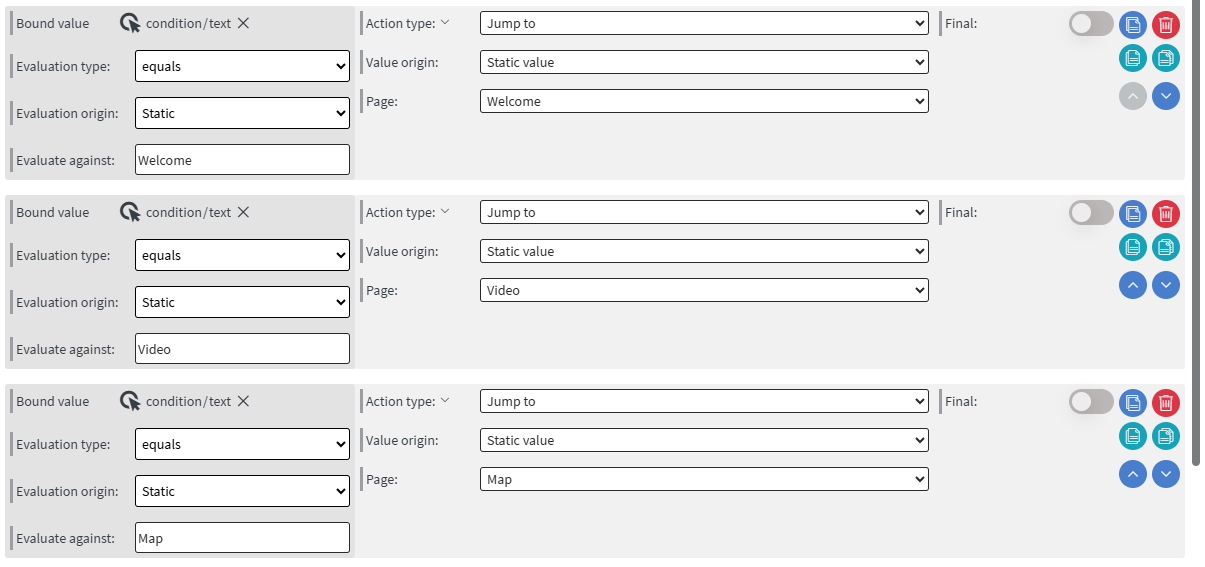
- Add an event bound to the
pagefield of yourLobby remotedatasource. - For each page, add a rule with Evaluation type set to equals, comparing
pageto that page's name, with the action Jump to and the matching page as target.
Learn more: Evaluation Types and Jump To Action
Instead of one rule per page, a single Jump to action can take the target page from the data: set Value origin to Property of received value. This matches the value you write against page names exactly, so only use it if the values you write always match a page name exactly.
Step 3: Build the tablet Content
- Create the Content for the tablet.
- Add one button per page of the display, for example three Image or Shape Widgets labeled Welcome, Video and Map.
- Select the first button. On the Other tab, set Click type to Actions and click Edit touch events.
- Add the action Overwrite internal datasource (group Internal Datasource Value Management):
- Datasource:
Lobby remote - Value origin: Static value, with Data set to
{"page": "Welcome"}.
- Datasource:
- Repeat for the other buttons with
VideoandMap.
Learn more: Override Internal Datasource Value
Give the tablet visual feedback, for example highlight the button of the active page, so staff can see what the big screen is showing. One way is to bind each button's look to the same page field.
Step 4: Assign and test
- Assign the display Content to the big screen and the tablet Content to the tablet.
- Tap a button on the tablet. The display should jump to the matching page within a few seconds.
- Open the datasource in Datasources and check that
pageholds the last value you tapped.
Good to know
- Tapping the same button twice does nothing new. The display reacts when the value changes. If staff need a "restart this page" button, write a different value first, or add a counter field.
- One datasource per room. Two tablets writing to the same datasource control the same screen. Create a separate datasource for each tablet and screen pair.
- Several screens can follow one tablet. Every display Content that listens to the same datasource follows the same tablet.
- Display page timing. If the display pages have their own durations, the display may move on by itself. On each controlled page, turn off Automatic under Next page so the page waits for the tablet's command instead of advancing on a timer.
Alternative: send a sensor event to the display
If the controlling side is not a Wallboard device (for example, a building system or a custom app), it can call a Device Action of the Send sensor event type, targeted at one device, a device group, a device tag or all devices. The display Content then reacts with a Sensor event that jumps to a page.
This requires a Wallboard API key in the calling system. Do not trigger it from a Wallboard tablet Content (for example with a Call API action): the key would have to be entered into the Content, and Content can be opened, exported, or screenshotted by anyone with editor access, so the key would no longer be secret. Use this alternative only when the controlling side is an external system that can keep the key secure.
Learn more: Device Actions and Sensor events
Related articles
- Learn more: Stopper widgets synced through internal datasource uses the same idea to keep several screens in sync.
- Learn more: Internal Table Datasources
- Learn more: How to Use Sensors with a Video Wall uses the same idea to switch every screen of a Video Wall from one sensor.