How to Scroll a Text Widget with Your Own Buttons
This guide shows how to scroll a long text on a touchscreen with your own up and down buttons instead of the scrollbar. The buttons can be designed to match the rest of your Content, while the scrollbar itself is hidden, so the screen looks clean and is easy to use with a finger.
You will need:
- A Text Widget holding more text than fits in its box.
- Two widgets to act as the buttons — any widget with an Interaction section, such as a Text Widget with an arrow or a label.
How it works
The Text Widget's Scrollable setting lets its text scroll. Each button gets a touch action of the Run script type, and that script scrolls the text a set distance whenever the button is pressed.
Step 1 — Set up the Text Widget
- Add a Text Widget and fill it with your text.
- Select it, and on its Main tab, in the Font section, turn on Scrollable. The setting is hidden while Dynamic font size is on — turn that off first.
- Set Scrollbar color to transparent, so the scrollbar doesn't show.
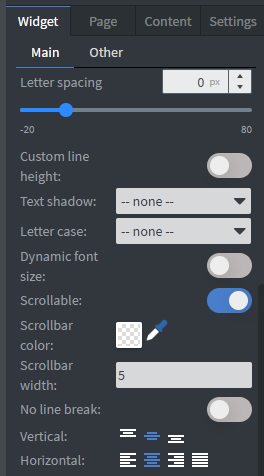
With Scrollable on, viewers can still drag the text with a finger. If only the buttons should move it, place a Shape Widget with a fully transparent fill on top of the Text Widget — it catches the touches, and the text stays readable underneath.
The Text Widget's own border can look broken while the text scrolls. If you want a frame around the text, draw it with a Shape Widget behind or around the Text Widget instead.
Step 2 — Add the buttons
- Add two widgets as your Up and Down buttons and style them as you like.
- Select the first button, go to its Other tab, and find the Interaction section.
- Set Click type to Actions, then click Edit touch events.
- In the Touch events and actions window, add an action and set its Action type to Run script.
- Paste the script for that button into the Script field (see below), and save.
- Repeat for the second button with its own script.
Step 3 — The scripts
One scrollable Text Widget on the page
If the page has only one scrollable Text Widget, use these simple scripts.
| Down | Up |
|---|---|
| |
|
|
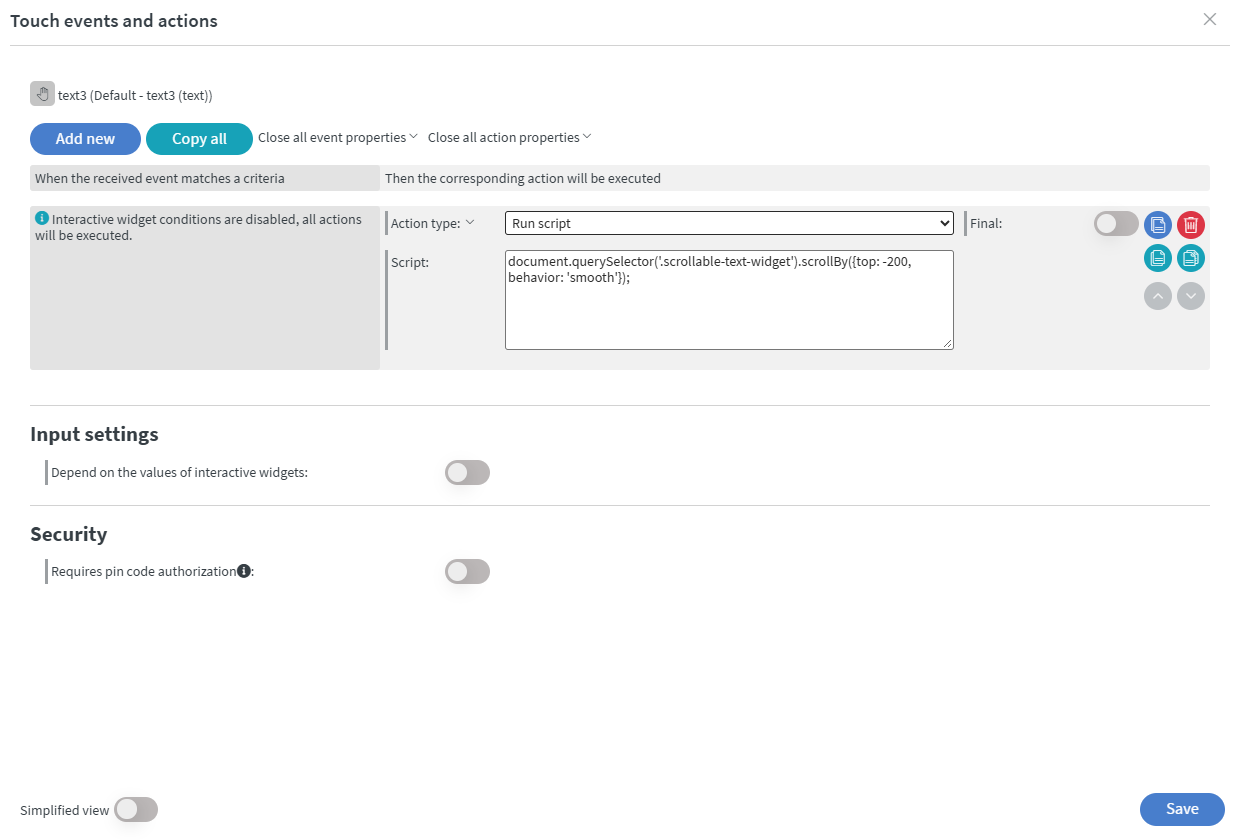
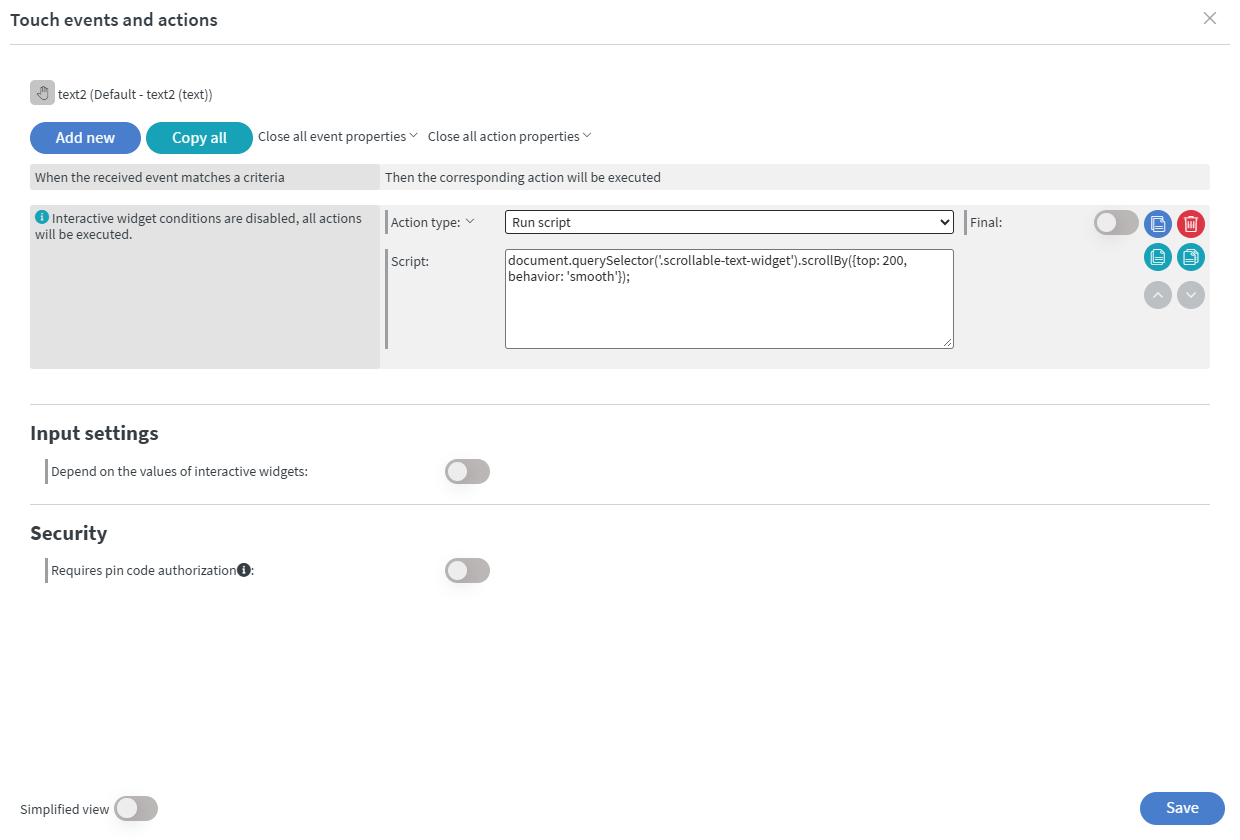
The buttons name the direction the text moves, not the direction of the scroll. A negative value scrolls the view up, so the text slides down on the screen — which is what a viewer expects from a "down" arrow. If you prefer it the other way round, swap the two values.
200 is the distance of one press, in pixels. Make it larger or smaller until one press feels right for your text size.
Several scrollable Text Widgets on the page
The simple script always moves the first scrollable Text Widget it finds. If the page has more than one — for example, two text panels each with its own pair of buttons — point each script at its Text Widget by the widget's name in the Layers panel.
- In the Layers panel, find the Text Widget's name — for example
text1— or rename it to something clear, such asMenu text. - Use this script, with the layer name between the quotes:
Down button:
const tags = context.contentObject[context.pageId].tags;
const key = Object.keys(tags).find(k => tags[k].layerName === 'Menu text');
document.getElementById(key).querySelector('.scrollable-text-widget').scrollBy({top: -200, behavior: 'smooth'});
Up button: the same script with top: 200.
The script finds the Text Widget by its exact layer name. If you rename the layer later, update the name in both scripts too, or the buttons stop working.
Test it
- Preview the Content and press the buttons. When you preview a Content with scripts while signed in, Wallboard asks you to approve them first — approve to let them run. Change a script later (even just the
200) and it asks again. - On the screen itself the scripts run without asking.
- If nothing happens, check that Scrollable is on, that the text is actually longer than its box, and — for the second script — that the layer name in the script matches the Layers panel exactly, including capitals and spaces.
Learn more: Triggers - How Actions Are Initiated
Downloadable content
Scroll a Text Widget with buttons Content
scroll-button.zip
Import the file to get the finished Content with the Text Widget and both buttons already set up.
If you have further questions, contact us at [email protected].