Browser Sessions
The Browser Sessions page allows administrators to monitor and manage all active browser-based content sessions across the customer portal.
What Are Browser Sessions?
A browser session is created when Wallboard content is opened in a web browser using a signage mode URL. This is different from:
- Device sessions — content running on registered physical devices (Android, Windows, BrightSign, etc.)
- Preview sessions — temporary content previews opened from the editor (these do not count toward browser session limits)
Browser sessions use-case
- Quick temporary deployment - Displaying content on screens, kiosks, or embedding in third-party websites via browser/iFrame without installing native player applications or registering devices for long-term management
- Minimal requirements - Simple setups where advanced functionality, persistent state management, offline capabilities, or device tracking are not needed
- Platform flexibility - Running Wallboard on platforms where native player applications are unavailable or installation is impractical
- Learn More: Browser-Based Content Display
Browser sessions in signage mode consume browser session licenses.
Content previews opened from the editor use preview mode and do not count toward license limits.
Active Browser Sessions Table
The main Browser Sessions page displays all currently active browser signage sessions across all customers in a table. Each session row shows:
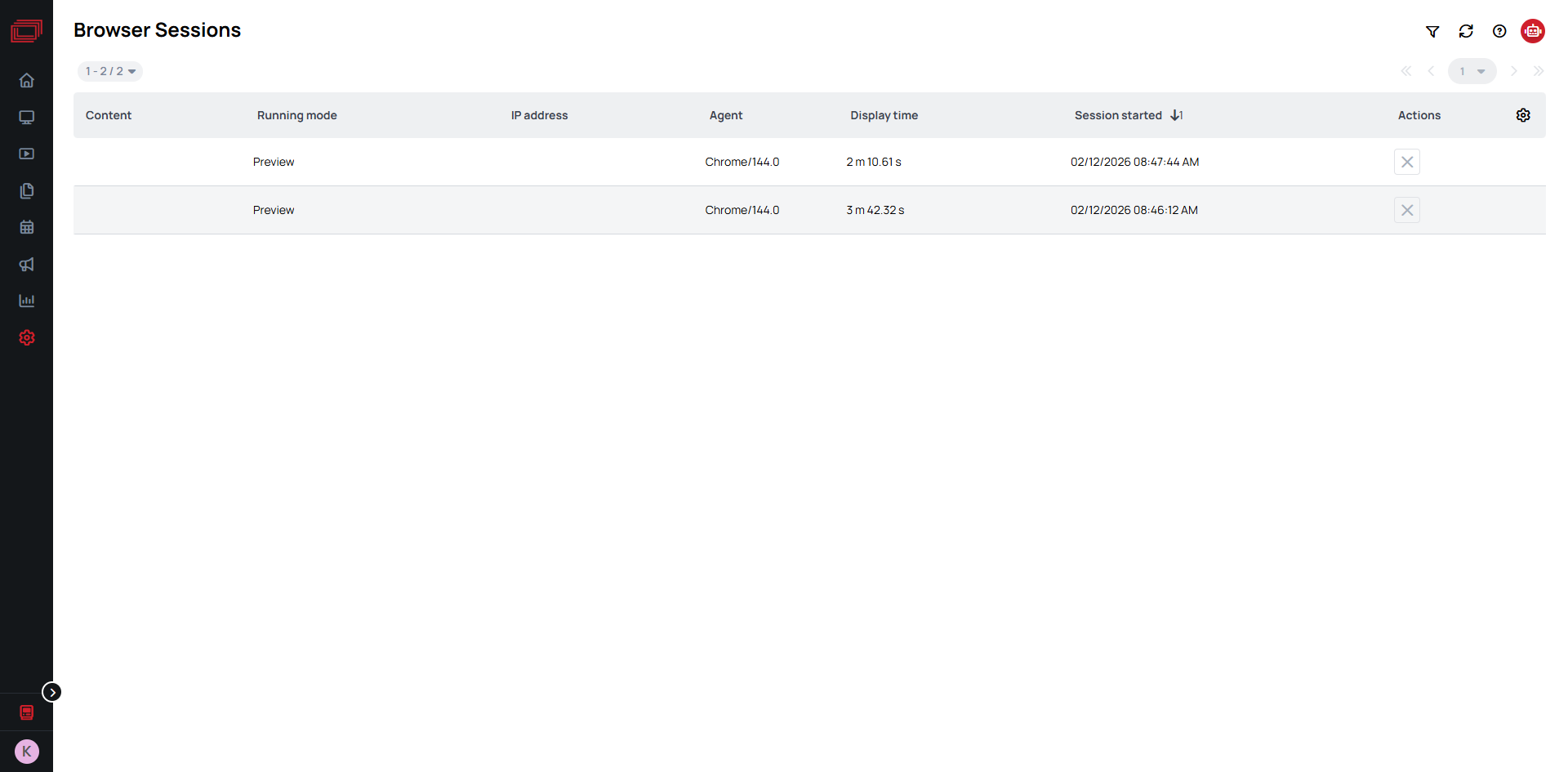
- Content: The name of the content or playlist being displayed
- Running mode: The session mode —
SIGNAGE(licensed, persistent display) orPREVIEW(temporary, unlicensed) - IP address: The IP address of the browser displaying the content
- Browser Agent: The detected browser and operating system
- Session Started: When the session was established
- Display Time: How long the session has been active
- Edge server: The edge server (DMS follower) handling the session, if applicable
Searching and Filtering
- Use the available filters to narrow down sessions by content or running mode
- The list updates in real-time as sessions connect and disconnect
How to Set-Up Browser Sessions
To use a Browser Session, follow these steps:
-
Obtain a Browser Session license from a server administrator.
-
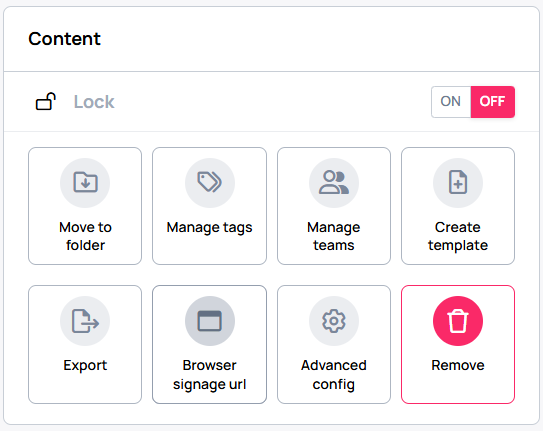
Navigate to the content you want to display and select Settings then Browser Signage URL option.
-
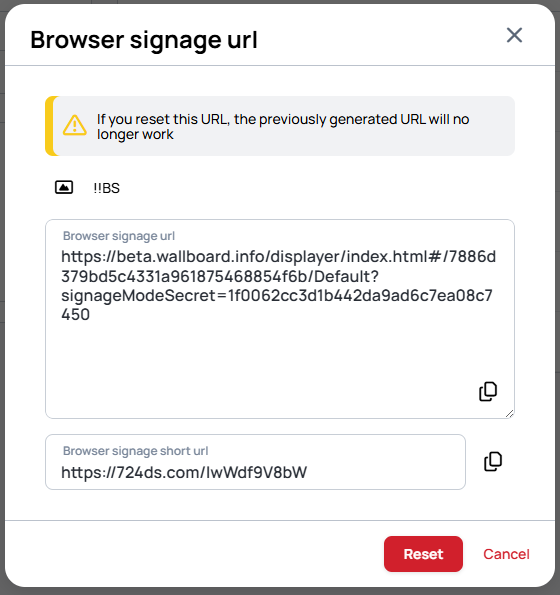
Copy the URL and open it in any Chromium-based browser.
Each browser signage URL contains a unique signageModeSecret parameter, ensuring security. If necessary, you can regenerate a new URL for the same content, invalidating the previous link.
Now your content is running in Signage mode without the 15-minute preview limitation.
Close Sessions Remotely
Administrators and technical managers can force-close an active browser session.
- Locate the session in the active sessions table
- Click the Close action on the session row
- Optionally specify a wait time (default: 10 minutes) — this is the blacklist duration during which the same browser cannot reconnect to the same content
- Confirm the action
When a session is closed, the browser displaying that content will immediately stop playback.
The connection is blacklisted for the specified duration to prevent immediate reconnection. After the blacklist period expires, the browser can connect again.
Browser Previews cannot be remotely closed!
Limitations
Browser signage display requires an online connection. If the device is offline, it will show an error message.

Additionally, note that browser signage may still be subject to limitations, such as Chrome’s Autoplay Policy, which may prevent certain media from playing automatically.
Therefore, browser signage URLs in certain browsers may not play automatically.
To ensure that browser signage URLs play in your local browser at any time please check your browser settings accordingly
Concurrent Content Limit
The concurrent content limit, introduced in server version 1.10, enables you to control how many screens can display content at the same time.
There may be circumstances where you want to limit the number of browser sessions that can run under a particular client. For example, if you have four devices, you might want to permit only four active sessions at any given time. This measure helps safeguard against unauthorized personnel accessing extra valuable sessions.
This limitation can only be set on customer portals by server administrators.
If the limit is reached, any additional devices attempting to connect will show a "session expired" overlay.
This feature requires devices to be online to verify if the limit has been reached. If a device is offline, it will show the overlay message as it cannot validate the session count.