How to Show Weather-Based Recommendations
This guide shows you how to build a Content that switches to the right offer when the weather changes: umbrellas and indoor activities when it rains, sunscreen and outdoor tours when it is sunny, hot drinks and winter gear when it snows.
The Content does not need a Playlist or a Schedule. A Weather datasource supplies the current condition, and Datasource events on the Content jump to the matching page whenever that condition changes.
How it works
| Part | What it does |
|---|---|
| Weather datasource | Fetches the current condition for a location, as a text (Cloudy) and a code (26) |
| Override datasource (optional) | An internal datasource with the same field, so you can change the condition by hand during a demo or a test |
| Datasource events | Content-wide rules: when the condition matches X, jump to page Y |
| Pages | One page per offer, plus a Default page for anything else |
Upsell ideas by condition:
| Condition | Upsell idea |
|---|---|
| Showers, rain, cloudy | Umbrellas, raincoats, indoor activities |
| Sunny, fair | Outdoor activities, sunscreen |
| Snow | Winter gear, hot drinks |
Step 1: Create the Weather datasource
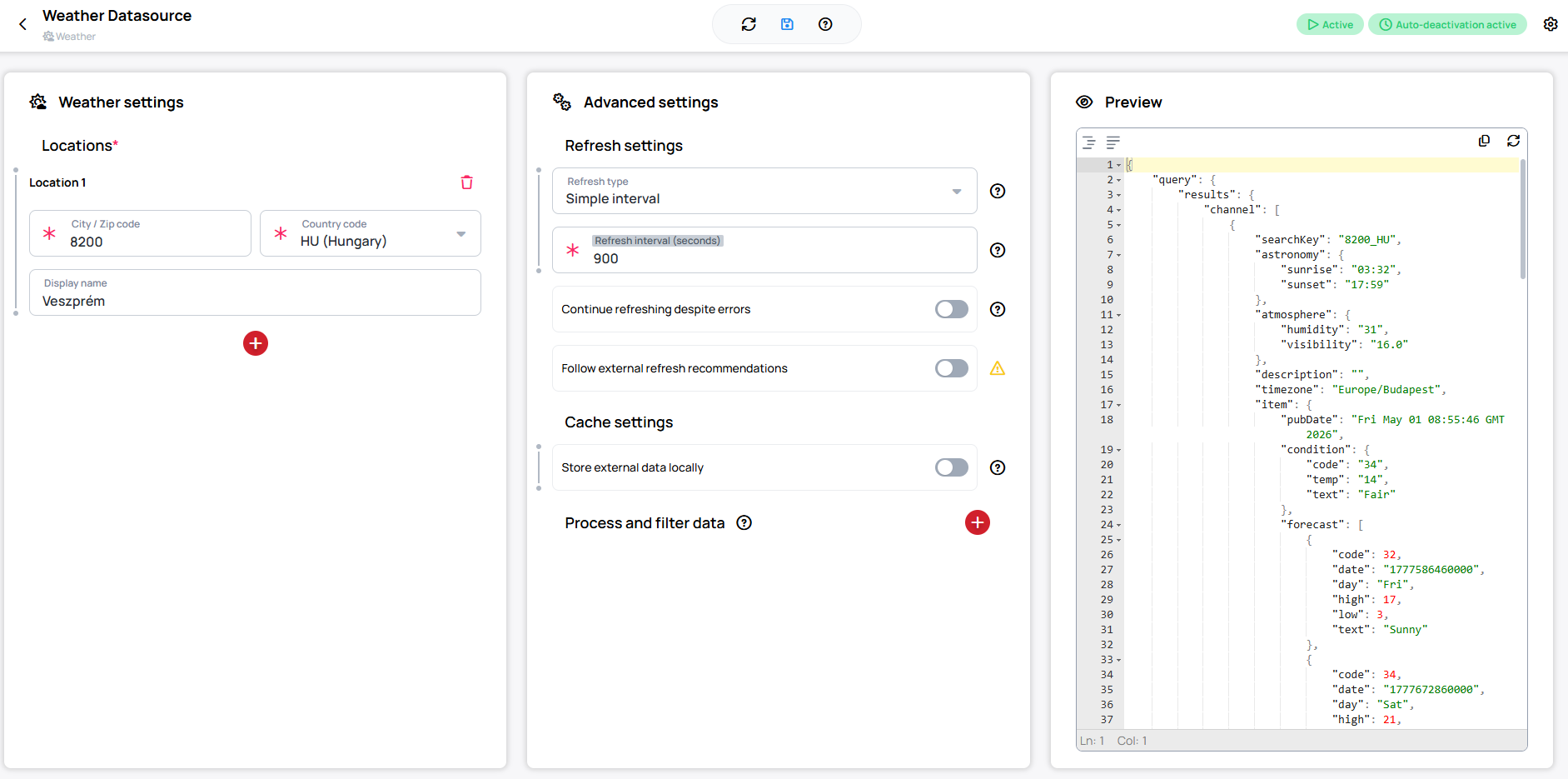
- Go to Datasources and click Add external datasource.
- Choose the Weather type.
- Under Locations, click Add first location and choose Add by city (or Add by geo position for coordinates).
- Fill in City / Zip code and pick the Country code. Both are required. Optionally, set a Display name.
- Open Advanced settings > Refresh settings. Set Refresh type to Simple interval and Refresh interval (seconds) to
600–900(10–15 minutes). - Save.
A new datasource refreshes once a day (86400 seconds) by default. With that setting, the Content can show a sunny offer all afternoon in the rain.
Refreshing more often than every 10–15 minutes does not help. Wallboard's weather service holds each location's data for up to 30 minutes before it asks the provider again. Your server may also enforce a Minimum datasource refresh time (seconds).
The current condition is in the datasource at:
query > results > channel > [location] > item > condition > text   (for example "Cloudy")
query > results > channel > [location] > item > condition > code   (for example "26")
channel is a list with one entry per location, in the order you added them.
Learn more: Weather datasource
Step 2: Create an override datasource for demos (optional)
Real weather changes slowly. To show the switching live, or to test every page before go-live, create an internal datasource whose value you can change by hand:
- Go to Datasources and click Add internal datasource.
- Set Structure type to Table.
- Create one table with two columns and one row:
{
  "Single Weather": {
    "header": {
      "Code": "number",
      "Condition": "string"
    },
    "rows": [
      { "Code": 26, "Condition": "Cloudy" }
    ],
    "connectors": {}
  }
}
In the datasource editor's toolbar, click Import from JSON and paste the JSON above, or add the table, columns and row by hand.
During the demo, you bind the Datasource events to this table instead of the Weather datasource (Step 4). For production, bind them to the Weather datasource.
You can also import the full code list (Step 3) as a second table, so the codes are at hand while you set up the events.
Step 3: Decide what to match on: text or code
Each condition comes as a text and as a code. Both work.
| Match on | Good for | Watch out for |
|---|---|---|
Text (condition > text) | Demos: easy to read and to type | Spelling and capitals must match exactly when you use regular expressions (see Step 4) |
Code (condition > code) | Production: one number per condition, no spelling issues | You need the code table below |
Weather codes returned by the Weather datasource:
| Code | Text | Code | Text |
|---|---|---|---|
| 0 | Tornado | 24 | Windy |
| 1 | Tropical storm | 25 | Cold |
| 2 | Hurricane | 26 | Cloudy |
| 3 | Severe thunderstorms | 27 | Mostly cloudy |
| 4 | Thunderstorms | 28 | Mostly cloudy |
| 5 | Mixed rain and snow | 29 | Partly cloudy |
| 6 | Mixed rain and sleet | 30 | Partly cloudy |
| 7 | Mixed snow and sleet | 31 | Clear |
| 8 | Freezing drizzle | 32 | Sunny |
| 9 | Drizzle | 33 | Fair |
| 10 | Freezing rain | 34 | Fair |
| 11 | Showers | 35 | Mixed rain and hail |
| 12 | Rain | 36 | Hot |
| 13 | Snow flurries | 37 | Isolated thunderstorms |
| 14 | Light snow showers | 38 | Scattered thunderstorms |
| 15 | Blowing snow | 39 | Scattered showers |
| 16 | Snow | 40 | Heavy rain |
| 17 | Hail | 41 | Scattered snow showers |
| 18 | Sleet | 42 | Heavy snow |
| 19 | Dust | 43 | Blizzard |
| 20 | Foggy | 44 | Not available |
| 21 | Haze | 45 | Scattered showers |
| 22 | Smoky | 46 | Scattered snow showers |
| 23 | Blustery | 47 | Scattered thundershowers |
Step 4: Add the Datasource events
- Open the Content in the Content Editor and click the background, so that no Widget is selected.
- In the External events section, click Edit datasource events.
- Stay on the Content wide events tab, so the rules work from every page.
- Add one event per offer page. For each event:
- Bound value: select the Weather datasource, then
query>results>channel> the first location >item>condition>code(ortext). For the demo, select the override datasource'sCode(orCondition) column instead. - Evaluation type: regular expression (match), with the pattern from the table below.
- Action: Jump to, with the target page.
- Bound value: select the Weather datasource, then
- Add one more event for the Default page, with regular expression (no match).
- Click Save.
The data picker shows the first location as 0, not by its display name — Display name is a separate field inside that location, reachable one level further in:

Patterns by code (recommended)
| Page | Evaluation type | Pattern |
|---|---|---|
| Rain | regular expression (match) | ^(3|4|6|8|9|10|11|12|17|26|27|28|35|37|38|39|40|45|47)$ |
| Snow | regular expression (match) | ^(5|7|13|14|15|16|18|41|42|43|46)$ |
| Sunny | regular expression (match) | ^(29|30|31|32|33|34|36)$ |
| Default | regular expression (no match) | all of the codes above in one pattern |
These groups are an example: the Rain page also takes cloudy skies, as in the upsell table above. Move codes between groups to fit your offers, but keep each code in one group only.
If two content-wide events both match the same value, only one jump happens — not both. The last event in the dialog's list wins, so build each group to be exclusive instead of relying on that order.
The Default pattern is every code from the other three rows, so anything else (fog, wind, 44 Not available) lands on the Default page:
^(3|4|5|6|7|8|9|10|11|12|13|14|15|16|17|18|26|27|28|29|30|31|32|33|34|35|36|37|38|39|40|41|42|43|45|46|47)$
Patterns by text (demos)
| Page | Evaluation type | Pattern |
|---|---|---|
| Rain | regular expression (match) | ^(Cloudy|Mostly cloudy)$|[Ss]hower|[Rr]ain|[Dd]rizzle|[Tt]hunder|Hail |
| Snow | regular expression (match) | [Ss]now|[Ss]leet|[Bb]lizzard |
| Sunny | regular expression (match) | Sunny|Fair|Clear|Hot|Partly cloudy |
| Default | regular expression (no match) | ^(Cloudy|Mostly cloudy)$|[Ss]hower|[Rr]ain|[Dd]rizzle|[Tt]hunder|Hail|[Ss]now|[Ss]leet|[Bb]lizzard|Sunny|Fair|Clear|Hot|Partly cloudy |
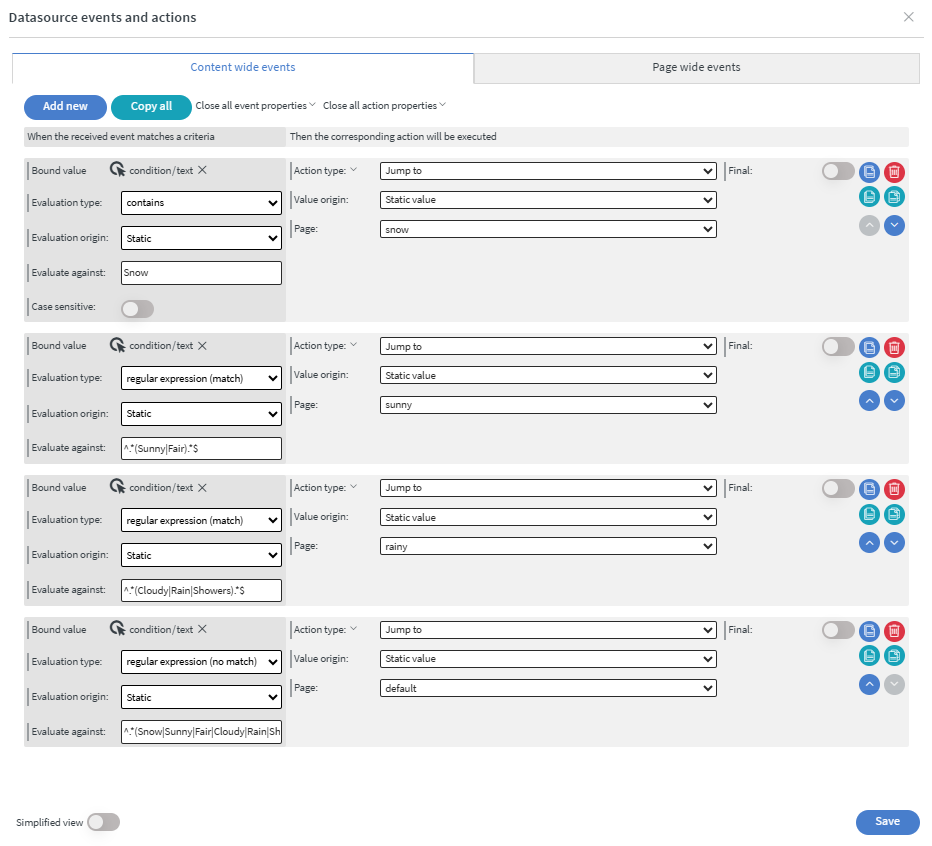
The Case sensitive switch does not apply to regular expressions; they always match capitals exactly. A pattern with Rain does not match Heavy rain or Freezing rain, and Cloudy does not match Mostly cloudy. Use [Rr]ain, [Ss]now and so on, as above, or match on the code instead.
The text patterns follow the same groups as the code patterns: cloudy and mostly cloudy go to Rain, partly cloudy goes to Sunny. Some texts contain two words from different groups, for example Mixed rain and snow or Light snow showers. With the text patterns above, they match both Rain and Snow. If that matters, match on the code.
Why not "contains"?
contains checks whether the value contains the whole text you enter. Rain does not contain Showers / Rain / Cloudy, so a grouped condition never matches. Use one contains event per word, or one regular expression (match) event per group, as above.
When the events run
- An event runs when its rule becomes true: when the datasource refreshes with a new value, or when you edit the override datasource.
- While the value keeps matching, the event does not run again, so the Content does not jump back to the same page on every refresh.
- When the value stops matching, the event is ready to run again the next time it matches.
If each page has its own duration, the Content may move on to the next page by itself even though the weather has not changed. Turn off Automatic under each offer page's Next page settings so the page stays until the next matching weather event, instead of advancing on a timer.
Learn more: Evaluation Types
Learn more: Jump To Action - Navigate Between Pages
Step 5: Test with the override datasource
- Open the Content in preview.
- In a second browser tab, open the override datasource.
- Change the
Code(orCondition) value and save:
| Set the value to | The Content jumps to |
|---|---|
12 / Rain | Rain page |
32 / Sunny | Sunny page |
16 / Snow | Snow page |
20 / Foggy | Default page |
When everything works, change the Bound value of each event back to the Weather datasource.
Step 6: Show the live weather on the Default page
The Default page is a good place for a Weather Widget, so viewers see the current conditions and forecast while no special offer applies.
Learn more: Weather Widget
Downloadable content
Weather upsell Content
weather-upsell.zip
Import the file to get the finished Content with its four pages and Datasource events already set up, then point its events at your own Weather datasource (Step 1) or demo source (Step 2) instead of building from scratch.
Related articles
- Learn more: Weather datasource
- Learn more: How to Create a Content That Shows the Current Weather
- Learn more: Refresh and caching