Media type page
Playlist pages can also be created directly from selected media files, giving you the flexibility to customize your content the way you want.
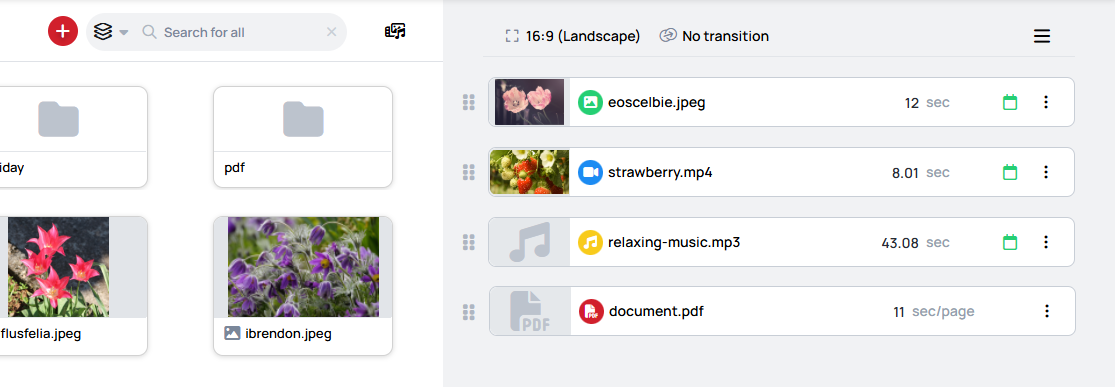
What can I select as page
Images
- A globally defined Duration will be applied to each page.
- This default duration determines how long each item is displayed.
- You can manually adjust this value for individual files as needed.
- When using a
Continuous slider layout, the item duration will overwrite the page duration.- Learn more: Performance mode
Video Files and Audio
- Videos and audio files automatically use their native duration.
- These durations can also be overridden by the item duration.
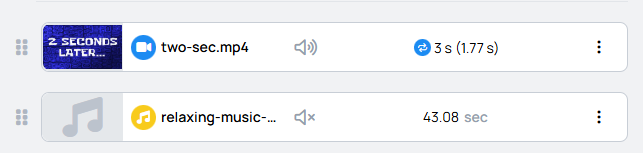
- Files with a native duration shorter than the page length will loop to fill the page duration.
- Reset the page length to file native duration : Resets the page length to the native file duration.
- When using a
Continuous slider layout, the item duration will overwrite the page duration.- Learn more: Performance mode
PDFs
- PDFs are single files containing multiple pages, so they follow the similar playback rules as other collection types (folders and playlists).
- The defined Duration will be applied to each PDF page.
- This default duration determines how long each page of the PDF is displayed.
- You can manually adjust this value for individual files as needed.
- You cannot manually adjust the duration for individual PDF pages.
- When using a
Continuous slider layout, the item duration will overwrite the page duration.- Learn more: Performance mode
Media type page settings
In Playlist Page Settings, you can individually edit each page’s general settings and customize their behavior.
Duration
This duration will define the length of the media file
- Minimum duration/item must be greater than 3s.
- This duration overwrites the default duration from playlist's global settings.
- If the selected media file has a native duration and the manually set duration differs from it, a reset button will appear to restore the native duration.
- When using a
Continuous slider layout, the item duration will overwrite the page duration.- Learn more: Performance mode
Playback examples
Default and Media Page duration examples
Image and PDF page duration uses default duration, video and audio files are inheriting their native durations.
Configuration:
- Default duration:
10s
Structure:
Playlist
├── audio
├── image
└── video
Resulting Durations:
- Audio:
43.08s(native duration) - Image:
10s(default duration) - Video:
8.01s(native duration)
Overall playlist duration: 61.09s
Manual duration override: Each element uses individually configured duration values.
Configuration:
- Default duration:
10s
Structure:
Playlist
├── audio
├── image
└── video
Resulting Durations:
- Audio:
5s(manual override, native 43.08s) - Image:
20s(manual override) - Video:
15s(manual override, loops from native 8.01s)
Overall playlist duration: 40s
Image fit and Video fit
- The
Image fitandVideo fitoptions refer to how an image or video element is resized or scaled to fit within a given space.- By default, elements use the
Inheritsetting, which applies the playlist'sDefault image fitorDefault video fitconfiguration to the elements.
- By default, elements use the
Learn more: Playlist Default fit
Advertiser
- Select an advertiser where you wish to collect Proof of Play records about the item's playtime
Learn more: Analytics
Playback mode
- Each mode determines how the asset behaves relative to other assets in the playlist.
Learn more: Playback Mode
Device tags
Select tags from the suggestion list to specify which devices are eligible to play this page.
- You can select whether the device must contain all tags or at least 1 tag has to match.
Learn more: Tags Menu
Mute
Here you can mute the audio of video and audio files on this page.
- Default value: Disabled
If a file has been muted at the file level (in the File Manager), the per-page mute setting cannot override it. The file will remain muted regardless of this setting.
Volume
Here you can modify the volume of video and audio files
PDF type page settings
Duration
This duration will define the length of each PDF page
- Minimum duration/item must be greater than 3s.
- This duration overwrites the default duration from playlist's global settings.
- You cannot manually adjust the duration for individual PDF pages.
- When using a
Continuous slider layout, the item duration will overwrite the page duration.- Learn more: Performance mode
Image fit and Video fit
- The
Image fitandVideo fitoptions refer to how an image or video element is resized or scaled to fit within a given space.- By default, elements use the
Inheritsetting, which applies the playlist'sDefault image fitorDefault video fitconfiguration to the elements.
- By default, elements use the
Learn more: Playlist Default fit
Ordering mode
Ordering mode determines, what order will the pages follow when the PDF is displayed.
- Random: The pages will still follow the Play elements of PDF balancing rules, pages just get pulled in a randomized order.
- Original: This ordering plays the PDF pages in the original page order of the file while respecting the Play elements of PDF balancing rules.
Play elements of PDF
Play elements of PDF controls how frequently the PDF pages play relative to other playlist elements, offering multiple options to balance content playback.
With Play Elements of PDF, you can:
- Create balanced media rotation for better variety
- Optimize viewer engagement based on theming
- Ensure equal exposure for all playlist items
Options
Play elements of PDF determines the frequency in which pages from the PDF file are displayed:
- One item: Plays one page from the PDF before moving to the next playlist element, creating a round-robin effect that ensures variety.
- Count collections as single elements: In PDF files this option does not change the playback.
- All item: Plays all pages from the PDF completely before moving to the next playlist element, maintaining the PDF file's cohesion.
- Specific: Plays a specific number of pages from the PDF before moving to the next playlist element, mixing round-robin method's variety with the theming cohesion.
- Count collections as single elements: In PDF files this option does not change the playback.
- Elements per slot: Determines the specific number of pages that are played from the PDF file before moving to the next playlist element.
- Played elements capped by item count: Prevents repeat when a multiple pages are played in relation to Elements per slot item count.
Playback examples
Play elements of PDF: One item and All item examples
Plays one page from the PDF before moving to the next playlist element, creating a round-robin effect that ensures variety.
Configuration:
- Ordering mode:
Original - Play elements of PDF:
One item
Structure:
Playlist
├── opening
├── PDF ([page1, page2, page3])
└── closing
Resulting Playback Order:
- opening
- PDF - page1
- closing
- opening
- PDF - page2
- closing
- opening
- PDF - page3
- closing
- (cycle repeats)
Plays all pages from the PDF completely before moving to the next playlist element, maintaining the PDF file's cohesion.
Configuration:
- Ordering mode:
Original - Play elements of PDF:
All item
Structure:
Playlist
├── opening
├── PDF ([page1, page2, page3])
└── closing
Resulting Playback Order:
- opening
- PDF - page1
- PDF - page2
- PDF - page3
- closing
- (cycle repeats)
Play elements of PDF: Specific item examples
Plays a specific number of pages from the PDF before moving to the next playlist element, mixing round-robin method's variety with the theming cohesion.
Played elements capped by item count is disabled: When disabled, playback loops through PDF pages circularly to fulfill the Elements per slot count if the PDF contains fewer pages than requested.
Configuration:
- Ordering mode:
Original - Play elements of PDF:
Specific item - Elements per slot:
5 - Played elements capped by item count:
Disabled
Structure:
Playlist
├── opening
├── PDF ([page1, page2, page3])
└── closing
Resulting Playback Order:
- opening
- PDF - page1
- PDF - page2
- PDF - page3
- PDF - page1
- PDF - page2
- closing
- (cycle repeats)
Played elements capped by item count is enabled: When enabled, playback stops when all PDF pages have been displayed.
Configuration:
- Ordering mode:
Original - Play elements of PDF:
Specific item - Elements per slot:
5 - Played elements capped by item count:
Enabled
Structure:
Playlist
├── opening
├── PDF ([page1, page2, page3])
└── closing
Resulting Playback Order:
- opening
- PDF - page1
- PDF - page2
- PDF - page3
- closing
- (cycle repeats)
Advertiser
- Select an advertiser where you wish to collect Proof of Play records about the item's playtime
Learn more: Analytics
Playback mode
- Each mode determines how the asset behaves relative to other assets in the playlist.
Learn more: Playback Mode
Device tags
Select tags from the suggestion list to specify which devices are eligible to play this page.
- You can select whether the device must contain all tags or at least 1 tag has to match.
Learn more: Tags Menu